

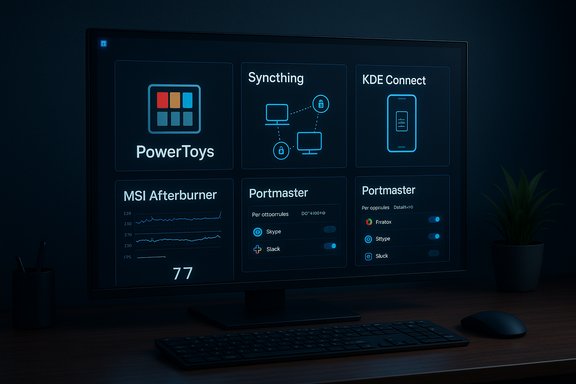
Fresh Windows 11 installs feel great — until you try to get real work done and notice small but persistent gaps: better window management, direct device-to-device syncing, richer phone integration, accurate GPU telemetry and tuning, and per-app network visibility. A compact, well-chosen toolkit solves almost all of those day‑one frictions, and five utilities keep turning up in editorials and community roundups as the fastest way to make a new Windows 11 PC genuinely productive: Microsoft PowerToys, Syncthing, KDE Connect, MSI Afterburner (with RTSS), and Portmaster. This feature verifies what each tool does, explains why to install it on day one, flags security and compatibility trade‑offs, and gives practical, reproducible setup steps so you can reproduce the same clean, capable desktop on future machines.
Windows 11 polished the shell and added a few nice features, but a lot of high‑frequency productivity gaps remain. Power users and technicians have long relied on a small set of free, well‑maintained utilities to restore missing conveniences and give early visibility into hardware and network behavior. Community guides and editorial roundups repeatedly recommend a short toolkit for day‑one installs because it addresses recurring, practical problems without forcing vendor lock‑in or subscriptions. Installing a minimal set of targeted apps on day one turns a boxed PC into a dependable workstation in a few short steps.
Install conservatively: enable only the modules and features you need, verify each app’s official channel, and keep a rollback plan for low‑level changes (drivers, kernel hooks, or aggressive privacy filters). When used thoughtfully, this set of utilities makes Windows 11 more predictable, private, and productive from day one.
Conclusion
A fresh Windows 11 box doesn’t have to be “feature‑light.” A focused, well‑maintained toolkit consisting of PowerToys, Syncthing, KDE Connect, MSI Afterburner with RTSS, and Portmaster fills the most common day‑one gaps: better productivity controls, private sync, phone continuity, hardware telemetry, and network transparency. Adopt them with deliberate, documented steps: update Windows and drivers, create a restore image, install the utilities from official channels, audit the permissions and rules you enable, and snapshot the configured system. That repeatable approach keeps your desktop fast, private, and predictable — without unnecessary subscription costs or vendor lock‑in.
Source: How-To Geek 5 Windows 11 apps that you should install on day one
 Background / Overview
Windows 11 polished the shell and added a few nice features, but a lot of high‑frequency productivity gaps remain. Power users and technicians have long relied on a small set of free, well‑maintained utilities to restore missing conveniences and give early visibility into hardware and network behavior. Community guides and editorial roundups repeatedly recommend a short toolkit for day‑one installs because it addresses recurring, practical problems without forcing vendor lock‑in or subscriptions. Installing a minimal set of targeted apps on day one turns a boxed PC into a dependable workstation in a few short steps.Why these five apps? The practical trade-off
Each app on this list targets a distinct, recurring pain point:- PowerToys: restores power‑user utilities Microsoft hasn’t (yet) folded into the OS — zoning windows, keyboard-runner, OCR from screen images, and persistent-on-top windows.
- Syncthing: provides secure, peer‑to‑peer file sync across your devices without relying on third‑party cloud providers. It’s ideal for local-first workflows and private note collections.
- KDE Connect: turns your phone into a privacy‑friendly continuity device (clipboard sharing, notification mirroring, remote trackpad/presentation mode) without forcing a corporate account.
- MSI Afterburner + RTSS: the de facto GPU tuning and monitoring suite that gives you real‑time telemetry, fan control, and an accurate in‑game overlay for FPS, temps and utilization. Useful for both gamers and creators diagnosing performance.
- Portmaster: an open‑source desktop firewall/privacy app that visualizes every network connection, enforces per‑app rules, and ships with tracker blocklists and secure DNS defaults.
Microsoft PowerToys — the essential power‑user toolkit
What it does (concise)
PowerToys is a modular suite from Microsoft that adds multiple small but high‑value utilities to Windows — FancyZones for advanced window layouts, PowerToys Run for lightning‑fast launching, Text Extractor (screen OCR), Workspaces, and an Always‑on‑Top toggle among others. Because it’s modular you enable only what you need.Why install on day one
Within minutes FancyZones and Workspaces restore much more flexible window tiling than native Snap Layouts. Text Extractor eliminates awkward screenshot→OCR clipboard workflows by letting you capture text directly from any part of the screen. PowerToys Run is a lightweight Spotlight‑style launcher that accelerates app and file access without a heavy launcher ecosystem. These features deliver immediate, repeatable time savings for document work, coding, or multipane research.Installation and quick configuration
- Install via the Microsoft Store, winget (winget install --id Microsoft.PowerToys -e) or GitHub releases.
- Enable only the modules you’ll use (start with FancyZones, Run, Text Extractor, and Always on Top).
- Remap default hotkeys immediately to avoid conflicts with other apps.
Strengths and practical limits
- Strengths: Official Microsoft stewardship, open‑source development, lightweight and modular. Low trust friction versus unknown freeware.
- Risks: Hotkey conflicts, and any app that hooks keyboard/mouse events should be audited for enterprise installs. Disable unused modules to minimize background footprint.
Syncthing — private, peer‑to‑peer file synchronization
What it does
Syncthing synchronizes folders directly between your devices using encrypted peer‑to‑peer transfers. There is no vendor cloud by default: devices pair using cryptographic IDs, transfers occur over LAN or encrypted relays, and you control which folders sync where. It’s cross‑platform (Windows, Android, Linux, macOS) and is ideal for syncing local-first apps like Obsidian or private document collections.Why Syncthing over cloud services
- Eliminates third‑party cloud exposure for sensitive notes or archives.
- Works over local networks for fast transfers and over the internet via encrypted relays when devices are remote.
- The model fits users who prefer self‑hosted or local‑first tooling without running a full server.
Installation and setup tips
- Install Syncthing on each device from official releases or trusted package managers.
- Create a dedicated sync folder on every device and pair devices by exchanging device IDs.
- Use LAN discovery for local sync; enable global relays only when needed.
Security, caveats and verification
Syncthing encrypts peer traffic and requires device pairing, but you should:- Use strong device labels and review folder ACLs before syncing sensitive directories.
- Remember that device compromise still grants access to synced data — keep devices patched.
KDE Connect — a privacy‑minded phone bridge for Windows
Core features that matter on day one
KDE Connect brings phone↔PC continuity features to Windows users: clipboard sharing, notification mirroring, file transfer, using your phone as a trackpad/keyboard, presentation mode (gyro pointer), and remote actions like locking or shutting down your PC. On Windows it’s a capable alternative to Phone Link for users who prefer open‑source tooling or who want cross‑platform parity without vendor account ties.When KDE Connect wins
- You need local, private phone integration without routing data through a corporate cloud.
- You prefer flexible features such as remote media control, clipboard sync, and using the phone as a remote pointer for presentations.
- Your workflow relies on Android + Windows but you want a consistent, community‑driven experience.
Installation and pairing notes
- Install KDE Connect on your Android device (Play Store / F‑Droid) and the Windows companion.
- Pair over LAN; on Windows ensure firewall rules permit KDE Connect traffic.
- Test clipboard flows and file transfers on small files before moving large or sensitive data.
Trade‑offs and security
KDE Connect runs on the local network and can be configured to require user confirmation for pairing and data actions. Treat it as a convenience tool: disable features you won’t use (e.g., clipboard sync) when handling sensitive materials. Also verify that the Windows build you install is a current, signed release to avoid installing repackaged binaries.MSI Afterburner + RivaTuner Statistics Server (RTSS) — GPU tuning and telemetry
What they provide
MSI Afterburner is a GPU tuning and monitoring app that works with NVIDIA and AMD cards. It lets you tweak clocks, voltages, and set custom fan curves; it also surfaces in‑game telemetry. RTSS (RivaTuner Statistics Server) provides the highly configurable on‑screen overlay and frame‑limiting capabilities that the community relies on for accurate monitoring, benchmarking and troubleshooting.Why put it on day one
- Establish baseline GPU behavior: idle vs. loaded temps, fan curves, and wattage. That baseline helps detect faulty cooling, driver regressions, or thermal throttling before heavy workloads.
- For creators and gamers it gives an immediate way to measure FPS, frame times and 1% lows — data you can rely on for troubleshooting or optimization.
Best practices and safety
- Record baseline telemetry using safe defaults before changing clocks or voltages.
- Make one change at a time and stress‑test for stability.
- Undervolting often yields the best balance of lower temps and equal or better sustained performance; aggressive overclocking raises risk and thermal load.
RTSS caveats
RTSS frame limiting is highly effective for smoothing frame pacing, but many tests note it can add a small presentation latency compared with some in‑game limiters — a trade‑off between steadier frame timing and minimal input lag. Measure if you’re an esports‑level competitor.Portmaster — app‑level firewall and privacy control
What Portmaster does
Portmaster is an open‑source privacy firewall that visualizes every network connection and allows per‑app rules, secure DNS (DoT/DoH) by default, tracker blocklists, and a user‑friendly dashboard to manage connections. It’s designed for privacy‑minded consumers who want transparency into what their PC contacts and the ability to block unwanted flows.Why install it on day one
- New installs often include apps that “phone home” unexpectedly; Portmaster makes those connections visible immediately and lets you block them.
- The secure DNS defaults help prevent plaintext DNS leakage out of the box.
- Granular per‑app control is useful when you need to temporarily cut internet access for a suspicious install without uninstalling it.
Practical setup checklist
- Download Portmaster from the official release or use winget where available.
- Enable Secure DNS, choose a trusted resolver, and confirm network connectivity.
- Toggle the Privacy Filter and inspect the app list; start by blocking trackers rather than blocking all external traffic.
- Test VPN compatibility if you use a VPN client — Portmaster has documented quirks with some VPN setups and may require per‑profile adjustments.
Risks and enterprise considerations
- Portmaster installs a kernel‑level driver (WFP) to intercept traffic; administrators and security teams should vet that driver for corporate environments. Kernel drivers increase the system’s trusted code base and require timely updates to avoid compatibility or security regressions.
- Beta releases have introduced breaking changes in the past; avoid pre‑release builds on production machines.
Day‑one installation checklist (reproducible)
- Update Windows (Settings → Windows Update) and install drivers (chipset, GPU). Reboot.
- Create a recovery image or restore point. This gives a rollback if any install misbehaves.
- Install PowerToys (Microsoft Store or winget) and enable FancyZones, PowerToys Run, Text Extractor, and Always on Top. Remap any hotkeys that conflict.
- Install Syncthing on each device, pair device IDs, and set up a dedicated sync folder for notes/documents. Validate with a test file.
- Install KDE Connect on phone and Windows, pair over LAN, and test clipboard and file transfer with small files. Adjust permissions and pairing prompts.
- If you have a discrete GPU, install MSI Afterburner + RTSS, record baseline temps/clock/fan behavior, then proceed with conservative tuning if desired.
- Install Portmaster, enable Secure DNS, toggle the privacy filter, and audit app connections. Test VPNs and common workflows to confirm no unintended breaks.
- Create a final system image of the configured machine for future restores or imaging.
Alternatives and complements
- PowerToys alternatives/complements: QuickLook (spacebar preview), EarTrumpet (better per‑app audio), and Flow Launcher if you prefer a different launcher.
- Syncthing alternatives: Nearby Share (Windows/Android for quick local transfers) or a hosted cloud if you prefer vendor‑managed backups. Syncthing is local‑first and requires discipline for remote availability.
- KDE Connect alternatives: Microsoft Phone Link / Link to Windows for a deeper OEM‑backed integration on Android devices, though it ties into Microsoft account flows. Compare features before adopting one or the other.
- MSI Afterburner alternatives: Vendor tools (NVIDIA/AMD/Intel) provide integrated tuning with formal support; HWiNFO is recommended for deep sensor logging. Use Afterburner for fine‑grained manual tuning.
- Portmaster alternatives: GlassWire (visualization), TinyWall/simplewall (minimal firewall wrappers), or enterprise firewall solutions for managed fleets. Each has different trade‑offs between usability and control.
Security, privacy and maintenance notes
- Always download installers from official vendor pages, GitHub releases, the Microsoft Store, or trusted package managers like winget. Community archives and third‑party mirrors increase supply‑chain risk.
- For Syncthing and KDE Connect: confirm that data is transferring locally and that relay usage is only enabled when necessary. Treat device pairing codes as secrets.
- For Portmaster: validate VPN compatibility and whitelist required services before enabling aggressive blocking to avoid accidentally cutting off update services or remote access. Kernel drivers increase risk surface on managed machines — consult IT.
- For MSI Afterburner/RTSS: record baseline telemetry and adopt conservative tuning. Overclocking and undervolting produce measurable gains when done cautiously; aggressive changes risk stability and hardware warranty concerns.
Critical analysis — strengths and notable risks
- Notable strengths: Each utility is narrowly focused, well‑maintained, and addresses a specific, measurable gap in Windows 11 workflows. PowerToys and Portmaster are community favorites because they return obvious value with small configuration costs. Syncthing and KDE Connect enable local, private continuity that avoids vendor lock‑in. MSI Afterburner is the hands‑down community standard for GPU telemetry and tuning.
- Systemic risks: Kernel‑level drivers (Portmaster) and system hooks (PowerToys, RTSS) increase the attack surface and can trigger endpoint protection or enterprise policy conflicts. Beta features can be breaking. When a tool modifies low‑level behavior, test in a controlled environment before deploying broadly.
- Privacy trade‑offs: The tools reduce exposure in many cases (Syncthing avoids cloud providers; Portmaster blocks trackers), but features like cross‑device clipboard (KDE Connect or Phone Link) create new transient data paths for sensitive information — treat those as opt‑in.
- Unverifiable or variable claims: Headlines that promise “huge performance boosts” from tuning utilities should be treated skeptically. Real gains come from measured changes (driver updates, NVMe upgrades, correct power profiles). Overclocking yields gains only when thermal headroom exists; real‑world differences depend heavily on hardware, drivers, and workloads. These are environment‑dependent and should be validated with baseline logs.
Final verdict
These five apps form a pragmatic, low‑cost day‑one toolkit that restores missing ergonomics, gives early diagnostic visibility, and places privacy tools in your hands. For most users a small, reproducible install script (winget, Winstall or a curated Ninite bundle) that includes PowerToys, Syncthing, KDE Connect, MSI Afterburner, and Portmaster will convert a fresh Windows 11 image into a capable, auditable workstation in under an hour. Do the work once: record baseline telemetry, create a system image, and keep the manifest so you can reproduce the same environment on future machines.Install conservatively: enable only the modules and features you need, verify each app’s official channel, and keep a rollback plan for low‑level changes (drivers, kernel hooks, or aggressive privacy filters). When used thoughtfully, this set of utilities makes Windows 11 more predictable, private, and productive from day one.
Conclusion
A fresh Windows 11 box doesn’t have to be “feature‑light.” A focused, well‑maintained toolkit consisting of PowerToys, Syncthing, KDE Connect, MSI Afterburner with RTSS, and Portmaster fills the most common day‑one gaps: better productivity controls, private sync, phone continuity, hardware telemetry, and network transparency. Adopt them with deliberate, documented steps: update Windows and drivers, create a restore image, install the utilities from official channels, audit the permissions and rules you enable, and snapshot the configured system. That repeatable approach keeps your desktop fast, private, and predictable — without unnecessary subscription costs or vendor lock‑in.
Source: How-To Geek 5 Windows 11 apps that you should install on day one
