

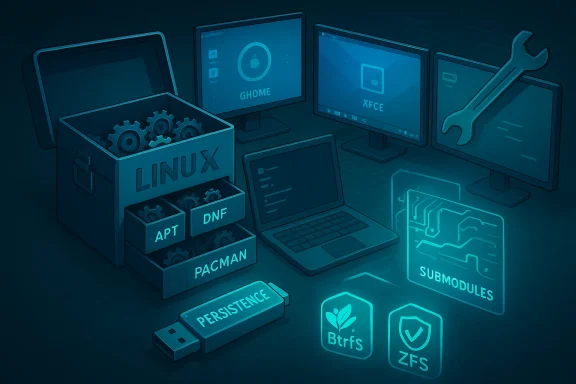
Linux gives you choices Windows 11 simply doesn’t — from how and when your system updates to whether the operating system even lives on your internal drive. For readers who tinker, secure sensitive work, or demand total control, Linux can feel less like one monolithic product and more like a toolbox you assemble. This feature walks through five concrete things most Linux distributions can do that Windows 11 cannot, explains how they work in practical terms, and evaluates the benefits and the trade‑offs for everyday and power users alike.
The modern desktop landscape is often framed as a binary choice: Windows for mainstream convenience, Linux for power users and servers. That framing misses the practical differences that matter day to day. Windows 11 is a polished, tightly integrated OS with a defined update cadence, a single desktop shell experience, and a proprietary kernel with strong vendor control. Linux, by contrast, is a family of independent distributions built around a modular kernel and open tooling that offer diverging philosophies about updates, installation, and system design.
This article focuses on five capabilities where Linux provides functionality that Windows 11 does not — or does not provide in the same flexible, user‑centric way. For each item I’ll explain how it works, show real examples and commands where appropriate, and analyze the trade‑offs: why the feature is powerful, and what risks or costs you should consider.
Windows 11 prioritizes a consistent end‑user experience, tight integration, and broad software compatibility. That model benefits mainstream users but necessarily restricts the user’s ability to control many low‑level aspects of the platform. For people who prize control, auditability, and the ability to tailor an OS precisely to a task, Linux delivers options Windows 11 cannot match — at the cost of requiring more ongoing user attention and technical skill.
If you care about fine‑grained update control, portable encrypted work environments, swapping entire desktop paradigms at will, deep kernel customization, or filesystem snapshots that let you roll back an entire system state, Linux has well‑tested, practical mechanisms to do those things today. For most users, the next step is tactical: experiment safely, keep backups, and choose the right distro and tools that match your tolerance for maintenance and your need for control.
In short: Windows 11 trades some user control for a more guided, consistent experience; Linux hands the reins back — and with those reins comes both power and responsibility.
Source: bgr.com 5 Things Linux Can Do That Windows 11 Can't - BGR
 Background
The modern desktop landscape is often framed as a binary choice: Windows for mainstream convenience, Linux for power users and servers. That framing misses the practical differences that matter day to day. Windows 11 is a polished, tightly integrated OS with a defined update cadence, a single desktop shell experience, and a proprietary kernel with strong vendor control. Linux, by contrast, is a family of independent distributions built around a modular kernel and open tooling that offer diverging philosophies about updates, installation, and system design.This article focuses on five capabilities where Linux provides functionality that Windows 11 does not — or does not provide in the same flexible, user‑centric way. For each item I’ll explain how it works, show real examples and commands where appropriate, and analyze the trade‑offs: why the feature is powerful, and what risks or costs you should consider.
1. Truly granular, user‑controlled updates (package‑level & deferred updates)
Linux distributions expose package managers and configuration files that put update control in the user’s hands. You can update the entire OS in a single command, update only one package, hold packages back indefinitely, or automate security updates without touching feature upgrades.How it works in practice
- On Debian/Ubuntu style systems you manage updates with the apt family:
sudo apt updaterefreshes package lists;sudo apt upgradeorsudo apt full-upgradeapplies available upgrades. If you want to hold a package,sudo apt-mark hold <package>prevents it from being upgraded. - Many distributions provide unattended upgrade tooling (for example, an
unattended-upgradesservice) so you can choose to automatically install only critical security fixes while deferring less urgent updates. - Other package managers (dnf, pacman, zypper) provide similar controls: targeted upgrades, rollbacks in package metadata, and local holds.
Why this matters
- Predictability and stability: On Linux you can postpone a risky package or test an upgrade on a clone before touching production systems.
- Security flexibility: You can automate only critical security patches without accepting nonessential feature changes.
- Minimal disruption: Package managers typically don’t force a reboot for a large class of security updates; when a restart is required (e.g., kernel update), it’s explicit.
Risks and trade‑offs
- Security responsibility: Greater control means you are responsible for managing it. Ignoring updates increases risk.
- Complexity: Package holds and manual updates can create dependency puzzles or “held back” packages that block full upgrades unless resolved.
- Fragmentation: Different distros use different package systems (deb, rpm, pacman) and repositories, so behavior isn’t uniform across every Linux installation.
2. Boot from a live USB with optional persistent storage — run a full OS from removable media
Linux makes it straightforward to boot complete, usable systems directly from removable media. Many distributions support persistent live USBs where changes (files, settings, and even installed packages) can survive across reboots. Specialized privacy‑first distros let you run entirely from RAM and optionally encrypt persistent storage for secure, ephemeral work.How it works in practice
- A live image (ISO) is written to a USB stick. When booted, the system runs the image; if persistence is configured, a reserved area on the USB stores changes so they persist across boots.
- Tools and flows vary: some distros provide built‑in persistence support and official tooling; others rely on utilities (mkusb, Rufus, balenaEtcher) to create a persistent overlay.
- Security‑focused distros (Tails, for example) run primarily in memory and offer an encrypted persistent volume you can enable selectively for data you want to keep.
Why this matters
- Portability: Bring your complete desktop, toolchain, and personal settings and boot them on almost any compatible machine.
- Forensics & privacy: Booting from read‑only media or RAM reduces traces on the host system — useful for secure communications or incident response.
- Safe testing: Try a new distribution, kernel, or application without touching the internal drive.
Risks and trade‑offs
- Performance & reliability: USB flash media are slower and less durable than internal SSDs; poorly configured persistence can lead to corruption if the device is removed mid‑write.
- Security trade‑offs: A persistent USB must be encrypted to resist theft; otherwise, carry a risk of data exposure.
- Compatibility: Booting on machines with restrictive firmware (Secure Boot, vendor lockdown) may require additional steps.
3. Pick, install, and switch desktop environments and window managers at will
On Linux the desktop environment, window manager, and compositor are modular components you can install, mix, and replace. Want a tiling window manager for coding, and a full GNOME session later? Install both and select between them at the login screen. Want multiple panels, different input handling, or entirely different UI models? Linux has dozens of options.How it works in practice
- Desktop environments (DEs) like GNOME, KDE Plasma, Xfce, Cinnamon, MATE, and lightweight window managers (i3, Sway, Awesome) are delivered as packages. Install one or many via your package manager.
- Display managers (GDM, SDDM, LightDM) present a session chooser at login; you select the DE or WM you want per session.
- Some distributions (many Arch derivatives, Fedora spins, Ubuntu flavors) provide multiple edition images so you can try different environments out of the box.
Why this matters
- Customization: Choose a workflow that matches your productivity style — tiling for keyboard work, full DE for general desktop tasks.
- Resource tuning: Lightweight window managers let you run on very low‑end hardware where Windows 11 cannot.
- Experimentation: Mix components (e.g., run KDE apps inside an XFCE session) and replace pieces without reinstalling the OS.
Risks and trade‑offs
- Maintenance complexity: More installed DEs increase the number of packages to update and the chance of conflicting settings.
- Inconsistent UX: Mixing toolkits (GTK vs Qt) can lead to visual or configuration inconsistencies.
- Learning curve: Nonstandard workflows (e.g., tiling WMs) demand time to learn.
4. Rebuild or patch the kernel (and run custom kernel builds) — deep system control
Linux’s kernel is open source and designed to be built and replaced by users. For specialized workloads — real‑time audio, embedded devices, research, or custom hardware support — compiling or configuring a custom kernel is a supported and common practice.How it works in practice
- Kernel source is publicly distributed; any user can fetch a release from the kernel tree, tweak configuration options, enable or disable subsystems, add or remove modules, and compile an image tailored to their needs.
- Many distros publish packaging workflows to produce a kernel that installs cleanly alongside vendor kernels; you can test custom builds without destroying the original boot entry.
- This enables enabling specialized scheduling patches, real‑time kernels, or experimental driver integrations.
Why this matters
- Performance tuning: Enable or disable features to squeeze performance or reduce attack surface.
- Hardware enablement: Add support for niche devices or apply patches while waiting for upstream vendors.
- Research & innovation: Kernel hacks, scheduler experiments, and academic projects often require kernel source access.
Risks and trade‑offs
- Bricking danger: A misconfigured kernel can render a machine unbootable; you should always keep a known‑good kernel entry to boot if the custom build fails.
- Supportability: Custom kernels fall outside vendor support; you’re on your own for debugging.
- Complexity: Building and maintaining kernel packages requires toolchains, signing keys for Secure Boot, and familiarity with low‑level system boot processes.
5. Native snapshotting and system rollbacks via CoW filesystems (Btrfs/ZFS) and distribution tooling
Several Linux distributions pair copy‑on‑write filesystems such as Btrfs or ZFS with snapshot management tools (Snapper, Timeshift, zfs snapshots) to provide near‑instant system snapshots and the ability to roll the system back to a previous snapshot with minimal fuss.How it works in practice
- Filesystems like Btrfs implement copy‑on‑write subvolumes and snapshots. Taking a snapshot is fast and space‑efficient; snapshots can be mounted, compared, or sent off to remote storage incrementally.
- Distribution tooling (for example, the Snapper utility used in openSUSE, or installer layouts in certain Fedora/Arch setups) can automatically create a snapshot before system changes and provide a rollback command if something goes wrong.
- ZFS brings similar snapshot functionality with strong data integrity features and easy replication of snapshots to other systems.
Why this matters
- Reliable recovery: If an update or driver causes trouble, roll back the entire root filesystem to a known good snapshot.
- Efficient backups: Send only changed blocks between snapshots; restore is fast and deterministic.
- Safe experimentation: Try system changes knowing you can revert cleanly without a full reinstall.
Risks and trade‑offs
- Disk layout complexity: Btrfs/ZFS administration requires planning (subvolumes, quotas, RAID topologies) and is more complex than NTFS.
- Operational hazards: Snapshots are not an alternative to offsite backups; a filesystem corruption or hardware failure can impact snapshots if not replicated.
- Compatibility & licensing: ZFS’s license has historically complicated distribution inclusion; some distributions offer it via external packages rather than as a built‑in default.
Putting the power in perspective — strengths and real‑world tradeoffs
Linux’s advantages are real and concrete: composability, modularity, and openness make it uniquely flexible. But flexibility is not free — it demands competence and active maintenance.- Strengths:
- User sovereignty: You choose update strategy, desktop, kernel, and storage model.
- Portability & privacy: Live USBs and RAM boots enable secure, ephemeral computing.
- Resilience: Snapshots and package tooling can make recovery faster and less disruptive.
- Practical costs:
- Time & expertise: The greater control requires time to learn package tools, filesystems, and boot mechanics.
- Device drivers & app compatibility: Windows still leads in consumer software and some vendor drivers; switching to Linux can mean trade‑offs for gaming, industry‑specific software, or manufacturer‑supplied utilities.
- Support & ecosystem: Vendor support for laptop firmware quirks and proprietary components may be weaker.
Practical tips for Windows users who want to try these Linux capabilities
- Start with a Live USB:
- Create a live USB of a user‑friendly distribution with persistence enabled if you want to keep settings and files between sessions. Use a high‑quality USB 3.0 drive and encrypt the persistent volume if it will contain sensitive data.
- Experiment with updates safely:
- On a test machine or virtual machine, practice holding and selectively upgrading packages. Learn the
apt/dnf/pacmanequivalents for your distro and how to use package holds and unattended upgrades. - Use snapshots (Timeshift, Snapper) on a test install before relying on them for rollbacks in production.
- Try a different desktop environment without reinstalling:
- Install a second DE via the package manager and choose it at the login screen. This is a low‑risk way to evaluate productivity differences.
- Don’t compile kernels on production machines yet:
- If you plan to build a custom kernel, do it on a disposable test system or inside a VM first. Keep the vendor kernel as a fallback and learn secure boot signing if your hardware requires it.
- Learn the limitations and backup anyway:
- Snapshots aren’t an excuse to skip offsite backups. Replicate snapshots to external media or network storage for disaster recovery.
Final analysis and verdict
Linux’s design ethos is choice and transparency. The five capabilities explored here — package‑level update control, persistent live USBs, interchangeable desktop environments, kernel rebuildability, and filesystem snapshots with atomic rollbacks — are not theoretical curiosities. They are mature, widely adopted features that solve real problems for security‑conscious users, administrators, and developers.Windows 11 prioritizes a consistent end‑user experience, tight integration, and broad software compatibility. That model benefits mainstream users but necessarily restricts the user’s ability to control many low‑level aspects of the platform. For people who prize control, auditability, and the ability to tailor an OS precisely to a task, Linux delivers options Windows 11 cannot match — at the cost of requiring more ongoing user attention and technical skill.
If you care about fine‑grained update control, portable encrypted work environments, swapping entire desktop paradigms at will, deep kernel customization, or filesystem snapshots that let you roll back an entire system state, Linux has well‑tested, practical mechanisms to do those things today. For most users, the next step is tactical: experiment safely, keep backups, and choose the right distro and tools that match your tolerance for maintenance and your need for control.
In short: Windows 11 trades some user control for a more guided, consistent experience; Linux hands the reins back — and with those reins comes both power and responsibility.
Source: bgr.com 5 Things Linux Can Do That Windows 11 Can't - BGR
