When Windows refuses to finish an upgrade to Windows 11, the result is a tangle of cryptic error codes, stalled progress bars, and a lot of frustrated users — and there are five field‑tested troubleshooting steps that resolve the majority of these failures without a reinstall.
Upgrading a modern PC is no longer just a file‑copy operation; feature updates interact with firmware, storage controllers, kernel drivers, security agents, and even cloud‑delivered compatibility controls. That complexity is why Microsoft now applies safeguard holds to protect devices with known incompatibilities, and why detailed log parsing tools exist to cut through the noise. The practical result: most upgrade failures are environmental and solvable with a methodical checklist — update firmware and drivers, check for known issues and safeguard holds, normalize the system environment and retry, research specific error codes (storage mode traps are common), and run Microsoft’s SetupDiag to decode Setup logs. This feature unpacks each of those five steps, gives concrete commands and order‑of‑operations, explains the risks, and offers pragmatic guidance for both enthusiasts and admins.
Key takeaway: be methodical, prioritize non‑destructive fixes, keep backups and recovery keys handy, and use SetupDiag results as the primary evidence when you need to escalate to vendor or Microsoft support. The disciplined approach turns what feels like a chaotic failure into a repeatable engineering problem — and in most cases, a fixable one.
Source: ZDNET Your Windows 11 upgrade not working? Try my 5 favorite troubleshooting tricks
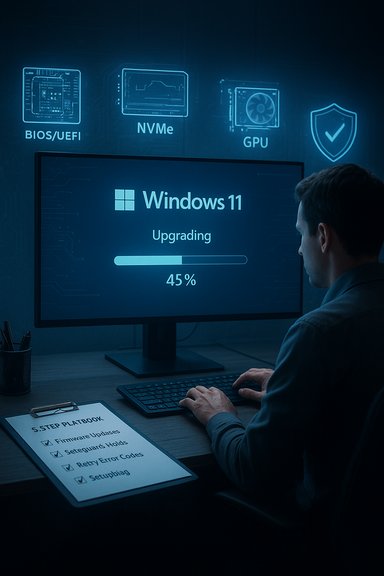 Background / Overview
Upgrading a modern PC is no longer just a file‑copy operation; feature updates interact with firmware, storage controllers, kernel drivers, security agents, and even cloud‑delivered compatibility controls. That complexity is why Microsoft now applies safeguard holds to protect devices with known incompatibilities, and why detailed log parsing tools exist to cut through the noise. The practical result: most upgrade failures are environmental and solvable with a methodical checklist — update firmware and drivers, check for known issues and safeguard holds, normalize the system environment and retry, research specific error codes (storage mode traps are common), and run Microsoft’s SetupDiag to decode Setup logs. This feature unpacks each of those five steps, gives concrete commands and order‑of‑operations, explains the risks, and offers pragmatic guidance for both enthusiasts and admins.1) Check for missing firmware and driver updates — start here
Why firmware and drivers matter
Feature updates touch core subsystems: storage stacks, chipset power management, GPU drivers, and security features that depend on UEFI and TPM. Outdated firmware or vendor drivers are a leading cause of failed upgrades and post‑upgrade instability. Updating firmware (UEFI/BIOS), SSD controller firmware, and chipset/storage drivers is a low‑effort, high‑impact first move.What to update (quick checklist)
- UEFI/BIOS — Get the latest vendor firmware from your PC/OEM site; read the release notes before flashing.
- Storage firmware — Use vendor tools (Samsung Magician, Crucial Storage Executive, etc. to update NVMe/SSD firmware.
- Chipset & RAID/NVMe drivers — Prefer vendor‑supplied packages from Intel, AMD, or the OEM rather than relying solely on the generic drivers Windows Update may push.
- GPU — Install the latest graphics driver from NVIDIA, AMD, or Intel.
- Security agents — Check for updates from AV vendors and, when necessary, temporary guidance about uninstalling or using vendor removal tools.
- TPM / fTPM / PTT settings — Confirm TPM is present and enabled in UEFI if required by your upgrade path.
Practical notes and cautions
- Back up your BitLocker recovery key before changing firmware or UEFI settings; firmware flashes can trigger re‑encryption prompts.
- Read OEM instructions for BIOS flashing. An interrupted flash can brick a board.
- If you’re on a managed fleet, coordinate firmware updates with your patching window and test on a pilot device first.
2) Look up known issues and safeguard holds before (and after) you start
What safeguard holds are
Microsoft actively monitors update telemetry and will hold an update for specific device/driver combinations when it detects a serious compatibility problem. Those are called safeguard holds; they prevent Windows Update from offering a feature update to affected devices until a fix exists. This behavior reduces mass‑breakage but can be confusing when a single device doesn’t see the update.How to check whether you’re blocked
- Check the Windows Update page — if Windows tells you “This update isn’t available for your device yet,” a safeguard may be in effect.
- For administrators, the Windows release health dashboard and the Microsoft 365 admin center expose known issues and safeguard IDs; Windows Update for Business reports show active holds.
Options when you hit a safeguard hold
- Update or remove the driver or third‑party software documented as the cause; often the hold exists because a specific vendor driver causes rollbacks.
- Defer — waiting until Microsoft or the vendor resolves the issue is the safest path for most users.
- Opt out (enterprise only) — admins can temporarily disable safeguards for validation using the documented policies, but Microsoft warns this increases risk and should be limited to testing.
3) Try again — the ordered retry checklist that fixes many installs
Why “try again” works more often than you’d think
Many failures are caused by transient conditions — pending updates, a resident kernel driver blocking file replacements, or a peripheral device confusing Setup. A disciplined retry flow normalizes the environment and removes common failure modes before you escalate to deep diagnostics.The recommended retry sequence (perform these in order)
- Install all pending updates for your current Windows and restart.
- Suspend BitLocker (if enabled) and record recovery keys: backup before making firmware or disk‑level changes.
- Temporarily uninstall low‑level third‑party software: antivirus, disk utilities, VPN drivers, virtualization helpers, and other kernel‑mode tools. Use vendor removal tools when recommended.
- Disconnect non‑essential peripherals: external drives, USB flash drives, docks, audio interfaces, and printers.
- Free disk space — aim for at least 20–30 GB free on the system drive for a feature update; Windows may require more depending on rollback needs.
- If you’re using a mounted ISO or the Media Creation Tool, run Setup from within Windows, and on the first Setup screen choose Change how Setup downloads updates → Not right now to disable dynamic updates during Setup. Many community threads and Microsoft guidance show that disabling dynamic updates can avoid a common class of failures.
- Reboot and run the in‑place upgrade again. If it fails at the same point, capture the exact error text and stage.
Why disabling dynamic updates helps
During Setup, Windows can download updated drivers and components and try to inject them into the running installer image. That mixing of runtime files sometimes creates mismatches that cause Setup to fail or hang (notably at the “Getting updates” step). Running Setup with dynamic updates off gives you a more deterministic install path; after the OS is up, Windows Update can handle drivers and quality updates. Community and Microsoft support threads recommend this approach for stubborn Setup hangs.4) Search the error codes and messages — storage mode traps are common
Don’t ignore the error code
If Setup shows a specific error code or message, copy it exactly and search for that code together with evidence about the stage (for example: “0xC1900209 abort down‑level failure” or “A disk read error occurred while installing”). Exact matches greatly reduce search noise and often point to vendor threads or Microsoft KBs that solved the same scenario.The SATA / AHCI / RAID trap
A frequently reported pattern: users creating USB installers with community tools or changing storage drivers encounter a post‑reboot message such as “A disk read error occurred. Press Ctrl+Alt+Delete to restart.” In many of those cases the underlying issue is a mismatch between the OS-installed storage driver and the firmware SATA mode (Intel RST/RAID vs AHCI). Changing SATA mode in UEFI/BIOS without preparing Windows can make the boot loader or the boot driver unavailable, producing disk read or inaccessible boot device errors. Intel and OEM communities document safe procedures (boot into Safe Mode or set Windows to safe boot before toggling SATA mode) to avoid corruption. Always back up data before changing SATA/RAID modes.Practical diagnostic steps for disk read errors
- When you see a disk read error after an upgrade attempt, test these in order:
- Confirm boot order and that the correct drive is the first boot device.
- Enter UEFI/BIOS and check SATA/Storage mode (RAID / Intel RST vs AHCI vs IDE). Note the current setting and any controller/RAID configurations.
- If the system was using RAID/RST previously and you changed it to AHCI (or vice versa), you may need to re‑enable the appropriate OS driver or follow a vetted migration method (safe boot + BIOS change, then revert safe boot).
- If using RAID/Intel RST and the installer required a vendor driver, try supplying vendor storage drivers during Setup’s “Load driver” step or use the vendor’s update package after a successful in‑place install.
- If the issue first appeared after using a third‑party tool (Rufus, custom ISO tweaks), consider recreating the media with official Microsoft media (Media Creation Tool / official ISO) and retrying with dynamic updates disabled. Community evidence suggests Rufus/extended hacks can produce edge failures; treat those as unsupported and test on a spare machine. This specific correlation is frequently reported in forum threads and Reddit reports, but it’s community‑sourced and not an official Microsoft endorsement; proceed with caution.
5) Use SetupDiag to identify the cause (and bring logs to support)
What SetupDiag does and why it matters
Windows Setup writes extensive logs during every upgrade attempt, but those raw logs are dense. Microsoft’s SetupDiag parses the relevant logs, applies rule sets, and produces a readable summary highlighting the most likely failure cause (including matched rule IDs and recommended KB articles). SetupDiag is included in Windows Setup payloads, and it can also be downloaded directly from Microsoft if needed. Running it is fast and gives you actionable fault identifiers and error codes to search for or provide to support.How to run SetupDiag (practical steps)
- Download SetupDiag from Microsoft’s distribution link (or copy it from %SystemDrive%\$Windows.~bt\Sources if present). Microsoft’s docs and Q&A pages reference the official download location.
- Create a folder C:\SetupDiag and place SetupDiag.exe there.
- Open an elevated command prompt (Run as Administrator) and cd C:\SetupDiag.
- Run:
- SetupDiag.exe /Output:C:\SetupDiag\Results.log
- When it finishes, open Results.log in Notepad and inspect the bottom section for the “most likely cause” and any rule matches or error codes.
If SetupDiag points to a safeguard or blocked driver
- Use the safeguard ID or rule match in SetupDiag to search the Windows release health dashboard and vendor advisories.
- Update or remove the flagged driver, or if you are an IT admin, consider the documented opt‑out policy for testing (with clear caveats).
Weighing strengths and risks — a critical analysis
Strengths of this five‑step playbook
- Methodical and escalating — the checklist removes quick, high‑impact fixes (firmware and driver updates) before moving to riskier steps (BIOS flashes, registry edits, opt‑outs).
- Evidence‑driven — SetupDiag and Windows release health give authoritative signals that reduce guesswork and shorten time to a fix.
- Low‑cost first steps — firmware/driver updates, uninstalling interfering software, and disabling dynamic updates are non‑destructive when properly backed up.
- Community validation — the steps map closely to the solutions repeatedly reported to work across community threads, OEM advisories, and Microsoft Q&A.
Significant risks and caveats
- Flashing firmware/BIOS — always follow OEM instructions and ensure power stability; a failed flash can brick a device.
- Changing SATA/RAID modes — toggling storage modes without a safe procedure can render a system unbootable and risk data loss. Always back up and prefer the recommended safe boot method or vendor guidance when changing modes.
- Opting out of safeguard holds — bypassing a hold exposes the device to a known regression Microsoft identified; this can result in data loss or severe functionality loss. Opt‑out only in controlled testing and with backups.
- Using unsupported bypasses (Rufus tweaks, registry hacks) — community hacks can enable installation on unsupported hardware but make the device ineligible for future updates, reduce built‑in security protections, and increase maintenance burden. Treat those as last‑resort experiments on expendable hardware.
A practical escalation ladder (concise)
- Apply all pending OS updates and restart.
- Update UEFI, SSD firmware, chipset, storage and GPU drivers from OEM/vendor sites.
- Suspend BitLocker and back up your recovery key.
- Uninstall third‑party AV and kernel‑mode utilities (use vendor removal tools).
- Disconnect peripherals, free 20–30 GB on C:, then retry Setup from an official ISO with Change how Setup downloads updates → Not right now.
- If failure recurs, capture the exact error text and run SetupDiag; act on its top match.
- If SetupDiag indicates a blocked driver or safeguard hold, remediate the driver or follow Microsoft’s published guidance for opting out in managed tests only.
- If the error points to storage/BIOS mismatch, follow vendor steps for changing SATA modes safely (Safe Mode / safe boot method) or ask the vendor for a proper driver package.
When to escalate to OEM or Microsoft Support
Collect and hand off these artifacts:- SetupDiagResults.log and the top matched rule(s).
- The Panther logs: setupact.log and setuperr.log from %windir%\Panther (if available).
- Exact Windows build and hardware model, UEFI/BIOS version, and the storage controller driver version.
Final assessment and recommendations
Upgrading to Windows 11 can fail for many reasons, but the right diagnostic sequence — update firmware/drivers first, consult Windows release health for safeguard holds, follow an ordered retry with dynamic updates disabled, research exact error codes (watch storage mode traps), and run SetupDiag — resolves the majority of real‑world failures. These steps combine official tooling (SetupDiag and Windows release health) with pragmatic community practices to produce a reliable troubleshooting playbook for individual users and administrators alike.Key takeaway: be methodical, prioritize non‑destructive fixes, keep backups and recovery keys handy, and use SetupDiag results as the primary evidence when you need to escalate to vendor or Microsoft support. The disciplined approach turns what feels like a chaotic failure into a repeatable engineering problem — and in most cases, a fixable one.
Source: ZDNET Your Windows 11 upgrade not working? Try my 5 favorite troubleshooting tricks