

Windows 11 Pro quietly packs several “small” features that repay the time it takes to learn them with hours saved, fewer interruptions, and better protection for real-world work—especially for freelancers, hybrid workers, and small businesses. In this feature I walk through five of those under-the-radar capabilities—BitLocker To Go, Remote Desktop, Windows Update for Business, Dev Drive, and Provisioning Packages—verify the technical facts, explain practical ways to use each tool, and flag the trade-offs and security implications every reader should know before enabling them on production machines. The aim is to turn overlooked options into everyday wins for Windows 11 Pro users. rview
Windows 11 Pro is often positioned as “business-grade” Windows: stronger security, additional management controls, and features aimed at corporate deployments. Yet many of the most useful Pro extras are the quieter ones—tools that run in the background or sit behind an advanced Settings pane and only show their value once you actually rely on them daily. Community conversations and how‑to rundowns from Windows enthusiasts repeatedly highlight the same pattern: small, practical features deliver outsized gains when you adopt them intentionally.
This article verifist official Microsoft documentation and independent testing guides, then gives concise, actionable setup steps and recommended workflows. Where technical claims are not provable or are dependent on specific versions or hardware, I flag those caveats clearly.
If you take away one action from this piece: pick one feature you aren’t using today—BitLocker To Go for any removable media you carry, Remote Desktop for a reliable home base, a guarded Windows Update for Business policy, a Dev Drive for developer caches, or a provisioning package for new machines—and deploy it carefully on one machine. Validate the recovery story, confirm the user workflow, and then expand. The time you spend testing will be paid back many times over in avoided interruptions and faster, more secure workflows.
Conclusion: Windows 11 Pro’s real productivity advantage comes from practical, manageable extras—features that respect your workflow while raising the floor on security and control. Use them deliberately, test them carefully, and they will repay the setup time with tangible, daily gains.
Source: TechRadar 5 hidden features to boost your productivity in Windows 11 Pro
Windows 11 Pro is often positioned as “business-grade” Windows: stronger security, additional management controls, and features aimed at corporate deployments. Yet many of the most useful Pro extras are the quieter ones—tools that run in the background or sit behind an advanced Settings pane and only show their value once you actually rely on them daily. Community conversations and how‑to rundowns from Windows enthusiasts repeatedly highlight the same pattern: small, practical features deliver outsized gains when you adopt them intentionally.
This article verifist official Microsoft documentation and independent testing guides, then gives concise, actionable setup steps and recommended workflows. Where technical claims are not provable or are dependent on specific versions or hardware, I flag those caveats clearly.
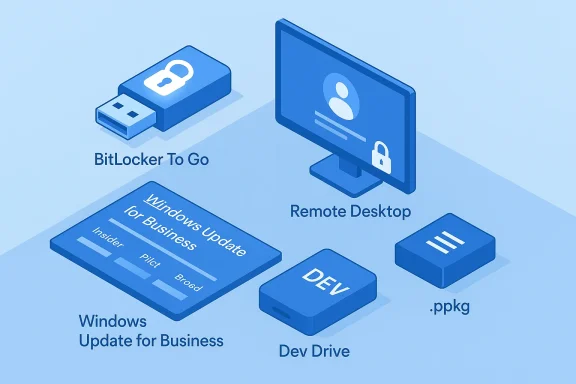 BitLocker To Go — encrypt the removable drives that travel with you
What it is and why it matters
BitLocker To Go is the removable-media extension of BitLocker Drive Encryption. It encrypts USB sticks and external drives so that if a drive is lost or stolen, the data on it remains protected unless the correct password or recovery key is provided. For anyone moving client files, backups, or presentations on physical media, this dramatically reduces the risk that a missing thumb drive becomes a data breach.How it works (technical verification)
Microsoft’s documentation lists removable storage under the BitLocker umbrella as “Removable data drives — BitLocker To Go” and explains the basic flows for enabling encryption and managing recovery keys. Removable drives can be protected with a password (the common scenario for BitLocker To Go), and enterprise deployments can enforce policies via Group Policy or MDM to require encryption and escrow recovery keys.Quick setup steps
- Insert the USB drive into a Windows 11 Pro machine.
- Open Settings > Privacy & security (or search “Manage BitLocker”) and choose the removable drive under BitLocker settings.
- Choose “Turn on BitLocker” and pick a password or smartcard option.
- Save the recovery key in the method appropriate for your context: Microsoft account, Azure AD account (for corporate devices), or a stored file printed for safekeeping.
Practical tips and gotchas
- Always export and store recovery keys in a secure place before encrypting removable media; losing both the password an make the drive unrecoverable.
- Some USB models and older controllers behave oddly with hardware encryption or may be treated inconsistently by BitLocker—test your brand and model before rolling out across many devices. Community threads report intermittent driver or policy issues in complex environments.
- BitLocker To Go is focused on removable volumes; full-disk BitLocker uses TPM-based protections and is a different configuration with separate best practices.
Verdict
For teams and freelancers who still use physical media, BitLocker To Go is a simple, high-value control: low friction to enable, easy to enforce via policy, and effective at preventing casual data leaks. Verify vendor compatibility and always adopt a recovery-key escrow practice before you depend on it.Remote Desktop — treat one machine as your “home base”
Why it’s still one of the best productivity multipliers
Remote Desktop (RDP) removes the need to replicate the same installed apps, settings, and testing environments across multiple machines. Instead, you keep one primary machine configured the way you like and connect to it from anywhere. That can save hours usually spent re‑installing or adjusting settings on temporary devices. Microsoft’s support guidance explicitly notes that a machine acting as the Remote Desktop host must run a Pro, Enterprise, or Education edition of Windows; client devices can be Home, Pro, or non‑Windows.Technical verification and security fundamentals
- Host requirement: The computer you connect to must be running Windows Pro or Enterprise to accept incoming RDP sessions. Clients can be any edition. This makes RDP a practical Pro differentiator for users who need remote access to a primary machine.
- Authentication: Use strong account passwords and consider adding multi-factor authentication via your identity provider or network solutions. Avoid exposing RDP directly to the internet; prefer VPNs or Azure Bastion-like gateways for public access. Microsoft’s guidance warns to enable Remote Desktop only on trusted networks and to limit exposure.
Setup checklist (practical)
- On the host PC (the one you’ll connect to): Settings > System > Remote Desktop > enable Remote Desktop.
- Confirm the hosttings so it stays accessible, and ensure a reliable internet path (or VPN) for remote clients.
- On the client device: install the Microsoft Remote Desktop client for your platform (Windows/macOS/iOS/Android), add the host name or IP and credentials, and connect.
- For regular use, set up a dynamic DNS name or use Microsoft account/Work/School account device registration to avoid manually chasing IP addresses.
Real-world risks and mitigations
- Leaving RDP enabled without a hardened network or strong credentials invites scanning and brute-force attacks. Always use network-level protections (VPN, firewall rules), turn off unused accounts, and monitor logs for anomalous sign-ins. Community forums repeatedly remind admins to treat RDP as a service that must be locked down, not simply toggled on.
- Performance and peripheral support (USB redirection, GPU passthrough for graphics‑heavy workflows) vary with client and host hardware; test workflows that rely on specialized peripherals before committing to RDP as a sole remote solution.
Verdict
Remote Desktop is one of those Pro features that pays for itself fast: consistent work environment, fewer duplicated installs, and a justified investment in a powerful main machine. Use it with layered network security and proper authentication to avoid turning convenience into exposure.Windows Update for Business — update control that keeps restarts out of your calendar
The problem it solves
Unexpected restarts are a productivity killer. Windows Update for Business (WUfB) gives Windows 11 Pro users and IT admins more granular control over how updates are delivered, when they install, and when restarts can occur—crucial for machines where uptime and predictable behaviour matter. Microsoft documents the policy surfaces and how to configure deadlines, deferrals, and update rings through Group Policy, Intune, or local settings.What Microsoft says (technical verification)
WUfB supports configuration of:- Feature and quality update deferrals,
- Deadlines and grace periods for restarts,
- Update rings and phased rollouts via Intune or other management tooling,
- Reporting via Windows Update for Business reports in the Azure portal for visibility into compliance and rollout status.
individual or small team
- For single-user Pro machines not joined to an MDM, use the advanced Windows Update settings (Active hours, restart options) and Group Policy templates where necessary.
- For small teams using Intune or other management tooling, define update rings (pilot, broad deployment) and set realistic deferrals so critical security patches still get applied, while feature updates are scheduled for off-hours. Microsoft’s guidance and practice notes from IT pros highlight that even a modest staging ring reduces the chance of catastrophic issues reaching all devices.
Recommended settings and caveats
- Don’t defer security updates for long periods; deferral is most useful for feature updates and avoiding disruptive restarts during business-critical windows.
- Keep at least one pilot device group that receives updates first; real-world reports show the pilot window catches problematic updates before they reach everyone. Community threads on update policies and the WUfB tooling emphasize the value of a structured rollout.
Verdict
Windows Update for Business is not only for enterprise admins; Pro users who rely on a machine for billable work will appreciate the predictability it brings. Use conservative deferral policies for non‑urgent feature updates and ensure security patches are applied promptly.Dev Drive — a tailored, high-performance volume for development work
What Dev Drive is intended for
Dev Drive creates a dedicated, ReFS-formatted volume optimized for developer workloads—large repositories, package caches, and repeated file‑I/O-heavy operations such as compiling or package installs. Microsoft designed Dev Drive to isolate heavy development activities from the system drive, reduce fragmentation and scaling issues, and pair with a Defender “performance mode” to keep scans asynchronous so builds aren’t blocked. Microsoft’s Dev Drive documentation and the Windows Developer blog explain the design and expected performance benefits.Technical verification and performance claims
Microsoft’s developer-facing posts and docs claim measurable performance improvements (Microsoft cited up to ~30% improvements in some build workloads when Dev Drives are used with ReFS and the new Defender performance mode). Independent coverage from Windows Central and hands‑on reviewers corroborates the concept and reports meaningful gains for compilation-heavy workflows, though actual numbers vary with hardware, project, and configuration.How to set up a Dev Drive (concise steps)
- Open Settings > Storage > Disks & volumes (or use Dev Home / Disk Management where the option appears).
- Create a new volume and choose the option to format as a Dev Drive (ReFS).
- Move development folders (build caches, package registries, repository clones) to the Dev Drive and update environment variables (like %TEMP%, package cache variables, or language/tool-specific config) to point at it.
- Confirm Microsoft Defender settings include the Dev Drive in its performance mode so scanning is asynchronous for the drive.
Practical recommendations and warnings
- Dev Drive is not intended for general-purpose storage: it’s optimized for developer workloads where file counts and small-file I/O patterns dominate.
- ReFS historically had different reliability and tooling characteristics versus NTFS—some recovery and third‑party tools may behave differently. Test your backup and recovery process for Dev Drive content; treat it like a critical but replaceable cache for source, not the only copy of irreplaceable documents. Community reports include occasional ReFS-related tooling or backup edge cases.
- Dev Drive may not be available on Home editions and certain Windows builds; verify availability on your specific Windows 11 Pro build before you rely on it.
Verdict
For developers and anyone with heavy I/O on source trees or package caches, Dev Drive is a thoughtful feature: meaningful performance gains with a small, well-scoped migration of environment variables. Treat it as a specialist optimization rather than a general storage replacement.Provisioning packages — save hours when you set up multiple PCs
The productivity problem it solves
Setting up a single new laptop is fine. Setting up dozens or even a handful of machines by hand wastes time and invites configuration drift. Provisioning packages (.ppkg created with Windows Configuration Designer) let you capture a bundle of settings, accounts, policies, applications, and customizations and apply them to other devices in one operation. This is a classic time-saver for small teams and IT support scenarios. Microsoft’s configuration docs explain how to create,sioning packages.How provisioning packages work (technical verification)
- Use Windows Configuration Designer to create a provisioning package that contains desired settings, local accounts, Wi‑Fi profiles, certificates, and optionally app packages.
- The package can be applied during OOBE (out-of-box experience) or after setup, and you can sign packages for trust in enterprise scenarios. Microsoft’s guidance shows using both the desktop wizard and the advanced editor for complex packages.
Practical steps for common scenarios
- Install Windows Configuration Designer on a Windows 11 Pro machine.
- Create a new project and choose the wizard that matches your scenario (initial deployment, general customization).
- Add the settings you need: account creation, Wi‑Fi profiles, certificate install, and app installation steps.
- Build the .ppkg and test it on a throwaway device before applying it to production hardware.
Common pitfalls and mitigation
- Provisioning packages don’t replace full device management solutions like Intune for ongoing policy enforcement; they’re best used for initial configuration or targeted one-off rollouts.
- Some Windows updates and build changes have occasionally affected how packages behave; test provisioning packages on the Windows build you plan to deploy to avoid surprises. Community troubleshooting threads note occasional quirks with specific package variants or Windows builds.
Verdict
Provisioning packages are an underused Pro-era convenience that saves real time for multi-device setups. They’re particularly valuable for small teams without a full MDM stack, or for IT staff who need a repeatable, scriptable way to apply baseline settings.Best practices: combining features sensibly
A recommended “safe and productive” checklist
- For removable media, enable BitLocker To Go and escrow recovery keys in Azure AD or a safe vault. Test recovery before relying on encrypted media for critical transfers.
- Use Remote Desktop, but run RDP behind a VPN or gateway, and enforce strong passwords and multi-factor authentication where possible. Keep the host patched and monitor access logs.
- Configure Windows Update for Business with a modest pilot ring and conservative deferral for feature updates—don’t block critical security patches. Use reporting to track compliance and restart windows. ([leps://learn.microsoft.com/en-us/windows/deployment/update/wufb-reports-overview)
- If you’re a developer, move caches and large repos to a Dev Drive and adjust environment variables; consider the Dev Drive as a high‑performance working volume, not a substitute for backups.
- For device provisioning, build and test .ppkg files with Windows Configuration Designer and sign them if used in a semi‑managed environment. Apply them during OOBE as a way to reduce setup time.
When to choose built‑in features vs third‑party tools
Built-in features are attractive because they are integrated, supported by Microsoft, and often free within Windows 11 Pro licensing. However:- If you require centralized inventory, long-term policy enforcement, and compliance reporting for dozens or hundreds of devices, an MDM (Intune or equivalent) is still the better long-term choice.
- For advanced remote access scenarios (GPU passthrough, low-latency interactive graphics), specialized remote workstation services or VPNs might offer a smoother end-user experience than the basic RDP setup.
Trade-offs, risks, and what to test before rollout
- Hardware and driver compatibility: BitLocker To Go and Dev Drive depend on underlying hardware behaving predictably; test across representative devices.
- Recovery and backups: Encrypted removable media and ReFS-formatted volumes have different recovery behaviours—ensure backup and recovery processes are validated.
- Update policy complexity: Windows Updacontrol, but misconfigured deferrals or deadlines can delay security patches or create inconsistent update behaviour across a team. Use pilot rings and monitoring.
- Human factors: Security features are only effective if users follow the process—train staff to store recovery keys and keep devices in trusted networks for Remote Desktop usage. Community experience repeatedly shows that features fail when users skip recovery-key backup or leave remote access exposed.
Final verdict: small switches, big returns
Windows 11 Pro’s quiet productivity features are not flashy, but they are pragmatic: they address real, recurring annoyances—lost USB drives, interrupted work by surprise restarts, rebuilding your working environment on another laptop, and the repeated tedium of device setup. When you enable and configure the five features covered here, you turn those pain points into predictable, manageable processes. Each feature has trade-offs and platform caveats—test on your hardware and align policies with your risk tolerance—but the net effect for freelancers, hybrid workers, and small businesses is simple: more time doing billable work, and less time recovering from avoidable disruptions. Community threads on Windows management and productivity echo this conclusion: small changes in configuration often produce measurable productivity gains.If you take away one action from this piece: pick one feature you aren’t using today—BitLocker To Go for any removable media you carry, Remote Desktop for a reliable home base, a guarded Windows Update for Business policy, a Dev Drive for developer caches, or a provisioning package for new machines—and deploy it carefully on one machine. Validate the recovery story, confirm the user workflow, and then expand. The time you spend testing will be paid back many times over in avoided interruptions and faster, more secure workflows.
Conclusion: Windows 11 Pro’s real productivity advantage comes from practical, manageable extras—features that respect your workflow while raising the floor on security and control. Use them deliberately, test them carefully, and they will repay the setup time with tangible, daily gains.
Source: TechRadar 5 hidden features to boost your productivity in Windows 11 Pro
