

I still love Windows — the ecosystem, the compatibility, and the way a well‑tuned PC can do everything from full‑blast gaming to quiet desktop work — but there’s a growing, justifiable frustration among longtime users about five recurring design and policy choices that make an otherwise powerful platform feel needlessly antagonistic. These are not petty gripes: they touch on choice, consistency, trust, value, and privacy. In this feature I unpack each problem with concrete examples, verify the core technical claims, show how these choices affect users in practice, and offer pragmatic fixes and policy-minded recommendations that Microsoft should consider if it wants to keep the passionate Windows base onside.
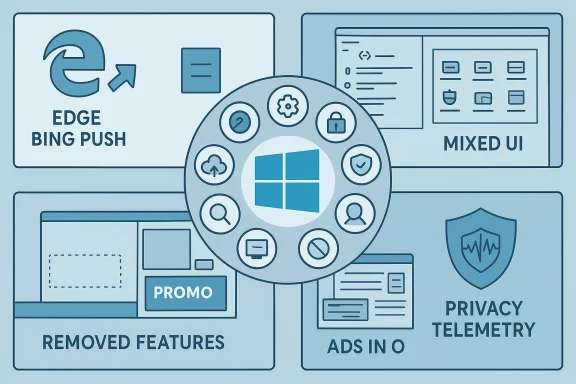
Windows remains the dominant desktop platform because it balances flexibility and breadth: legacy compatibility, a vast app ecosystem, deep gaming support, and rich hardware choice. That breadth is its strength — and also the source of many of the complaints that follow. The MakeUseOf piece that inspired this analysis lists five high‑visibility complaints: Microsoft’s aggressive “push” of Edge, Bing, and Microsoft Accounts; the jarring mix of old and new UI elements; the removal or downsizing of beloved features; ads inside a paid OS; and privacy/telemetry settings that feel scattered and permissive by default. Those are valid concerns, and they’re reflected across the Windows community, from hobbyist forums to technical news outlets. Community threads going back years show the same pattern: users adapt to Windows’ power but resent when choices are removed or when the OS nudges them hard toward Microsoft services. cify the technical claims against multiple independent sources, identify where the problems come from, and give clear, actionable options for power users and IT admins — along with a short list of policy and product changes Microsoft could adopt to lower friction and rebuild trust.
These complaints are not just anecdote. In the past year Microsoft has actively closed several workarounds that previously allowed users to set up Windows 11 with a local (offline) account, and Insider builds now make internet‑connected MSA sign‑in the default setup path in many channels. Multiple independent outlets confirmed the change and tested it in Insider builds. File‑based community discussion also shows long‑running frustrhtens OOBE to favor cloud identities.
Separately, Microsoft’s behavior around browser defaults and Search integration has a long history: earlier Windows flavors (and Windows 10 S mode) have prevented changing the system browser for certain link types, and customers have reported search/taskbar links opening only in Edge and using Bing. European regulatory pressure (Digital Markets Act) forced Microsoft to soften some of these behaviors in the EEA, but those fixes are region‑specific. Independent reporting shows Microsoft’s push is persistent, and in practice users still encounter Edge/Bing preference friction outside of those regions.
There’s also a business motive: driving users to first‑party apps grows engagement with Microsoft services and monetizes complementary subscriptions (OneDrive, 365, Xbox Game Pass, Copilot). That’s acceptable if users are given a genuine choice and clear opt‑outs, but when the choice is hidden or removed it feels like a paywall around user control.
Community forums are full of users lamenting the loss of features they considered fundamental for daily productivity. That bitterness isn’t nostalgia — it’s a reaction to the disruption of well‑established workflows.
But each benefit has trade‑offs:
Community sentiment documents this tension clearly: users have vocally complained about taskbar changes and removed features for years, and more recent community threads show a build‑by‑build battle over OOBE and account enforcement.
Microsoft can keep moving forward without alienating the users who helped make Windows indispensable: restore straightforward local account setup, stop hard‑wiring first‑party apps into system‑level flows, consolidate promotional toggles, and finish the UI modernization with a clear compatibility plan. For users, the immediate work includes a handful of privacy and UX tweaks that substantially reduce the friction: disabling optional diagnostics, turning off suggestions, and selectively restoring older behaviors with tested utilities when absolutely necessary.
Windows has always been successful because of its combination of power and familiarity. If Microsoft treats user autonomy and trust as first‑class design goals — not afterthoughts — the platform can deliver the best of both worlds: modern features without the feeling of being pushed into a walled garden.
Source: MakeUseOf I'm a Windows fanboy, but these 5 flaws still drive me crazy
 Background / Overview
Windows remains the dominant desktop platform because it balances flexibility and breadth: legacy compatibility, a vast app ecosystem, deep gaming support, and rich hardware choice. That breadth is its strength — and also the source of many of the complaints that follow. The MakeUseOf piece that inspired this analysis lists five high‑visibility complaints: Microsoft’s aggressive “push” of Edge, Bing, and Microsoft Accounts; the jarring mix of old and new UI elements; the removal or downsizing of beloved features; ads inside a paid OS; and privacy/telemetry settings that feel scattered and permissive by default. Those are valid concerns, and they’re reflected across the Windows community, from hobbyist forums to technical news outlets. Community threads going back years show the same pattern: users adapt to Windows’ power but resent when choices are removed or when the OS nudges them hard toward Microsoft services. cify the technical claims against multiple independent sources, identify where the problems come from, and give clear, actionable options for power users and IT admins — along with a short list of policy and product changes Microsoft could adopt to lower friction and rebuild trust.1) Stop forcing Edge, Bing, and Microsoft accounts on users
The complaints — and the reality behind them
One of the loudest and most persistent complaints is that Windows pushes Microsoft’s own apps and services in ways that feel coercive rather than helpful: links opened from Windows features sometimes land in Edge and Bing even when another browser is set as default; new installs and OOBE (Out‑of‑box experience) flows increasingly require a Microsoft Account (MSA); and promotional prompts appear during setup or in the OS itself nudging users to sign in or adopt Microsoft services.These complaints are not just anecdote. In the past year Microsoft has actively closed several workarounds that previously allowed users to set up Windows 11 with a local (offline) account, and Insider builds now make internet‑connected MSA sign‑in the default setup path in many channels. Multiple independent outlets confirmed the change and tested it in Insider builds. File‑based community discussion also shows long‑running frustrhtens OOBE to favor cloud identities.
Separately, Microsoft’s behavior around browser defaults and Search integration has a long history: earlier Windows flavors (and Windows 10 S mode) have prevented changing the system browser for certain link types, and customers have reported search/taskbar links opening only in Edge and using Bing. European regulatory pressure (Digital Markets Act) forced Microsoft to soften some of these behaviors in the EEA, but those fixes are region‑specific. Independent reporting shows Microsoft’s push is persistent, and in practice users still encounter Edge/Bing preference friction outside of those regions.
Why Microsoft does this (and where the tension lies)
Microsoft’s strategy is straightforward: integrate cloud identity and services tightly to enable OneDrive sync, cross‑device features, cloud backup of credentials, and tighter integration with Microsoft 365 and Copilot. From a product standpoint these integrations can be powerful and convenient. From a user autonomy standpoint, forcing those sign‑ins or hijacking links erodes choice.There’s also a business motive: driving users to first‑party apps grows engagement with Microsoft services and monetizes complementary subscriptions (OneDrive, 365, Xbox Game Pass, Copilot). That’s acceptable if users are given a genuine choice and clear opt‑outs, but when the choice is hidden or removed it feels like a paywall around user control.
Practical fixes for users today
- If the OOBE forces an MSA in your Insider build, you can still create a local account after setup by signing in with an MSA briefly and then adding a local account — but that’s a poor substitute for a simple local setup option. Verified tests show this workaround works while the OOBE enforcement remains in preview builds.
- To avoid Edge/Bing behavior from the taskbar search, use browser personalization tweaks and some third‑party utilities that intercept and re‑route search URIs — but be aware these are workarounds that can break when Windows updates change the underlying handlers.
- In the EEA the DMA‑driven changes give consumers more control; outside Europe the experience can still differ. If you manage many machines, consider using enterprise provisioning and unattend files to set defaults during imaging.
What Microsoft could do to fix this fairly
- Offer a clear, first‑run “choice screen” that genuinely sets default browser/search and account behavior without extra prompts later.
- Make the MSA vs local account option explicit and persistent in OOBE for consumer SKUs.
- For non‑EEA regions, match the DMA‑driven concessions globally: respect defaults, stop hard‑linking search to Edge, and make opt‑outs permanent.
2) The never‑ending mix of old and new interfaces
The problem in practice
Open Settings in modern Windows and you often see a clean, polished UI. Dig two levels deeper and you hit Control Panel, Device Manager, Disk Cleanup, or Resource Monitor — tools that still carry decades‑old UI elements. That mixture of modern UWP/WinUI screens alongside legacy dialogs creates a jarrixperience that confuses new users and frustrates power users who rely on muscle memory. Community threads dating back across multiple Windows generations point to the same complaint: Windows feels like several operating systems stitched together.Technical verification
Microsoft has long maintained backwards compatibility as a platform design principle; many legacy tools are inbox components wrapped with old UI because they remain functionally useful and replacing them is non‑trivial. Microsoft’s own release notes and Insider discussion acknowledge this fragmentation and list ongoing migration work — but a full migration remains incomplete years after Microsoft promised to retire certain legacy elements. Recent Insider release notes continue to document tweaks and fixes across both new and legacy areas, which shows the dual‑stack reality is deliberate and long‑lived.Why it’s hard to fix
- Many enterprise tools and long‑tail utilities depend on the exact behavior of legacy interfaces and COM APIs; rewriting them risks breaking compatibility for business customers.
- The engineering cost to modernize everything is large and incremental; Microsoft faces tradeoffs between shipping new features and full UI rewrites.
Practical compromises that would help users
- A “consistent mode” switch — let users choose “Modern UI only” or “Compatibility mode” that hides legacy elements unless explicitly requested.
- Clear migration paths with parity guarantees (the modern Settings page should replace Control Panel features with identical behavior).
- Better documentation and telemetry showing which legacy features are most used so Microsoft can prioritize the modernization effort.
3) Removing or damaging features people actually loved
Examples and verification
Long‑time Windows users miss features that were removed or crippled in Windows 11: taskbar movement to the top/side is gone in stock Windows 11; the Start menu lost some resizing and organization freedoms; and certain legacy built‑in apps — like the older Windows Mail UI — have been deprecated in favor of a new Outlook experience. These are documented and repeatedly tested by independent outlets and community contributors: the taskbar position change is an explicit design decision in Windows 11, and multiple how‑to sites show only registry hacks or third‑party tools are available to move it back.Community forums are full of users lamenting the loss of features they considered fundamental for daily productivity. That bitterness isn’t nostalgia — it’s a reaction to the disruption of well‑established workflows.
Why Microsoft removes or replaces features
- Simplification: Microsoft aims for a coherent, maintainable system for the majority of users; certain legacy features complicate that objective.
- UX vision: Microsoft often chooses a design direction (centered taskbar, new Start) that it argues leads to better discoverability for modern device form factors.
- Product consolidation: Replacing older apps with unified, cross‑platform replacements (e.g., Outlook as a combined Mail + Calendar + Teams experience) aligns development and support efforts.
The user‑impact and risks
- Productivity costs for power users and enterprises who relied on specific behaviors.
- Fragmentation: Users will increasingly rely on third‑party utilities or forked workflows, increasing maintenance burden and security risk.
- Brand trust erosion: Removing trusted features without clear benefits reduces user goodwill.
How users and admins should respond
- If you need the old taskbar behavior, deploy trusted third‑party tools such as ExplorerPatcher or Start11 and test carefully before roll‑out. These restore functionality but carry update‑compatibility risk.
- For mail clients, consider cross‑platform alternatives (Thunderbird, Mailspring) if Microsoft’s new client doesn’t meet your workflow.
- For enterprises, use Group Policy and managed images to preserve the behaviors employees rely on until a stable replacement is available.
4) Ads in a product many users already paid for
The complaint, made concrete
Seeing suggestions, tips, and even promotions for Microsoft 365, OneDrive, or Edge in your Start menu, lock screen, Settings app, and sometimes File Explorer feels like advertising inside an OS you already licensed. That is a real user experience problem: paid software that actively promotes additional paid services can feel like a bait‑and‑switch, even if the content is phrased as “tips” or “recommendations.” Multiple how‑to guides and journalist explainers show how to disable many of these promotional surfaces, but users still encounter them frequently.What Microsoft says it’s doing
Microsoft frames this content as “recommendations,” “tips,” or “personalized experiences” meant to help users discover features. To their credit, many of these prompts are toggleable: Windows lets you disable “Occasionally show suggestions in Start,” turn off lock‑screen tips from Windows Spotlight, and silence notifications that promote Microsoft services. But the default is often on, and the settings are spread across multiple pages, which makes the opt‑out experience clumsy for average users. Independent guides show how to disable most of them — the requirement to hunt through settings, though, is the pain point.Arguments on both sides
- Microsoft: recommending built‑in services helps users discover functionality they might benefit from, and some tips genuinely improve outcomes for novice users.
- Users: recurring promotional content undermines the idea of a premium product and chips away at trust when ads appear in places like File Explorer.
Practical steps to clean up your Windows experience
- Settings → Personalization → Start: turn off “Occasionally show suggestions in Start.”
- Settings → Personalization → Lock screen: choose Picture/Slideshow instead of Windows Spotlight, and disable “Get fun facts, tips, tricks and more on your lock screen.”
- Settings → System → Notifications: disable “Get tips and suggestions” and similar entries.
- Use “Recommendations & Offers” toggles inside Settings (where available) and check “Improve Start and Search results” and Advertising ID settings under Privacy to reduce targeted prompts. Several community and media guides list these toggles together for a single tidy cleanup pass.
Product‑level suggestions for Microsoft
- Move promotional toggles to a single “Promotions & Suggestions” hub in Settings and offer a “one‑click ad‑free” switch for licensed users (or for those who opt out of personalization).
- Avoid placing suggestions in productivity contexts like File Explorer where they interrupt tasks.
- Respect the contract implied by purchase: if users paid for Windows, minimize commercial interruptions and make business units sell through clear, opt‑in dialog boxes rather than ambient prompts.
5) Privacy shouldn’t require a treasure hunt
The complaint and the facts
Many users find Windows’ privacy and telemetry settings scattered, confusing, and permissive by default. Diagnostic data collection — labeled variously as Required, Enhanced, or Optional (Full) — and features like “Tailored experiences” or “Improve inking & typing” can send surprising signals back to Microsoft if left enabled. Microsoft provides tools such as the Diagnostic Data Viewer and the Microsoft Privacy Dashboard, and enterprise controls via Group Policy or MDM, but the average user may never find them. Technical writeups and vendor documentation demonstrate the diagnostic endpoints and types of data collected and show that some diagnostic content can include browser activity within Microsoft browsers and app usage metadata.Verification across sources
- Microsoft’s diagnostic‑data model documents the types of data collected under different levels and explicitly warns that optional data can include browsing history in Microsoft browsers and enhanced error dumps that can contain snippets of open documents.
- Independent privacy guides and technical how‑tos recommend disabling Optional diagnostic data, turning off Tailored experiences, disabling Online speech recognition and Inking typing personalization, and checking Feedback frequency — steps that reduce telemetry footprints on consumer devices. Enterprise admins have stricter, supported tools via Group Policy and MDM to lock telemetry to organizational standards.
Why this is a governance problem, not just a UI problem
- Transparency: users must understand what data is collected and why. Microsoft publishes technical details, but the UI doesn’t make those tradeoffs obvious during setup.
- Default policy: defaults matter enormously. If the default is permissive, only privacy‑aware users will change it.
- Persistence: updates can sometimes reset toggles or reintroduce data collection behaviors that require periodic auditing.
Practical, prioritized privacy hardening for users
- Settings → Privacy & security → Diagnostics & feedback: set “Send optional diagnostic data” to Off. This is the single most effective consumer setting to reduce telemetry.
- Turn off Tailored experiences and set Feedback frequency to Never.
- Disable Online speech recognition and Inking & typing personalization.
- Use the Diagnostic Data Viewer to inspect what is being sent (turn it on, check, then turn it off).
- For Pro/Enterprise/Education: set the Allow Diagnostic Data policy via Group Policy to enforce a minimum level across devices. Several official and community guides show command strings and policy names to manage these settings at scale.
Strengths, trade‑offs, and the risk profile
Microsoft’s decisions come with real benefits: cloud identity enables easier recovery, cross‑device sync, and modern security features (BitLocker key escrow via Azure AD, Windows Hello cloud recovery, and centralized device management). The push toward first‑party services simplifies telemetry and feature rollouts and supports a business model that funds Windows development.But each benefit has trade‑offs:
- Choice vs consistency: forcing first‑party services simplifies Microsoft’s engineering surface but reduces user agency and increases lock‑in.
- Modernization vs compatibility: preserving legacy interfaces protects enterprise customers but prevents a coherent, modern UX.
- Personalization vs privacy: telemetry and tailored experiences improve some user scenarios but risk over‑collection and erode trust if defaults are permissive.
Community sentiment documents this tension clearly: users have vocally complained about taskbar changes and removed features for years, and more recent community threads show a build‑by‑build battle over OOBE and account enforcement.
Clear, concrete recommendations for Microsoft and Windows users
For Microsoft (product & policy)
- Restore a first‑class local account option in consumer OOBE while retaining cloud options for those who want them.
- Respect default browser/search settings globally (not just where forced by regulators), and avoid hard‑routing links to Edge/Bing.
- Create a consolidated “Promotions & Suggestions” control in Settings, and offer a simple opt‑out for licensed users.
- Prioritize modernization of the Settings parity with Control Panel: provide a phased migration roadmap and compatibility guarantees.
- Simplify telemetry defaults: make the least intrusive diagnostic level the default for consumer SKUs and clearly present tradeoffs during setup.
For end users (practical steps)
- Disable Optional diagnostic data and Tailored experiences in Settings → Privacy & security → Diagnostics & feedback.
- Turn off Start menu suggestions, Windows Spotlight/promotional lock‑screen content, and the “tips and suggestions” notifications.
- Use trusted third‑party tools only when necessary to restore legacy behaviors (taskbar position, Start menu), and test these tools before wide deployment.
- In OOBE, if you require a local account for privacy reasons, consider provisioning a temporary MSA, creating a local account on the desktop, and then retiring the MSA if you must, or use enterprise imaging and unattended answer files to automate local account creation where applicable.
Conclusion
The five frustrations highlighted in the MakeUseOf piece aren’t trivial irritants — they are structural signals about how Microsoft is choosing to evolve Windows. There are legitimate technical and business reasons for each decision, and many users will benefit from tighter cloud integration and modern design. But winning and keeping the trust of a platform’s most dedicated users requires giving them real, discoverable choice, respecting paid‑for product experiences, and making privacy/telemetry decisions transparent and easy to manage.Microsoft can keep moving forward without alienating the users who helped make Windows indispensable: restore straightforward local account setup, stop hard‑wiring first‑party apps into system‑level flows, consolidate promotional toggles, and finish the UI modernization with a clear compatibility plan. For users, the immediate work includes a handful of privacy and UX tweaks that substantially reduce the friction: disabling optional diagnostics, turning off suggestions, and selectively restoring older behaviors with tested utilities when absolutely necessary.
Windows has always been successful because of its combination of power and familiarity. If Microsoft treats user autonomy and trust as first‑class design goals — not afterthoughts — the platform can deliver the best of both worlds: modern features without the feeling of being pushed into a walled garden.
Source: MakeUseOf I'm a Windows fanboy, but these 5 flaws still drive me crazy
