

For creators who’ve long envied the seamlessness of Apple’s ecosystem, a surprising truth has emerged: with five pragmatic tweaks, a Windows PC — particularly a Microsoft Surface Pro 11 — can deliver a workflow that feels much closer to a Mac-based setup. These are not one‑click illusions; they’re practical, tested adjustments that reduce interruptions, speed visual review, give you macOS-style quick previews, unlock stronger in‑app editing with AI, and provide professional-grade batch conversion tools. The result: fewer context switches, faster content iteration, and a cleaner creative rhythm that better matches how writers, editors, and visual creators actually work.
The modern creator workflow is defined by three core needs: frictionless device interoperability, fast visual review and selection, rapid previewing without full app loads, and reliable batch processing for publishing. Apple’s ecosystem solves much of this through iCloud, universal clipboard and Messages continuity; Windows has historically been more fragmented. Recent Windows 11 updates, Microsoft’s Phone Link expansion to iPhone (albeit limited), a rebuilt Photos app with a redesigned filmstrip, and third‑party utilities like PowerToys and UniConverter close the gap substantially.
This article summarizes the five practical hacks popularized in recent creator‑focused coverage, verifies key technical claims where possible, and offers a critical, hands‑on analysis of when these approaches work best — and where they still fall short.
What to expect:
Key capabilities you’ll appreciate:
PowerToys Peek brings:
Wondershare UniConverter is a widely used, all‑in‑one conversion suite that offers:
Caveats are important: Phone Link’s iPhone support is constrained by platform limits; Photos AI is impressive but not a replacement for a pixel‑level compositor; third‑party tools require cautious licensing and update management. For professionals who need absolute determinism (broadcast mastering, color‑grade deliverables, or legal chain-of-custody for files), integrate these hacks as frontline workflow accelerators, then finalize in production‑grade software.
If your creative life is built around rapid iteration, frequent publishing, and lots of visual review — and you want Windows to feel more like the macOS environment you admired — these five practical changes will make a measurable difference.
Source: Pocket-lint These 5 hacks make Windows PCs run more like Macs for creators
 Background
The modern creator workflow is defined by three core needs: frictionless device interoperability, fast visual review and selection, rapid previewing without full app loads, and reliable batch processing for publishing. Apple’s ecosystem solves much of this through iCloud, universal clipboard and Messages continuity; Windows has historically been more fragmented. Recent Windows 11 updates, Microsoft’s Phone Link expansion to iPhone (albeit limited), a rebuilt Photos app with a redesigned filmstrip, and third‑party utilities like PowerToys and UniConverter close the gap substantially.This article summarizes the five practical hacks popularized in recent creator‑focused coverage, verifies key technical claims where possible, and offers a critical, hands‑on analysis of when these approaches work best — and where they still fall short.
Overview of the five hacks
- Use Phone Link to mirror iPhone notifications and reply to texts from your Surface, minimizing interruptions.
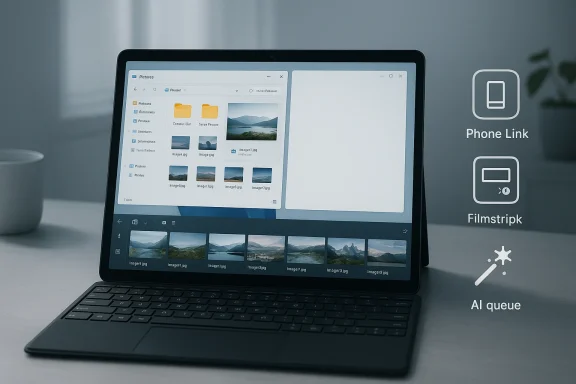
- Activate the Photos app Filmstrip (press F or click the icon) for fast image review and metadata/OCR tools.
- Install Windows PowerToys and use Peek for macOS-style spacebar previews in File Explorer.
- Rely on the new Photos app AI editing and quick preview features for fast fixes and style experiments.
- Use a dedicated tool like Wondershare UniConverter for batch conversions, downloads, and format handling.
Phone Link: tame interruptions without juggling devices
What Phone Link delivers for iPhone users (and the caveats)
Phone Link brings phone notifications, incoming calls, and single‑chat message replies to your Windows PC. For Android users this long worked as a near‑complete remote mirroring solution; for iPhone users, Microsoft has added limited iMessage/SMS support that still relies on platform constraints imposed by Apple.What to expect:
- Incoming notifications appear on your PC, letting you triage quickly.
- You can reply to one‑to‑one messages from the Phone Link interface.
- The connection is session‑based: many iPhone interactions require the phone to be paired and connected via Bluetooth for messages to appear.
- Limitations: group messages, sending multimedia (photos/videos), full message history, and full parity with device‑originated messages are not guaranteed.
How to set Phone Link up quickly
- On Windows, open the Phone Link app from Start.
- In the app, hit Settings → Devices → Add device, then follow the on‑screen pairing flow.
- On the iPhone, install or enable the companion Link to Windows / Phone Link helper as required and allow Bluetooth and notification access.
- Grant the requested Bluetooth and notification permissions on the iPhone when prompted.
- Keep Bluetooth enabled while using Phone Link for iPhone features to work reliably.
- Don’t expect MMS/image sending or group chat parity; treat Phone Link as a lightweight messaging and notification bridge, not a full messaging client.
Use the Photos app Filmstrip to work like macOS Preview
Why the filmstrip matters for creators
Many photographers, UI designers, and editors rely on a filmstrip view to quickly scan series of images and mark keepers. macOS’s Preview and Photos implementations have long offered this out of the box. Windows 11’s Photos app now includes a redesigned Filmstrip that sits beneath the main image and can be summoned with the F key or the filmstrip icon in the viewer. It replicates the essential visual context macOS users love: a large preview area plus easy navigation to neighboring frames.Key capabilities you’ll appreciate:
- Quick visual review across all files in the same folder.
- Select multiple thumbnails in the Filmstrip for side‑by‑side comparison.
- Access to lightweight metadata and editing tools directly from the viewer.
- Integrated actions such as visual search with Bing, basic OCR / text scanning, and a metadata inspector.
How to use it — workflow steps
- Double‑click a photo in File Explorer to open Photos.
- Press F or click the filmstrip icon (lower left) to reveal the thumbnail rail.
- Scroll, select multiple thumbnails, and use the on‑viewer toolbar to apply quick edits or inspect metadata.
- Faster culling of shots.
- Less app flicker — you’re not opening separate images in multiple windows.
- Better comparison workflow for color grading, layout screenshots, or frame selection.
- Filmstrip is turned off by default on some versions; toggle it on when you need it.
- If you use a third‑party RAW editor as default, Photos may not be your double‑click target — reassign file associations if you prefer Photos for culling.
Peek with PowerToys: macOS-style spacebar previews
What Peek does and why creators need it
macOS users have long relied on Quick Look (spacebar preview) to peek at files without launching heavyweight apps. Windows PowerToys’ Peek replicates that behavior: select a file in File Explorer and press the activation key (default = Space) to open a lightweight preview window for many file types — images, video, Office docs, Markdown, and more.PowerToys Peek brings:
- Immediate in‑context previews without app load times.
- Quick navigation across files in a folder using arrow keys.
- Pinning and resizing of the preview pane for temporary inspection.
Installing and configuring Peek
- Install Microsoft PowerToys (available from the Microsoft Store or GitHub).
- Open PowerToys Settings → Peek and enable the tool.
- Confirm the activation shortcut (default Space; you can change it to Ctrl+Space or other combos if it conflicts with other apps).
- Some keybindings like Ctrl+Space may conflict with IDEs or system shortcuts. If you notice unexpected behavior in other apps after enabling Peek, change the activation to a less intrusive combo.
- Peek targets file previews in File Explorer; it’s not a full editor. Use it to triage quickly, then open heavyweight editors for detailed work.
Photos app Preview + AI edits: quick, powerful adjustments
What the Photos app can do now
Windows Photos has evolved from a lightweight viewer to an AI‑augmented editing tool. From the Filmstrip you can enter the editor and perform conventional retouching — crop, exposure, saturation — alongside AI features that can:- Remove or replace backgrounds.
- Erase objects.
- Relight scenes and change lighting direction.
- Convert an image style (e.g., watercolor, anime) using style transforms.
- Extractt/copy text from images (OCR) and run a visual web search.
Practical editing workflow
- Open a photo in Photos and press Edit.
- Use Quick Adjust for exposure and color fixes.
- Try AI tools for background removal, object erase, or relighting. Use the preview to validate results.
- Export at the required resolution or save a copy to preserve the original.
- Very fast for common tasks — background removal and object erase are often enough for thumbnails and social posts.
- Built into Windows 11 (with frequent updates), so no extra dollar outlay for basic AI adjustments.
- The style transfer features have uneven results on inanimate objects — they’re often trained on faces, so expect artifacts on product shots or interface screenshots.
- Background replacement and relighting may require manual cleanup for professional retouch workflows.
- Performance and availability of some AI features vary by hardware (NPU, GPU acceleration) and Windows build; very old machines will see reduced speed.
- OCR / “scan text” quality depends on font, resolution, and contrast; for high‑accuracy extraction, a dedicated OCR tool may still be preferable.
Batch conversions: UniConverter and professional choices
Why creators need a batch converter
Publishing dozens of screenshots, converting camera footage for web encoding, and ripping reference videos are routine tasks. Windows doesn’t ship a robust batch converter baked into File Explorer the way macOS users might rely on Automator + Preview combinations. For reliable, high‑volume conversions, a dedicated tool saves hours.Wondershare UniConverter is a widely used, all‑in‑one conversion suite that offers:
- Batch video and image conversion across many formats.
- Video downloaders for many online platforms and playlist downloads.
- AI‑powered enhancers, subtitle generation, and compress/resize tools.
- Perpetual (one‑time) license options often in the ~$80 range during promotions, plus annual plans.
- It’s optimized for GPU acceleration and batch jobs.
- It consolidates download, conversion, compression, and basic editing into a single UI.
- For creators processing many assets for web publishing, the time savings compound quickly.
- HandBrake (free, open source) for video transcoding.
- FFmpeg (command line) for scripted batch workflows.
- Subscription tools (cloud converters) if you prefer server‑side processing.
Batch conversion workflow
- Add a folder of files or select images/videos to the converter queue.
- Choose the target format and create a preset for web‑optimized output (e.g., 1920×1080 H.264 MP4 at 8–10 Mbps).
- Start the batch and let the GPU accelerate encoding where available.
- Use watch folders or scripted FFmpeg jobs for repetitive, automated pipelines.
- Vendor pricing and discounting vary; perpetual license promotions around the $80 mark are common. Confirm current pricing on vendor pages or through promotions.
Putting the five hacks together: a creator’s setup recipe
If you’re building a Surface‑centric workflow that behaves more like an Apple ecosystem for day‑to‑day creative work, here’s the sequence to adopt:- Hardware baseline: Surface Pro 11 or similar Copilot+ device (strong NPU/GPU helps Photos AI; Wi‑Fi 7 and modern silicon reduce latency).
- Install and enable Phone Link to reduce device pickups and mirror urgent messages.
- Set Photos as your default viewer for quick culls; use the Filmstrip (F) to scan and compare.
- Install PowerToys and enable Peek for instant previews in File Explorer.
- Use Photos’ AI tools for prototyping and quick edits; export low‑res proofs when collaborating.
- For final output and batch work, route exports through UniConverter or scripted FFmpeg jobs for exacting control.
- Keep an external folder or OneDrive sync for cross‑device delivery (Surface ↔ iPad/Mac) if you need to hand off assets.
Security, privacy, and reliability considerations
- Phone Link and notifications: Phone Link transmits message metadata and notification content to your PC. Treat it as a convenience tradeoff: if you handle highly sensitive communications, re‑evaluate using Phone Link or restrict its notification granularity.
- AI tools and image sending: Some Photos AI features use on‑device models depending on hardware and Windows build; other Microsoft services may use cloud processing. If privacy is essential, verify whether a particular edit is performed locally or sent to Microsoft services.
- Downloader tools: UniConverter and similar software that download from web platforms can run afoul of site terms of service for copyrighted content. Use these tools responsibly and adhere to the content provider’s policies.
- PowerToys and key conflicts: Peek’s default keybinding can conflict with other apps. Adjust shortcuts if you rely on IDEs or accessibility shortcuts that use the same combos.
- Update cadence: Windows, Photos, PowerToys, and Phone Link have cadence of updates. Keep all components current to avoid mismatched functionality; test critical workflows after major updates.
What still doesn’t match macOS continuity — and why that matters
- Full iMessage parity: Phone Link remains a workaround for iPhone users, not a replacement for Apple’s continuity features. Group chats, multimedia messaging, and complete message histories still favor Apple hardware.
- Seamless cloud clipboard and Handoff: While OneDrive and Windows clipboard history are functional, they’re not as frictionless as Apple’s universal clipboard and Handoff across native macOS/iOS apps.
- Third‑party ecosystem reliance: Windows needs a mix of built‑ins and third‑party apps to reach parity. That means patchworks of settings and updates; Mac users enjoy a tighter single‑vendor integration.
Final verdict — practical, powerful, but not magical
These five hacks are not about pretending Windows is macOS; they are about pragmatic, low‑friction improvements that matter to creators. When combined, they deliver:- Fewer interruptions (Phone Link),
- Faster visual culls and comparisons (Photos Filmstrip),
- Immediate file previews (PowerToys Peek),
- Speedy AI-assisted edits for prototypes (Photos AI), and
- Reliable, professional batch conversion (UniConverter or FFmpeg).
Caveats are important: Phone Link’s iPhone support is constrained by platform limits; Photos AI is impressive but not a replacement for a pixel‑level compositor; third‑party tools require cautious licensing and update management. For professionals who need absolute determinism (broadcast mastering, color‑grade deliverables, or legal chain-of-custody for files), integrate these hacks as frontline workflow accelerators, then finalize in production‑grade software.
If your creative life is built around rapid iteration, frequent publishing, and lots of visual review — and you want Windows to feel more like the macOS environment you admired — these five practical changes will make a measurable difference.
Source: Pocket-lint These 5 hacks make Windows PCs run more like Macs for creators
