

A fresh Windows install should feel like a clean slate — not a marketplace for tips, telemetry, and promotions. Within minutes of first boot, Windows will enable a set of defaults designed to promote Microsoft services, collect optional diagnostics, and surface suggestions that many users find intrusive or wasteful. This article gives a practical, verified checklist of five Windows settings you should consider disabling immediately after installation, explains exactly where to find each toggle, evaluates the privacy and performance trade‑offs, and outlines safe, reversible steps for power users and administrators who want more control. The advice below is based on Windows settings paths confirmed in current builds and cross‑checked against independent guidance and official documentation.
Windows 11 and recent Windows 10 builds ship with features intended to improve discoverability and product adoption: Start menu recommendations, Widgets, Windows Spotlight, and tailored experiences driven by diagnostic data. For many users these are benign conveniences; for privacy‑minded and productivity‑focused people they are unnecessary noise, extra background activity, and a modest telemetry vector. Microsoft documents the difference between Required and Optional diagnostic data and intentionally exposes UI controls to reduce optional telemetry, while other promotional surfaces are controlled through Settings toggles. Disabling the items below is low‑risk when done through the supported Settings UI, and it yields immediate gains: fewer popups, less background chatter, and a cleaner Start menu and File Explorer. Advanced removal via Group Policy, registry edits, or community debloaters can go further, but those approaches carry added risk and are covered later with clear caveats.
If you apply nothing else after a fresh Windows install, do this: turn off Start menu recommendations, disable optional diagnostic data, and silence tips/Welcome notifications. That three‑step approach removes the lion’s share of promotional clutter and optional telemetry without risking system stability. Document your changes, keep a restore point, and re‑enable specific features temporarily if you need richer diagnostics for support.
Your machine will feel cleaner, quieter, and more private — and you’ll have taken control of the settings Microsoft surfaces by default.
Source: Новини Live https://novyny.live/en/tehnologii/5...d-disable-after-installation-290580.html/amp/
 Background
Windows 11 and recent Windows 10 builds ship with features intended to improve discoverability and product adoption: Start menu recommendations, Widgets, Windows Spotlight, and tailored experiences driven by diagnostic data. For many users these are benign conveniences; for privacy‑minded and productivity‑focused people they are unnecessary noise, extra background activity, and a modest telemetry vector. Microsoft documents the difference between Required and Optional diagnostic data and intentionally exposes UI controls to reduce optional telemetry, while other promotional surfaces are controlled through Settings toggles. Disabling the items below is low‑risk when done through the supported Settings UI, and it yields immediate gains: fewer popups, less background chatter, and a cleaner Start menu and File Explorer. Advanced removal via Group Policy, registry edits, or community debloaters can go further, but those approaches carry added risk and are covered later with clear caveats.1. Turn off Start menu recommendations and account nudges
Why it matters- The Start menu’s “Recommended” section surfaces suggested apps, tips, and promotional items that resemble lightweight ads.
- These entries clutter the Start layout and push store/partner apps into prime real estate.
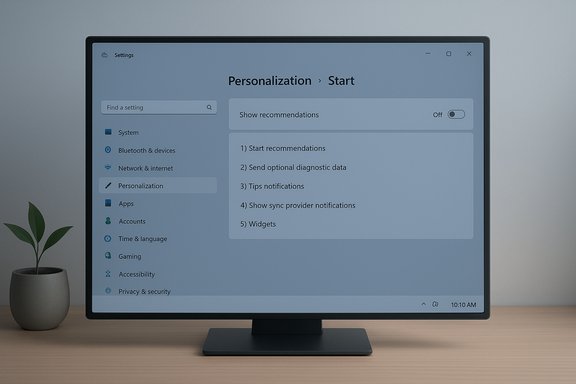
- Open Settings > Personalization > Start and toggle off Show recommendations for tips, shortcuts, new apps, and more.
- Press Windows + I to open Settings.
- Go to Personalization → Start.
- Toggle Show recommendations for tips, shortcuts, new apps, and more to Off.
- Immediate removal of promoted app cards and suggested items from the Start area.
- Less distraction when searching or launching frequently used apps.
- This change is fully reversible and supported through Settings.
- Some promotions return after major feature updates in certain builds; a quick Settings check after updates may be needed.
- Low impact, high payoff: it’s one of the most visible annoyances and is safe to disable for virtually all users.
2. Set Diagnostic Data to “Required” (disable optional telemetry)
Why it matters- Windows separates telemetry into Required (minimum device‑health and security signals) and Optional (richer usage, performance, and site data).
- Disabling Optional diagnostic data reduces the amount of device activity Microsoft collects and the surface that can be used for personalization features like Tailored experiences.
- Microsoft confirms you can toggle Send optional diagnostic data during setup or later in Settings and that devices remain secure when sending Required data only. The company also documents what optional data may include.
- Settings > Privacy & security > Diagnostics & feedback → turn Send optional diagnostic data Off, and disable Tailored experiences if present.
- Settings → Privacy & security → Diagnostics & feedback.
- Under Diagnostic data, toggle Send optional diagnostic data to Off (or choose Required where shown).
- Turn off Tailored experiences (this stops the use of diagnostic signals for personalization).
- Optionally use Delete diagnostic data to purge device records Microsoft may retain.
- Material privacy improvement without breaking core OS security features.
- Reduces the chance of inadvertent collection of memory snippets or richer usage traces.
- Some advanced troubleshooting workflows and feature‑preview diagnostics rely on optional data; support may ask you to re‑enable optional telemetry when diagnosing complex issues.
- On managed (work/school) devices, these toggles may be disabled by policy; check with IT before changing group policy settings.
- Device telemetry volume varies; Microsoft’s Surface documentation cites ~150 KB/day on average for Surface devices as an illustrative number, but actual volumes vary by device and usage patterns. Treat such numbers as variable averages, not absolute guarantees.
3. Stop “tips and suggestions” notifications and the Windows welcome experience
Why it matters- Windows surfaces in‑context tips, post‑update welcome cards, and “finish setting up your device” nudges through the Notifications pane.
- These can interrupt focus and add repetitive noise that many users find unhelpful.
- Settings > System > Notifications → expand Additional settings and uncheck:
- Get tips and suggestions when using Windows
- Show the Windows welcome experience after updates
- Suggest ways to get the most out of Windows and finish setting up this device.
- Settings → System → Notifications.
- Scroll to Additional settings (bottom) and uncheck the entries listed above.
- Optionally, review app‑by‑app notification toggles and disable notifications for OEM/third‑party bloatware.
- Cleaner Action Center with only meaningful app alerts.
- No more post‑update “tips” that feel like product placement.
- Disabling these tips won’t stop security or update notices; it only silences tutorial‑style and promotional notifications.
- Some OEM utilities (HP, Lenovo, Dell) may have their own notification systems; disable or uninstall those apps separately if they persist.
4. Silence File Explorer sync provider notifications (stop OneDrive nags)
Why it matters- File Explorer shows OneDrive sync status and occasional banners that promote Microsoft 365 and OneDrive features.
- If you don’t use OneDrive, the sync provider notices are unnecessary UI noise.
- Open File Explorer → click the three‑dot menu (⋯) → Options → View tab → uncheck Show sync provider notifications. This removes OneDrive/Sync provider banners and sync status overlays in the address bar.
- Launch File Explorer.
- Click ⋯ (three dots) in the toolbar → Options.
- In Folder Options → View tab, uncheck Show sync provider notifications → Apply → OK.
- File Explorer stops prompting you about OneDrive features and subscription upsells while remaining fully functional for local files.
- Cleaner Explorer UI for productivity tasks.
- This hides provider notifications but does not uninstall OneDrive; if sync client is active, status overlays may still appear in some lists until you disable or uninstall OneDrive. Uninstalling OneDrive is a separate step and may be managed by your device OEM or system policy.
5. Remove Widgets, Search highlights, and Windows Spotlight (calm the taskbar and lock screen)
Why it matters- Widgets and Search highlights pull live content and promoted cards into the taskbar and search experience.
- Windows Spotlight fetches rotating lock screen images and occasional tips or marketing cards.
- To disable Widgets: Settings > Personalization > Taskbar → toggle Widgets Off (or right‑click the taskbar → Taskbar settings → Taskbar items → Widgets Off).
- For Search highlights: Settings > Privacy & security > Search permissions → toggle Show search highlights Off (varies by build).
- To stop Windows Spotlight on the lock screen: Settings > Personalization > Lock screen → change Personalize your lock screen from Windows Spotlight to Picture or Slideshow and uncheck Get fun facts, tips, tricks and more on your lock screen.
- Widgets: Settings → Personalization → Taskbar → Taskbar items → Widgets → Off.
- Search highlights: Settings → Privacy & security → Search permissions → Show search highlights → Off.
- Lock screen: Settings → Personalization → Lock screen → Background → select Picture or Slideshow → uncheck lock-screen tips.
- Removes news, sponsored cards, and dynamic items from the taskbar, search, and lock screen.
- Reduces background network activity used to fetch live feed content.
- Widgets and Spotlight offer quick news and personalization, which some users value; this is a subjective trade‑off.
- Major Windows updates sometimes restore or modify certain personalization features; keep a short post‑update checklist.
Advanced controls, automation, and safe rollback
If you manage multiple machines or want a one‑click cleanup, there are supported and unsupported methods — each with trade‑offs.- Use Group Policy (Windows Pro/Enterprise/Education) to enforce settings centrally: telemetry, app permissions, and many Promotional toggles map to Group Policy or administrative templates. This is the safest route for managed environments.
- For single machines, PowerShell and winget can remove preinstalled Appx packages and automate UI changes. Keep in mind: appx removals may be reverted by feature updates and can break expected system behaviors; always test on a noncritical machine first.
- Third‑party privacy utilities (O&O ShutUp10++, WPD, Blackbird, Debotnet) centralize many toggles and can speed a deep cleanup. Use only well‑maintained tools, read the code or vendor notes, and create a system restore point before running them. Community testing shows they are effective but not risk‑free: Windows updates and Defender heuristics can produce false positives or rollbacks.
- Create a System Restore point before making bulk changes.
- Export relevant registry keys or Group Policy objects you modify.
- Keep a short list of toggles you changed and store it with the device recovery plan.
- If a change breaks functionality, re‑enable the single setting related to that feature rather than reversing everything.
The privacy vs. support trade‑off — what you gain and what you might lose
Gains- Privacy: Disabling Optional diagnostics, Advertising ID, and tailored experiences reduces targeted personalization vectors and the volume of optional data sent off your PC.
- Performance and battery: Fewer background feeds and background app activities can reduce network traffic and CPU/I/O spikes in some scenarios.
- Focus and UI clarity: Turning off Start recommendations, Widgets, and sync provider prompts declutters the user interface for productivity.
- Reduced diagnostic context for support: Optional diagnostic data helps Microsoft and OEMs troubleshoot hard‑to‑reproduce issues; you may be asked to re‑enable it when opening a support case.
- Feature behavior changes: Some personalization first‑run experiences and troubleshooting assistants rely on data that optional diagnostics supply; disabling them may reduce helpful prompts.
- Update or policy overrides: Feature updates can change defaults or reintroduce UI elements; group policies set by enterprise admins may prevent local changes.
- For most consumer users: disable Start recommendations, tips & suggestions, File Explorer sync notifications, Widgets/Spotlight, and set diagnostics to Required. These actions are supported, reversible, and yield most practical privacy and UX benefits.
- For privacy professionals or admins: follow a staged approach — use supported Group Policy for enterprise controls, test registry changes in a non‑production environment, and apply network‑layer blocks only after validating impact.
Quick checklist: five settings to disable now (copy & paste)
- Personalization → Start → Toggle off Show recommendations for tips, shortcuts, new apps, and more.
- Privacy & security → Diagnostics & feedback → Turn Send optional diagnostic data Off and disable Tailored experiences.
- System → Notifications → Uncheck Get tips and suggestions when using Windows, Show the Windows welcome experience after updates, and Suggest ways to get the most out of Windows.
- File Explorer → ⋯ → Options → View → Uncheck Show sync provider notifications.
- Personalization → Taskbar → Widgets → Off; Personalization → Lock screen → change Windows Spotlight to Picture/Slideshow; Privacy & security → Search permissions → Show search highlights Off (if present).
Final analysis and recommendations
Disabling the five settings above delivers the strongest immediate return for privacy, focus, and a quieter desktop experience. These changes are supported through the Settings UI, fully reversible, and have minimal downside for most users. Disabling Optional diagnostic data and tailored experiences reduces telemetry and personalization while keeping the Required signals Microsoft uses for security and reliability. Advanced users and administrators can go further with Group Policy, registry edits, or vetted debloaters — but those paths require backups and testing because aggressive or blanket changes can break features, complicate updates, or require a re‑enable for support cases. Community guides and multiple independent writeups corroborate the Settings paths and the impact of these toggles, and Microsoft’s own documentation explains the telemetry distinctions and how to control them from Settings.If you apply nothing else after a fresh Windows install, do this: turn off Start menu recommendations, disable optional diagnostic data, and silence tips/Welcome notifications. That three‑step approach removes the lion’s share of promotional clutter and optional telemetry without risking system stability. Document your changes, keep a restore point, and re‑enable specific features temporarily if you need richer diagnostics for support.
Your machine will feel cleaner, quieter, and more private — and you’ll have taken control of the settings Microsoft surfaces by default.
Source: Новини Live https://novyny.live/en/tehnologii/5...d-disable-after-installation-290580.html/amp/
