

A sluggish HP OmniBook 5 14 is usually fixable, but the reason matters: on a modern Windows on Arm laptop, performance bottlenecks can come from startup clutter, outdated firmware, storage pressure, poorly optimized apps, or software running under emulation. The good news is that most of the common fixes are low-risk and can noticeably improve responsiveness without opening the chassis or spending money. Just as important, some advice floating around online is too generic for an ARM-based PC, where compatibility and driver quality can matter more than on a traditional x86 laptop.
The OmniBook 5 14 sits in a new class of mainstream Windows laptops built around Qualcomm Snapdragon silicon rather than Intel or AMD. HP’s product materials position the line as a thin, battery-friendly Next Gen AI PC, and Microsoft’s own Windows on Arm documentation makes clear that these systems rely on built-in emulation for many legacy x86 and x64 apps. That combination is powerful, but it also changes the way users should think about “speed.” Hardware may be efficient, yet one aging app, one bad driver, or one crowded startup list can still make the whole machine feel slow.
Historically, Windows laptops slowed down for predictable reasons: too many background apps, low free storage, malware, and fragmented updates. Those fundamentals still apply, but Windows on Arm adds a new layer. Microsoft says emulation is transparent and supported for x86 and x64 desktop apps on Windows 11 on Arm, with the newer Prism emulator in Windows 11 24H2 designed to lower CPU usage and improve performance. That means a slow experience may not be the laptop’s fault at all; it may simply be a sign that an app is running in a compatibility layer instead of natively.
HP’s support materials also reinforce a long-standing truth about Windows performance: updates matter. HP Support Assistant is built to automate firmware and driver updates, while HP’s own documentation points users toward HP-hosted downloads for software and drivers. In practice, that matters more on an ARM system than many buyers realize. A missing BIOS update, stale chipset package, or imperfect device driver can create stalls that look like “general slowness” but are really platform-specific tuning issues.
There is also a consumer-versus-enterprise divide worth noting. For home users, slowdowns often come from convenience software: cloud sync tools, chat apps, browser tabs, and game launchers. In managed environments, however, the slowdown may come from security tools, policy-enforced startup items, or applications that were never rebuilt for Arm64. Microsoft explicitly notes that emulation does not support kernel drivers, which is why deeply integrated software must be updated for Arm64 to function properly. That distinction explains why some users see excellent performance while others encounter frustrating edge cases.
Finally, there is a timing issue. Microsoft continues to update Windows on Arm, and the latest compatibility improvements are still arriving in waves rather than all at once. A machine that felt mediocre at launch can improve noticeably after a few Windows feature updates, HP firmware releases, and app rebuilds. In other words, performance on this class of laptop is not static; it evolves as Microsoft, HP, and software vendors refine support.
A restart is especially useful if the machine has just been through several update cycles, app installs, or heavy multitasking sessions. On a Snapdragon-powered laptop, the result may be even more noticeable because you are clearing not only generic Windows baggage but also any lingering compatibility overhead from emulated apps or services. The fix is easy enough that it should always be the first step.
That does not mean every optional update should be installed blindly. It does mean that a slow OmniBook should be checked against HP’s recommended firmware baseline before more elaborate troubleshooting. If you are behind on BIOS or device drivers, performance and stability can both suffer.
That is especially relevant if your laptop shipped with a version of Windows 11 that predates the latest emulator enhancements. A machine that seems merely adequate on one build may feel noticeably faster after the operating system and the vendor stack are brought current. This is one of the few cases where update fatigue can actually be expensive—because skipping updates can leave performance on the table.
This is where consumer and enterprise use diverge again. Home users often see app bloat and browser overload, while office users may see endpoint protection, VPN clients, or collaboration tools monopolizing resources. The pattern matters because it tells you whether to disable an app, update it, or escalate to IT.
Be especially careful with unknown processes on an ARM system. Some are legitimate compatibility helpers, while others may be third-party services with poor optimization. If you do not know what something is, search its name before forcing it closed.
The result is not always a dramatic crash. More often, the laptop just feels less responsive in the first few minutes after boot. That is enough to frustrate users who expect a quick, modern AI PC experience.
Be selective. Security tools, touchpad utilities, audio control panels, and hardware support software may be worth keeping. The trick is to remove friction, not functionality.
Microsoft’s Storage Sense documentation notes that the feature can manage select temporary files on the system drive, and it can even turn itself on in some low-space situations. That makes it a sensible default for users who do not want to manually babysit disk cleanup every week.
You should also check Downloads, large videos, old installers, and cloud-sync folders. These are the usual suspects on consumer machines. If your OmniBook feels slow and the drive is nearly full, clearing space may help more than tweaking performance settings.
If an application has an ARM64-native version, that is usually the best choice. Native software can take fuller advantage of the Snapdragon platform and avoid the translation layer entirely. That difference may be subtle for light apps and dramatic for heavier workloads.
This is one reason the Windows on Arm experience can feel inconsistent across software categories. Office-style apps and browsers often run well, while niche hardware utilities or older business programs can be less predictable.
The trade-off is obvious: more performance usually means more power draw. But if your complaint is lag during work sessions at a desk, that is a worthwhile exchange.
This is why power settings and physical conditions should be considered together. A machine on Best performance may still underperform if it is hot, blocked, or battery-limited. Software tuning cannot fully overcome thermal reality.
Even if the issue turns out not to be malware, the scan helps establish confidence that the slowdown is not being caused by something more serious. That is especially reassuring on a machine that has started feeling unpredictable.
It is also wise to check for suspicious browser extensions, unknown startup items, and recently installed utilities you do not remember approving. Malware is only one side of the unwanted-software problem; adware and bundled installers can be nearly as annoying.
Personal devices also tend to drift into neglect. Users postpone updates, ignore storage cleanup, and leave resource-heavy apps running indefinitely. The result is a system that feels old before it truly is.
In that environment, IT should check whether mission-critical software is Arm-native, compatible under emulation, or dependent on unsupported drivers. Microsoft’s documentation makes clear that emulation does not cover kernel components, so some enterprise workloads may require vendor action rather than user tweaking.
We should also watch how quickly major software vendors ship Arm64-native builds. Browsers, productivity tools, creative apps, and conferencing software already shape the day-to-day experience for most users, and those are the apps that will decide whether Windows on Arm feels mainstream or merely acceptable. If the most-used apps are native, the machine feels fast; if they are emulated, the gap becomes harder to ignore.
The final variable is user behavior. A clean, updated, well-managed laptop will often outperform an identical one that has accumulated startup clutter and storage bloat. That means the OmniBook 5 14 can be a strong performer, but only if owners keep it in shape.
Source: Technobezz How to Speed Up HP OmniBook 5 14
 Background
The OmniBook 5 14 sits in a new class of mainstream Windows laptops built around Qualcomm Snapdragon silicon rather than Intel or AMD. HP’s product materials position the line as a thin, battery-friendly Next Gen AI PC, and Microsoft’s own Windows on Arm documentation makes clear that these systems rely on built-in emulation for many legacy x86 and x64 apps. That combination is powerful, but it also changes the way users should think about “speed.” Hardware may be efficient, yet one aging app, one bad driver, or one crowded startup list can still make the whole machine feel slow.Historically, Windows laptops slowed down for predictable reasons: too many background apps, low free storage, malware, and fragmented updates. Those fundamentals still apply, but Windows on Arm adds a new layer. Microsoft says emulation is transparent and supported for x86 and x64 desktop apps on Windows 11 on Arm, with the newer Prism emulator in Windows 11 24H2 designed to lower CPU usage and improve performance. That means a slow experience may not be the laptop’s fault at all; it may simply be a sign that an app is running in a compatibility layer instead of natively.
HP’s support materials also reinforce a long-standing truth about Windows performance: updates matter. HP Support Assistant is built to automate firmware and driver updates, while HP’s own documentation points users toward HP-hosted downloads for software and drivers. In practice, that matters more on an ARM system than many buyers realize. A missing BIOS update, stale chipset package, or imperfect device driver can create stalls that look like “general slowness” but are really platform-specific tuning issues.
There is also a consumer-versus-enterprise divide worth noting. For home users, slowdowns often come from convenience software: cloud sync tools, chat apps, browser tabs, and game launchers. In managed environments, however, the slowdown may come from security tools, policy-enforced startup items, or applications that were never rebuilt for Arm64. Microsoft explicitly notes that emulation does not support kernel drivers, which is why deeply integrated software must be updated for Arm64 to function properly. That distinction explains why some users see excellent performance while others encounter frustrating edge cases.
Finally, there is a timing issue. Microsoft continues to update Windows on Arm, and the latest compatibility improvements are still arriving in waves rather than all at once. A machine that felt mediocre at launch can improve noticeably after a few Windows feature updates, HP firmware releases, and app rebuilds. In other words, performance on this class of laptop is not static; it evolves as Microsoft, HP, and software vendors refine support.
Start with the simplest fixes
Before changing settings or troubleshooting apps, it is worth clearing the obvious friction points. A full restart, for example, is still one of the fastest ways to eliminate temporary memory pressure and stuck background tasks. It sounds almost too basic, but basic fixes are often the ones people skip for days or weeks.Why a restart still helps
Windows can keep a surprising amount of state in memory when a laptop is left in sleep mode repeatedly. Over time, that can turn into a device that feels warm, sluggish, or strangely delayed when opening apps. Restarting forces Windows to reinitialize services, reload drivers, and discard temporary clutter that may have accumulated during normal use.A restart is especially useful if the machine has just been through several update cycles, app installs, or heavy multitasking sessions. On a Snapdragon-powered laptop, the result may be even more noticeable because you are clearing not only generic Windows baggage but also any lingering compatibility overhead from emulated apps or services. The fix is easy enough that it should always be the first step.
What to do first
- Save your work.
- Open the Start menu.
- Choose Power.
- Select Restart.
- Give the system a minute after booting before judging performance.
Other quick checks
- Close browser windows you do not need.
- Disconnect external drives that may be scanning or indexing.
- Let pending Windows Update tasks finish.
- Avoid relying on sleep for long stretches.
- Watch for heat, which can trigger temporary throttling.
Update the platform, not just the apps
On an HP OmniBook 5 14, updates are not just maintenance; they are part of the performance strategy. HP says HP Support Assistant can improve reliability through automatic firmware and driver updates, and HP’s support pages direct users to its update tools and driver resources. That matters because modern laptops often depend on a tightly coordinated stack of BIOS, chipset, power management, graphics, and networking components.HP Support Assistant matters more on ARM
HP Support Assistant is useful because it narrows updates to the hardware that actually lives in the laptop. On a Snapdragon-based device, that is important: generic Windows drivers are not always the best match, and vendor-tuned packages can make the difference between smooth behavior and odd lag. HP’s own support documentation says the tool can automatically check for updates and improve performance and reliability through firmware and driver delivery.That does not mean every optional update should be installed blindly. It does mean that a slow OmniBook should be checked against HP’s recommended firmware baseline before more elaborate troubleshooting. If you are behind on BIOS or device drivers, performance and stability can both suffer.
Windows Update still has a job to do
Microsoft’s update channel is still essential, even if HP provides the device-specific layer. Windows feature updates and quality updates bring security fixes, compatibility improvements, and in the case of Windows on Arm, broader emulator refinements. Microsoft’s own Arm documentation notes that the platform is actively maintained and that emulation performance has improved with newer releases.That is especially relevant if your laptop shipped with a version of Windows 11 that predates the latest emulator enhancements. A machine that seems merely adequate on one build may feel noticeably faster after the operating system and the vendor stack are brought current. This is one of the few cases where update fatigue can actually be expensive—because skipping updates can leave performance on the table.
A practical update routine
- Check Windows Update first.
- Then open HP Support Assistant.
- Install BIOS, firmware, chipset, and device updates.
- Reboot when prompted.
- Recheck for updates after the reboot.
Find the real resource hogs
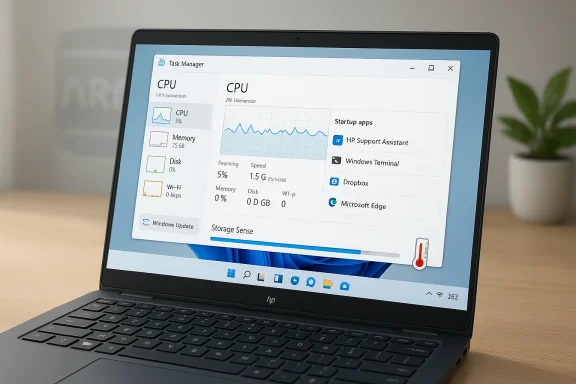
If the machine is still slow after updates and a restart, the next step is to look for the process that is eating CPU, memory, disk, or GPU time. Windows Task Manager remains one of the best diagnostic tools available because it turns vague “slowness” into measurable behavior. On a modern laptop, the problem is rarely “Windows is slow”; it is usually one thing making Windows feel slow.Task Manager tells a story
Open Task Manager with Ctrl + Shift + Esc and sort by CPU, Memory, Disk, or GPU. If one process is constantly spiking, that is your culprit. A browser tab, a cloud sync client, a launcher, a printer utility, or a stuck update service can all make a laptop feel frozen even when the hardware is fine.This is where consumer and enterprise use diverge again. Home users often see app bloat and browser overload, while office users may see endpoint protection, VPN clients, or collaboration tools monopolizing resources. The pattern matters because it tells you whether to disable an app, update it, or escalate to IT.
When to end a task
Ending a task is reasonable when the process is clearly misbehaving and you recognize it as nonessential. It is less appropriate for system services, security components, or anything tied to hardware management. The goal is to clear obvious offenders, not to randomly shut down things Windows needs to stay stable.Be especially careful with unknown processes on an ARM system. Some are legitimate compatibility helpers, while others may be third-party services with poor optimization. If you do not know what something is, search its name before forcing it closed.
What to watch for
- Persistent high CPU from one app.
- Memory usage that steadily rises without reason.
- Disk activity that stays near 100 percent.
- Repeated GPU spikes from background overlays.
- Services that restart themselves after being closed.
Reduce startup load
Startup programs can quietly ruin the first impression of a laptop. A system may look fast on paper, yet still feel slow if half a dozen apps launch automatically at sign-in and start grabbing resources before you have opened anything yourself. This is one of the easiest performance wins available on Windows.Why startup apps slow everything down
Each app that starts with Windows can consume CPU cycles, RAM, and background network activity. The impact may be small individually, but together they create a layered drag that is especially noticeable on thin-and-light machines. On a Windows on Arm device, startup bloat can also expose compatibility friction if one of those apps is not efficiently built for the platform.The result is not always a dramatic crash. More often, the laptop just feels less responsive in the first few minutes after boot. That is enough to frustrate users who expect a quick, modern AI PC experience.
How to trim the list
Open Task Manager and go to Startup apps. Review each entry with a simple question: do I need this immediately at boot? If the answer is no, disable it. Messaging apps, game launchers, media helpers, cloud sync clients, and vendor utilities are common candidates.Be selective. Security tools, touchpad utilities, audio control panels, and hardware support software may be worth keeping. The trick is to remove friction, not functionality.
Best candidates to disable
- Chat and messaging clients.
- Cloud storage sync tools.
- Streaming and media launchers.
- Game libraries and overlays.
- Third-party update helpers.
Free up storage the smart way
Storage pressure is one of the most underestimated causes of sluggishness in Windows. Even an SSD can feel less responsive when it is nearly full, because Windows needs working room for updates, caches, temporary files, and system operations. Microsoft’s Storage Sense feature exists precisely to help automate that cleanup.Why free space affects speed
When free space gets tight, Windows has less room for temporary files and background maintenance. That can make updates slower, app launches less predictable, and general system behavior feel cramped. On a laptop with limited built-in storage, this problem often sneaks up gradually as photos, downloads, browser caches, and app data accumulate.Microsoft’s Storage Sense documentation notes that the feature can manage select temporary files on the system drive, and it can even turn itself on in some low-space situations. That makes it a sensible default for users who do not want to manually babysit disk cleanup every week.
What to clean first
Open Settings > System > Storage and review what is using space. Temporary files are usually the best place to start. Items such as Windows Update cleanup, delivery optimization files, and other temporary remnants can often be removed safely.You should also check Downloads, large videos, old installers, and cloud-sync folders. These are the usual suspects on consumer machines. If your OmniBook feels slow and the drive is nearly full, clearing space may help more than tweaking performance settings.
A few smart storage habits
- Keep at least some SSD headroom.
- Turn on Storage Sense.
- Remove old installer files.
- Uninstall apps you do not use.
- Move large media libraries off the laptop when possible.
Check app compatibility on Windows on Arm
One of the biggest mistakes people make with ARM-based PCs is assuming every app behaves the same. Microsoft’s documentation is clear that Windows 11 on Arm supports x86 and x64 emulation, but emulation is still emulation. Most apps work well, yet some older, specialized, or heavily driver-dependent programs can run slower or behave differently than native Arm64 software.Emulation is good, but native is better
Microsoft says emulation is built into Windows and transparent to the user. That is great for compatibility, but it also means performance depends on how much work the emulator has to do. Apps with heavy CPU demands, complex plug-ins, or outdated dependencies can be more sensitive to this overhead.If an application has an ARM64-native version, that is usually the best choice. Native software can take fuller advantage of the Snapdragon platform and avoid the translation layer entirely. That difference may be subtle for light apps and dramatic for heavier workloads.
When an app is the problem
A slow OmniBook does not always mean the laptop itself is slow. Sometimes a single legacy app is consuming more resources because it is translated, poorly optimized, or stuck waiting on unsupported components. Microsoft also notes that kernel drivers must be native Arm64, which is why some deeper hardware integrations simply will not work the same way under emulation.This is one reason the Windows on Arm experience can feel inconsistent across software categories. Office-style apps and browsers often run well, while niche hardware utilities or older business programs can be less predictable.
Compatibility checks that help
- Look for an Arm64 download on the app’s website.
- Prefer newer versions over legacy installers.
- Avoid unsupported drivers or plug-ins.
- Test one app at a time if you suspect a slowdown.
- Replace a problematic app if an Arm-native alternative exists.
Tune power and performance settings
A battery-conscious laptop can feel slower than it needs to if Windows is prioritizing efficiency too aggressively. Microsoft’s power mode settings let users choose between battery life, balance, and performance, and that can have a real effect on responsiveness. On a Snapdragon-based system, the difference may be especially noticeable when the device is unplugged or running in a conservative mode.Best performance is not always best battery
If you are plugged in and want the laptop to feel snappier, switching to Best performance is a logical move. Microsoft says you can change this under Settings > System > Power & battery. That setting encourages the system to favor responsiveness rather than strict efficiency.The trade-off is obvious: more performance usually means more power draw. But if your complaint is lag during work sessions at a desk, that is a worthwhile exchange.
When throttling masquerades as slowness
A laptop that is warm, confined, or running on a soft surface may throttle to protect itself. That can feel like random lag, but it is really the system preserving itself under thermal load. On an AI PC with a compact chassis, that can happen sooner than some users expect.This is why power settings and physical conditions should be considered together. A machine on Best performance may still underperform if it is hot, blocked, or battery-limited. Software tuning cannot fully overcome thermal reality.
Good settings to review
- Set power mode to Best performance when plugged in.
- Avoid prolonged operation on low battery if speed matters.
- Check for thermal buildup around the chassis.
- Use a hard surface for better airflow.
- Revisit power settings after major updates.
Scan for malware and unwanted software
Malware is less glamorous than app compatibility, but it is still a real cause of poor performance. Background infections, unwanted browser extensions, and persistent security threats can consume CPU, memory, disk, and network resources without being obvious at first glance. Microsoft recommends using Defender’s offline scan when you want a more thorough check.Why offline scanning is worth it
Microsoft says Microsoft Defender Offline runs outside Windows to remove threats that hide from the operating system. That matters because some threats try to stay active while Windows is running, which can make removal harder. An offline scan shuts that path down by scanning before the normal desktop fully loads.Even if the issue turns out not to be malware, the scan helps establish confidence that the slowdown is not being caused by something more serious. That is especially reassuring on a machine that has started feeling unpredictable.
What to use
Open Windows Security, go to Virus & threat protection, and choose Scan options. From there, select the offline scan if you want the most comprehensive check. If you prefer a lighter first pass, a standard full scan can still reveal common issues.It is also wise to check for suspicious browser extensions, unknown startup items, and recently installed utilities you do not remember approving. Malware is only one side of the unwanted-software problem; adware and bundled installers can be nearly as annoying.
Red flags to investigate
- Pop-ups or browser changes you did not request.
- New startup items with strange names.
- Constant network activity when idle.
- Fans spinning hard for no obvious reason.
- Security warnings or disabled protections.
Separate consumer problems from enterprise ones
The same laptop can behave very differently depending on who manages it. For a home user, slowness usually comes from convenience software and habits. For a business user, the culprit may be policy, security tooling, or software that was never modernized for Arm64. That distinction matters because the fix is different in each environment.Consumer slowdown patterns
Consumers often overload their laptops with browser tabs, cloud services, launchers, and optional utilities. These are easy to disable, and the improvement can be immediate. The OmniBook 5 14 is designed to feel effortless, so a cluttered software layer can quickly undermine the experience.Personal devices also tend to drift into neglect. Users postpone updates, ignore storage cleanup, and leave resource-heavy apps running indefinitely. The result is a system that feels old before it truly is.
Enterprise slowdown patterns
Enterprise devices are a different story. Security stacks, device management agents, VPN clients, compliance tools, and remote support software can all increase overhead. If those tools are not fully optimized for Windows on Arm, they can create performance issues that no amount of casual cleanup will fix.In that environment, IT should check whether mission-critical software is Arm-native, compatible under emulation, or dependent on unsupported drivers. Microsoft’s documentation makes clear that emulation does not cover kernel components, so some enterprise workloads may require vendor action rather than user tweaking.
Why this distinction matters
- Consumer issues are often self-inflicted and fixable locally.
- Enterprise issues may require policy changes or software updates.
- Arm64 compatibility is more critical in managed environments.
- Driver-dependent tools deserve special scrutiny.
- Performance complaints should be measured, not guessed.
Strengths and Opportunities
The main strength of the OmniBook 5 14 is that it gives users a clear path to better performance without requiring hardware upgrades. Because Windows on Arm, HP support tools, and Microsoft’s system settings all contribute to the user experience, there are multiple places where measurable improvements can come from. That creates an opportunity for a reasonably slow laptop to become a perfectly capable one once the software layer is cleaned up.- HP Support Assistant can simplify firmware and driver maintenance.
- Windows on Arm keeps improving compatibility and emulator efficiency.
- Storage Sense reduces the need for constant manual cleanup.
- Best performance mode can unlock snappier behavior when plugged in.
- Task Manager makes it easy to identify the real bottleneck.
- Native Arm64 apps can outperform emulated alternatives.
- A well-maintained system can age more gracefully than expected.
Risks and Concerns
The biggest risk is assuming that every slowdown is a generic Windows problem. On this class of laptop, that can lead users to disable the wrong things, ignore platform-specific updates, or blame the hardware when the actual issue is an incompatible app. Another concern is that some users may expect x86-era behavior from a Windows on Arm machine and feel disappointed when legacy software does not match native performance.- Emulated apps may be slower than native Arm64 versions.
- Stale firmware or drivers can create avoidable lag.
- Overly aggressive startup clutter can mask the laptop’s true capability.
- Low free storage can silently degrade responsiveness.
- Thermal throttling can look like software slowness.
- Security tools and management agents may be heavier on enterprise devices.
- Some niche drivers or utilities may never work well on Arm.
What to Watch Next
The next phase for the OmniBook 5 14 will be less about raw specs and more about ecosystem maturity. If HP continues refining firmware and Microsoft keeps improving Arm compatibility, the laptop’s perceived speed should improve over time. That makes update cadence and app modernization more important than usual.We should also watch how quickly major software vendors ship Arm64-native builds. Browsers, productivity tools, creative apps, and conferencing software already shape the day-to-day experience for most users, and those are the apps that will decide whether Windows on Arm feels mainstream or merely acceptable. If the most-used apps are native, the machine feels fast; if they are emulated, the gap becomes harder to ignore.
The final variable is user behavior. A clean, updated, well-managed laptop will often outperform an identical one that has accumulated startup clutter and storage bloat. That means the OmniBook 5 14 can be a strong performer, but only if owners keep it in shape.
- Keep Windows Update current.
- Recheck HP Support Assistant after major OS updates.
- Prefer Arm64 versions of frequently used apps.
- Review startup items every few months.
- Watch storage headroom before it becomes a problem.
Source: Technobezz How to Speed Up HP OmniBook 5 14
