

When a routine driver update leaves a laptop showing the wrong GPU in Device Manager, or worse — the dreaded “Microsoft Basic Display Adapter” or a missing/unknown adapter — the result is bewildering for casual users and a multi‑hour troubleshooting session for IT pros. A cluster of recent reports about the AMD Radeon R7 M360 on Windows 10 shows this exact pattern: an update path (automatic or manual) that appears to complete, but the system does not report the R7 M360 correctly — Radeon settings won’t open, the adapter shows errors, and Windows Update can seemingly “replace” the driver later. This article explains what’s happening, verifies the technical facts, and lays out a safe, step‑by‑step recovery and prevention plan for users and admins dealing with the R7 M360 on Windows 10 systems.
The AMD Radeon R7 M360 is part of AMD’s mobile Radeon families and — crucially for troubleshooting — it is now in AMD’s legacy support bucket. That means AMD has stopped actively shipping new feature or performance driver updates for the R7 M300/M360 family and consolidated the final compatible builds in an archived, legacy driver package (Adrenalin 22.6.1 legacy). AMD explicitly points mobile R7 M300 family parts to legacy support and recommends OEM (laptop vendor) drivers for system‑specific features. At the same time, Windows 10 reached official end of support on October 14, 2025. That milestone changes the safety calculus for both driver updates and system maintenance: vendors will increasingly focus validation on newer OSes, and Microsoft will not provide the same level of driver‑centric updates for an out‑of‑support platform. Users maintaining Windows 10 systems must therefore balance stability (keep a known‑good driver) against security (move to a supported OS). The pattern reported by multiple community threads and the Born2Invest piece you supplied is common: after an automatic or manual update, the OS stops recognizing the discrete Radeon device (or reports a generic adapter), Radeon Software will refuse to open or report a version mismatch, and Windows Update may later reinstall a signed Microsoft driver that obscures the vendor package. Community guidance and vendor notes converge on a few core root causes and fixes — but some published “solutions” omit essential safety steps and rollback procedures.
The R7 M360 is a classic example of how the interplay between legacy hardware, vendor packaging, and OS update behavior can confuse otherwise straightforward maintenance tasks. The technical facts are clear: the R7 M360 is in AMD’s legacy bucket (use OEM drivers where possible), Windows 10 is past end of support (plan migrations), and the community‑recommended tools — AMD Cleanup Utility and DDU — are the accepted path to a clean reinstall when driver residue causes partial installs. Follow the step‑by‑step recovery plan above, keep a rollback image, and avoid third‑party repackaged drivers; those simple precautions turn a frustrating, time‑consuming problem into a predictable maintenance task.
Source: Born2Invest https://born2invest.com/?b=style-231476812/
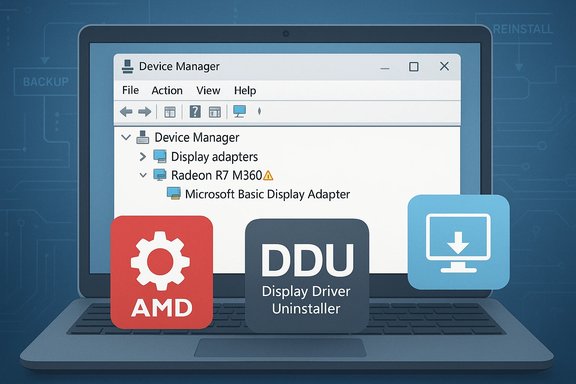 Background / Overview
The AMD Radeon R7 M360 is part of AMD’s mobile Radeon families and — crucially for troubleshooting — it is now in AMD’s legacy support bucket. That means AMD has stopped actively shipping new feature or performance driver updates for the R7 M300/M360 family and consolidated the final compatible builds in an archived, legacy driver package (Adrenalin 22.6.1 legacy). AMD explicitly points mobile R7 M300 family parts to legacy support and recommends OEM (laptop vendor) drivers for system‑specific features. At the same time, Windows 10 reached official end of support on October 14, 2025. That milestone changes the safety calculus for both driver updates and system maintenance: vendors will increasingly focus validation on newer OSes, and Microsoft will not provide the same level of driver‑centric updates for an out‑of‑support platform. Users maintaining Windows 10 systems must therefore balance stability (keep a known‑good driver) against security (move to a supported OS). The pattern reported by multiple community threads and the Born2Invest piece you supplied is common: after an automatic or manual update, the OS stops recognizing the discrete Radeon device (or reports a generic adapter), Radeon Software will refuse to open or report a version mismatch, and Windows Update may later reinstall a signed Microsoft driver that obscures the vendor package. Community guidance and vendor notes converge on a few core root causes and fixes — but some published “solutions” omit essential safety steps and rollback procedures. Why the system sometimes “doesn’t see” the R7 M360 after updating
1) Legacy driver packaging and INF mismatches
AMD’s legacy packages are final builds intended to support older hardware families, but they are packaged as reference drivers for a wide range of boards — not every OEM laptop SKU. If the driver package’s Display.Driver*.inf does not include your laptop’s specific hardware ID (VID/PID or subsystem ID), the installer may refuse to install the display driver component, or the GUI installer will appear to succeed while the OS retains a Microsoft‑signed generic driver. This leads to the “device not supported” symptoms or to Device Manager reporting a generic adapter.2) Windows Update replaces manual installs with Microsoft‑signed drivers
Windows Update prefers Microsoft‑signed drivers it deems appropriate. If you manually install an older or OEM driver, Windows Update may later overwrite it with a Microsoft‑distributed package (sometimes with a different version numbering scheme), producing mismatched driver/software versions and breaking Radeon UI components. You can stop this behavior with Group Policy / Device Installation Settings, but this must be done carefully and with rollback in mind.3) Leftover files or partial installs (driver residue)
Previous or failed installs can leave files and registry keys that confuse later installers. The symptom is a partial driver that shows up in the Radeon UI but not in Device Manager, or vice versa. The community‑recommended remedy is a thorough clean using AMD’s Cleanup Utility or Display Driver Uninstaller (DDU) from Safe Mode before reinstalling. These tools are powerful but carry risk if used without backups.4) OEM / hybrid graphics complexities on laptops
On many notebooks, the GPU stack is integrated with power management, hybrid graphics (switchable iGPU/dGPU), and vendor firmware. Generic AMD installers may not include OEM‑specific modules needed to expose hardware features correctly on these systems. For laptops, vendor drivers from Dell/HP/Lenovo are often the safest option.How to diagnose the issue — quick inventory, safe checks
Before making changes, gather these facts and create recovery points.- Create a System Restore point and, if possible, an image backup of the system drive. Never skip this. If driver changes brick the display stack, a reinstall from safe media can be long and painful.
- Record the hardware identifier: open Device Manager → Display adapters → right‑click the adapter → Properties → Details → Hardware Ids. Copy the PCI\VEN_xxxx&DEV_xxxx string to a text file. This string is the authoritative identifier for matching INF entries.
- Check the current driver string and signer: right‑click the installed driver file (or the driver entry in Device Manager) → Properties → Digital Signatures. Verify whether it’s signed by AMD, Microsoft, or an OEM. A Microsoft signer often indicates a Windows Update package.
- Run a hardware readout tool (GPU‑Z or similar) to see what the card reports at a low level. Beware fakes: always download GPU‑Z or utilities from official or well‑known outlets.
Step‑by‑step recovery plan (safe, verifiable, roll‑back friendly)
Follow this conservative workflow. Each step is verified against vendor guidance and community best practices.- Inventory and backup
- Create a System Restore point and, if available, a full disk image. Copy the hardware ID and current driver file names to a text note.
- Try Windows Update first (low risk)
- Let Windows Update search Optional / Driver updates. Microsoft’s signed driver is often the most stable baseline for desktop use. If this resolves the device and you don’t need Adrenalin features, stop here.
- If Windows Update fails or you need AMD features, obtain the correct installer
- For the R7 M360, AMD’s legacy Adrenalin 22.6.1 is the final AMD‑provided recommended build; AMD also advises using an OEM driver for laptops. Download the driver from AMD’s official previous drivers page or from your laptop vendor’s support site. Verify the digital signature and checksums where published.
- Clean the driver state (essential)
- Use AMD Cleanup Utility (official AMD tool) for a vendor‑supported clean. For a deeper clean — widely used in community troubleshooting — use Display Driver Uninstaller (DDU) in Safe Mode. DDU is maintained by Wagnardsoft and is the de facto tool for removing driver remnants; follow its Safe Mode guidance. Creating a disk image before this step is critical.
- Install the verified driver
- After DDU/AMD Cleanup, reboot and install either the OEM package (preferred for laptops) or AMD’s legacy Adrenalin 22.6.1. Choose custom/minimal components if you only need the display driver. Reboot when prompted. Verify Device Manager shows an AMD driver (not Microsoft Basic Display Adapter) and that Radeon Software launches.
- If the GUI installer refuses (advanced)
- Extract the driver and inspect Display.Driver*.inf for your exact hardware ID recorded earlier. If present, use Device Manager → Update driver → Browse my computer → Let me pick from a list → Have Disk, and point to that INF. Do not edit INF files to add IDs unless you understand driver signing implications. This is an advanced step and can create unsigned driver issues.
- Pause Windows Update / prevent driver replacement (temporary validation window)
- While validating your chosen driver, use Windows Update settings or Group Policy to temporarily exclude drivers from Windows Update: Computer Configuration → Administrative Templates → Windows Components → Windows Update → Manage updates offered from Windows Update → Do not include drivers with Windows Updates. This allows you to confirm stability without Windows reapplying a Microsoft package. Re‑enable once you have a stable configuration and a rollback plan. This is an explicit Windows policy step and is reversible.
- Keep a rollback copy
- Archive the working installer and keep DDU or AMD Cleanup Utility available. If a future Windows Update or driver release breaks the system, you can return to the last working driver using Safe Mode + DDU + reinstall. Community guidance strongly recommends this.
Practical checks and verification steps after reinstall
- Device Manager must list the AMD adapter with the correct device string; the XX driver version should match the installer you used. If it still shows Microsoft Basic Display Adapter, the INF may not have matched your hardware ID or Windows Update may have reinstalled a driver.
- Radeon Software (if the installer provides it) should open and display the expected driver and software version. If the software reports “versions do not match” this usually indicates a mismatch between the UWP store app and Adrenalin build — uninstall the store app and reinstall the correct Adrenalin package.
- Run GPU‑Z or a similar utility obtained from an official source to confirm clocks, device name, and sensor readings. Do not download GPU‑Z from random mirrors — there have been fake sites distributing miner bundles. Always use the official TechPowerUp page or a trusted archive.
When to prefer OEM drivers vs AMD’s legacy package
- Use OEM drivers when your laptop vendor publishes a Windows 10 package for your exact model. OEM packages include vendor‑specific modules for hybrid graphics, power policy, and switchable GPU integration. For production or daily‑use laptops, OEM drivers are the lowest‑risk option.
- Use AMD’s legacy Adrenalin 22.6.1 only if OEM drivers are not available, or you need features that the OEM package lacks. AMD’s legacy packages explicitly say they are notebook reference drivers with limited support for system vendor features.
Security and supply‑chain cautions (don’t shortcut this)
- Avoid third‑party driver shops and repackaged installers. Community archives repeatedly document “cheap ATI Radeon” downloads that are modified, unsigned, or bundled with adware. Only download from AMD.com or your OEM. If a site claims a newer driver than AMD but doesn’t show AMD’s digital signature, treat it as suspect.
- Verify digital signatures and checksums when available. Right‑click the installer → Properties → Digital Signatures; AMD or the OEM should appear as signer for official packages. If signatures are absent or mismatched, do not install on production machines.
- If your Windows 10 system is still running after October 14, 2025, recognize the long‑term risk: vendor validation for Windows 10 will decline, and security exposure increases. Plan migration to Windows 11 or enroll eligible devices in Extended Security Updates as appropriate.
Common pitfalls and how to avoid them
- Skipping a full cleanup before installing a new driver can leave you with a partially functional stack. Always run AMD Cleanup Utility or DDU from Safe Mode before a fresh install in problematic cases.
- Blindly editing INF files to “add” hardware IDs converts the driver into an unsigned or modified package. That is risky and often unnecessary; instead, use OEM drivers or a validated legacy installer that already lists your hardware ID.
- Forgetting to create a restore point or an image before major driver surgery. If DDU or a manual INF install goes wrong, System Restore or a disk image is the fastest recovery route.
If the hardware still isn’t reported correctly — deeper diagnostics
- Test with another OS image (USB rescue)
- Boot a Linux live USB or a clean Windows PE image to see whether the GPU is enumerated at a platform level. If the device is visible there but not in Windows, it's a driver/OS issue; if it’s not visible, you may have a hardware or firmware problem.
- Check BIOS/UEFI and vendor support forums
- Some laptop firmwares manage GPU routing (e.g., embedded switchable graphics). Confirm the vendor’s BIOS versions and any firmware notes that reference hybrid graphics. Vendor forums and BIOS changelogs may contain crucial clues.
- Verify subsystem (OEM) IDs
- If the laptop vendor uses a custom subsystem ID, the generic AMD INF may omit it. You can compare the subsystem ID from Device Manager with entries in the INF to confirm whether the package should match. If not, only an OEM driver will fully support the device.
Final verdict — what went wrong, what works, and how to reduce future risk
- What went wrong: For many R7 M360 cases the root cause is the interaction of legacy driver packaging, Windows Update’s driver distribution, and OEM‑specific needs on laptops. A manual or automatic update can easily leave the OS pointing at a Microsoft or generic driver that lacks OEM/Adrenalin integrations, producing mismatched software and the “not reporting correctly” behavior.
- What reliably works: A conservative workflow that includes inventory + backup, a full driver cleanup (AMD Cleanup Utility or DDU in Safe Mode), installation of the OEM or AMD‑legacy package verified by digital signature, and temporary suppression of Windows Update driver replacement produces the highest success rate. Keep an archived rollback installer and a recovery image.
- How to reduce risk in future: Prefer OEM drivers for laptops, verify signatures and INF hardware IDs before installing, and plan OS migration off Windows 10 (or enroll in Extended Security Updates where applicable) to maintain a supported platform for future driver releases.
Quick checklist (copy / paste for troubleshooting)
- Back up: Create a System Restore point and a disk image.
- Record: Copy Device Manager → Details → Hardware Ids (PCI\VEN_1002…).
- Baseline: Let Windows Update attempt a Microsoft driver; test basic display/resolution.
- Clean: Run AMD Cleanup Utility or DDU in Safe Mode.
- Install: Use OEM driver first; if none, use AMD Adrenalin 22.6.1 legacy from AMD’s archives.
- Verify: Device Manager shows AMD device; Radeon Software opens (if included).
- Protect: Temporarily block driver updates from Windows Update while validating.
- Archive: Keep the working installer and DDU on removable media.
The R7 M360 is a classic example of how the interplay between legacy hardware, vendor packaging, and OS update behavior can confuse otherwise straightforward maintenance tasks. The technical facts are clear: the R7 M360 is in AMD’s legacy bucket (use OEM drivers where possible), Windows 10 is past end of support (plan migrations), and the community‑recommended tools — AMD Cleanup Utility and DDU — are the accepted path to a clean reinstall when driver residue causes partial installs. Follow the step‑by‑step recovery plan above, keep a rollback image, and avoid third‑party repackaged drivers; those simple precautions turn a frustrating, time‑consuming problem into a predictable maintenance task.
Source: Born2Invest https://born2invest.com/?b=style-231476812/
