

NVIDIA’s long‑serving GeForce 7025 (often packaged as “GeForce 7025 / nForce 630a” on motherboards) is showing the familiar, messy end‑of‑life pattern: drivers exist, community workarounds persist, and Windows 10 compatibility is situational rather than guaranteed — leaving many users baffled by installer rejections, INF mismatches, and OEM‑specific roadblocks when they try to run modern Windows builds on hardware designed a decade or more ago.
The GeForce 7025 is an integrated GPU found on many older nForce consumer motherboards. It was never designed for modern Windows feature sets, but over the years NVIDIA and third‑party repositories produced legacy drivers that can, in many configurations, run on Windows 7, Windows 8.1 and, in some cases, Windows 10. Official legacy driver listings include the GeForce 7025 among supported devices, but distribution, signing, and OEM packaging create real‑world complications that make “will it work?” a case‑by‑case question. This article pulls together the technical reality, the common failure modes, practical recovery steps, and long‑term options for users who still depend on GeForce 7025 hardware and want to run Windows 10 or confirm safe upgrade paths.
Another practical thread: multiple users reported device‑ID rejections and installer errors that were ultimately traced to INF files and localized packaging differences rather than an inherent Windows 10 limit. In plain terms: the package can refuse to install even when the driver binary could run — because the installer’s manifest or INF doesn’t recognize your particular board string.
Source: Born2Invest https://born2invest.com/?b=style-230028312/
 Background / Overview
The GeForce 7025 is an integrated GPU found on many older nForce consumer motherboards. It was never designed for modern Windows feature sets, but over the years NVIDIA and third‑party repositories produced legacy drivers that can, in many configurations, run on Windows 7, Windows 8.1 and, in some cases, Windows 10. Official legacy driver listings include the GeForce 7025 among supported devices, but distribution, signing, and OEM packaging create real‑world complications that make “will it work?” a case‑by‑case question. This article pulls together the technical reality, the common failure modes, practical recovery steps, and long‑term options for users who still depend on GeForce 7025 hardware and want to run Windows 10 or confirm safe upgrade paths.What the records say: official support, legacy drivers, and timelines
NVIDIA’s legacy policy and the GeForce 7025
NVIDIA maintains separate legacy driver branches for older GPUs. The GeForce 7025 is explicitly listed in NVIDIA’s legacy driver pages, confirming that it falls into the “legacy” support category rather than current Game Ready / DCH driver families. That classification matters: legacy drivers receive periodic maintenance but not the same cadence of feature work and Windows‑version validation as modern families.Windows 10 compatibility in official downloads and archives
Driver archives and third‑party repositories show Windows 10‑labelled driver packages for the 7025 family (for example, older WHQL packages and reference drivers catalogued in archives). However, metadata and release dates sometimes conflict with operating system timelines, and OEM packaging can alter installer behavior. Third‑party mirror pages may list Windows 10 compatibility, but that does not guarantee a clean, signed, or OEM‑compatible install on every motherboard. Treat archive entries as pointers, not guarantees.Vendor and OEM behavior matters
Many affected machines use the integrated GeForce 7025 on a motherboard; those drivers were often distributed by the motherboard maker (OEM) rather than NVIDIA directly. OEM pages and Windows Update catalog entries can differ from NVIDIA’s generic packages. Some OEM responses and forum threads explicitly say certain nForce 630a boards are not supported for Windows 10 in their driver rollouts — a practical blocker for users who rely on OEM‑labelled installers.Why installs fail: the most common failure modes
Understanding why a Windows 10 install or driver update can get rejected requires attention to packaging, driver metadata, and platform policies. These are the most common failure modes reported in community posts and technical analysis.- INF / Device‑ID mismatch (installer reports “no compatible hardware” or Error 182). The INF file inside the package may not include the device ID string for your board or the packaged INF may be targeted only at specific variants, causing the installer to refuse the hardware. This is a packaging problem, not always a capability problem.
- OS‑targeted manifest restrictions. Some installers are manufactured for a specific Windows kernel version or assume a DCH driver model; if the package metadata omits Windows 10 GUIDs the installer may refuse to run even if the binary would work.
- OEM driver lock / signed OEM blobs. Laptops and many branded desktops require OEM‑signed drivers; manually installing NVIDIA’s generic package can fail if the OEM's updater expects different vendor strings. Forum threads repeatedly show OEM packages behaving differently from NVIDIA’s downloads.
- Windows Update duplicate vs. newer driver confusion (0x80070103). Windows Update sometimes attempts to reapply the same driver or an incompatible variant, generating errors even with a working device—this can create confusing evidence of incompatibility when the hardware is fine.
- Hardware age & driver model mismatch. Some modern Windows 10 feature sets rely on driver model behaviors (DCH vs. legacy) that old packages don’t implement, causing missing features or instability even when the driver installs.
Real‑world reports and community evidence
Forum histories and community posts from long‑term Windows users show two repeated themes: (1) many GeForce 7025 installs succeed after manual INF tweaks or legacy package installs, and (2) many other installs fail because of packaging or OEM restrictions. A classic example: users with a manufacturer CD showing “GeForce 7025 / nForce 630a” who attempted to install the OEM package got blue screens or installer failures; switching to NVIDIA’s or a legacy archive package sometimes fixed the issue — but not universally. That mixed outcome is typical of long‑lived embedded GPU families.Another practical thread: multiple users reported device‑ID rejections and installer errors that were ultimately traced to INF files and localized packaging differences rather than an inherent Windows 10 limit. In plain terms: the package can refuse to install even when the driver binary could run — because the installer’s manifest or INF doesn’t recognize your particular board string.
Practical troubleshooting: step‑by‑step guide to getting a 7025 working on Windows 10
These are the methods that reliably work in the majority of cases. Follow them in order and document each step so you can roll back.- Inventory and backup
- Note exact motherboard model and GPU device string from Device Manager (right‑click the device → Properties → Details → Hardware Ids).
- Create a full system image or at minimum a restore point and backup user data.
- Choose the right source for drivers
- First check your OEM/motherboard support site for Windows 10 drivers. OEM installers are the safest route on branded systems.
- If OEM drivers are unavailable, consult NVIDIA’s legacy driver list for the 7025 series to identify the recommended legacy package.
- Archive mirrors (driver repositories) can provide packages but treat them as downloads from unknown origins and validate signatures/MD5 where possible.
- Clean driver state
- Boot to Safe Mode. Run Display Driver Uninstaller (DDU) to remove any remaining driver artifacts. A clean baseline reduces driver conflicts.
- Inspect the installer (INF check)
- Extract the driver package (many are self‑extracting). Open the Display.Driver folder and inspect *.inf files for your motherboard/GPU device ID string and for supported OS indicated by version GUIDs.
- If the INF does not include your device ID, a manual INF edit is possible but risky — only for advanced users who are prepared to recover if Windows becomes unstable.
- Try a manual driver install via Device Manager
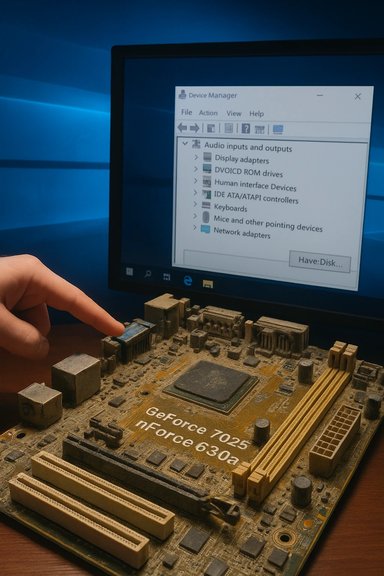
- Use "Update driver" → "Browse my computer for drivers" → "Let me pick from a list" → "Have disk…" and point to the appropriate .inf. This bypasses some installer restrictions and can succeed where the packaged installer fails.
- When the installer rejects Windows 10 but the INF contains your device ID
- Try installing the driver in compatibility mode? Sometimes extracting and manually installing the .inf ignores installer metadata that blocked the full package.
- If the package is unsigned or fails Windows driver signature enforcement, you may need to disable signature enforcement temporarily to test. This is a risky, short‑term step and should not be used on production machines.
- If all else fails: run Windows 10 with Microsoft’s generic driver
- Windows Update will often supply a basic Microsoft‑signed driver that provides stability and basic display capability. That’s preferable to an unstable custom install.
- Preserve a rollback plan
- Keep the last working driver installer and note the Device Manager driver version. If a new driver breaks functionality, restore the image or reapply the archived package.
Safety, security, and long‑term risk
- Driver updates are not just convenience: they include Important fixes, performance patches, and security CVE remediations. Running ancient drivers may leave known vulnerabilities unpatched. Vendor policy changes and Microsoft’s Windows 10 lifecycle decisions shift the availability and priority of fixes over time. Recent vendor messaging shows a gradual migration to Windows 11 as the primary validation baseline, although some vendors made limited Windows 10 commitments beyond Microsoft’s EOL windows. That broader policy context matters for long‑term device security planning.
- Avoid third‑party “one‑click driver updaters.” These tools frequently install the wrong package or bundled software and are a frequent cause of system instability in forum reports. Use OEM, NVIDIA legacy pages, or the Microsoft Update Catalog as the first line of trusted sources.
- Driver signature enforcement and Microsoft’s driver model mean that some legacy packages will never be a perfect match for modern Windows kernels. For mission‑critical use, plan migration to supported hardware rather than forcing legacy silicon into modern OSes.
When to accept defeat and upgrade hardware
There are compelling reasons to consider hardware replacement rather than prolonged troubleshooting:- If your machine is required for modern workloads (media capture, newer games, secure browsing), the performance and driver security limitations of a GeForce 7025 will be increasingly obvious.
- If the only working driver is an unsigned, hacked, or heavily modified package, you are inheriting a higher maintenance and security burden.
- OEMs may simply never provide a Windows 10 WHQL driver for your board — in those cases, continued effort yields diminishing returns.
Quick decision tree (practical)
- Is the system OEM‑supported for Windows 10? If yes, use OEM drivers. If no, proceed to 2.
- Can NVIDIA’s legacy driver package (INF includes your device ID) be installed manually after a DDU clean? If yes, test stability and performance. If no, proceed to 3.
- Does Windows Update provide a stable generic driver? If yes, use that and plan migration. If no, accept hardware replacement or run Windows in a safe compatibility configuration (e.g., older Windows VM for legacy apps).
Case studies and community anecdotes
- Many users who attempted to upgrade older systems with GeForce 7025 encountered a blue screen or installer hang when using the motherboard’s original DVD installer; switching to NVIDIA generic drivers or manually installing the INF sometimes fixed the issue. This pattern is documented in long‑running forum archives where the DVD package triggered a BSOD while the generic driver from NVIDIA resolved the crash.
- In other cases, OEM support teams told users the board would not be supported on Windows 10 — a blunt but honest answer that reflects limited engineering investment for legacy platforms. Those users who insisted on Windows 10 either accepted degraded functionality or bought replacement hardware.
Recommended checklist before you act
- Record: motherboard model, GPU hardware ID, BIOS version, and current driver version.
- Backup: full image and user data.
- Source: prefer OEM or NVIDIA legacy driver pages; avoid untrusted one‑click tools.
- Clean: use DDU in Safe Mode before attempting any driver swap.
- Inspect: extract INF files and confirm the device ID is present.
- Pilot: test on a spare machine or at least create a restore image before a full rollout.
- Rollback: keep the last good installer and document the steps for reinstallation.
Final verdict and guidance
The GeForce 7025 can often be coaxed to run on Windows 10, but success depends on the exact motherboard, the driver package’s INF and manifest, and whether the OEM enforces signed or vendor‑restricted installers. The technical reality is mixed: official legacy listings show the 7025 as supported in legacy drivers, third‑party archives list Windows 10‑compatible packages, and community threads confirm both successful installs and frustrating rejections — often due to packaging, not capability. For users who need a stable and secure Windows 10 experience, the conservative approach is:- Try the OEM path first.
- If the OEM is not helpful, inspect NVIDIA legacy packages and test in a controlled environment.
- If installers or INF files reject your hardware, do not rely on unsigned or hacked drivers for production use — replace the hardware.
Conclusion
The GeForce 7025’s Windows 10 story is not an abrupt “supported/not supported” binary; it’s a nuanced landscape of legacy driver branches, OEM packaging policies, INF/device‑ID accuracy, and evolving platform priorities. Users can often recover a working Windows 10 setup if they follow a careful, tested approach — clean the system, verify INF headers, and use OEM or NVIDIA legacy channels — but they should also weigh the security and maintainability costs of running decade‑old integrated GPUs on a modern OS. For long‑term reliability and security, migration to supported hardware remains the strongest option.Source: Born2Invest https://born2invest.com/?b=style-230028312/
