

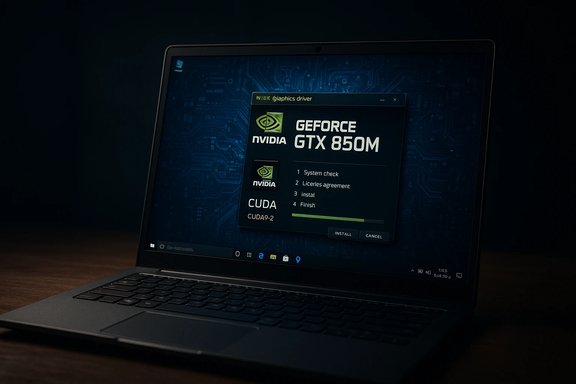
NVIDIA’s long‑served Game Ready package version 397.93 is still the official, vendor‑published driver you want to know about if you’re chasing a Windows 10-compatible NVIDIA stack for older notebook GPUs — including the GeForce GTX 850M. Released in late May 2018 as part of NVIDIA’s Release 396 family, version 397.93 is a WHQL‑signed Game Ready driver that added CUDA 9.2 support, targeted game fixes, and a stable reference build for many Maxwell/Kepler notebook GPUs. The release notes and the driver download page make clear that the GTX 850M is included in the supported notebook products for this driver family, and the binary remains available from NVIDIA’s official driver archive for Windows 10 (64‑bit).
The 397.93 package is part of NVIDIA’s Release 396 driver family (396.xx → 399.xx), a milestone release that added support for Windows 10 April 2018 Update features, Vulkan 1.1, and early CUDA 9.2 capabilities. Version 397.93 was published as a WHQL build on May 24, 2018 and is explicitly packaged for Windows 10 64‑bit. The official release notes document the supported desktop and notebook product lists, the notable new features, and the fixed/known issues relevant to Windows 10 and Windows 7/8.1 installations. Why this matters today: many notebooks that shipped with Maxwell‑class notebook GPUs (the GeForce 800M and 900M generations, including the GTX 850M) do not receive modern driver branches tailored to the latest Game Ready releases. For those systems a validated, vendor‑signed legacy package such as 397.93 is often the best balance of compatibility and features — provided you install the driver correctly and obtain it from an official source. Community archives and technical writeups reiterate the same guidance: prefer NVIDIA’s archive or the laptop OEM’s support portal, create backups, and use a clean‑install workflow when switching driver branches.
Safe sources:
Source: Born2Invest https://born2invest.com/?b=style-236619412/
 Background / Overview
The 397.93 package is part of NVIDIA’s Release 396 driver family (396.xx → 399.xx), a milestone release that added support for Windows 10 April 2018 Update features, Vulkan 1.1, and early CUDA 9.2 capabilities. Version 397.93 was published as a WHQL build on May 24, 2018 and is explicitly packaged for Windows 10 64‑bit. The official release notes document the supported desktop and notebook product lists, the notable new features, and the fixed/known issues relevant to Windows 10 and Windows 7/8.1 installations. Why this matters today: many notebooks that shipped with Maxwell‑class notebook GPUs (the GeForce 800M and 900M generations, including the GTX 850M) do not receive modern driver branches tailored to the latest Game Ready releases. For those systems a validated, vendor‑signed legacy package such as 397.93 is often the best balance of compatibility and features — provided you install the driver correctly and obtain it from an official source. Community archives and technical writeups reiterate the same guidance: prefer NVIDIA’s archive or the laptop OEM’s support portal, create backups, and use a clean‑install workflow when switching driver branches. What’s in NVIDIA GeForce Driver 397.93?
Release highlights
- WHQL certification for Windows 10 (64‑bit), issued May 24, 2018. The package is published as a Game Ready driver and contains vendor‑notarized binaries for consumer GeForce products.
- Added CUDA 9.2 support and updated internal libraries useful to developers and compute workloads on supported silicon. This is one of the release’s explicitly documented new features.
- Game Ready optimizations: targeted day‑one fixes for titles active at the time (for example, The Crew 2 Closed Beta and State of Decay 2). SLI and 3D Vision profile updates are documented in the release notes.
Technical components and package notes
- The installer bundle includes updated NVIDIA Control Panel components, PhysX runtime, HD audio drivers, and the optional GeForce Experience components. The package shipped as a DCH/WHQL distribution suitable for Windows 10 systems of that era. File size for the desktop Windows 10 64‑bit installer is roughly 492 MB (language and package variants differ).
Compatibility: Is the GTX 850M supported?
Yes — the GeForce GTX 850M is explicitly listed in NVIDIA’s supported notebook GPU table for the Release 396 driver family (which includes version 397.93). NVIDIA’s official release notes (the PDF published with 397.93) include a “Supported NVIDIA Notebook Products” table that shows GeForce GTX 850M (Maxwell) among the supported notebook GPUs. That makes 397.93 a vendor‑published, WHQL package that recognizes and supports GTX 850M hardware on Windows 10 64‑bit. Two practical takeaways:- For many GTX 850M notebook owners, 397.93 is a valid, official NVIDIA driver you can install on Windows 10 (64‑bit) when the OEM has not provided a newer validated package.
- Notebook owners should still treat OEM drivers as the first preference, because laptop vendors frequently ship custom INFs, power/thermal tuning, and model‑specific support that generic NVIDIA notebook packages cannot replicate. Community guidance repeatedly emphasizes OEM‑first for notebooks.
Where to download safely (and what to avoid)
Download only from vendor‑authorized sources. The risk of obtaining a driver from an unsigned mirror is that you might receive a repackaged binary with altered INF entries, bundled adware/telemetry, or modified signatures — a dangerous proposition for kernel‑level software.Safe sources:
- NVIDIA official driver archive / download center — the canonical location for 397.93 downloads (desktop and notebook variants). The NVIDIA driver result page and release notes PDF are the authoritative records for this release.
- Your laptop OEM’s support download page — strongly recommended for notebooks. If the OEM provides a Windows 10 driver for your specific model, use it; vendor packages often contain model‑specific optimizations and signed INFs. Community and technical advisories emphasize this for laptop users.
- Microsoft Update Catalog — for WHQL packages enumerated by catalog; useful for manual INF‑based installs when needed.
- Third‑party “driver warehouses”, repackagers, or torrent sites advertising “clearance” or “bundled” driver packs. Community threads and archival advisories repeatedly warn that repackaged installers can and do alter INF files or bundle extras.
Step‑by‑step — safe installation workflow for NVIDIA driver 397.93 (recommended)
Follow a conservative, repeatable process to minimize risk when installing or rolling back graphics drivers.- Backup: Create a full system image or at minimum a Windows System Restore point. This preserves a known good state.
- Identify hardware: Open Device Manager → Display adapters → confirm your GPU entry and copy the Hardware Ids (VEN_XXXX&DEV_YYYY). This lets you confirm that the driver INF will match your device.
- Download: Get the correct variant from NVIDIA’s driver results page (choose Notebook package for GTX 850M) or the OEM support portal for your laptop model. Save the installer locally.
- (Optional, recommended for problem cases) Clean uninstall existing driver: Boot to Safe Mode and run Display Driver Uninstaller (DDU) to remove residual driver files and registry entries. DDU is widely used in the community for clean reinstate. Preserve your old driver installer if you need to roll back.
- Run the NVIDIA installer as Administrator. Choose “Custom (Advanced)” and check Perform a clean installation. Uncheck GeForce Experience if you want a driver‑only installation and to avoid optional telemetry components.
- Reboot and validate: Open NVIDIA Control Panel → System Information to confirm Driver Version: 397.93 and verify the GPU enumerates correctly without warning icons in Device Manager. Run a quick benchmark or the application that matters to you to validate behavior.
Troubleshooting and recovery
Common installer errors and practical fixes:- “No compatible hardware found” — usually an INF/device ID mismatch or vendor SIG blocking. Confirm the Hardware Ids and check the NAB driver’s “Supported Products” list in the release notes. If your laptop is OEM‑locked, use the OEM driver. As a last resort experienced users can extract the driver package and attempt a manual “Have Disk” install in Device Manager, but this carries risk.
- Windows Update keeps overwriting the driver — use Microsoft’s “Show or hide updates” troubleshooter (wushowhide.diagcab) to block the automatic driver reinstall while you evaluate. Community threads describe this as a repeatable issue.
- Black screen or boot failures after install — boot into Safe Mode, run DDU to completely remove drivers, then reinstall. If you cannot access Safe Mode, use System Restore or the recovery environment to roll back. DDU is the community standard for surgical cleanup, but use it only after you back up.
- Regression in specific games/apps — validate with objective benchmarks. Capture baseline FPS/1% lows before updating and re‑run the same tests after installation. If regressions are real, roll back and report the details to NVIDIA or your OEM with DxDiag and logs.
Privacy, telemetry, and GeForce Experience
GeForce Experience and associated app components historically collect optional telemetry (hardware profile, installed games, driver version, crash metrics) to power features like automatic game optimization and automatic driver updates. If privacy is a priority:- Choose the driver‑only custom install and do not install GeForce Experience.
- After installation, check for NVIDIA telemetry services and scheduled tasks; community guides document how to disable them for users wanting a minimal footprint. Be aware that disabling telemetry services is an unsupported configuration but commonly practiced among privacy‑conscious users.
Security and lifecycle considerations for legacy drivers
Drivers are kernel‑level components. Older driver branches like 397.93 are legitimate and vendor‑published but represent a static snapshot in time. Consider three important security tradeoffs:- No modern security patches — older driver families may not receive ongoing security updates. If you run sensitive workloads on machines with legacy drivers, be aware of the increased long‑term risk and isolate those systems where possible.
- Functionality limitations — new OS features and modern media decode paths may be improved in later driver branches. Legacy drivers won’t add new hardware features to old silicon, but can ensure stable behavior for the software they were tested against.
- OEM vs generic tradeoffs — for notebooks, sticking to the OEM‑validated driver often preserves power/thermal tuning and battery behavior that generic NVIDIA packages cannot guarantee. If your laptop maker offers a Windows 10 driver for your model, prefer that because you’ll also retain vendor support for the platform.
Cross‑reference and verification notes
- NVIDIA’s official driver results page for GeForce Game Ready Driver 397.93 documents the release date, supported OS (Windows 10 64‑bit), and binary metadata. The release notes PDF accompanying the package explicitly lists GeForce GTX 850M in the Supported Notebook GPUs table. These are the primary, authoritative references for compatibility and release details.
- Independent outlets such as TechPowerUp and TechSpot published contemporaneous coverage and driver file listings for 397.93, corroborating the release date and the Game Ready scope. Community archives and reputable driver repositories also reproduce the package name and file sizes observed at release time. Use these as secondary verification when needed.
- Community guidance from Windows forums and archival threads reiterates the same best practices: prefer OEM packages for notebooks, use DDU for clean installs in problematic cases, and avoid third‑party repackagers and “cheap driver shops.” The Born2Invest URL offered in the original prompt could not be reliably retrieved during verification checks and should therefore be treated as unverified until you can supply a working, accessible link or the page’s text.
Recommendations — actionable summary
- If you own a laptop with a GTX 850M: check your OEM support page first. If the OEM provides a Windows 10 driver for your model, install that variant. If not, the NVIDIA 397.93 notebook package is an official, WHQL release that includes GTX 850M and can be used, but follow a clean‑install workflow and keep a rollback plan.
- If you own a desktop with a legacy Kepler/Maxwell GeForce part: use NVIDIA’s driver search to pick the correct desktop package variant; desktop packages are less likely to have OEM‑level INF restrictions.
- Always download the installer from NVIDIA’s official driver results page or your OEM. Compute and verify checksums if provided. Avoid third‑party repackagers and “clearance” driver shops.
- Prepare a backup, save your current driver installer, and prefer Custom → Perform a clean installation when updating. Use DDU in Safe Mode when a clean slate is required or when troubleshooting persistent corruption.
Conclusion
NVIDIA GeForce Driver 397.93 is a historically significant Release 396 family WHQL driver that remains the correct vendor‑published choice for many Maxwell‑class notebook GPUs like the GTX 850M on Windows 10 (64‑bit). The official release notes explicitly list GTX 850M among supported notebook products and the driver package is available from NVIDIA’s archive. That said, laptop owners should default to their OEM’s driver whenever possible; when using the generic NVIDIA package follow a disciplined install and rollback plan, validate results objectively, and avoid untrusted third‑party downloads. Community best practice — documented across Windows‑forum archives — prioritizes OEM drivers for notebooks, clean installs using DDU when needed, and keeping a tested rollback path for any driver update. If you need the direct NVIDIA driver binary or help matching your laptop’s Hardware Id to the driver INF, use NVIDIA’s official driver archive (search for 397.93) or the OEM support site for your exact laptop model; these are the authoritative download and verification points for a safe, reliable installation.Source: Born2Invest https://born2invest.com/?b=style-236619412/
