

For anyone wrestling with a GeForce GT 240M on a modern Windows 10 system, the compatibility puzzle is solvable — but it requires discipline, verified downloads, and a clear rollback plan to avoid the common pitfalls that still trip up users in 2026.
The GeForce GT 240M is a legacy mobile GPU from NVIDIA’s GeForce 200M family that can still be made to work under Windows 10, provided you use the correct, vendor‑signed legacy driver and follow a conservative installation workflow. NVIDIA published notebook driver releases in the 300–342 family that explicitly list 200‑series mobile GPUs (including GT 240M) as supported, and the official GeForce 342.01 notebook build is a practical compatibility target for Windows 10 systems. Microsoft’s decision to end mainstream Windows 10 support on October 14, 2025 changes the security calculus for running legacy drivers on that OS; treat any GT 240M + Windows 10 combination as a compatibility bridge rather than a long‑term, production‑grade solution.
NVIDIA historically released notebook driver families (Verde / R300 / R304 etc. that included the GT 240M in the supported product list, and later reference notebook builds such as GeForce 342.01 were published with Windows 10 compatibility in mind. Those official pages show the GT 240M as a supported device in several notebook releases — this is the first place to check when validating a candidate installer. At the same time, running such legacy drivers on Windows 10 after Microsoft’s end of support (October 14, 2025) increases the security and maintenance risk. Microsoft no longer ships security updates to consumer Windows 10 devices beyond that date, and vendor driver cadence for older GPUs is generally reduced or stopped. That means the combination of an unsupported OS and archived GPU drivers raises real exposure to unpatched kernel‑mode vulnerabilities and supply‑chain risk. Plan accordingly. ([support.microsoft.com](Windows 10 support has ended on October 14, 2025 - Microsoft Support went wrong for many users — common compatibility failure modes
Even when an official legacy driver exists, installations can fail or cause instability for several recurring reasons:
Source: Born2Invest https://born2invest.com/?b=style-230025312/
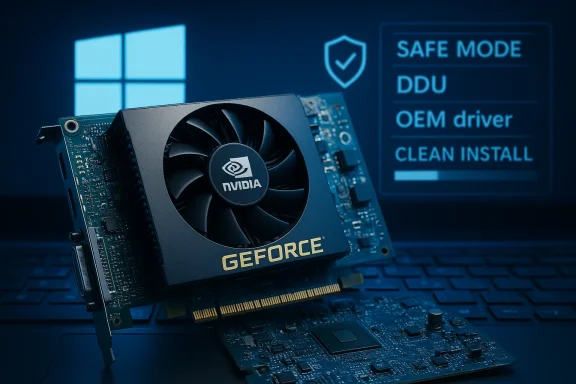 Overview
The GeForce GT 240M is a legacy mobile GPU from NVIDIA’s GeForce 200M family that can still be made to work under Windows 10, provided you use the correct, vendor‑signed legacy driver and follow a conservative installation workflow. NVIDIA published notebook driver releases in the 300–342 family that explicitly list 200‑series mobile GPUs (including GT 240M) as supported, and the official GeForce 342.01 notebook build is a practical compatibility target for Windows 10 systems. Microsoft’s decision to end mainstream Windows 10 support on October 14, 2025 changes the security calculus for running legacy drivers on that OS; treat any GT 240M + Windows 10 combination as a compatibility bridge rather than a long‑term, production‑grade solution. Background: why GT 240M compatibility still matters
The GT 240M shows up most often in older laptops that need to remain functional for legacy applications, archival gaming, or specialized workflows that depend on original behavior from older drivers. While the GT 240M’s raw capability is modest by modern standards ( DirectX 10.1 era silicon, small shader counts, GDDR2/3 memory variants), the card can still provide perfectly usable 2D acceleration, video decode for older codecs, and the “good enough” 3D performance needed for older games or ISV‑certified legacy titles.NVIDIA historically released notebook driver families (Verde / R300 / R304 etc. that included the GT 240M in the supported product list, and later reference notebook builds such as GeForce 342.01 were published with Windows 10 compatibility in mind. Those official pages show the GT 240M as a supported device in several notebook releases — this is the first place to check when validating a candidate installer. At the same time, running such legacy drivers on Windows 10 after Microsoft’s end of support (October 14, 2025) increases the security and maintenance risk. Microsoft no longer ships security updates to consumer Windows 10 devices beyond that date, and vendor driver cadence for older GPUs is generally reduced or stopped. That means the combination of an unsupported OS and archived GPU drivers raises real exposure to unpatched kernel‑mode vulnerabilities and supply‑chain risk. Plan accordingly. ([support.microsoft.com](Windows 10 support has ended on October 14, 2025 - Microsoft Support went wrong for many users — common compatibility failure modes
Even when an official legacy driver exists, installations can fail or cause instability for several recurring reasons:
- INF / Hardware‑ID mismatches — the packaged installer’s INF may not list your OEM’s exact vendor/subsystem ID, causing the incompatible hardware found.” OEM‑customized drivers often include additional INF entries that NVIDIA’s generic package does not.
- OEM vs. generic driver conflict (Optimus / hybrid graphics) — laptops that use vendor‑modified Optimucustom power/thermal tables can break if you replace the OEM driver with a generic NVIDIA notebook driver. OEM packages often control hybrid switching behavior and battery/thermal tuning.
- Leftover driver artifacts — partial uninstalls or mixed driver families can freezes, or driver crashes. Community consensus is that Display Driver Uninstaller (DDU) in Safe Mode gives the cleanest slate.
- Windows Update “driver loops” — Windows Update can re‑push a diff driver while you test, causing confusion and instability. Microsoft’s “Show or hide updates” tool is the recommended way to block a specific driver while validaUnverified third‑party “discount” driver packs — repackagers sometimes alter INF files, bundle extras, or break signatures. Always prefer NVIDIA’s official archive or your OEM’s support page.
Confirming the right driver: official archive guidance
Before touching anything, verify two facts:- The NVIDIA driver build explicitly lists the GT 240M (or your specific subsystem ID) as a supported product.
- The driver package’s OS selector includes the Windows 10 variant you are running (32‑ or 64‑bit).
Step‑by‑step: safe installation workflow for GT 240M on Win
Follow this exact sequence to minimize risk and retain the ability to recover quickly if anything goes wrong.- Backup and inventory
- Create a full disk image (recommended) or a Windows System Restore point at minimum.
- Open Device Manager → Display adapters → Properties → Details → Hardware Ids and copy the full VEN/PID and subsystem strings. Record your laptop model and BIOS/UEFI version.
- Locate the correct driver
- First check your laptop OEM’s support/download site for a Windows 10 driver for that model. If present, download and prefer that package.
- If OEM has no Windows 10 driver, use NVIDIA’s official driver archive and pick the exact notebook driver family that lists the GT 240M 342.01). Confirm the download page lists Windows 10 and the GT 240M.
- Verify download integrity
- Where available, compare checksums (SHA‑256) listed on the vendor page with the file you downloaded. If the vendor doesn’t publish a checksum, prefer OEM or NVIDIA pages that do. Avoid third‑party verify file integrity.
- Prepare the system
- Unplug external devices, close all background apps, and disable third‑party overlays or capture tools that may interfere.
- Reboot into Safe Mode and run DDU (Display Driver Uninstaller) to remove any leftover driver traces if you are moving between families or have experienced previous driver problems. DDU is the accepted community tool for a full cleanup; use it in Safe Mode only.
- Clean installation
- Reboot to normal desktop, right‑click the downloaded NVIDIA installer → Run as administrator.
- Choose Custom installation → check “Perform a clean installation” (this removes older NVIDIA settings and many residual files).
- If the installer refuses or reports “no compatible hardware,” extract the package (NVIDIA self‑extracts to a temporary folder), inspect the contained .INF to see if your Hardware Id is listed. If it is, you can attempt a manual Device Manager → Update driver → Browse my computer → Let me pick → Have Disk… install (this bypasses some installer checks). Manual INF editing is risky and not recommend
- Post‑install validation
- Reboot and verify Device Manager shows the driver version you installed.
- Run representative workloads: 2–3 minutes of desktop use, video playback with the codec you care about, and a short game or benchmark for 3D stress.
- Monitor Event Viewer for nvlddmkm or driver errors and keep the disk image or restore point handy for quick rollback.
- If things break
- For black screens or boot hang: boot to Safe Mode, run DDU, and reinstall or revert to the saved image.
- If Windows Update keeps overwriting the driver: use Microsoft’s “Show or hide updates” troubleshooter to block the offending driver while testing.
Troubleshooting the “not compatible” installer error
When NVIDIA’s notebook installer refuses to proceed, the root cause is usually one of three things:- The INF doesn’t include your OEM/vendor subsystem ID.
- Your laptop requires an OEM‑signed INF for hybrid power or Optimus to function.
- The installer metadata is simply rejecting older boards because of packaged family rules.
- Reinstall the OEM driver (best option for laptops).
- Extract the NVIDIA package and check the INF for your Hardware Id; if present, use Device Manager → Have Disk… to install.
- If neither works and you understand signature risk, test the driver in an isolated environment after backing up; avoid disabling driver signature enforcement on a production machine.
Security, privacy, and lifecycle considerations in 2026
Three facts change the decision tree in 2026:- Microsoft ended Windows 10 support on October 14, 2025; consumer devices no longer receive security updates from Microsoft by default. This elevates the security OS + legacy drivers.
- NVIDIA’s engineering focus has shifted to modern driver branches; legacy driver families receive minimal maintenance and are not patched to the same standards as current releases. Expect that historic drivers will remain archived but not actively updated.
- Third‑party “discount” driver pack sites remain a common vector for modified INFs, adware, or worse. Community and forum audits repeatedly advise against using repackaged installers — prefer official NVIDIA or OEM archives and verify checksums.
- Upgrade the OS to Windows 11 (if the hardware supports it) or replace the machine.
- If the machine must remain, isolate it from the internet and sensitive networks and use it only for the specific legacy tasks required.
- Colegacy workload to a VM or a dedicated, offline box that is not used for daily browsing or email.
Practical alternatives and fallbacks
If the officocked or risky, consider these realistic alternatives:- Use the OEM driver: OEM packages are often the most compatible for laptops because they include vendor INF entries and power/thermal tuning.
- Microsoft Updain boards, signed driver packages appear in the Catalog and can be installed manually; this avoids third‑party repacks.
- Linux open drivers: some users preserve older GPUs under Linux using open drivers or legacy proprietary drivers the distribution’s archives — a valid choice if you can accept an OS change.
- Hardware refresh: budget modern GPUs or second‑hand GPUs from later families provide active driver support and reduce the long‑term risk profile. This is the pragmatic choice if you need regular internet access and security updates.
Case study: why some users report black screens after installing legacy drivers
Community diagnostics repeatedly show the same root causes:- Mixed driver artifacts causing driver negotiation failures on boot (resolvable with DDU).
- Hybrid graphics or Optimus mismatches where the generic NVIDIA driver lacks OEM INF entries that route the internal display.
- Windows Update reapplying an incompatible driver in the background after a manual installation.
What I verified and what remains uncertain
Verified (multiple independent sources):- Microsoft’s Windows 10 end‑of‑support date: October 14, 2025. This is confirmed on Microsoft’s support and lifecycle pages.
- NVIDIA’s archived notebook drivers (for example, GeForce 342.01) explicitly list notebook GPUs from the 200‑series and include Windows 10 downloads. Use NVIDIA’s official driver pages to validate support lists and download the installers.
- Community best practice for legacy driver installs: backup → DDU → clean install → validate; and a strong recommendation to avoid unverified repackagers. These are corroborated by the co in the uploaded community files.
- The Born2Invest URL included in the original prompt could not be reliably retrion; any unique claims or download links contained only on that page should be consil a working, accessible URL or an archived copy is supplied. Treat that page’s unique assertions with caution and rely instead on NVIDIA and OEM archives for driver downloads.
Final checklist — GT 240M Windows 10 driver compatRecord hardware IDs from Device Manager (VEN/PID/subsysupport page for your laptop model; if present, use the OEM driver.
- If OEM not available, uarchive and pick a notebook driver that lists GT 240M (e.g., 342.01). Confirm OS (Win10 x64/32).
- Download from NVIDIA or OEM only; verify cd.
- Backup: full disk image or System Restore point.
- Use DDU in Safe Mode for a g families or recovering from instability.
- Install with Custom → Perform a clean installation; reboot and validate with representative workloads.
- If installer rejects: inspect INF for your Hardware Id; prefer manual Have Disk install only if INF contains your id.
- Block Windows Update driver replacements with “Show or hide updates” while testing.
- If the machine is security‑sensitive or networked, plan hardware refresh or OS upgrade — legacy drivers on EOL Windows 10 are temporary measures.
Conclusion
Resurrecting a GeForce GT 240M under Windows 10 in 2026 is achievable, but it is no longer trivial or risk‑free. The definitive steps are simple in theory — verify the OEM/NVIDIA archival driver, prepare a full backup, clean the system with DDU, and install the official package — yet the operational reality requires attention to INF/device‑ID mismatches, hybrid graphics behavior, Windows Update interactions, and the broader security implications of running legacy drivers on an unsupported OS. Rely on NVIDIA’s official driver pages and your OEM’s support downloads, avoid discount or repackaged driver bundles, and treat this configuration as a short‑term compatibility solution rather than a long‑term platform for sensitive workloads. If your objective is stability and security for daily use, the recommended path remains to upgrade the hardware or the operating system so that your GPU and drivers are supported by current, actively maintained driver branches.Source: Born2Invest https://born2invest.com/?b=style-230025312/
