

Cheap download listings and one-line blog fixes promising “GeForce 8600 GT drivers for Windows 10 — solved” sound attractive, but for anyone who actually installs kernel-mode graphics drivers on a modern PC, the question isn’t marketing copy — it’s provenance, compatibility, and recoverability.
The GeForce 8600 GT is a mid‑2000s GPU that once delivered solid value for mainstream desktops. Over the last decade NVIDIA moved older product families into archived, legacy driver branches; those archived drivers were intended to provide compatibility rather than ongoing feature or security updates. Community investigations into short ad‑style pages advertising cheap drivers (the Born2Invest example provided for review) repeatedly flagged those pages as low‑confidence and often unreachable during verification, meaning any binaries or download claims they contain should be treated as unverified.
Windows 10’s lifecycle also changes the risk calculus. Microsoft’s mainstream support for Windows 10 ended in October 2025, which materially increases the security stakes of running archived kernel drivers on that OS: you are combining an archive driver (no ongoing fixes) with an OS that is no longer receiving mainstream updates. For that reason, legacy driver use should be framed as a temporary compatibility tactic — not a long‑term, internet‑connected production solution.
This article walks through what the Born2Invest‑style claims get right, what they get wrong or leave unverified, and — crucially — an explicit, conservative workflow you can use if you must run an older GeForce (like an 8600 GT) on Windows 10. I cite the verification results and community best practices used to reach those conclusions throughout the piece.
Why this is more than pedantry: GPU drivers operate in kernel space, with the ability to affect system stability, boot, and security. A repackaged or tampered driver installer can break digital signatures, alter INF entries, bundle unwanted software, or worse. Community audits repeatedly recommend using vendor archives (NVIDIA’s official archive) or OEM support pages as the only acceptable sources for legacy drivers.
Important nuance: not every old GeForce is covered by a single package and INF‑level device ID matching matters. If the driver’s INF does not include your card’s hardware ID (the VEN/DEV/SUBSYS string visible in Device Manager → Details → Hardware Ids), the installer will refuse with “no compatible hardware” or similar. OEM systems may also require vendor‑specific drivers because of customized INF entries for Optimus, thermal/power tuning, or integrated display mappings. If you own a branded laptop or mini‑PC, the OEM package is the first choice.
For the 8600 GT specifically: it is a Kepler‑predecessor generation (G84/G86 era) card and historically lived in the older legacy/archived families. Community archives and vendor release notes around the Windows 10 era indicate that 340/341‑era drivers were the primary Windows 10 compatibility path for many GeForce 8/9 and some 200‑series cards; however, device‑level confirmation requires checking the INF inside the specific archived package to ensure your 8600 GT’s hardware ID appears there. If you cannot confirm that from the vendor page or release notes, treat any third‑party claims as unverified.
The conservative takeaway: treat the Born2Invest page as a marketing pointer, not a verified download. If you need drivers, go to the vendor (NVIDIA) or your OEM support portal and validate the package there. If NVIDIA lists the archived package and the release notes list your product and OS, that is the canonical path.
If you must run a legacy GeForce on Windows 10, the pragmatic approach is clear: validate the driver at the INF level, verify digital signatures, clean the system with DDU, keep an image for rollback, and isolate the machine if it remains on an OS that is out of mainstream support. These steps won’t make legacy silicon into modern hardware, but they will reduce the realistic chance that a driver experiment turns into a costly recovery.
For readers who want help with a specific system (exact GPU SKU, OS build, and whether the system is OEM‑branded), gather the Device Manager hardware IDs and the machine’s model/BIOS details — with those facts in hand you can verify whether a particular archived NVIDIA package actually lists your 8600 GT in its supported product list and proceed with the conservative workflow above.
End of article.
Source: Born2Invest https://born2invest.com/?b=style-228945812/
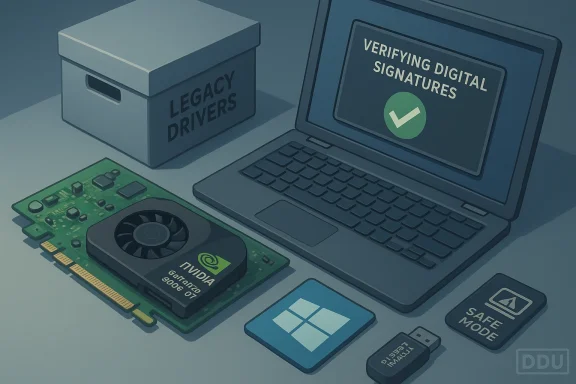 Background / Overview
The GeForce 8600 GT is a mid‑2000s GPU that once delivered solid value for mainstream desktops. Over the last decade NVIDIA moved older product families into archived, legacy driver branches; those archived drivers were intended to provide compatibility rather than ongoing feature or security updates. Community investigations into short ad‑style pages advertising cheap drivers (the Born2Invest example provided for review) repeatedly flagged those pages as low‑confidence and often unreachable during verification, meaning any binaries or download claims they contain should be treated as unverified.Windows 10’s lifecycle also changes the risk calculus. Microsoft’s mainstream support for Windows 10 ended in October 2025, which materially increases the security stakes of running archived kernel drivers on that OS: you are combining an archive driver (no ongoing fixes) with an OS that is no longer receiving mainstream updates. For that reason, legacy driver use should be framed as a temporary compatibility tactic — not a long‑term, internet‑connected production solution.
This article walks through what the Born2Invest‑style claims get right, what they get wrong or leave unverified, and — crucially — an explicit, conservative workflow you can use if you must run an older GeForce (like an 8600 GT) on Windows 10. I cite the verification results and community best practices used to reach those conclusions throughout the piece.
What the short promotion pages usually promise — and why that matters
Promotional pages and low‑quality reseller listings often use SEO tactics to combine product names, driver version numbers, and phrases like “Windows 10” or “clearance.” Those fragments can mislead buyers into thinking the driver is a modern, supported release. In real cases examined by community reviewers, the pages lacked direct vendor download links, checksums, release notes, or any verifiable metadata — the exact things you need to trust a kernel installer. Automated checks on the Born2Invest snippet showed the URL to be unstable or unreachable, so any unique claims or downloadable binaries hosted only on that page are unverifiable and must be treated with caution.Why this is more than pedantry: GPU drivers operate in kernel space, with the ability to affect system stability, boot, and security. A repackaged or tampered driver installer can break digital signatures, alter INF entries, bundle unwanted software, or worse. Community audits repeatedly recommend using vendor archives (NVIDIA’s official archive) or OEM support pages as the only acceptable sources for legacy drivers.
Technical verification: legacy driver branches and the GeForce 8-series
NVIDIA produced Windows 10 legacy driver packages (famously the 340/341 families) to facilitate the OS transition for older cards. These archived packages were published around the Windows 10 launch and were intended as compatibility artifacts rather than ongoing feature releases. Community cross‑checks confirm the existence of legacy Windows 10 packages (for example, GeForce Windows 10 Driver 341.74 and related 341.x entries) and show they were used to restore baseline 2D/3D acceleration and provide the NVIDIA Control Panel for older hardware.Important nuance: not every old GeForce is covered by a single package and INF‑level device ID matching matters. If the driver’s INF does not include your card’s hardware ID (the VEN/DEV/SUBSYS string visible in Device Manager → Details → Hardware Ids), the installer will refuse with “no compatible hardware” or similar. OEM systems may also require vendor‑specific drivers because of customized INF entries for Optimus, thermal/power tuning, or integrated display mappings. If you own a branded laptop or mini‑PC, the OEM package is the first choice.
For the 8600 GT specifically: it is a Kepler‑predecessor generation (G84/G86 era) card and historically lived in the older legacy/archived families. Community archives and vendor release notes around the Windows 10 era indicate that 340/341‑era drivers were the primary Windows 10 compatibility path for many GeForce 8/9 and some 200‑series cards; however, device‑level confirmation requires checking the INF inside the specific archived package to ensure your 8600 GT’s hardware ID appears there. If you cannot confirm that from the vendor page or release notes, treat any third‑party claims as unverified.
Investigation: the Born2Invest claim and the verification result
The Born2Invest snippet included short advertisement‑style lines promising downloads for GeForce drivers and named driver builds (for example, “GeForce Windows 10 Driver 341.74”). When those specific URLs were checked automatically, they could not be reliably retrieved and lacked vendor metadata such as digital signatures, checksums, or release notes. Community verification procedures therefore flagged the page as a poor source for kernel‑mode binaries. In short: the page is SEO noise until someone can provide a vendor‑signed installer link or an archive copy with checksums.The conservative takeaway: treat the Born2Invest page as a marketing pointer, not a verified download. If you need drivers, go to the vendor (NVIDIA) or your OEM support portal and validate the package there. If NVIDIA lists the archived package and the release notes list your product and OS, that is the canonical path.
A conservative, technician-grade workflow to install a legacy driver (recommended)
If you understand and accept the risks and still need to run an 8600 GT on Windows 10, follow this step‑by‑step procedure. This workflow is designed to be recoverable — it emphasizes backups and rollback options.- Inventory and backup
- Create a full disk image (recommended) or at least a Windows System Restore point. Image backups are the fastest way to recover a non‑booting system after driver surgery.
- Record Device Manager → Display adapters → Properties → Details → Hardware Ids (copy the VEN_xxxx&DEV_yyyy string). You will need this to confirm INF entries.
- Use only trusted downloads
- Check your OEM support page first if you have a branded system. OEM packages are preferred for laptops and many desktops.
- Otherwise, use NVIDIA’s official driver archive and pick the exact product and OS combo. Verify the release notes list your GPU and the Windows 10 variant (32/64‑bit) before you run the installer.
- Verify file integrity and signature
- Save the EXE to disk (don’t run from a temp folder). Right‑click → Properties → Digital Signatures to confirm the signer is NVIDIA Corporation (or your OEM). If the file is unsigned or the signature looks wrong, do not run it.
- Optionally compute a SHA‑256 hash (PowerShell Get‑FileHash) and compare against any vendor‑published checksum if available.
- Clean uninstall (use DDU)
- Boot to Safe Mode and run Display Driver Uninstaller (DDU) to remove residual drivers, registry keys, and INFs. Community practice widely endorses DDU as the safest way to start a legacy install.
- Run the vendor installer carefully
- Reboot to desktop, right‑click the NVIDIA EXE → Run as Administrator. Choose Custom → check “Perform a clean installation.” Optionally uncheck GeForce Experience to install drivers only.
- If the installer rejects your hardware
- Extract the NVIDIA installer (it self‑extracts to a temporary folder). Open the Display.Driver.inf and search for your VEN/DEV string. If present, you can install via Device Manager → Update Driver → Browse my computer → Let me pick → Have Disk… and point to that INF. This bypasses some installer GUI checks. Do not edit INF files unless you are an advanced user and know the signing/driver risk consequences.*
- Post‑install verification and stress test
- Open NVIDIA Control Panel → System Information to confirm the driver build. Run representative workloads (video playback, a short 3D app) and monitor Event Viewer for nvlddmkm or driver errors. Keep the image/restore point handy to rollback if you see problems.
- Prevent Windows Update from undoing your work while testing
- Windows Update can re‑push different drivers during testing. Use Microsoft’s “Show or hide updates” troubleshooter to block a driver update while you validate the installed package.
Troubleshooting common failure modes (and how to recover)
- “Installer cannot find compatible hardware”
- Cause: INF/device‑ID mismatch or OEM‑signed expectation. Fix: prefer OEM package, or if using NVIDIA’s package verify the INF contains your hardware ID and perform a manual “Have Disk…” install.
- Windows Update keeps replacing your chosen driver
- Cause: Windows Update re‑applies device drivers automatically. Fix: use Microsoft’s “Show or hide updates” tool to block the driver, or pause Windows Update while you test.
- Black screen or boot hang after install
- Cause: driver conflicts or residual artifacts. Fix: boot into Safe Mode, run DDU, and reinstall. Restore from image if Safe Mode fails. Always have a recovery USB ready.
- Laptop battery/thermal anomalies after a generic driver install
- Cause: missing OEM power/thermal INF hooks. Fix: roll back to the OEM driver and use vendor utilities. For notebooks, OEM drivers are the safe path.
Security, lifecycle, and long‑term advice
- Legacy drivers are archived artifacts
- They were published to bridge compatibility during Windows 10’s transition, not to receive ongoing security patches. Treat them as functional compatibility layers, not modern, actively maintained components.
- Windows 10’s support status matters
- Microsoft’s mainstream support for Windows 10 ended in October 2025. Running archived drivers on an OS that’s out of mainstream support increases the exposure surface for older kernel code. For internet‑connected or sensitive systems, plan a hardware and OS upgrade rather than relying on archived drivers long term.
- Avoid third‑party “driver updaters” and repackaged bundles
- Community audits highlight repackagers that alter INF files, break signatures, or bundle adware. The Born2Invest snippet that prompted this article exemplifies the kind of SEO‑driven copy that frequently points to unvetted binaries; until a vendor‑signed archive link is shown, treat it as unverified.
- Isolation strategies if you must keep a legacy machine
- If you have a business or lab need to run a legacy GPU and Windows 10, isolate the machine: remove it from general internet traffic, limit network access with firewall rules, and do not reuse it for sensitive tasks. Keep images and rollback options current.
Alternatives and practical recommendations
If your goal is long‑term reliability and security rather than temporary compatibility, these are the practical options ranked by risk and cost:- Replace the GPU (desktop): a modern budget GPU will cost less than the troubleshooting time and provides ongoing driver support and modern codec/DRM features.
- Upgrade the platform (if supported) to a modern OS and GPU combo (Windows 11 where supported) to regain routine updates.
- Keep the legacy machine, but isolate it: offline usage for legacy apps or strict firewalling for narrow, controlled tasks.
- If stuck with legacy hardware for short periods, use vendor archives for the driver, follow the conservative install workflow above, and maintain a rollback image.
Critical analysis: strengths and weaknesses of the “cheap driver” claim
What the marketing‑style pages get right:- They correctly identify that older GeForce models can often be made to run under Windows 10 using archived vendor drivers; the 340/341 family was indeed NVIDIA’s compatibility branch during the Windows 10 transition. That is a verifiable fact and explains why many hobbyists successfully restored legacy cards using those packages.
- They omit provenance and integrity checks. A download claim without a vendor link, checksum, or digital signature is risky. The Born2Invest snippet provided for review lacked verifiable links and was unreachable during automated checks; that is a red flag for anyone recommending kernel‑mode installers.
- They downplay lifecycle concerns. Because Windows 10 mainstream support ended in October 2025, relying on archived drivers for internet‑connected systems is an ongoing security hazard. The marketing angle rarely reflects that reality.
- They gloss over OEM caveats. Laptop and OEM systems frequently require vendor‑signed, model‑specific drivers. Generic NVIDIA packages can be refused by installers or cause thermals/battery problems on notebooks. The vendor or OEM package must be checked first.
Practical checklist for readers (quick reference)
 Before you download: prefer OEM or NVIDIA’s official archive; confirm the driver’s Supported Products list includes your card.
- Backup: make a full disk image or at least a System Restore point before any driver changes.
- Clean uninstall: use DDU in Safe Mode if switching families or cleaning old artifacts.
- Verify signatures: confirm the EXE is signed by NVIDIA/your OEM before running it.
- If installer says “no compatible hardware”: extract and inspect the INF for your VEN/DEV string; prefer OEM if possible.
- Long term: plan hardware/OS upgrade if the machine is internet‑connected or handles sensitive data.
Conclusion
Short, SEO‑oriented pages promising “cheap GeForce 8600 GT drivers for Windows 10 — solved” capture attention but stop short of what any responsible installer needs: provenance, checksums, vendor release notes, and a recovery plan. Community audits of similar snippets (including the Born2Invest piece you supplied) found them to be unreliable as sources for kernel binaries; the safe route is to use NVIDIA’s official archived driver pages or your OEM’s support portal and to follow a conservative, image‑first installation workflow.If you must run a legacy GeForce on Windows 10, the pragmatic approach is clear: validate the driver at the INF level, verify digital signatures, clean the system with DDU, keep an image for rollback, and isolate the machine if it remains on an OS that is out of mainstream support. These steps won’t make legacy silicon into modern hardware, but they will reduce the realistic chance that a driver experiment turns into a costly recovery.
For readers who want help with a specific system (exact GPU SKU, OS build, and whether the system is OEM‑branded), gather the Device Manager hardware IDs and the machine’s model/BIOS details — with those facts in hand you can verify whether a particular archived NVIDIA package actually lists your 8600 GT in its supported product list and proceed with the conservative workflow above.
End of article.
Source: Born2Invest https://born2invest.com/?b=style-228945812/
