

NVIDIA’s GeForce 7-series cards — including the long-lived GeForce 7300 GS and the closely related 7300 LE — still turn up in older desktops and salvage builds, and the single question that keeps appearing in Windows forums and comment sections is simple: how do you get a usable, safe driver for Windows 10 when the official era for these cards feels like ancient history? The short answer: you can often get a working driver, but the process requires methodical verification, the right legacy package, and careful cleanup of existing drivers; misuse of untrusted “driver pack” pages is a real supply‑chain risk.
Fix: Confirm hardware IDs and compare them against the driver INF. If missing, pick an OEM package or an older archived driver that explicitly lists your vendor/subsystem ID.
Fix: Update Windows 10 to a supported build if possible. If you cannot update, obtain an archived driver that explicitly targets your Windows 10 build. If switching package style (DCH ↔ Standard), use DDU to cleanly remove the old traces.
Fix: Boot Safe Mode → run DDU → reinstall a validated vendor or OEM driver. If you can’t boot, use Windows Recovery to roll back. Always keep recovery media.
Fix: DDU → vendor clean install. If crashes persist, run hardware diagnostics: GPU stress tests while monitoring temps, verify PSU and RAM, try the card in another system. If crashes occur under minimal load after a clean install, suspect hardware.
If you want, follow the checklist above step‑by‑step on a test machine first, or capture a full system image before attempting an install on your main system. The methodical, evidence‑driven approach is the difference between a clean, working legacy GPU and an unstable, potentially compromised installation.
Conclusion: the GeForce 7300 GS / 7300 LE can be kept alive on Windows 10 with archived, vendor‑verified drivers and a conservative install workflow, but the process is technical and not risk‑free — prioritize vendor sources, verify signatures, and prepare a rollback plan before you click Install.
Source: Born2Invest https://born2invest.com/?b=style-229975212/
 Background
Why the GeForce 7300 series still matters
The GeForce 7300 family (including the 7300 GS and 7300 LE) represents entry‑level DirectX-era hardware that shipped broadly across OEM desktops and budget aftermarket cards. Many systems still run them — in media centers, legacy workstations, and retro gaming builds — and users often want the best compromise between functionality and system stability on a modern OS like Windows 10. Legacy GPUs like these are typically supported by archived driver branches rather than the current Game Ready releases, which complicates driver selection and installer behavior.The problem users describe
Common problems reported by users include installers that say “no compatible hardware” or “not compatible with this version of Windows,” silent failures where the driver installer completes but the GPU remains detected as Microsoft Basic Display Adapter, and runtime errors (TDR BSODs referencing nvlddmkm.sys) after a driver install. These symptoms usually come from three root causes: wrong installer/INF vs GPU hardware ID, DCH vs Standard package mismatches, or corrupted driver remnants.What the uploaded evidence shows (summary of the material)
- Trusted sources should be OEM support pages, NVIDIA’s official driver archive, or the Microsoft Update Catalog for signed WHQL copies; third‑party advertising pages and “clearance” download posts are flagged as untrusted and may deliver tampered installers. The Born2Invest landing snippet in community checks lacks authoritative verification and should be treated with caution.
- A conservative, technician‑grade workflow is recommended: inventory hardware IDs, back up the system (image or restore point), use Display Driver Uninstaller (DDU) in Safe Mode if switching packaging types or cleaning corrupted installations, then install the verified vendor package as Administrator using a Custom → Perform a clean installation option when offered.
- Installer failures often come down to missing INF entries for the card’s Vendor/Device/Subsystem IDs or to the wrong package family (desktop vs notebook, DCH vs Standard). Manual “Have Disk” installs using the driver INF are a valid fallback when the NVIDIA installer rejects the hardware but the INF actually supports the GPU.
- Windows 10’s lifecycle status (reaching end of mainstream support on October 14, 2025) changes the risk calculus for running legacy drivers on an EOL OS. For systems that remain online or handle sensitive data, upgrading OS or hardware is recommended.
Top candidates for a GeForce 7300 GS / 7300 LE driver on Windows 10
What “top” means in a legacy context
For legacy GPUs, “top driver” does not mean the latest bleeding‑edge Game Ready build; it means the most appropriate archived package that:- Explicitly lists your exact GPU or family in the Supported Products table,
- Is digitally signed by the vendor (NVIDIA or OEM),
- Matches the Windows 10 build and driver packaging style on your machine (DCH vs Standard),
- Has good community feedback for stability on comparable systems.
Practical list of candidate sources (order of trust)
- Your OEM support/download page (for branded laptops and prebuilt desktops). OEM drivers often include vendor‑signed INF customizations required by notebook/hybrid systems.
- NVIDIA official driver archive and download center (search by product family and OS). This is the canonical source for GeForce drivers.
- Microsoft Update Catalog (WHQL signed copies), if the vendor pages are temporarily unreachable.
- Reputable third‑party archives (TechPowerUp, Softpedia, DriverPack) only when vendor sources are unavailable — cross‑check file size and digital signature metadata carefully. Treat them as secondary.
Step‑by‑step: Safe installer workflow for GeForce 7300 GS / LE on Windows 10
Follow this exact sequence. It’s conservative and designed for recoverability.- Preparation — backups and inventory
- Create a full disk image if the machine is production‑critical, or at minimum a Windows System Restore point. Kernel‑level drivers can break boot; backups make recovery straightforward.
- Open Device Manager → Display adapters → right‑click → Properties → Details → Hardware Ids. Copy the VEN_XXXX&DEV_YYYY&SUBSYS_ZZZZ strings into a text file. These are the authoritative identifiers the INF must include.
- Choose the right driver
- For notebooks: check the laptop vendor’s support page first. OEM packages frequently include the necessary vendor‑signed INF modifications.
- For desktops: use NVIDIA’s driver archive. Select Product Type → GeForce, Product Series → GeForce 7 Series (or the closest match), Product → GeForce 7300 GS or 7300 LE, Operating System → Windows 10 64‑bit if listed. Confirm the driver’s Supported Products list includes your hardware ID.
- Verify the binary
- Save the EXE locally. Right‑click → Properties → Digital Signatures — confirm signer is NVIDIA Corporation or your OEM. Compute a SHA‑256 hash in PowerShell (Get‑FileHash) and compare to any vendor‑published checksum. If anything looks off, do not run the installer.
- Clean (if needed)
- If you previously tried other installers or you’re switching between DCH and Standard driver families, boot to Safe Mode and run Display Driver Uninstaller (DDU) to remove leftover artifacts. DDU is a community standard for clean driver swaps. Reboot to normal desktop and temporarily disconnect from the internet (or block Windows Update) so Windows doesn’t reapply a driver mid‑process.
- Install the driver
- Right‑click the vendor EXE → Run as Administrator. Choose Custom (Advanced) → check Perform a clean installation (this overwrites previous settings). Uncheck GeForce Experience if you do not want telemetry. Reboot when prompted.
- Validate
- Open NVIDIA Control Panel → System Information and confirm the driver build and that the GeForce 7300 GS or 7300 LE is detected. Test representative workloads (video playback, a short 3D app) and monitor Event Viewer for nvlddmkm or other driver events for several hours.
- If the installer says “not compatible”
- Extract the NVIDIA package (it self‑extracts to a temporary folder). Inspect the Display.Driver*.inf and search for your VEN/DEV/SUBSYS values. If the INF contains your ID, use Device Manager → Update driver → Browse my computer → Let me pick… → Have Disk and point to that INF. This manual INF route bypasses some GUI checks and is often the safe workaround. Don’t edit INFs unless you fully understand driver signing implications.
Common failure modes and targeted fixes
“No compatible hardware” during installation
Cause: INF/device ID mismatch or wrong package family (desktop vs notebook).Fix: Confirm hardware IDs and compare them against the driver INF. If missing, pick an OEM package or an older archived driver that explicitly lists your vendor/subsystem ID.
“Not compatible with this version of Windows”
Cause: Driver expecting a newer Windows 10 build or DCH/Standard mismatch.Fix: Update Windows 10 to a supported build if possible. If you cannot update, obtain an archived driver that explicitly targets your Windows 10 build. If switching package style (DCH ↔ Standard), use DDU to cleanly remove the old traces.
Black screen or boot failures after install
Cause: driver corruption, bad INF, or package type conflict.Fix: Boot Safe Mode → run DDU → reinstall a validated vendor or OEM driver. If you can’t boot, use Windows Recovery to roll back. Always keep recovery media.
Recurrent VIDEO_TDR_FAILURE (nvlddmkm.sys)
Cause: driver incompatibility, hardware fault, thermal or PSU issues, leftover artifacts.Fix: DDU → vendor clean install. If crashes persist, run hardware diagnostics: GPU stress tests while monitoring temps, verify PSU and RAM, try the card in another system. If crashes occur under minimal load after a clean install, suspect hardware.
Security and supply‑chain risks — what to avoid
- Avoid “driver update” utilities and SEO‑optimized mirror pages. Kernel‑level drivers are a supply‑chain attack surface; repackaged installers can break signatures, edit INFs, or embed malicious code. The Born2Invest snippet and similar pages were flagged in automated community checks as not reliably verifiable — treat them as untrusted.
- Never run a downloaded driver without checking the digital signature and, if available, the publisher‑published checksum or file size. If something mismatches, stop and revalidate.
- If you installed a driver from an untrusted source and now see instability: disconnect from the internet, create offline backups, run a full antimalware sweep using trusted engines, and consider restoring from a full system image or performing a fresh Windows reinstall if provenance cannot be established. Community guidance treats repackaged installers that touch nvlddmkm.sys as a kernel‑level risk.
Advanced options and last‑resort tactics
Manual INF install via Device Manager
If the NVIDIA installer rejects your hardware but the driver INF contains your hardware ID, a manual INF install can succeed:- Extract the EXE (7‑Zip or run the EXE and copy the temporary folder).
- Locate the Display.Driver*.inf inside the extracted folder.
- Device Manager → Display adapters → Update driver → Browse my computer → Let me pick → Have Disk → point to the INF.
This bypasses higher‑level installer checks but still enforces driver signing. Only use it if you trust the EXE’s origin and signature.
Temporary disabling of driver signature enforcement
Use only as a diagnostic measure on a controlled machine. Boot Advanced Startup → Startup Settings → disable driver signature enforcement for one session to test an unsigned driver. Do not leave enforcement disabled permanently — this lowers system defenses and is not recommended for general use.TDR timeout adjustment (diagnostic only)
Increasing the TDR timeout (via HKLM\SYSTEM\CurrentControlSet\Control\GraphicsDrivers TdrDelay) can hide symptoms while you gather diagnostic data, but it is not a fix. Use it only to collect crash dumps, then revert.Alternatives if a stable driver cannot be obtained
- Use the Microsoft Basic Display Adapter or the built‑in WDDM driver for desktop work that does not require GPU acceleration (video playback, office tasks). It’s stable and removes kernel‑level risk, but performance and feature support (hardware decode, 3D acceleration) will be limited.
- Replace the GPU with a modern, Windows 10/11 supported card. For many users this is the fastest path to compatibility and security, especially since Windows 10 mainstream support ended on October 14, 2025.
- For laptops where OEM drivers are unavailable, consider contacting the vendor to request an updated driver or use a discrete external GPU if the hardware and use case justify it.
Critical analysis — strengths, gaps, and risks
Strengths of the archived‑driver approach
- Archival driver packages often provide the necessary INF entries for older silicon and can deliver a stable, signed driver for Windows 10 when chosen correctly. They are the right tool when you must keep legacy hardware functional.
- The conservative workflow (backup → inventory → DDU → clean install) gives a repeatable, recoverable path that techs can adopt across machines. Community guidance coalesces around this method.
Risks and limitations
- No single universal GT 730/7300 installer: Because the GT 730/7300 families manifest multiple PCI device and subsystem IDs across vendors and OEMs, no single driver EXE is guaranteed to support every SKU. Users must confirm INF listings. This is a heavy lift for nontechnical users.
- DCH vs Standard packaging mismatches: Mixing packaging types without a DDU clean can cause installer rejections or systemic instability. This is a technical nuance many casual users miss.
- Supply‑chain and EOL risk: Downloading from untrusted mirrors is a kernel‑level security risk. Additionally, running Windows 10 past its mainstream support window increases exposure — archived drivers do not negate OS‑level vulnerabilities. For machines handling sensitive data or connected to untrusted networks, continuing to rely on legacy GPUs and EOL OSes is a strategic risk.
Unverifiable claims flagged
Some advertorial pages and SEO content about “new arrivals” or repackaged driver bundles lack vendor metadata and cannot be validated. Treat such claims as unverified until you can match the installer to an NVIDIA or OEM published package. The Born2Invest landing snippet in the supplied prompt did not provide authoritative metadata and was thus flagged in scans; this remains a cautionary point.Quick checklist (copy‑and‑paste)
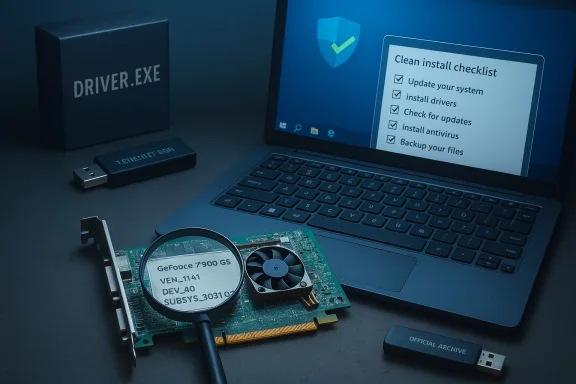
- Backup: Full disk image or System Restore point.
- Inventory: Device Manager → Display adapters → Details → Hardware Ids. Copy VEN/DEV/SUBSYS.
- Download: OEM support page → NVIDIA archive → Microsoft Update Catalog (in that priority). Verify digital signature and published checksum.
- Cleanup: If switching packages or troubleshooting, DDU in Safe Mode.
- Install: Run vendor EXE as Admin → Custom → Perform a clean install → Reboot → Validate in NVIDIA Control Panel.
Final verdict and practical recommendation
If you own a machine using a GeForce 7300 GS or 7300 LE and must run Windows 10, a stable driver installation is achievable, but it requires discipline: verify hardware IDs, obtain the driver only from OEM/NVIDIA/Microsoft, use DDU when changing packaging families, and validate the EXE’s digital signature and checksum. Avoid third‑party “driver packs” and SEO landing pages that promise “new arrivals” without vendor metadata — those are potential supply‑chain hazards. For systems that will remain connected to the internet or handle sensitive work, plan for an OS or hardware refresh rather than relying on legacy silicon and archived drivers, because Windows 10’s support lifecycle and driver maintenance scenarios have changed the long‑term risk assessment.If you want, follow the checklist above step‑by‑step on a test machine first, or capture a full system image before attempting an install on your main system. The methodical, evidence‑driven approach is the difference between a clean, working legacy GPU and an unstable, potentially compromised installation.
Conclusion: the GeForce 7300 GS / 7300 LE can be kept alive on Windows 10 with archived, vendor‑verified drivers and a conservative install workflow, but the process is technical and not risk‑free — prioritize vendor sources, verify signatures, and prepare a rollback plan before you click Install.
Source: Born2Invest https://born2invest.com/?b=style-229975212/
