

When Bluetooth disappears from Device Manager in Windows 11, the problem is rarely that Microsoft has simply moved the category. The adapter may be hidden, disabled, listed as an unknown device, missing its driver, blocked by firmware or organizational policy, or no longer detected by the system at all. The fastest diagnostic approach is to open Device Manager, look under both Bluetooth and Other devices, reveal hidden entries, and then choose a recovery step based on what Windows actually shows.
Bluetooth support in Windows depends on several layers working together. The PC must contain a Bluetooth radio, the firmware must expose that hardware to Windows, the operating system must enumerate it through Plug and Play, and a compatible driver must create the Bluetooth devices and services that users see in Settings and Device Manager.
This explains why a missing Bluetooth toggle is not always a Settings problem. The Settings app can only offer Bluetooth controls after Windows recognizes a suitable radio and loads the necessary software stack.
The radio adapter is the most important entry for troubleshooting. Its name may reference Intel, Realtek, MediaTek, Qualcomm, Broadcom, or another manufacturer, although some systems use a more generic label that includes words such as Bluetooth Adapter, Wireless Bluetooth, or Radio.
A typical list might include:
This method is particularly useful when Windows Search is slow, unresponsive, or restricted. Once Device Manager opens, expand Bluetooth and examine the adapter state.
Voice access does not change which devices Windows detects. It provides another input method, but a missing adapter must still be diagnosed through drivers, hardware controls, firmware, or management policy.
The Wi-Fi portion normally appears under Network adapters, while the Bluetooth radio appears under Bluetooth. Therefore, seeing a working Intel, Realtek, MediaTek, or Qualcomm Wi-Fi adapter does not prove that the Bluetooth driver is installed correctly.
The Details tab can offer stronger identification. Selecting Hardware Ids from the Property menu reveals identifiers that can help distinguish the physical adapter from enumerators and peripherals.
Open the entry’s properties and inspect Device status and Hardware Ids. An error such as Code 1 can indicate that the device is not configured correctly, while Code 28 commonly points to missing drivers.
Do not install a driver based only on a vague device name. Match the PC model, wireless module, hardware identifier, and Windows edition before proceeding.
If both Wi-Fi and Bluetooth disappear simultaneously, the likely fault moves deeper. Firmware settings, a physical wireless switch, a disconnected module, system-board trouble, or an aggressive power-state problem becomes more plausible.
This distinction matters on desktops with add-in Wi-Fi cards. Some PCIe wireless cards require a small internal USB cable connected to a motherboard header for Bluetooth to work. Wi-Fi can function perfectly while Bluetooth remains entirely absent if that cable is missing, loose, damaged, or attached to a disabled header.
A gray adapter entry is diagnostically useful because it confirms that Windows previously created a device instance for that hardware. It does not prove that the radio is currently connected, powered, or functioning.
Repeated Bluetooth adapter entries can also accumulate after driver changes or hardware re-enumeration. However, users should not treat every faded item as harmful clutter; hidden entries are often harmless historical records.
On Windows 11, selecting View > Show hidden devices is normally sufficient to display non-present Plug-and-Play entries. The legacy environment variable does not install hardware, restore electrical power, repair firmware, or make Windows detect a radio that is physically unavailable.
Scanning cannot force unavailable hardware to respond. If the radio is disabled in firmware, electrically disconnected, or malfunctioning, the scan may complete without restoring the Bluetooth category.
Useful examples include:
Rollback is especially valuable on laptops whose manufacturers customize radio behavior. A generic driver may support the chipset while still introducing sleep, wake, audio, coexistence, or power-management problems on a particular model.
Optional driver updates deserve judgment rather than automatic installation. They can solve compatibility problems, but replacing a stable OEM driver without a reason may create a new issue.
Identify the exact model or service identifier before downloading. A family name printed on the case may cover several hardware revisions with different wireless modules.
Check four details before installation:
Airplane mode can suppress wireless functions, but its exact behavior may vary according to prior settings and hardware implementation. The more important clue is whether Bluetooth controls return after the mode changes.
Use the manufacturer’s documentation for the exact model. Randomly pressing function keys can change brightness, audio, performance modes, or other settings without addressing the wireless state.
For persistent detection problems, save work, fully shut down the PC, disconnect external power when practical, and follow the manufacturer’s documented power-reset procedure. On serviceable desktops, also inspect the Bluetooth adapter’s USB connection and antenna installation.
Firmware menus vary significantly, so avoid changing unrelated settings. If Bluetooth is disabled there, Windows will often behave as though the hardware does not exist, leaving no radio entry for Device Manager to manage.
These distinctions explain why one managed PC may permit a keyboard but block file transfer, tethering, nearby sharing, or another profile. The adapter can look healthy while a particular use remains unavailable by design.
Do not attempt to defeat these controls. Ask the administrator to review the applicable Bluetooth policy, device-installation policy, endpoint security configuration, and driver deployment status.
For support teams, that pattern is valuable evidence. It distinguishes policy remediation from repeated local troubleshooting that cannot produce a durable result.
Remove and re-pair the accessory, recharge it, place it in pairing mode, clear its saved host list when supported, and check whether it works with another computer or phone. Bluetooth discovery, pairing, audio, and low-energy communication are different stages, so success at one stage does not guarantee success at another.
A single failing laptop points toward local corruption or hardware. A wave of identical failures on one model and driver version points toward a reproducible compatibility issue.
Screenshots can help, but structured inventory data is better at scale. Endpoint-management reporting can identify whether affected systems share a wireless module, firmware revision, or recently deployed package.
A Bluetooth “fix” that restores the radio but breaks audio profiles or sleep recovery is not an acceptable fleet-wide remedy. Validation should include the peripherals and workflows the organization actually uses.
Check Bluetooth, Other devices, Network adapters, and Universal Serial Bus controllers before concluding that the PC has no Bluetooth hardware.
Windows Update or the PC manufacturer may offer a more suitable driver than Device Manager’s initial automatic search.
Users should favor stability and model compatibility over version-number chasing. Enterprises should maintain deployment rings and a tested rollback process.
A healthy adapter no longer guarantees that every Bluetooth workflow is permitted. Support documentation must distinguish hardware availability, pairing permission, profile availability, and application access.
Finding Bluetooth in Device Manager on Windows 11 takes only a few seconds when the system is healthy, but a missing category is a valuable diagnostic signal rather than a dead end. By checking hidden devices and alternative categories, reading the adapter’s exact status, validating radio controls, installing only trusted model-appropriate drivers, and recognizing when policy or hardware sits outside the user’s control, Windows users can move from guesswork to a disciplined recovery process—and avoid turning a small Bluetooth failure into a larger Windows problem.
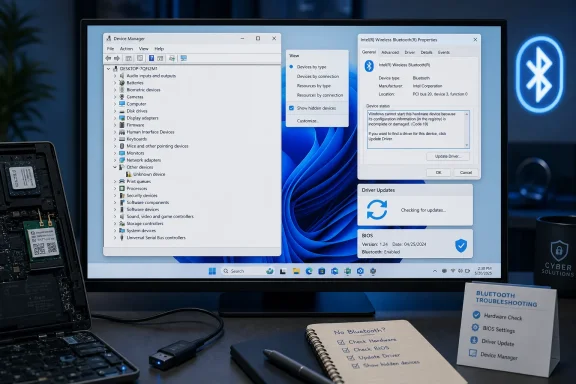 Background
Bluetooth support in Windows depends on several layers working together. The PC must contain a Bluetooth radio, the firmware must expose that hardware to Windows, the operating system must enumerate it through Plug and Play, and a compatible driver must create the Bluetooth devices and services that users see in Settings and Device Manager.This explains why a missing Bluetooth toggle is not always a Settings problem. The Settings app can only offer Bluetooth controls after Windows recognizes a suitable radio and loads the necessary software stack.
What Device Manager actually shows
Device Manager is an administrative view of hardware and the drivers associated with it. A healthy Windows 11 installation will generally display a Bluetooth category containing the radio adapter, Microsoft enumerators, and entries for connected or previously connected peripherals.The radio adapter is the most important entry for troubleshooting. Its name may reference Intel, Realtek, MediaTek, Qualcomm, Broadcom, or another manufacturer, although some systems use a more generic label that includes words such as Bluetooth Adapter, Wireless Bluetooth, or Radio.
Why there can be several Bluetooth entries
Users often expect to see one device and become concerned when Device Manager lists several. That is normal because the category can include the physical radio, protocol-related enumerators, and individual Bluetooth peripherals.A typical list might include:
- The vendor’s physical Bluetooth radio provides the connection to nearby devices.
- Microsoft Bluetooth Enumerator supports discovery and communication for compatible Bluetooth devices.
- Microsoft Bluetooth LE Enumerator handles Bluetooth Low Energy functionality.
- Headsets, controllers, phones, keyboards, mice, and other paired products may have their own entries.
- Additional audio, human-interface, network, or serial components may appear in other Device Manager categories.
The Fastest Way to Find Bluetooth
Windows Search is the most direct route when the goal is simply to confirm whether the Bluetooth adapter appears. It avoids navigating through Settings or the legacy Control Panel.Open Device Manager from Search
Follow these steps:- Select Start or press the Windows key.
- Type Device Manager.
- Select Device Manager from the search results.
- Find Bluetooth in the alphabetical device-category list.
- Select the arrow next to Bluetooth to expand it.
- Look for the physical Bluetooth adapter, usually identified by its hardware vendor.
Use the Power User menu
Windows 11 also provides a system shortcut that bypasses search. Right-click Start and select Device Manager, or press Windows key + X and choose Device Manager from the menu.This method is particularly useful when Windows Search is slow, unresponsive, or restricted. Once Device Manager opens, expand Bluetooth and examine the adapter state.
Launch it with the Run dialog
The Device Manager console can be started directly through its Microsoft Management Console command:- Press Windows key + R.
- Enter
devmgmt.msc. - Select OK or press Enter.
- Expand Bluetooth.
Finding Bluetooth Without a Mouse
Device Manager remains accessible through keyboard navigation, although the exact selected item can vary according to the hardware categories present on the PC. Users should listen to their screen reader or watch the selection rather than rely solely on a fixed number of arrow-key presses.Keyboard-first navigation
A practical keyboard workflow is:- Press the Windows key.
- Type Device Manager.
- Select the Device Manager result and press Enter.
- Press Tab until focus moves into the hardware tree.
- Use the Up and Down arrow keys to select Bluetooth.
- Press the Right arrow to expand the category.
- Use the Down arrow to move through its devices.
- Press Enter or Alt + Enter to open the selected device’s properties.
Voice access considerations
Supported Windows 11 configurations can also use Voice access to open Device Manager and interact with visible controls. Saying “Open Device Manager” launches the console, after which number overlays, click commands, and keyboard commands can help navigate the device tree.Voice access does not change which devices Windows detects. It provides another input method, but a missing adapter must still be diagnosed through drivers, hardware controls, firmware, or management policy.
How to Identify the Correct Bluetooth Adapter
Selecting the wrong entry can complicate troubleshooting. Removing a paired headset entry, for example, will not reinstall the PC’s physical Bluetooth radio driver.Look for the hardware manufacturer
The radio adapter commonly includes a recognizable vendor name. Current PCs frequently combine Wi-Fi and Bluetooth on a single wireless module, but Windows presents the Wi-Fi and Bluetooth functions separately because they use different drivers and device classes.The Wi-Fi portion normally appears under Network adapters, while the Bluetooth radio appears under Bluetooth. Therefore, seeing a working Intel, Realtek, MediaTek, or Qualcomm Wi-Fi adapter does not prove that the Bluetooth driver is installed correctly.
Check the device properties
Right-click the suspected adapter and select Properties. The General tab provides a Device status message, while the Driver tab shows the driver provider, date, version, and available management actions.The Details tab can offer stronger identification. Selecting Hardware Ids from the Property menu reveals identifiers that can help distinguish the physical adapter from enumerators and peripherals.
Interpret common icons
Device Manager icons quickly communicate several important states:- A normal icon generally means Windows has loaded the device without reporting an error.
- A down-arrow overlay indicates that the device is disabled.
- A yellow warning symbol means Windows detected a problem and usually assigned an error code.
- A faded or gray entry shown after enabling hidden devices often represents a non-present or previously detected device.
- An unknown-device entry indicates that Windows detected hardware but could not match it with a suitable driver.
When the Bluetooth Category Is Missing
An absent Bluetooth heading does not establish a single cause. It means Device Manager currently has no displayed devices assigned to that setup class, which may result from a missing driver, disabled hardware, a firmware setting, a policy restriction, or a hardware failure.Check Other devices first
A Bluetooth component without a matching driver may appear under Other devices. Expand that category and look for entries such as Unknown device, Bluetooth Peripheral Device, USB device, Network Controller, or another name associated with the wireless module.Open the entry’s properties and inspect Device status and Hardware Ids. An error such as Code 1 can indicate that the device is not configured correctly, while Code 28 commonly points to missing drivers.
Do not install a driver based only on a vague device name. Match the PC model, wireless module, hardware identifier, and Windows edition before proceeding.
Inspect Network adapters
Because many laptops use a combined Wi-Fi and Bluetooth module, the Wi-Fi side can provide an important clue. If the vendor’s wireless adapter is present under Network adapters but Bluetooth is absent, the Bluetooth-specific driver may be missing or its USB-based function may not be enumerating.If both Wi-Fi and Bluetooth disappear simultaneously, the likely fault moves deeper. Firmware settings, a physical wireless switch, a disconnected module, system-board trouble, or an aggressive power-state problem becomes more plausible.
Look for an Unknown USB Device
Bluetooth functionality on an internal wireless card is often exposed to Windows through an internal USB connection even when Wi-Fi uses PCI Express. Consequently, a failing or unrecognized Bluetooth function may appear under Universal Serial Bus controllers as an unknown USB device.This distinction matters on desktops with add-in Wi-Fi cards. Some PCIe wireless cards require a small internal USB cable connected to a motherboard header for Bluetooth to work. Wi-Fi can function perfectly while Bluetooth remains entirely absent if that cable is missing, loose, damaged, or attached to a disabled header.
Revealing Hidden and Non-Present Bluetooth Devices
Device Manager hides certain entries by default to keep the hardware tree manageable. Showing hidden devices can reveal a Bluetooth radio that Windows detected previously but does not consider present now.Use Show hidden devices
Open Device Manager and select View > Show hidden devices. Expand Bluetooth and look for faded entries, then examine their properties before uninstalling anything.A gray adapter entry is diagnostically useful because it confirms that Windows previously created a device instance for that hardware. It does not prove that the radio is currently connected, powered, or functioning.
Understand what a phantom entry means
A non-present or phantom device is an installed device instance that is not currently detected. This may happen after hardware removal, a docking change, replacement of a USB adapter, a firmware transition, or a driver failure.Repeated Bluetooth adapter entries can also accumulate after driver changes or hardware re-enumeration. However, users should not treat every faded item as harmful clutter; hidden entries are often harmless historical records.
Avoid outdated command-line advice
Older troubleshooting guides frequently recommend setting theDEVMGR_SHOW_NONPRESENT_DEVICES environment variable before launching Device Manager. That method was relevant to much older Windows behavior, particularly before Windows 8.On Windows 11, selecting View > Show hidden devices is normally sufficient to display non-present Plug-and-Play entries. The legacy environment variable does not install hardware, restore electrical power, repair firmware, or make Windows detect a radio that is physically unavailable.
Restoring a Disabled or Faulted Adapter
Once the Bluetooth radio appears, its status determines the safest next action. Begin with the least destructive option and test after each change rather than applying several fixes at once.Enable a disabled radio
If the adapter has a down-arrow icon:- Right-click the Bluetooth radio.
- Select Enable device.
- Wait for Device Manager to refresh.
- Open Quick Settings with Windows key + A.
- Confirm that Bluetooth controls have returned.
Scan for hardware changes
Select Action > Scan for hardware changes when a known adapter disappears after an uninstall, sleep-state problem, docking change, or hardware reconnection. Windows will ask Plug and Play to enumerate available hardware again.Scanning cannot force unavailable hardware to respond. If the radio is disabled in firmware, electrically disconnected, or malfunctioning, the scan may complete without restoring the Bluetooth category.
Read the Device Manager error code
Open the adapter’s properties and examine Device status. Codes involving missing drivers, failure to start, invalid configuration, corrupted driver data, resource problems, or signature verification point toward different remedies.Useful examples include:
- Code 1 or Code 28 usually directs attention to driver installation or configuration.
- Code 10 means the device could not start and can result from driver, firmware, power, or hardware trouble.
- Code 18 recommends reinstalling the device driver.
- Code 22 means the device is disabled.
- Code 31, 39, or 40 can indicate driver-loading or configuration problems.
- Code 43 means the device reported a problem to Windows.
- Code 45 indicates that Windows considers the hardware disconnected.
- Code 52 concerns driver-signature verification.
Updating, Reinstalling, and Rolling Back Drivers
Driver recovery is the most common solution when Windows detects the Bluetooth hardware but cannot initialize it correctly. The order of operations matters because a newer driver is not automatically a better driver for every laptop design.Search automatically through Device Manager
To request an automatic driver search:- Expand Bluetooth.
- Right-click the physical radio adapter.
- Select Update driver.
- Select Search automatically for drivers.
- Follow the prompts.
- Restart Windows if requested.
Install a downloaded driver manually
When an official driver package has already been downloaded and extracted:- Right-click the Bluetooth adapter or unknown device.
- Select Update driver.
- Choose Browse my computer for drivers.
- Select the folder containing the extracted driver files.
- Keep subfolder searching enabled when appropriate.
- Select Next and complete the installation.
- Restart the PC.
Reinstall the adapter
A reinstall rebuilds the device instance and can correct corrupted configuration:- Right-click the physical Bluetooth adapter.
- Select Uninstall device.
- Read any option concerning driver-package removal carefully.
- Confirm the uninstall.
- Restart the PC.
- Reopen Device Manager and expand Bluetooth.
- If necessary, select Action > Scan for hardware changes.
Roll back after a bad update
If Bluetooth failed immediately after a driver or Windows update, open Properties > Driver and select Roll Back Driver when available. Administrator permissions are required, and the button may be unavailable if Windows has no previous package retained for that device.Rollback is especially valuable on laptops whose manufacturers customize radio behavior. A generic driver may support the chipset while still introducing sleep, wake, audio, coexistence, or power-management problems on a particular model.
Getting the Right Driver Outside Device Manager
Windows Update is generally the safest first source because Microsoft distributes tested drivers through its servicing infrastructure. The PC manufacturer remains the preferred source when a system requires model-specific customization.Check Windows Update and optional drivers
Open Settings > Windows Update, install applicable system updates, and then inspect Advanced options > Optional updates for driver packages. Restart afterward, even if Windows does not make the reboot appear urgent.Optional driver updates deserve judgment rather than automatic installation. They can solve compatibility problems, but replacing a stable OEM driver without a reason may create a new issue.
Prefer the PC maker for laptops
Dell, HP, Lenovo, Microsoft Surface, ASUS, Acer, MSI, Samsung, and other manufacturers publish drivers against specific system models. Their packages may be older than a chipset vendor’s generic release but better validated for the laptop’s firmware, antennas, power profiles, and combined wireless card.Identify the exact model or service identifier before downloading. A family name printed on the case may cover several hardware revisions with different wireless modules.
Use the wireless-chip vendor carefully
Intel and other component manufacturers provide generic Bluetooth packages for supported adapters. These can be useful when the OEM no longer maintains an older model, but they should not be installed merely because their version number is higher.Check four details before installation:
- The package supports the exact wireless adapter.
- The package supports the installed Windows 11 architecture and release.
- The PC maker does not require a customized package.
- A recovery path exists if the new driver performs worse.
Radio Controls, Firmware, and Power States
Driver repairs cannot restore an adapter that the computer has physically or logically powered down. Before repeatedly reinstalling software, verify every available radio control.Check Airplane mode and Quick Settings
Press Windows key + A to open Quick Settings. Turn Airplane mode off and enable Bluetooth if its tile is present.Airplane mode can suppress wireless functions, but its exact behavior may vary according to prior settings and hardware implementation. The more important clue is whether Bluetooth controls return after the mode changes.
Inspect laptop wireless controls
Some laptops include a physical wireless switch, a dedicated airplane-mode button, or a function-key combination. Vendor utilities can also control radios separately from standard Windows interfaces.Use the manufacturer’s documentation for the exact model. Randomly pressing function keys can change brightness, audio, performance modes, or other settings without addressing the wireless state.
Perform a real power reset
Fast Startup and modern standby behavior can preserve a faulty hardware state across what appears to be a normal shutdown. A restart often resets more of the operating-system state than shutting down and immediately powering on.For persistent detection problems, save work, fully shut down the PC, disconnect external power when practical, and follow the manufacturer’s documented power-reset procedure. On serviceable desktops, also inspect the Bluetooth adapter’s USB connection and antenna installation.
Check UEFI or BIOS settings
Business PCs and some enthusiast systems expose wireless-radio settings in UEFI firmware. Bluetooth, WLAN, internal USB, or wireless-device controls may be disabled independently.Firmware menus vary significantly, so avoid changing unrelated settings. If Bluetooth is disabled there, Windows will often behave as though the hardware does not exist, leaving no radio entry for Device Manager to manage.
Managed PCs and Bluetooth Policy
A work or school computer can contain a healthy Bluetooth adapter while restricting what the user can enable, pair, or install. Device Manager alone cannot override management enforced through Microsoft Intune, Group Policy, security baselines, or firmware administration.Bluetooth-specific restrictions
Administrators can block Bluetooth entirely or restrict selected behaviors. Managed configurations may control discoverability, advertising, pre-pairing, proximity-based connections, and allowed Bluetooth services or profiles.These distinctions explain why one managed PC may permit a keyboard but block file transfer, tethering, nearby sharing, or another profile. The adapter can look healthy while a particular use remains unavailable by design.
Device-installation restrictions
Organizations can also restrict which device classes or hardware identifiers may be installed. A Bluetooth radio or peripheral may appear as detected hardware yet fail to receive a usable driver because installation policy blocks it.Do not attempt to defeat these controls. Ask the administrator to review the applicable Bluetooth policy, device-installation policy, endpoint security configuration, and driver deployment status.
Why local changes may not persist
Even if a user with administrative rights temporarily enables an adapter or changes a driver, the management platform may reapply the approved configuration. A setting that reverses itself after sign-in, synchronization, or reboot strongly suggests centralized enforcement.For support teams, that pattern is valuable evidence. It distinguishes policy remediation from repeated local troubleshooting that cannot produce a durable result.
Consumer Troubleshooting Strategy
Home users should follow a controlled sequence that separates a missing interface from a missing device. Applying random fixes can erase evidence and make the original cause harder to identify.A practical recovery order
Use this sequence:- Open Device Manager and look under Bluetooth.
- Enable View > Show hidden devices.
- Check Other devices, Network adapters, and Universal Serial Bus controllers.
- Read the suspected device’s status and error code.
- Turn off Airplane mode and verify physical radio controls.
- Restart Windows and scan for hardware changes.
- Run the Windows Bluetooth troubleshooter through the Get Help experience.
- Install Windows updates and relevant optional drivers.
- Install the official PC-maker driver for the exact model.
- Roll back or reinstall the adapter driver if the problem followed an update.
- Check UEFI settings and perform the manufacturer’s power-reset procedure.
- Consider hardware service if the adapter never appears anywhere.
Distinguish radio problems from peripheral problems
If the Bluetooth category is present, the radio status is normal, and other peripherals work, the PC’s adapter is probably not the primary issue. Focus instead on the failing accessory.Remove and re-pair the accessory, recharge it, place it in pairing mode, clear its saved host list when supported, and check whether it works with another computer or phone. Bluetooth discovery, pairing, audio, and low-energy communication are different stages, so success at one stage does not guarantee success at another.
Enterprise Diagnostic Considerations
Enterprise support needs more than a single successful repair. Administrators must determine whether the incident reflects an isolated hardware fault, a driver deployment issue, an update regression, or a policy affecting a fleet.Correlate the timing
The most useful first question is often when Bluetooth disappeared. Compare the incident with Windows quality updates, feature updates, OEM firmware deployments, driver rings, security-policy changes, docking transitions, and hardware refresh activity.A single failing laptop points toward local corruption or hardware. A wave of identical failures on one model and driver version points toward a reproducible compatibility issue.
Preserve driver and hardware details
Before replacing packages, record the adapter’s hardware IDs, driver provider, version, date, Device Manager error code, PC model, firmware version, and Windows build. These details make escalation substantially more effective.Screenshots can help, but structured inventory data is better at scale. Endpoint-management reporting can identify whether affected systems share a wireless module, firmware revision, or recently deployed package.
Use staged remediation
Enterprises should test Bluetooth driver and firmware changes on a representative pilot group. Wireless modules affect keyboards, mice, headsets, authentication accessories, conferencing equipment, medical peripherals, scanners, and specialized industrial devices.A Bluetooth “fix” that restores the radio but breaks audio profiles or sleep recovery is not an acceptable fleet-wide remedy. Validation should include the peripherals and workflows the organization actually uses.
Strengths and Opportunities
Device Manager remains one of Windows 11’s most useful troubleshooting tools because it exposes the boundary between operating-system settings and actual hardware detection.- It provides direct adapter status. Users can see whether Windows recognizes the physical radio and whether the driver reports an error.
- It supports several recovery actions. Enable, update, reinstall, roll back, and rescan operations are available from one console.
- It separates the radio from peripherals. This helps determine whether the failure affects the PC adapter or only one connected device.
- It reveals driverless hardware. Other devices and hardware IDs can expose a radio that lacks the correct package.
- It supports accessibility workflows. Search, keyboard navigation, screen readers, and voice access provide multiple ways to reach the hardware tree.
- It generates useful escalation evidence. Error codes, driver versions, hardware IDs, and device states help manufacturers and administrators diagnose repeatable failures.
Risks and Concerns
Device Manager also gives users enough control to make an unstable system worse. Bluetooth recovery should remain targeted and reversible.- Uninstalling the wrong entry can disrupt working peripherals. The physical radio must be distinguished from enumerators and connected accessories.
- Deleting driver packages can remove the fallback. A reboot may not restore Bluetooth if Windows no longer has a compatible package available.
- Generic drivers can override OEM customization. A technically compatible package may still cause power, audio, sleep, or coexistence problems.
- Hidden entries can be misinterpreted. A faded device is not necessarily corrupt and does not prove that current hardware is functioning.
- Registry cleaners and driver-updater tools add unnecessary risk. They can remove valid configuration or install an incorrect package.
- Firmware changes can affect more than Bluetooth. Users should modify only documented wireless settings and record the original values.
- Policy bypass attempts can violate organizational rules. Managed Bluetooth restrictions may protect sensitive data or prevent unauthorized peripherals.
- Hardware faults can waste hours of software troubleshooting. If the adapter never enumerates after firmware, power, and driver checks, service may be the rational next step.
Frequently Asked Questions
Why is Bluetooth not showing in Device Manager?
The adapter may lack a compatible driver, appear under Other devices, be hidden as a non-present device, be disabled in firmware, lose power, or suffer a hardware failure. On managed systems, policy can also restrict Bluetooth use or driver installation.Check Bluetooth, Other devices, Network adapters, and Universal Serial Bus controllers before concluding that the PC has no Bluetooth hardware.
What is the quickest way to find it?
Press the Windows key, type Device Manager, open the result, and expand Bluetooth. Alternatively, press Windows key + X and select Device Manager.Can Device Manager install a Bluetooth driver?
Yes. Right-click the physical adapter and select Update driver, then search automatically or browse to an official downloaded package.Windows Update or the PC manufacturer may offer a more suitable driver than Device Manager’s initial automatic search.
Why is the adapter gray?
A gray entry visible after selecting Show hidden devices usually represents a device that is not currently present. Windows remembers the device instance, but Plug and Play does not currently detect the hardware.Should every Bluetooth entry be uninstalled?
No. Remove only the entry relevant to the diagnosed problem. Uninstalling enumerators and every paired device indiscriminately can create additional work without repairing the radio.Should Add legacy hardware be used?
Not for ordinary Windows 11 Bluetooth recovery. Use Plug-and-Play detection, Windows Update, official manufacturer drivers, Device Manager actions, firmware checks, and hardware service instead.What to Watch Next
Bluetooth troubleshooting on Windows will increasingly depend on the interaction between drivers, firmware, low-power states, and centrally managed security controls. Newer PCs integrate wireless functions tightly with platform power management, making the traditional advice to reinstall a driver only one part of the diagnostic picture.Driver delivery will remain divided
Microsoft, PC manufacturers, and wireless-chip vendors all participate in driver distribution. That creates resilience but also introduces competing versions, release timing differences, and questions about whether the newest generic package is appropriate for an OEM system.Users should favor stability and model compatibility over version-number chasing. Enterprises should maintain deployment rings and a tested rollback process.
Power management deserves greater attention
Bluetooth failures after sleep, hibernation, docking, or prolonged standby often reveal an initialization problem rather than a missing installation. Firmware and driver updates may address these faults, but a pattern tied to one power transition should be documented before applying broad remedies.Policy will become more granular
Organizations increasingly need Bluetooth for approved headsets, keyboards, scanners, and authentication devices while restricting data-transfer or proximity features. Granular service and profile controls can meet that need, but they also make end-user symptoms more complex.A healthy adapter no longer guarantees that every Bluetooth workflow is permitted. Support documentation must distinguish hardware availability, pairing permission, profile availability, and application access.
Finding Bluetooth in Device Manager on Windows 11 takes only a few seconds when the system is healthy, but a missing category is a valuable diagnostic signal rather than a dead end. By checking hidden devices and alternative categories, reading the adapter’s exact status, validating radio controls, installing only trusted model-appropriate drivers, and recognizing when policy or hardware sits outside the user’s control, Windows users can move from guesswork to a disciplined recovery process—and avoid turning a small Bluetooth failure into a larger Windows problem.
References
- Primary source: Technobezz
Published: 2026-07-21T16:18:05.392000+00:00
Loading…
www.technobezz.com - Official source: learn.microsoft.com
Loading…
learn.microsoft.com - Official source: support.microsoft.com
Update drivers through Device Manager in Windows - Microsoft Support
Learn how to update or reinstall drivers in Windows using Device Manager.support.microsoft.com