

Windows 11 shows “We couldn’t find a fingerprint sensor compatible with Windows Hello” when the operating system cannot see a supported biometric reader, cannot load its driver, or is blocked from using it by firmware, service, account, or security settings. The message sounds like a hardware verdict, but it is often a diagnostic starting point rather than the final answer. In practice, the fix is less about repeatedly clicking “Set up” and more about proving where the biometric chain breaks: device, firmware, driver, Windows service, or user profile.
The error is frustrating because Windows Hello has become part of the everyday promise of modern Windows: open the lid, touch a sensor, and get to work without typing a password. When that promise fails, Windows often collapses several possible failures into one blunt sentence. A missing fingerprint reader, a disabled device, an outdated Synaptics or Goodix driver, a USB power-saving quirk, or corrupted biometric enrollment data can all look the same from the Settings app.
Windows Hello fingerprint sign-in depends on more than the small square or strip of hardware on your laptop deck. The reader has to be present, powered, enabled in firmware, exposed to Windows through the right driver model, accepted as Windows Hello-compatible hardware, and connected to the biometric service that manages enrollment and authentication. If any one of those links fails, Settings may report that it cannot find a compatible sensor.
That is why the first mistake is assuming the message means the fingerprint reader is dead. Sometimes it is. But just as often, Windows has lost the driver, the device has been disabled to save power, the biometric service is stopped, or the current user profile contains stale enrollment data that no longer matches what Windows expects after an update.
The important distinction is between not detected and not usable. A reader that does not appear anywhere in Device Manager points toward firmware, hardware, or driver discovery. A reader that appears under Biometric devices or Human Interface Devices but still fails in Windows Hello points toward service, driver quality, policy, account, or enrollment problems.
That difference should shape the repair path. Randomly reinstalling Windows or buying a new external reader before checking Device Manager is the PC equivalent of replacing a door because the key is bent.
If the device appears there, Windows can at least see something. That narrows the problem. The issue may be that the device is disabled, the driver is broken, the biometric service is stopped, or Windows Hello cannot use the installed driver.
If the device does not appear at all, click Action and then Scan for hardware changes. This forces Windows to re-enumerate hardware and can bring back devices that disappeared after sleep, docking, USB changes, or a botched driver install. It is not magic, but it is the lowest-risk test in the chain.
The absence of a fingerprint reader in Device Manager after a hardware rescan is more serious. At that point, the device may be disabled in UEFI/BIOS, disconnected internally, unsupported, or failed. On an external USB reader, it may simply be a bad port, cable, hub, or reader.
This matters especially with older laptops upgraded to Windows 11. A fingerprint sensor that worked with a manufacturer utility years ago is not guaranteed to work cleanly with modern Windows Hello. Some older devices depended on vendor software that is no longer maintained, while Windows 11 expects a supported driver path through the operating system.
External readers deserve the same skepticism. A product listing that says “fingerprint scanner” is not the same thing as “Windows Hello compatible.” Before spending hours on services and registry folklore, check the reader manufacturer’s support page and driver downloads. If the vendor does not explicitly support Windows Hello on Windows 11, the error may be accurate.
That said, compatibility should not become an excuse for lazy troubleshooting. If the reader shipped in a recent business laptop or a current Surface-class device, the odds are much higher that the failure is software, firmware, or configuration rather than inherent incompatibility.
This is common in enterprise fleets, where IT departments may lock down fingerprint readers through firmware policy or endpoint management. A used corporate laptop can arrive with the reader disabled before Windows ever starts. In that scenario, no amount of reinstalling drivers inside Windows will help, because the operating system is never handed the device.
The process is vendor-specific, but the principle is simple. Restart the PC, enter UEFI/BIOS setup using the manufacturer’s key, and look for a fingerprint or biometric option. If it is disabled, enable it, save changes, and boot back into Windows.
Firmware updates can also matter. Laptop vendors sometimes issue BIOS updates that improve device enumeration, power behavior, or security integration around fingerprint sensors. But firmware updates should be treated with respect: install them from the PC maker’s support app or website, keep the laptop plugged in, and avoid interrupting the process.
That last phrase matters. Fingerprint readers are not interchangeable in the way a generic mouse is. The same laptop family may ship with different biometric modules across regions, production runs, or configuration tiers. A driver from a similar-looking model can install but behave badly.
If updating does not work, uninstalling the device can help. In Device Manager, right-click the reader, choose Uninstall device, and restart. If Windows reinstalls a generic or previously cached driver and the problem persists, download the current biometric driver from Dell, HP, Lenovo, ASUS, Acer, Microsoft Surface, or whichever vendor built the machine.
The cleanest repair sequence is boring but effective: uninstall the device, reboot, install the vendor driver, reboot again, and then return to Settings > Accounts > Sign-in options. Fingerprint hardware often needs that second restart because Windows Hello, the biometric service, and the driver do not always synchronize immediately after installation.
Driver rollback is also worth considering after a recent Windows Update. If the fingerprint reader worked yesterday and failed after a driver update, Device Manager’s Roll Back Driver option may be more useful than chasing the newest package. Newer is not always better when the vendor has tuned a particular driver for a particular chassis.
Open the Services console by pressing Win + R, typing
This is one of those fixes that feels too simple until it works. Service configuration can be changed by “debloat” scripts, privacy hardening tools, enterprise baselines, or well-meaning troubleshooting attempts. A user may not remember disabling anything because the change happened as part of a broader script or policy.
If the service refuses to start, that is a different class of problem. It may indicate damaged Windows components, a broken dependency, or aggressive security software. At that stage, system repair commands and event logs become more relevant than the Windows Hello settings page.
In Device Manager, open the fingerprint reader’s properties and look for a Power Management tab. If present, uncheck “Allow the computer to turn off this device to save power.” Then restart and test Windows Hello again.
The same logic applies to external USB readers. Avoid unpowered hubs during troubleshooting. Plug the reader directly into the laptop, try another port, and test both USB-A and USB-C paths if adapters are involved. If the reader works on one port but not another, the Windows Hello error is not really a Windows Hello problem.
Power-related failures are particularly annoying because they can masquerade as driver or hardware failure. A sensor that vanishes only after standby is probably not physically broken. It is being lost during a power transition, which points toward chipset drivers, USB controller behavior, firmware, or device power settings.
The normal route is through Settings. Go to Accounts, then Sign-in options, then Fingerprint recognition, and remove existing fingerprint data if Windows offers the option. After restarting, attempt enrollment again.
Some troubleshooting guides also point users to the biometric database folder under
The less dramatic lesson is that biometric sign-in is not only hardware recognition. It is enrollment, storage, policy, and account binding. A reader can be perfectly functional and still fail if Windows is confused about the biometric records it already has.
For users in managed environments, Windows Hello for Business adds another layer. Policies from Microsoft Intune, Group Policy, or domain configuration can determine whether biometrics are allowed, required, or unavailable. A personal laptop and a corporate laptop may show the same friendly Settings interface while operating under very different rules.
Some Windows 11 PCs with Enhanced Sign-in Security may restrict the use of external or third-party biometric devices. In plain English, the PC may have a stronger security mode enabled that expects Windows Hello biometric authentication to occur through trusted internal hardware, not any random peripheral plugged into a USB port.
That does not mean external fingerprint readers are obsolete. It means buyers need to check compatibility more carefully, and administrators need to know whether their hardware security baseline blocks third-party biometric devices. For enthusiasts, this is another reminder that Windows Hello is not merely convenience software; it is part of the platform’s identity and credential security architecture.
This shift is part of a broader Windows direction. Microsoft has been moving users toward PINs, biometrics, passkeys, device-bound credentials, and phishing-resistant authentication. The upside is better security than reusable passwords. The downside is that a broken fingerprint driver now feels like being locked out of a much larger identity system.
Create a new local account from Settings > Accounts > Other users, sign into it, and check whether Fingerprint recognition appears under Sign-in options. If the fingerprint setup works in the new account, the hardware and system-level services are probably fine. The original profile is the problem.
User-profile corruption is the kind of diagnosis everyone hates because it is both plausible and messy. It can involve damaged account settings, botched migrations, failed upgrades, broken permissions, or stale Windows Hello enrollment state. There may be a surgical fix, but sometimes the practical answer is to migrate data into a fresh profile.
Before doing that, check whether policies are involved. On Windows Pro, Enterprise, or Education editions, Group Policy can affect biometric sign-in. On managed PCs, organization policy can override what a user expects to see. If the device belongs to an employer or school, local tinkering may not survive the next policy refresh.
This is where home-user troubleshooting and IT-pro troubleshooting diverge. A home user can rebuild a profile and move on. An IT admin needs to ask why the profile broke, whether the issue is spreading across a fleet, and whether a driver or policy update introduced the failure.
The hardware test is straightforward for external readers. Try another USB port. Try another Windows 11 PC. Avoid hubs. Install the vendor driver if required. If the reader fails everywhere, it is probably not Windows’ fault.
Built-in readers are harder. A drop, liquid spill, swollen battery, palm-rest repair, or display assembly replacement can damage or disconnect the fingerprint module. If the sensor never appears in firmware or Device Manager after software checks, a technician may need to inspect the internal cable or module.
The key is sequencing. Hardware replacement makes sense after you have checked recognition, firmware, services, drivers, power settings, and account scope. It makes much less sense as the first move, especially on laptops where the fingerprint reader may be integrated into the power button or palm rest.
That order matters because it prevents circular troubleshooting. If the reader is absent from Device Manager, clearing biometric enrollment data is unlikely to help. If the reader works in a new account, replacing the hardware is wasteful. If an external reader fails on every PC, reinstalling Windows is a ritual, not a repair.
For most users, the likely fixes will be driver installation, enabling the device, starting Windows Biometric Service, or clearing and recreating fingerprint enrollment. For business users, firmware settings and policy deserve equal attention. For buyers of cheap accessories, compatibility may be the entire story.
The Windows Hello message is vague because it sits at the top of a complicated stack. The user sees one sentence. Underneath it are firmware switches, USB controllers, biometric drivers, local databases, account state, security policy, and Microsoft’s continuing effort to move Windows away from passwords.
Source: TweakTown How to Fix "We Couldn't Find a Fingerprint Sensor Compatible With Windows Hello" in Windows 11
The error is frustrating because Windows Hello has become part of the everyday promise of modern Windows: open the lid, touch a sensor, and get to work without typing a password. When that promise fails, Windows often collapses several possible failures into one blunt sentence. A missing fingerprint reader, a disabled device, an outdated Synaptics or Goodix driver, a USB power-saving quirk, or corrupted biometric enrollment data can all look the same from the Settings app.
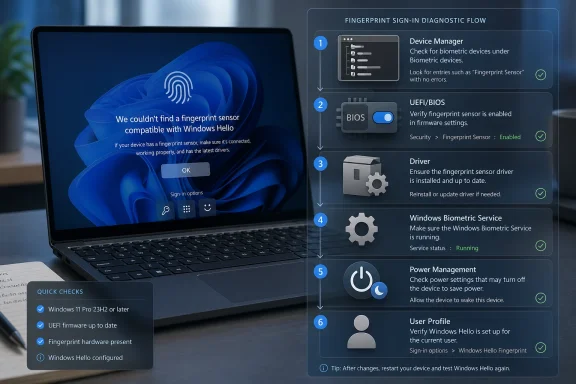 The Error Message Blames the Sensor, but the Stack Is Bigger Than the Sensor
Windows Hello fingerprint sign-in depends on more than the small square or strip of hardware on your laptop deck. The reader has to be present, powered, enabled in firmware, exposed to Windows through the right driver model, accepted as Windows Hello-compatible hardware, and connected to the biometric service that manages enrollment and authentication. If any one of those links fails, Settings may report that it cannot find a compatible sensor.That is why the first mistake is assuming the message means the fingerprint reader is dead. Sometimes it is. But just as often, Windows has lost the driver, the device has been disabled to save power, the biometric service is stopped, or the current user profile contains stale enrollment data that no longer matches what Windows expects after an update.
The important distinction is between not detected and not usable. A reader that does not appear anywhere in Device Manager points toward firmware, hardware, or driver discovery. A reader that appears under Biometric devices or Human Interface Devices but still fails in Windows Hello points toward service, driver quality, policy, account, or enrollment problems.
That difference should shape the repair path. Randomly reinstalling Windows or buying a new external reader before checking Device Manager is the PC equivalent of replacing a door because the key is bent.
Device Manager Is Where the Investigation Actually Starts
The most useful first check is not in Settings but in Device Manager. Open it, expand sections such as Biometric devices, Human Interface Devices, Universal Serial Bus devices, or sometimes Sensors, and look for anything that resembles a fingerprint reader. Common examples include devices from Synaptics, Goodix, ELAN, EgisTec, Validity, or a laptop-maker-branded biometric entry.If the device appears there, Windows can at least see something. That narrows the problem. The issue may be that the device is disabled, the driver is broken, the biometric service is stopped, or Windows Hello cannot use the installed driver.
If the device does not appear at all, click Action and then Scan for hardware changes. This forces Windows to re-enumerate hardware and can bring back devices that disappeared after sleep, docking, USB changes, or a botched driver install. It is not magic, but it is the lowest-risk test in the chain.
The absence of a fingerprint reader in Device Manager after a hardware rescan is more serious. At that point, the device may be disabled in UEFI/BIOS, disconnected internally, unsupported, or failed. On an external USB reader, it may simply be a bad port, cable, hub, or reader.
Not Every Fingerprint Reader Is a Windows Hello Reader
A subtle trap here is compatibility. A fingerprint scanner can be a fingerprint scanner without being a good Windows Hello device. Windows Hello expects biometric hardware and drivers that integrate properly with Windows’ biometric framework; old readers and very cheap USB scanners may lack that support.This matters especially with older laptops upgraded to Windows 11. A fingerprint sensor that worked with a manufacturer utility years ago is not guaranteed to work cleanly with modern Windows Hello. Some older devices depended on vendor software that is no longer maintained, while Windows 11 expects a supported driver path through the operating system.
External readers deserve the same skepticism. A product listing that says “fingerprint scanner” is not the same thing as “Windows Hello compatible.” Before spending hours on services and registry folklore, check the reader manufacturer’s support page and driver downloads. If the vendor does not explicitly support Windows Hello on Windows 11, the error may be accurate.
That said, compatibility should not become an excuse for lazy troubleshooting. If the reader shipped in a recent business laptop or a current Surface-class device, the odds are much higher that the failure is software, firmware, or configuration rather than inherent incompatibility.
Firmware Can Hide the Hardware Before Windows Gets a Vote
If Device Manager does not show the reader, the next stop is firmware. Many business laptops include BIOS or UEFI options that can disable biometric hardware for security, manageability, or privacy reasons. Depending on the vendor, these settings may live under Security, I/O Port Access, Integrated Devices, Biometrics, or a similarly named section.This is common in enterprise fleets, where IT departments may lock down fingerprint readers through firmware policy or endpoint management. A used corporate laptop can arrive with the reader disabled before Windows ever starts. In that scenario, no amount of reinstalling drivers inside Windows will help, because the operating system is never handed the device.
The process is vendor-specific, but the principle is simple. Restart the PC, enter UEFI/BIOS setup using the manufacturer’s key, and look for a fingerprint or biometric option. If it is disabled, enable it, save changes, and boot back into Windows.
Firmware updates can also matter. Laptop vendors sometimes issue BIOS updates that improve device enumeration, power behavior, or security integration around fingerprint sensors. But firmware updates should be treated with respect: install them from the PC maker’s support app or website, keep the laptop plugged in, and avoid interrupting the process.
The Driver Is Often the Real Culprit
If the reader appears in Device Manager, the driver becomes the prime suspect. Right-click the fingerprint device and try Update driver. Windows may find a newer package through Windows Update, but the best driver is often the one provided by the laptop manufacturer for that exact model.That last phrase matters. Fingerprint readers are not interchangeable in the way a generic mouse is. The same laptop family may ship with different biometric modules across regions, production runs, or configuration tiers. A driver from a similar-looking model can install but behave badly.
If updating does not work, uninstalling the device can help. In Device Manager, right-click the reader, choose Uninstall device, and restart. If Windows reinstalls a generic or previously cached driver and the problem persists, download the current biometric driver from Dell, HP, Lenovo, ASUS, Acer, Microsoft Surface, or whichever vendor built the machine.
The cleanest repair sequence is boring but effective: uninstall the device, reboot, install the vendor driver, reboot again, and then return to Settings > Accounts > Sign-in options. Fingerprint hardware often needs that second restart because Windows Hello, the biometric service, and the driver do not always synchronize immediately after installation.
Driver rollback is also worth considering after a recent Windows Update. If the fingerprint reader worked yesterday and failed after a driver update, Device Manager’s Roll Back Driver option may be more useful than chasing the newest package. Newer is not always better when the vendor has tuned a particular driver for a particular chassis.
Windows Biometric Service Is the Quiet Middleman
Windows Hello fingerprint sign-in is not just a Settings toggle. It relies on the Windows Biometric Service, which handles biometric devices and enrollment data. If that service is disabled, stopped, or blocked by policy, the hardware may be present while Windows Hello still behaves as if no usable reader exists.Open the Services console by pressing Win + R, typing
services.msc, and pressing Enter. Find Windows Biometric Service, open its properties, and make sure its startup type is set to Automatic. If it is stopped, start it, apply the change, and restart the PC.This is one of those fixes that feels too simple until it works. Service configuration can be changed by “debloat” scripts, privacy hardening tools, enterprise baselines, or well-meaning troubleshooting attempts. A user may not remember disabling anything because the change happened as part of a broader script or policy.
If the service refuses to start, that is a different class of problem. It may indicate damaged Windows components, a broken dependency, or aggressive security software. At that stage, system repair commands and event logs become more relevant than the Windows Hello settings page.
Power Management Can Make a Working Reader Disappear
Laptops are constantly negotiating between responsiveness and battery life. Fingerprint sensors, especially USB-attached internal modules, can be affected by power management settings that allow Windows to turn off a device to save power. The result can be intermittent failure: the reader works after a reboot, disappears after sleep, and returns only after another restart.In Device Manager, open the fingerprint reader’s properties and look for a Power Management tab. If present, uncheck “Allow the computer to turn off this device to save power.” Then restart and test Windows Hello again.
The same logic applies to external USB readers. Avoid unpowered hubs during troubleshooting. Plug the reader directly into the laptop, try another port, and test both USB-A and USB-C paths if adapters are involved. If the reader works on one port but not another, the Windows Hello error is not really a Windows Hello problem.
Power-related failures are particularly annoying because they can masquerade as driver or hardware failure. A sensor that vanishes only after standby is probably not physically broken. It is being lost during a power transition, which points toward chipset drivers, USB controller behavior, firmware, or device power settings.
Old Fingerprint Enrollments Can Poison a New Setup
There is another category of failure that sits above the hardware layer: corrupted or stale biometric enrollment data. If Windows still has old fingerprint records that no longer line up cleanly with the current driver, account state, or security configuration, enrollment can fail even though the reader is present.The normal route is through Settings. Go to Accounts, then Sign-in options, then Fingerprint recognition, and remove existing fingerprint data if Windows offers the option. After restarting, attempt enrollment again.
Some troubleshooting guides also point users to the biometric database folder under
C:\Windows\System32\WinBioDatabase. Deleting files there can clear old biometric records, but it should be approached carefully. Sign out of biometric features first, use an administrator account, and understand that you are removing stored biometric enrollment data for the device.The less dramatic lesson is that biometric sign-in is not only hardware recognition. It is enrollment, storage, policy, and account binding. A reader can be perfectly functional and still fail if Windows is confused about the biometric records it already has.
For users in managed environments, Windows Hello for Business adds another layer. Policies from Microsoft Intune, Group Policy, or domain configuration can determine whether biometrics are allowed, required, or unavailable. A personal laptop and a corporate laptop may show the same friendly Settings interface while operating under very different rules.
Enhanced Sign-In Security Has Made Compatibility More Complicated
Modern Windows 11 devices increasingly include security features that tighten the relationship between Windows Hello, hardware, firmware, and trusted execution environments. That is good for security, but it complicates the old plug-and-play mental model of “buy a fingerprint reader, plug it in, enroll a finger.”Some Windows 11 PCs with Enhanced Sign-in Security may restrict the use of external or third-party biometric devices. In plain English, the PC may have a stronger security mode enabled that expects Windows Hello biometric authentication to occur through trusted internal hardware, not any random peripheral plugged into a USB port.
That does not mean external fingerprint readers are obsolete. It means buyers need to check compatibility more carefully, and administrators need to know whether their hardware security baseline blocks third-party biometric devices. For enthusiasts, this is another reminder that Windows Hello is not merely convenience software; it is part of the platform’s identity and credential security architecture.
This shift is part of a broader Windows direction. Microsoft has been moving users toward PINs, biometrics, passkeys, device-bound credentials, and phishing-resistant authentication. The upside is better security than reusable passwords. The downside is that a broken fingerprint driver now feels like being locked out of a much larger identity system.
A New User Profile Is the Cleanest Way to Expose Account-Specific Damage
If the reader is visible, the driver is current, the biometric service is running, and Windows Hello still refuses to cooperate, test with a new local user account. This is not a permanent fix. It is a diagnostic cut.Create a new local account from Settings > Accounts > Other users, sign into it, and check whether Fingerprint recognition appears under Sign-in options. If the fingerprint setup works in the new account, the hardware and system-level services are probably fine. The original profile is the problem.
User-profile corruption is the kind of diagnosis everyone hates because it is both plausible and messy. It can involve damaged account settings, botched migrations, failed upgrades, broken permissions, or stale Windows Hello enrollment state. There may be a surgical fix, but sometimes the practical answer is to migrate data into a fresh profile.
Before doing that, check whether policies are involved. On Windows Pro, Enterprise, or Education editions, Group Policy can affect biometric sign-in. On managed PCs, organization policy can override what a user expects to see. If the device belongs to an employer or school, local tinkering may not survive the next policy refresh.
This is where home-user troubleshooting and IT-pro troubleshooting diverge. A home user can rebuild a profile and move on. An IT admin needs to ask why the profile broke, whether the issue is spreading across a fleet, and whether a driver or policy update introduced the failure.
Hardware Failure Is the Diagnosis After the Cheap Tests Fail
At some point, the boring answer may be the correct one: the fingerprint reader is broken. Sensors are exposed to oil, sweat, abrasion, cleaning chemicals, impact, and years of palm-rest flex. External readers add the usual USB failure points.The hardware test is straightforward for external readers. Try another USB port. Try another Windows 11 PC. Avoid hubs. Install the vendor driver if required. If the reader fails everywhere, it is probably not Windows’ fault.
Built-in readers are harder. A drop, liquid spill, swollen battery, palm-rest repair, or display assembly replacement can damage or disconnect the fingerprint module. If the sensor never appears in firmware or Device Manager after software checks, a technician may need to inspect the internal cable or module.
The key is sequencing. Hardware replacement makes sense after you have checked recognition, firmware, services, drivers, power settings, and account scope. It makes much less sense as the first move, especially on laptops where the fingerprint reader may be integrated into the power button or palm rest.
The Repair Path Should Be Narrow, Not Superstitious
The best way to fix this Windows Hello error is to move from physical reality upward. Confirm that the PC actually has a fingerprint reader. Confirm that Windows can see it. Confirm that firmware has not disabled it. Confirm that the driver is correct. Confirm that the biometric service is running. Confirm that Windows has not powered the device down. Confirm that the user profile is not the only broken piece.That order matters because it prevents circular troubleshooting. If the reader is absent from Device Manager, clearing biometric enrollment data is unlikely to help. If the reader works in a new account, replacing the hardware is wasteful. If an external reader fails on every PC, reinstalling Windows is a ritual, not a repair.
For most users, the likely fixes will be driver installation, enabling the device, starting Windows Biometric Service, or clearing and recreating fingerprint enrollment. For business users, firmware settings and policy deserve equal attention. For buyers of cheap accessories, compatibility may be the entire story.
The Windows Hello message is vague because it sits at the top of a complicated stack. The user sees one sentence. Underneath it are firmware switches, USB controllers, biometric drivers, local databases, account state, security policy, and Microsoft’s continuing effort to move Windows away from passwords.
The Fingerprint Fixes Worth Trying Before You Blame the Laptop
The practical takeaway is that the error should be treated as a workflow, not a verdict. Work through the stack once, in order, and the failure usually reveals itself.- Confirm that the PC or accessory actually includes a Windows Hello-compatible fingerprint reader.
- Check Device Manager first, because a visible reader and a missing reader point to different classes of problems.
- Enable the fingerprint reader in Device Manager or UEFI/BIOS if it has been disabled.
- Update or reinstall the fingerprint driver from the PC maker or reader manufacturer, not just from a random driver site.
- Make sure Windows Biometric Service is set to Automatic and running before trying enrollment again.
- Test with a new local user account if the device appears healthy but fingerprint setup fails only for one profile.
Source: TweakTown How to Fix "We Couldn't Find a Fingerprint Sensor Compatible With Windows Hello" in Windows 11