

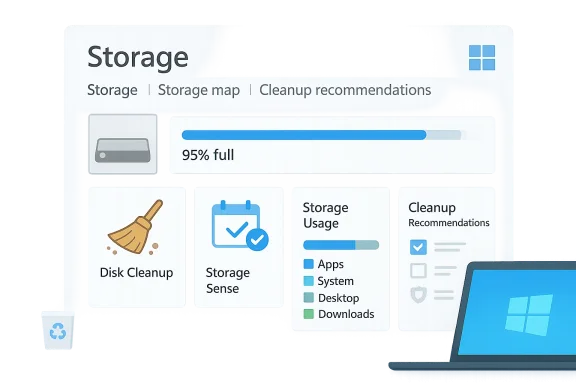
Windows 11’s storage complaints are often less mysterious than they feel, and the most useful fixes are usually already built into the operating system. The article you shared centers on four native tools — Disk Cleanup, Storage Sense, Storage Usage, and Cleanup Recommendations — and that is exactly the right way to think about the problem: not as a single “low disk space” warning, but as a set of overlapping hygiene issues that Windows can help you manage. Microsoft’s own built-in cleanup stack is designed to remove temporary files, update leftovers, stale downloads, and other clutter without requiring third-party utilities, and the current Windows 11 Insider work even suggests Microsoft is still refining these tools’ reliability.
For most Windows users, storage pressure arrives gradually. A few big downloads here, a cached update there, an old installer left behind, and before long a 256 GB SSD starts feeling tiny. The story in the MakeUseOf piece is familiar because it reflects a broader Windows truth: space problems are usually accumulation problems, not single-event failures.
Windows 11 has quietly grown a reasonably capable cleanup toolkit over time. Disk Cleanup remains the classic manual option, while Storage Sense automates routine maintenance, Storage Usage shows where the bytes actually live, and Cleanup Recommendations gives users a guided list of safe candidates for removal. Microsoft’s own documentation and current Insider behavior suggest these features are still relevant, not legacy leftovers, and that they remain central to storage management in modern Windows.
That matters because many users still assume they need third-party “PC cleaner” apps to keep a Windows machine healthy. In practice, that is often unnecessary. Built-in tools can do most of the work, and because they are native to the OS, they generally avoid the trust, privacy, and compatibility problems that come with aggressive cleanup suites.
There is also a performance angle. A nearly full drive can make a PC feel less responsive, especially when Windows Update, browser caches, temporary files, and app data compete for remaining headroom. The improvement is not magic, but it is real: reclaiming storage can reduce friction, improve update reliability, and make the entire system feel lighter.
A second reason is that storage consumption is not always linear. One Windows update can leave behind a large temporary footprint, and one browser profile can expand dramatically with cached media and downloads. When users do not periodically trim those areas, the disk fills in bursts rather than in a smooth curve.
A third factor is modern workflow sprawl. People are more likely than ever to sync cloud files locally, keep large downloads “for later,” and install apps they only use once or twice. That behavior is understandable, but it turns SSD capacity into a hidden budgeting problem.
It is also useful because it surfaces system-level clutter that many users would not think to inspect. Old Windows Update artifacts, delivery leftovers, and temporary installation files can occupy meaningful space even when the PC appears healthy. Cleaning them can free room and sometimes reduce update friction later.
The tool is not glamorous, but that is part of the appeal. It is straightforward, familiar, and built for the kind of maintenance work most people need only a few times a year.
A sensible approach is to treat Disk Cleanup as a triage tool. Start with obvious clutter, then move to the more system-heavy categories only if you understand what they do. That makes cleanup safer and more repeatable.
It also reduces decision fatigue. Instead of forcing the user to remember every maintenance task, Storage Sense creates a routine. That matters on a laptop that gets used daily, where the right answer is often to let the OS keep things tidy in the background.
There is a subtle performance benefit too. A cleaner disk means fewer surprises when a large update arrives or a new app needs room to install. That does not guarantee speed gains in every case, but it often prevents the slowdown that comes from having too little free space.
For consumers, the best setup is usually a conservative one: clean temp files regularly, but keep Downloads under manual control unless you are disciplined about moving important items elsewhere. For enterprise devices, policy-driven cleanup can be even more valuable, especially where storage limits and roaming user profiles create extra overhead.
The biggest win is not the size of any single cleanup. It is the removal of the recurring maintenance burden that causes the storage problem in the first place.
It is also a good sanity check before deleting anything. If one category is obviously dominating the storage picture, the cleanup path becomes clearer and less risky. That saves time and avoids indiscriminate deletion.
In practice, this is where a lot of users realize they do not have a “Windows problem” so much as a habits problem. The OS is simply surfacing the consequences of accumulated files.
A disciplined review of Storage Usage often reveals at least one obvious candidate for cleanup. Even if the total amount recovered is modest, it can be enough to restore update headroom and reduce the risk of hitting the warning threshold again too soon.
It also reduces accidental over-cleaning. Instead of inviting people to delete broadly, Windows points them toward items that are more likely to be safe. That makes the process feel more approachable and less nerve-wracking.
The article’s list — Downloads, large files, cloud-synced files, and unused apps — captures the categories that usually produce the best payoff. Those are exactly the places where storage bloat tends to hide.
For people who do not want to think about cleanup at all, this can become a monthly checklist item. The process is simple enough that it can be repeated without much effort, which is often all that separates a tidy system from a clogged one.
There is also a psychological benefit. Seeing the storage breakdown makes the problem feel solvable. That can be surprisingly powerful, because “mystery full” drives often make users think their PC is broken when it is really just neglected.
It also pairs well with user education and policy enforcement. If companies encourage Storage Sense or deploy equivalent storage policies, they can prevent many of the same issues that home users encounter. That is especially true for laptops with modest SSDs and a lot of transient work files.
This matters for user confidence. If a cleanup process fails or behaves inconsistently, people stop using it and fall back to riskier habits or third-party tools. Better reliability makes the built-in path more attractive.
It also reflects a quiet shift in Windows priorities. Stability, maintenance, and shell polish are increasingly part of the value proposition, not just the big new features.
That said, the operating system still depends on users to make smart choices. Cleanup tools can help, but they cannot substitute for good storage habits. The best Windows 11 experience still comes from combining built-in automation with occasional manual review.
The next step is likely better integration between storage visibility, cleanup guidance, and cloud-aware file handling. As more people use OneDrive, smaller SSDs, and hybrid local-cloud workflows, Windows will need to keep reducing the number of places where storage can quietly disappear. That makes cleanup less of a chore and more of a built-in service.
Source: MakeUseOf My Windows 11 storage was filling up constantly until I found these hidden cleanup tools
 Overview
For most Windows users, storage pressure arrives gradually. A few big downloads here, a cached update there, an old installer left behind, and before long a 256 GB SSD starts feeling tiny. The story in the MakeUseOf piece is familiar because it reflects a broader Windows truth: space problems are usually accumulation problems, not single-event failures.Windows 11 has quietly grown a reasonably capable cleanup toolkit over time. Disk Cleanup remains the classic manual option, while Storage Sense automates routine maintenance, Storage Usage shows where the bytes actually live, and Cleanup Recommendations gives users a guided list of safe candidates for removal. Microsoft’s own documentation and current Insider behavior suggest these features are still relevant, not legacy leftovers, and that they remain central to storage management in modern Windows.
That matters because many users still assume they need third-party “PC cleaner” apps to keep a Windows machine healthy. In practice, that is often unnecessary. Built-in tools can do most of the work, and because they are native to the OS, they generally avoid the trust, privacy, and compatibility problems that come with aggressive cleanup suites.
There is also a performance angle. A nearly full drive can make a PC feel less responsive, especially when Windows Update, browser caches, temporary files, and app data compete for remaining headroom. The improvement is not magic, but it is real: reclaiming storage can reduce friction, improve update reliability, and make the entire system feel lighter.
Why Windows Storage Fills Up So Fast
Windows machines are good at quietly collecting clutter. Temporary files, installer fragments, update remnants, browser caches, and local cloud-sync copies can build up without giving the user much warning. Over time, these pieces can consume a surprising amount of disk space, especially on small SSDs where every gigabyte counts.The Hidden Accumulators
One reason Windows storage feels so slippery is that the operating system and many apps keep data in places users do not inspect regularly. The result is a gap between what the machine is doing and what the user can see in File Explorer. That gap is where the “mysteriously full” experience comes from.A second reason is that storage consumption is not always linear. One Windows update can leave behind a large temporary footprint, and one browser profile can expand dramatically with cached media and downloads. When users do not periodically trim those areas, the disk fills in bursts rather than in a smooth curve.
A third factor is modern workflow sprawl. People are more likely than ever to sync cloud files locally, keep large downloads “for later,” and install apps they only use once or twice. That behavior is understandable, but it turns SSD capacity into a hidden budgeting problem.
- Temporary files can pile up in the background.
- Update leftovers may remain after successful installs.
- Browser caches and app caches grow silently.
- Downloads folders often become long-term holding zones.
- Cloud-synced files may still occupy local disk space.
Disk Cleanup Still Earns Its Place
Disk Cleanup may look old-fashioned, but it remains one of the most dependable ways to clear junk safely. The MakeUseOf walkthrough correctly highlights the “Clean up system files” option, which is the key step for reaching update leftovers and other deeper files that ordinary cleanup views may not show.Why the Classic Tool Still Matters
The biggest advantage of Disk Cleanup is its predictability. It presents categories Windows recognizes as removable and lets the user decide what to delete. That makes it a low-risk first pass for anyone who wants quick space recovery without handing over control to automation.It is also useful because it surfaces system-level clutter that many users would not think to inspect. Old Windows Update artifacts, delivery leftovers, and temporary installation files can occupy meaningful space even when the PC appears healthy. Cleaning them can free room and sometimes reduce update friction later.
The tool is not glamorous, but that is part of the appeal. It is straightforward, familiar, and built for the kind of maintenance work most people need only a few times a year.
How to Use It Well
The article’s advice to review the list before deleting is important. Windows does a good job of categorizing files, but users should still think before wiping items like Downloads or cached report files, because not all “safe to delete” items are equally useful to every person.A sensible approach is to treat Disk Cleanup as a triage tool. Start with obvious clutter, then move to the more system-heavy categories only if you understand what they do. That makes cleanup safer and more repeatable.
- Run the tool first before trying anything more aggressive.
- Check system-file cleanup, not just user-level cleanup.
- Review categories carefully before deleting.
- Focus on update remnants and temporary files first.
- Repeat periodically rather than waiting for a crisis.
Storage Sense Does the Routine Work for You
If Disk Cleanup is the manual version, Storage Sense is the automation layer. According to the article, it can remove temporary files, empty the Recycle Bin, and clean the Downloads folder on a schedule, which is exactly the kind of background housekeeping most users need.The Value of Background Automation
The strongest case for Storage Sense is consistency. Many storage problems happen because users wait too long between cleanups, not because they never clean at all. Automation smooths that pattern and prevents small accumulations from becoming large ones.It also reduces decision fatigue. Instead of forcing the user to remember every maintenance task, Storage Sense creates a routine. That matters on a laptop that gets used daily, where the right answer is often to let the OS keep things tidy in the background.
There is a subtle performance benefit too. A cleaner disk means fewer surprises when a large update arrives or a new app needs room to install. That does not guarantee speed gains in every case, but it often prevents the slowdown that comes from having too little free space.
Tuning the Schedule
The article notes that users can choose daily, weekly, or monthly cleanup intervals and decide whether the Recycle Bin or Downloads folder should be emptied automatically. That flexibility is important because one person’s “junk” is another person’s working set.For consumers, the best setup is usually a conservative one: clean temp files regularly, but keep Downloads under manual control unless you are disciplined about moving important items elsewhere. For enterprise devices, policy-driven cleanup can be even more valuable, especially where storage limits and roaming user profiles create extra overhead.
The biggest win is not the size of any single cleanup. It is the removal of the recurring maintenance burden that causes the storage problem in the first place.
- Clean temporary files automatically.
- Empty the Recycle Bin on a predictable schedule.
- Decide carefully whether Downloads should be included.
- Use more frequent schedules on smaller SSDs.
- Check settings again after major Windows updates.
Storage Usage Shows the Real Culprits
One of the most underappreciated tools in Windows 11 is the Storage Usage breakdown in Settings. The article emphasizes that it reveals categories like Installed apps, System & reserved, Desktop, and other storage consumers, which helps users stop guessing and start acting.Seeing the Disk as Categories, Not Mysteries
This view is valuable because storage problems are often misdiagnosed. Users may blame Windows itself when the real issue is an oversized app cache, a giant Downloads folder, or media files sitting on the Desktop. The category breakdown makes the problem visible in a way that a generic low-space warning never does.It is also a good sanity check before deleting anything. If one category is obviously dominating the storage picture, the cleanup path becomes clearer and less risky. That saves time and avoids indiscriminate deletion.
In practice, this is where a lot of users realize they do not have a “Windows problem” so much as a habits problem. The OS is simply surfacing the consequences of accumulated files.
What Users Usually Find
The article mentions uninstalling rarely used apps and tidying the desktop, which is exactly the kind of high-yield action Storage Usage encourages. Downloads folders are another common surprise because they silently become archives of old installers, ZIP files, and one-time attachments.A disciplined review of Storage Usage often reveals at least one obvious candidate for cleanup. Even if the total amount recovered is modest, it can be enough to restore update headroom and reduce the risk of hitting the warning threshold again too soon.
- Installed apps may be larger than expected.
- System-reserved space can be substantial.
- Desktop clutter sometimes hides large files.
- Downloads folders often hold forgotten junk.
- Media and project files can dominate quickly.
Cleanup Recommendations Are the Guided Shortcut
The Cleanup Recommendations panel is the closest thing Windows 11 has to a built-in housekeeping assistant. It identifies files and categories that are not actively in use and explains why they are candidates for removal, which lowers the barrier for less technical users.Why Guidance Matters
A recommendation engine is useful because not everyone wants to inspect every folder manually. Some users want a trusted shortlist, not a scavenger hunt. Cleanup Recommendations gives them that middle ground.It also reduces accidental over-cleaning. Instead of inviting people to delete broadly, Windows points them toward items that are more likely to be safe. That makes the process feel more approachable and less nerve-wracking.
The article’s list — Downloads, large files, cloud-synced files, and unused apps — captures the categories that usually produce the best payoff. Those are exactly the places where storage bloat tends to hide.
A Better Habit Than Panic Cleaning
This is where regular maintenance becomes more valuable than occasional rescue work. Users who review recommendations periodically are much less likely to hit the kind of emergency state where everything feels slow and cramped. That’s not just neatness; it’s operational hygiene.For people who do not want to think about cleanup at all, this can become a monthly checklist item. The process is simple enough that it can be repeated without much effort, which is often all that separates a tidy system from a clogged one.
- Review the suggestions before deleting anything.
- Start with large files and unused apps.
- Be cautious with cloud-synced content.
- Use it as a recurring maintenance habit.
- Treat it as a guided triage tool, not an absolute directive.
Enterprise and Consumer Impact Are Not the Same
The consumer story is easy to understand: a full SSD is annoying, and cleanup makes a laptop feel better. But in enterprise environments, storage maintenance has a more strategic dimension because it affects update success, support load, and user productivity at scale. This is why native cleanup tools matter beyond convenience.Consumer Benefits
For home users, the biggest wins are simplicity and relief. You do not need specialized knowledge to free up space, and you do not need to trust a random cleaner app to do it. The built-in tools can be enough to restore a laptop’s breathing room.There is also a psychological benefit. Seeing the storage breakdown makes the problem feel solvable. That can be surprisingly powerful, because “mystery full” drives often make users think their PC is broken when it is really just neglected.
Enterprise Benefits
For IT admins, storage cleanup is connected to patching and fleet health. Devices that are chronically low on free space can fail updates, behave unpredictably, or create support tickets that consume time. Routine cleanup helps reduce that risk.It also pairs well with user education and policy enforcement. If companies encourage Storage Sense or deploy equivalent storage policies, they can prevent many of the same issues that home users encounter. That is especially true for laptops with modest SSDs and a lot of transient work files.
- Fewer update failures on cramped devices.
- Less helpdesk time spent on routine storage issues.
- Better user experience on managed laptops.
- More predictable maintenance cycles.
- Reduced need for third-party cleaner software.
Why Microsoft’s Own Changes Still Matter
The article may read like a simple cleanup guide, but there is a larger Windows design story underneath it. Microsoft continues to improve storage cleanup reliability in Insider builds, which suggests the company sees these features as part of the core OS experience rather than optional extras.Reliability Is the Real Feature
In March 2026, Windows 11 Canary builds included improved storage cleanup reliability, showing Microsoft is still actively refining how the system removes update leftovers. That is not a flashy feature, but it is a meaningful one because cleanup tools only matter if users trust them.This matters for user confidence. If a cleanup process fails or behaves inconsistently, people stop using it and fall back to riskier habits or third-party tools. Better reliability makes the built-in path more attractive.
It also reflects a quiet shift in Windows priorities. Stability, maintenance, and shell polish are increasingly part of the value proposition, not just the big new features.
What That Suggests About Windows 11
Microsoft appears to be closing the gap between “Windows as a platform full of features” and “Windows as a platform that manages itself intelligently.” Storage cleanup is a good example because it sits at the intersection of automation, reliability, and user trust.That said, the operating system still depends on users to make smart choices. Cleanup tools can help, but they cannot substitute for good storage habits. The best Windows 11 experience still comes from combining built-in automation with occasional manual review.
Strengths and Opportunities
The biggest strength of the approach in the article is that it stays inside the Windows ecosystem and uses tools most users already have. That reduces friction, avoids unnecessary downloads, and keeps the cleanup process consistent with the OS design. It is also a practical reminder that simple maintenance often delivers more value than dramatic overhauls.- No third-party app is required.
- Low risk when used carefully.
- Manual and automatic cleanup are both available.
- Good visibility into what is using space.
- Flexible scheduling for different user habits.
- Scales well from casual users to managed fleets.
- Improves update headroom on smaller SSDs.
Risks and Concerns
The main risk is overconfidence. Not every file in Downloads or every cached item is disposable, and automation can create problems if it is set too aggressively. The article’s advice is sensible, but users still need to read the prompts and understand what they are removing. That caution matters more than speed.- Downloads can contain important files.
- Aggressive automation may remove items too soon.
- Cleanup gains vary widely by device.
- Users may ignore deeper causes of storage bloat.
- Third-party tools can still be tempting but unnecessary.
- Small SSDs can refill quickly without habit changes.
- Overcleaning may inconvenience users who rely on local copies.
Looking Ahead
The direction of Windows 11 storage management looks clear: more automation, more guided cleanup, and better reliability in the background. The Insider work on storage cleanup suggests Microsoft is not done improving the basics, even as it adds newer features elsewhere in the OS. For users, that is encouraging because the everyday maintenance story may finally be getting as much attention as the headline features.The next step is likely better integration between storage visibility, cleanup guidance, and cloud-aware file handling. As more people use OneDrive, smaller SSDs, and hybrid local-cloud workflows, Windows will need to keep reducing the number of places where storage can quietly disappear. That makes cleanup less of a chore and more of a built-in service.
- Better cleanup reliability in future builds.
- More user-friendly storage guidance.
- Tighter ties between local storage and cloud files.
- Continued importance of Storage Sense automation.
- More visible controls for power users and IT admins.
Source: MakeUseOf My Windows 11 storage was filling up constantly until I found these hidden cleanup tools
