

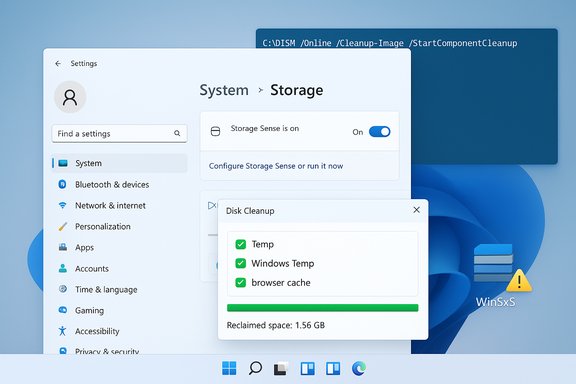
Windows 11 creates temporary files constantly — from app caches and update installers to browser data and DNS records — and left unchecked those files can quietly consume gigabytes of storage and nudge system responsiveness down. This article walks through every supported method for safely removing temp files in Windows 11, explains what each tool actually does, highlights risks and edge cases (including WinSxS and DISM caveats), and delivers a recommended, repeatable cleanup workflow you can trust.
Background / Overview
Temporary files are transient by design: they help Windows and applications run faster by caching data and staging updates, but they are not intended to live forever. Over time they accumulate in multiple places — user temp folders, system temp areas, browser caches, Windows Update staging, and the Windows component store (WinSxS). Removing these files can free space and reduce background I/O, but the methods and risks differ depending on which store you target. A concise, supported starting point is Storage Sense and the built‑in cleanup tools in Settings; more advanced reclamation involves Disk Cleanup (cleanmgr), DISM, and targeted manual deletion for user temp folders. Practical guidance and the core steps are summarized in Microsoft’s Storage Sense documentation and longstanding cleanup guidance.Why clean temporary files (and when to stop)
- Benefits
- Frees disk space (useful on small SSDs and tablets).
- Reduces background disk activity and potential file‑access conflicts.
- Can resolve update and installer failures caused by a lack of working storage.
- Removes stale cache entries that may cause UI glitches or corrupted previews.
- Limits
- Deleting some caches only provides temporary relief; the files will be recreated as needed.
- Aggressive cleanup (for example, using /ResetBase with DISM) can make rollback of updates impossible.
- Some temp files are in use while Windows or apps are running; attempting to delete them can cause “file in use” errors — skip or reboot when necessary.
Quick, safe options (recommended for most users)
Storage Sense — automatic and configurable (best first step)
Storage Sense is the modern, supported way to automate deletion of temporary files, Recycle Bin contents, and stale Downloads items. It’s configurable, runs on a schedule, and integrates with OneDrive’s Files On‑Demand settings so cloud items are handled safely. To enable and configure Storage Sense:- Open Settings (Win + I) → System → Storage.
- Toggle Storage Sense to On and click it to open configuration.
- Under Cleanup of temporary files check Keep Windows running smoothly by automatically cleaning up temporary system and app files.
- Choose cadence from Run Storage Sense (Only when low on space, Daily, Weekly, Monthly).
- Optionally set thresholds for Recycle Bin and Downloads and enable OneDrive file dehydration.
Cleanup Recommendations (Settings) — interactive guided deletions
Windows 11’s Cleanup recommendations (Settings → System → Storage → Cleanup recommendations) presents a friendly, previewed list of safe targets: temporary files, large or unused files, and uninstallable apps. It gives you a preview of what will be removed and flags items (like Downloads) so you can double‑check before deletion. This is a safe GUI starting point before running automated or command‑line cleanups.Disk Cleanup (cleanmgr.exe) — the veteran utility
Disk Cleanup (cleanmgr) still exists and is useful for system‑level cleanup, including Windows Update leftovers when you run “Clean up system files.” Steps:- Press Start, type Disk Cleanup and open it.
- Select your system drive (usually C
 .
. - Click Clean up system files to include update and installer leftovers.
- Check the categories you want removed and confirm.
Manual and targeted cleanups (when you want precise control)
Deleting the user temporary folder (%temp%)
This is the most direct user‑level cleanup and is safe in normal circumstances:- Press Win + R, type %temp%, press Enter. That opens C:\Users\<you>\AppData\Local\Temp.
- Select all (Ctrl + A) and Delete. Skip files reported as “in use.”
- Repeat with Run → temp (this opens C:\Windows\Temp) if needed — exercise more caution there.
Clear browser caches (Microsoft Edge and other browsers)
Browser cache (Temporary Internet Files) often accounts for several gigabytes. For Microsoft Edge:- Open Edge → Settings → Privacy, search, and services → Clear browsing data → Choose what to clear.
- Select a time range (All time for a full purge) and check Cached images and files (and Cookies if desired), then Clear now.
Empty the Recycle Bin and clean Downloads
- Right‑click Recycle Bin → Empty Recycle Bin.
- Check your Downloads folder before deleting; automated tools may target Downloads unless configured otherwise.
Advanced system cleanups (admin level — understand the risks)
WinSxS and DISM — reclaiming component store space
The WinSxS (component store) can grow after updates. The supported way to analyze and reclaim WinSxS space is to use DISM from an elevated prompt:- Analyze: Dism.exe /Online /Cleanup-Image /AnalyzeComponentStore
- Clean standard superseded components: Dism.exe /Online /Cleanup-Image /StartComponentCleanup
- Deep, irreversible cleanup: Dism.exe /Online /Cleanup-Image /StartComponentCleanup /ResetBase
- /ResetBase removes superseded component versions permanently — after running it you cannot uninstall updates that were superseded prior to the reset. Use only on stable systems where rollback is not needed.
- Some systems report that DISM progress can stall or stop (community reports and Microsoft Q&A discussions show intermittent issues), so allow the command to run and check DISM/CBS logs if it fails. If DISM encounters errors, running RestoreHealth first can help: Dism.exe /Online /Cleanup-Image /RestoreHealth.
Component cleanup task (Task Scheduler)
Windows also includes a scheduled servicing task (StartComponentCleanup) under Task Scheduler → Microsoft → Windows → Servicing. Running that task is an alternative to invoking DISM directly and has a built‑in timeout. It’s a useful option for admins who prefer the scheduled path rather than a manual DISM run.Automated scripts and one‑line tricks (for power users)
- Clear user temp (adminless): del /q /f /s %TEMP%*
- Clear system temp (admin): del /q /f /s C:\Windows\Temp*
Safety checklist — what to do before you clean
- Back up important files (especially Downloads and Desktop items).
- Create a System Restore point or ensure System Protection is enabled (for added rollback safety).
- Close open applications (to avoid “file in use” errors).
- Prefer built‑in tools first (Storage Sense / Cleanup recommendations / Disk Cleanup).
- Reserve DISM /ResetBase for when you must reclaim large amounts of component store space and you accept the rollback limitations.
Troubleshooting “can’t delete” and leftover space
- If files are reported as “in use,” reboot and try again; services or background apps often hold temp files open.
- Use Resource Monitor or Process Explorer (Procmon) to find which process is creating or locking a persistent temp folder. Advanced forum guides recommend boot logging with Procmon to identify boot‑time creators of temp folders.
- If Disk Cleanup or Storage Sense reports limited savings after run, check for Windows.old, hibernation file (hiberfil.sys), or large app caches (Steam/VMs) — these are often larger than standard temp files. Use visual disk analyzers (WinDirStat, WizTree) to find big folders.
Frequency: how often should you delete temporary files?
- Light users: run Storage Sense or manual cleanup monthly.
- Heavy users (developers, video editors, gamers): weekly or configure Storage Sense to run weekly.
- If you see performance problems or low free space warnings: run a one‑time cleanup immediately, then configure automatic maintenance.
Third‑party cleaners: pros and cons
- Pros: Some reputable cleaners (commercial or open source) can automate multi‑app cache removal and provide user‑friendly dashboards.
- Cons: Many third‑party cleaners bundle adware, attempt deep registry “repairs” that are unnecessary or harmful, or delete files too aggressively. For critical systems, rely on Windows’ built‑in tools and vetted admin commands.
A recommended, repeatable workflow (safe and effective)
- Confirm you have a recent backup or restore point.
- Open Settings → System → Storage and run Cleanup recommendations; review flagged files (especially Downloads).
- Enable Storage Sense and set cadence to Weekly or Monthly depending on use.
- Clear browser caches from each browser you use (Edge, Chrome, Firefox).
- Run Disk Cleanup (Clean up system files) to remove Windows Update remnants.
- If still low on space: analyze disk usage with WinDirStat/WizTree; move or remove large user files (videos, ISOs).
- For advanced reclaiming of WinSxS, use DISM /StartComponentCleanup; use /ResetBase only if you accept the rollback limitation.
- Reboot and verify free space and system behavior.
Common questions (FAQ)
- What happens if I delete everything in %temp%?
Most temporary files are recreated as needed; deleting them is generally safe. Skip files reported as in use. - Can deleting temp files speed up my PC?
It can, especially on low‑free‑space systems where low disk space constrains virtual memory and update staging. Reclaiming several GBs often produces noticeable improvements. - Is Disk Cleanup deprecated?
Disk Cleanup (cleanmgr) is still present and useful, though Microsoft has been encouraging Storage Sense as the modern option. Disk Cleanup remains effective for system file cleanup and scheduled/command‑line automation. - Why can’t DISM always remove WinSxS space?
DISM and StartComponentCleanup remove superseded components, but some entries remain for compatibility or because the cleanup is deferred by the servicing pipeline. Community and Microsoft Q&A threads document cases where DISM progress stalls or doesn’t free the expected bytes; analyze the component store first and accept that some component store overhead is normal. Use /ResetBase only after confirming you no longer need to uninstall updates.
Final analysis — strengths, limitations, and risk assessment
- Strengths of Windows’ built‑in approach:
- Safety and transparency: Storage Sense and Cleanup Recommendations show what will be deleted and are reversible in practice (files recreated or kept in the cloud).
- Automation: Storage Sense can be scheduled and managed via policy, making it suitable for both home and enterprise deployments.
- Legacy support: Disk Cleanup remains a useful fallback for system files and update leftovers.
- Limitations and risks:
- WinSxS complexity: Component store cleanup needs administrative attention and carries rollback trade‑offs; DISM can be fragile on some systems and may require troubleshooting. Use it only when necessary.
- Hidden space hogs: Large app caches, VMs, and media files are often the real culprits; temp cleanup alone may not reclaim enough space. Always combine cleanup with a disk usage analysis.
- Third‑party tools: They can be helpful but carry security and stability risks if not vetted. Built‑in tools handle most needs safely.
Windows 11 gives you both simple and powerful options to keep temporary files from becoming a long‑term problem. For everyday maintenance, use Settings → Storage (Cleanup recommendations and Storage Sense) and clear browser caches periodically. Reserve Disk Cleanup and DISM for deeper system reclaiming and follow the safety checklist before running administrator‑level commands. With a short setup (Storage Sense enabled) and a monthly habit of reviewing Cleanup recommendations, you’ll reclaim space, reduce background noise, and keep the OS running smoothly — without ever having to resort to risky third‑party “optimizers.”
Source: MSPoweruser How To Delete Temp Files In Windows 11: A Step-by-Step Guide
