

If your C: drive looks mysteriously full and File Explorer points the finger at C:\Windows\WinSxS, don’t reach for the Delete key — WinSxS is not a simple cache you can purge. It’s the Windows component store, and while it can consume gigabytes, its apparent size is often misleading; Windows uses hard links and keeps multiple component versions so updates can be rolled back. The right way to reclaim space is with supported tools — Disk Cleanup, DISM, and Storage/VSS checks — not by manually deleting files. This article explains what WinSxS really is, how Windows counts its space, the safe, effective cleanup commands, and a conservative, step-by-step cleanup plan you can run today to reclaim space without breaking your system.
WinSxS (the Windows side-by-side or component store) holds the operating system’s component packages, backups of updated files, and components used for features and servicing. Because Windows keeps superseded component versions and uses hard links for some files, simply looking at the folder in File Explorer overstates how much unique disk space it consumes.
Hard links make one set of bytes appear in multiple directory entries; Explorer counts each entry when reporting folder sizes, so WinSxS commonly looks much larger than the actual disk overhead. Use the supported analysis and cleanup utilities — DISM and Disk Cleanup — to determine the actual component-store overhead and remove only safe-to-delete superseded components. Microsoft documents the DISM /Cleanup-Image options and recommends these commands for servicing the component store.
Community troubleshooting guides and forum posts back this up: visual S inspection and DISM are the standard, safe workflow used by sysadmins and power users to recover significant space without risking system integrity.
Practical notes:
If you need more reclaim beyond WinSxS, check Volume Shadow Copy, large VM/WSL disks, the Downloads folder, and hibernation — those are where most forum-sourced recoveries come from, often far exceeding what you can get from component-store cleanup alone. Use a visual scanner first, follow the conservative checklist above, and you’ll reclaim space safely without risking system integrity. Community experience and Microsoft documentation both support this methodical approach.
Run the analysis, choose the appropriate cleanup level for your risk tolerance, and treat the component store as a managed resource — not a trash folder. Your SSD will thank you, and your Windows installation will keep humming along.
Source: MakeUseOf The WinSxS folder is quietly hoarding gigabytes on your SSD — here’s how to clean it safely
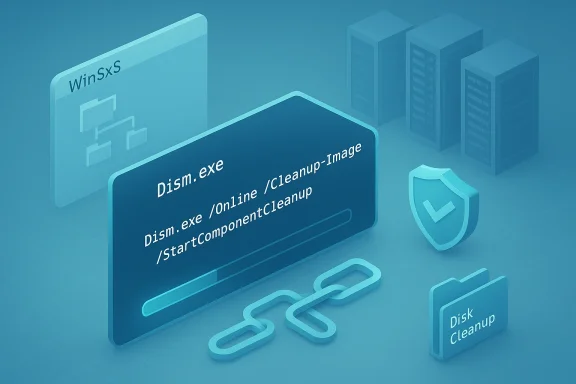 Background / Overview
WinSxS (the Windows side-by-side or component store) holds the operating system’s component packages, backups of updated files, and components used for features and servicing. Because Windows keeps superseded component versions and uses hard links for some files, simply looking at the folder in File Explorer overstates how much unique disk space it consumes.Hard links make one set of bytes appear in multiple directory entries; Explorer counts each entry when reporting folder sizes, so WinSxS commonly looks much larger than the actual disk overhead. Use the supported analysis and cleanup utilities — DISM and Disk Cleanup — to determine the actual component-store overhead and remove only safe-to-delete superseded components. Microsoft documents the DISM /Cleanup-Image options and recommends these commands for servicing the component store.
Community troubleshooting guides and forum posts back this up: visual S inspection and DISM are the standard, safe workflow used by sysadmins and power users to recover significant space without risking system integrity.
Why WinSxS looks huge (and why that’s confusing)
Hard links and File Explorer’s double-counting
Windows often projects files from WinSxS into the operating system folders using NTFS hard links. When you view a file’s size inside File Explorer, Explorer tallies each hard link entry as if it were a separate file. That means the Windows Explorer Reported Size of Component Store can be substantially larger than the Actual Size of Component Store, a distinction exposed by the DISM analysis output. Many official Microsoft troubleshoot articles and community posts explain this behavior and warn against manual deletion.What actually contributes to component-store overhead
When you run the component-store analysis, DISM breaks the total into useful pieces:- Windows Explorer Reported Size of Component Store — what Explorer shows (inflated by hard links).
- Actual Size of Component Store — true footprint considering hard links.
- Shared with Windows — files that are hard-linked elsewhere (not strictly overhead).
- Backups and Disabled Features — the portion that represents keepers for rollbre binaries (this is the real overhead).
- Cache and Temporary Data — transient items that may be removable.
How to check WinSxS safely (diagnose before you act)
- Open an elevated Terminal (Administrator): right‑click Start → Terminal (Admin) or run PowerShell/CMD as Administrator.
- Run the DISM analysis command:
- Dism.exe /Online /Cleanup-Image /AnalyzeComponentStore
- Windows Explorer Reported Size of Component Store
- Actual Size Shared with Windows
- Backups and Disabled Features
- Cache and Temporary Data
- Component Store Cleanup Recommended: Yes/No
The safest first pass: Disk Cleanup (GUI)
For most users, Disk Cleanup (cleanmgr) is the easiest and safest route:- Press Windows key, type Disk Cleanup, run it as Administrator.
- Select the system drive (usually C
 .
. - Click “Clean up system files”.
- Re-select the system drive when prompted and wait for the scan.
- Check Windows Update Cleanup and Previous Windows installations (only if you no longer neeevious Windows version).
- Click OK and confirm deletion.
A deeper, controlled cleanup: DISM commands
DISM (Deployment Image Servicing and Management) gives you more control and is the supported CLI for servicing the component store.- Conservative cleanup (keeps rollback ability for recent updates):
- Dism.exe /Online /Cleanup-Image /StartComponentCleanup
- Aggressive cleanup (irreversible — removes all superseded versions):
- Dism.exe /Online /Cleanup-Image /StartComponentCleanup /ResetBase
Practical notes:
- Both DISM commands can take from minutes to an hour depending on hardware and number of updates.
- Run them in an elevated Terminal.
- Backups and a recent system image are a good precaution before using /ResetBase.
- If DISM reports “Component Store Cleanup Recommended: Yes” and you don’t need rollbacks, /StartComponentCee is the last resort when every possible gigabyte counts.
Windows handles cleanup automatically — but not always when you want it
Windows schedules a servicing task that runs during idle time: StartComponentCleanup. It’s conservative and waits for long idle periods, so it can easily be deferred forever on machines that are used constantly or shut down when not in use. You can trigger the task manually from Task Scheduler under:- Task Scheduler Library > Microsoft > Windows > Servicing > StartComponentCleanup
Other big, often-overlooked space hogs (diagnose these too)
WinSxS is frequently blamed, but other hidden consumers are more likely to explain dramatic space loss. Before you tinker, scan for these:- Volume Shadow Copy / System Restore (VSS): Shadow snapshots can reserve many gigabytes. Run:
- vssadmin list shadowstorage
- vssadmin list shadows
If VSS is the culprit, remove shadow copies via Disk Cleanup → “System Restore and Shadow Copies” or use vssadmin delete shadows command — irreversible. Many community guides place this near the top of a space recovery checklist because it often reclaims the largest amounts. - Hibernation file (hiberfil.sys): If you don’t use hibernate, disable it to free space roughly equal to your installed RAM:
- powercfg /hibernate off
- Pagefile and large VM/Wdstros and virtual machines often produce very large single files in user profiles or Hyper-V folders.
- Windows.old / Previous Windows installations: Disk Cleanup → “Previous Windows installations” safely removes these.
- Windows Update cache (C:\Windows\SoftwareDistribution\Download): Stop the Windows Update service, delete the Download folder contents, restart the service.
- Large installer caches (C:\Windows\Installer): Don’t delete this manually — use a tool like PatchCleaner to identify orphaned installers and move them to external storage first.
A conservative, step-by-step cleanup plan (copy‑paste friendly)
Follow this checklist in order. It’s designed to be safe and to maximize reclaimed space while keeping rollback and recovery intact where possible.- Backup irreplaceable files (Documents, Photos, etc.). Create a system image if you rely on rollbacks.
- Run a visual disk scan (WinDirStat, WizTree, TreeSize Free) as Administrator to see actual largest files/folders.
- Run VSS diagnostics:
- Open elevated command prompt.
- vssadmin list shadowstorage
- vssadmin list shadows
- Run DISM analysis:
- Dism.exe /Online /Cleanup-Image /AnalyzeComponentStore
- Check Component Store Cleanup Recommended and the breakdown.
- Use Disk Cleanup (GUI) as Administrator:
- Clean up system files → check “Windows Update Cleanup” and “Previous Windows installations”.
- If DISM recommended cleanup: run:
- Dism.exe /Online /Cleanup-Image /StartComponentCleanup
- Wait patiently; allow it to finish.
- If you still need space and can ln - Dism.exe /Online /Cleanup-Image /StartComponentCleanup /ResetBase
- Note: irreversible for superseded updates.
- Clear Windows Update cache if necessary:
- net stop wuauserv
- delete contents of C:\Windows\SoftwareDistribution\Download
- net start wuauserv
- Disable hibernate if unused:
- powercfg /hibernate off
- If VSS still consumes lots of space and you accept losing restore points:
- Use Disk Cleanup → System Restore and Shadow Copies → Clean up OR
- vssadmin delete shadows /for=C: /all (power‑user; irreversible)
- Reboot and re-run your visual scan to verify recovered space.
Risks and caveats — what could go wrong
- Manual deletion of WinSxS or files under C:\Windows will likely break Windows. Never delete files inside C:\Windows\WinSxS manually. Microsoft warns explicitly about this risk.
- Running DISM /ResetBase is irreversible: you lose the ability to uninstall superseded updates. Use it only when you’re confident your system is stable and you have other recovery options.
- Deleting shadow copies or disabling hibernation removes recovery functionality — you might lose restore points or fast-boot benefits. If you rely on System Restore for quick recoveries, reduce allocation rather than wipe everything.
- Aggressive third‑party “cleaners” can remove files you didn’t mean to lose; prefer built-in tools (Disk Cleanup, DISM) and reputable visual scanners.
- Some DISM or cleanup operations might fail due to corruption or service-state artComponentCleanup or /ResetBase fails, run:
- Dism.exe /Online /Cleanup-Image /RestoreHealth
- sfc /scannow
Then retry. Community threads show these repair steps are standard troubleshooting when DISM errors occur. (answers.microsoft.com)
When and how often should you clean WinSxS?
You don’t need to obsess over the folder. For most users, checking every few months or when you notice low free space is sufficient. Windows runs conservative maintenance in the background, but if your usage pattern prevents idle maintenance (daily shutdowns, constant use), manual DISM /StartComponennths is reasonable. If you perform major feature updates or multiple cumulative updates, run analysis afterward — that’s when the component store usually grows the most. Community guidance concurs: routine but infrequent manual checks are enough for most systems.Advanced options and complementary tactics
- CompactOS: compresses system binaries to save space but changes on-disk representation and may add CPU overhead. Use only when you need more capacity on small SSDs and after testing performance tradeoffs. Community guides and Microsoft documentation note CompactOS is situational and best used on constrained devices.
- Move user data: if you have large media libraries, move them to a secondary drive or cloud storage. Often the single biggest wins are cleaning Downloads and large VM images rather than fiddling with system folders. Forum threads repeatedly show that cleaning user-installed ISOs, VHDX/VM disks, and humongous Do the largest practical gains.
- Use Storage Sense for regular automated cleantem → Storage, Storage Sense can remove temporary files and purge old downloads or local OneDrive files automatically.
Quick reference: commands and what they do
- Dism.exe /Online /Cleanup-Image /AnalyzeComponentStore — show true WinSxS footprint and whether cleanup is recommended.
- Dism.exe /Online /Cleanup-Image /StartComponentCleanup — safely remove older superseded components while keeping recent rollback ability.
- Dism.exe /Online /Cleanup-Image /StartComponentCleanup /ResetBase — permanently remove all superseded versions (irreversible).
- Disk Cleanup (cleanmgr) → Clean up system files → Windows Update Cleanup / Previous Windows installations — GUI cleanup for update caches and Windows.old.
- vssadmin list shadowstorage / vssadmin list shadows — inspect VSS usage.
- powercfg /hibernate off — remove hiberfil.sys (frees space equal to RAM).
Final verdict: don’t panic, but act deliberately
WinSxS will always occupy a nontrivial amount of disk space because Windows needs a component store to remain serviceable and stable. File Explorer’s size reporting is misleading due to hard links, so rely on DISM’s AnalyzeComponentStore to see the actual footprint. Start with Disk Cleanup, then run DISM /StartComponentCleanup if needed. Reserve /ResetBase for last-resort, irreversible consolidation only after you’ve verified system stability and have backups.If you need more reclaim beyond WinSxS, check Volume Shadow Copy, large VM/WSL disks, the Downloads folder, and hibernation — those are where most forum-sourced recoveries come from, often far exceeding what you can get from component-store cleanup alone. Use a visual scanner first, follow the conservative checklist above, and you’ll reclaim space safely without risking system integrity. Community experience and Microsoft documentation both support this methodical approach.
Run the analysis, choose the appropriate cleanup level for your risk tolerance, and treat the component store as a managed resource — not a trash folder. Your SSD will thank you, and your Windows installation will keep humming along.
Source: MakeUseOf The WinSxS folder is quietly hoarding gigabytes on your SSD — here’s how to clean it safely
