

A small Windows 11 networking toggle has reopened a familiar question for anyone who bought a Wi-Fi 6E or Wi-Fi 7 router: are you actually using the hardware you paid for? A MakeUseOf hands-on report describes a laptop that kept connecting over 5GHz until the adapter’s Preferred Band setting was changed to favor 6GHz, immediately unlocking better wireless performance. The fix is simple, but the story behind it is bigger: modern Wi-Fi is now fast enough that Windows, router defaults, client drivers, and security settings can quietly decide whether your expensive network feels next-generation or merely ordinary.
Wi-Fi naming was supposed to make wireless networking easier to understand. Instead of asking users to decode 802.11ac, 802.11ax, and 802.11be, the industry moved to consumer-facing labels such as Wi-Fi 5, Wi-Fi 6, Wi-Fi 6E, and Wi-Fi 7. That helped, but only up to a point, because the most important practical distinction is often not the generation number itself but the radio band your device is actually using.
Wi-Fi 6E is essentially Wi-Fi 6 extended into the 6GHz band. That additional spectrum gives supported devices more room to operate, especially in homes, apartments, offices, and campuses where 2.4GHz and 5GHz channels are already crowded. Wi-Fi 7 also uses 6GHz where available, while adding new capabilities such as wider channels, higher modulation, and multi-link operation on compatible hardware.
The catch is that a device can support Wi-Fi 6E or Wi-Fi 7 and still spend much of its time on 5GHz. A router may broadcast one combined network name across multiple bands, Windows may allow the wireless driver to select the “best” option, and the client may choose stability or signal strength over raw throughput. To the user, the network still appears connected and healthy, but performance may fall short of what the router, laptop, and broadband plan can theoretically deliver.
For Windows users, the result is a gap between owning modern Wi-Fi hardware and using it optimally. The MakeUseOf example is compelling because it is not about replacing equipment, flashing firmware, or buying a new network card. It is about finding an adapter setting buried several clicks below the normal Windows Settings app.
A Windows laptop does not always treat 6GHz as the automatic winner. It may see a stronger 5GHz signal, a more familiar channel, a driver recommendation, or a roaming condition that nudges it away from 6GHz. The user may then wonder why a “Wi-Fi 6E” setup feels only marginally better than the Wi-Fi 6 router it replaced.
A client device makes its own decisions, and Windows depends heavily on the Wi-Fi driver’s logic. That means two laptops sitting next to each other can behave differently on the same router. One may jump to 6GHz immediately, while another clings to 5GHz unless nudged through adapter settings.
Key reasons a Windows PC may avoid 6GHz include:
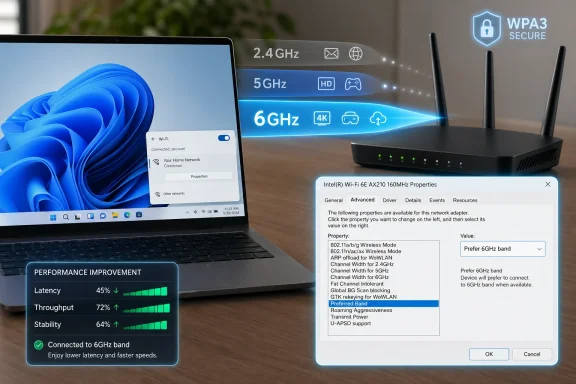
For many Intel-based wireless adapters, and for some adapters from other vendors depending on driver support, the relevant property is Preferred Band. By default, this may be set to No Preference, allowing the adapter and operating system to decide between 2.4GHz, 5GHz, and 6GHz. Changing it to Prefer 6GHz band tells the client to choose 6GHz when that band is available and suitable.
A typical sequence looks like this:
This is an elegant fix because it does not force the PC to ignore 2.4GHz or 5GHz forever. It simply expresses a preference. If 6GHz is unavailable, out of range, blocked by configuration, or unsupported by the network, the PC can still use older bands.
The 2.4GHz band has excellent range but limited capacity and heavy interference from legacy devices, Bluetooth accessories, smart home gear, microwaves, and neighboring routers. The 5GHz band improved performance dramatically, but it too has become crowded as every streaming box, phone, laptop, console, and smart TV moved there. The 6GHz band gives newer devices a less congested arena.
For Windows laptops, 6GHz can be especially useful when the PC is near the router or mesh node. That is when the band’s limitations are least noticeable and its advantages are strongest. A modern laptop in the same room as a Wi-Fi 6E or Wi-Fi 7 access point is exactly the kind of client that should benefit.
Wi-Fi 6E’s advantages include:
For consumer routers, this often appears as a setting labeled WPA3-Personal, WPA2/WPA3 transition mode, or similar. Some routers separate the 6GHz network from 2.4GHz and 5GHz; others combine everything under one SSID but still enforce WPA3 rules for 6GHz-capable clients. The exact user interface varies widely.
This is one reason many households should consider separate SSIDs. A primary network can use WPA3 and 6GHz for modern phones, tablets, and PCs, while a separate legacy or IoT network can remain on 2.4GHz or 5GHz with broader compatibility. That approach is less elegant than one universal network name, but it can be more predictable.
Important security considerations include:
A 6GHz connection can deliver excellent throughput at short to moderate range, especially with wide channels and low interference. However, 6GHz signals do not travel through walls as effectively as 2.4GHz, and they may not outperform 5GHz at the far edge of a home. The best band depends on distance, obstacles, router placement, and client antenna design.
The weak scenario is a laptop several rooms away, behind dense walls, or connected to a mesh node with poor backhaul. In those cases, 5GHz may be more stable, and 2.4GHz may still be necessary for range. A rigid obsession with 6GHz can be counterproductive if the signal quality is poor.
Performance realities to keep in mind:
Corporate networks often use managed drivers, endpoint configuration profiles, and standardized laptop images. If those images leave adapters on default band preferences, some clients may underuse the 6GHz network even in offices designed around it. That creates a support problem: the network is technically available, but users still report inconsistent performance.
Administrators should validate actual client behavior during pilots. That means checking connection band, channel width, roaming performance, authentication logs, and driver versions across representative devices. It is not enough to confirm that the SSID appears.
Enterprise checklist items include:
Some routers expose a dedicated 6GHz SSID, while others combine all bands under one name. Some allow users to split bands manually; others discourage it. The best setup depends on the household, but users who care about maximum performance should at least know how their router presents 6GHz.
A practical home troubleshooting path is simple. First, verify that the router supports Wi-Fi 6E or Wi-Fi 7, not merely Wi-Fi 6. Second, confirm the laptop’s wireless adapter supports 6GHz. Third, check that the network uses suitable security and that the 6GHz band is enabled.
Home users should review:
If users buy Wi-Fi 7 routers and see their Windows laptops sit on 5GHz, the perceived value of the upgrade falls. That can slow adoption and create unnecessary returns, support calls, and negative reviews. The market does not just need faster radios; it needs clearer software feedback.
Competitively, vendors that explain this clearly will have an advantage. A router app that plainly shows which devices are on 6GHz, what channel width they use, and why a device fell back to 5GHz is more valuable than another vague “gaming acceleration” toggle. PC makers can also improve by surfacing real connection details in their own utilities.
The market pressure points are clear:
Router vendors also need to step up. A good mesh app should explain when a device is on 6GHz, when it fell back to 5GHz, and whether security or signal quality caused the decision. That kind of transparency would reduce confusion and make premium routers feel more premium.
Watch these areas closely:
Source: MakeUseOf I changed one Windows setting and my PC finally started getting Wi-Fi 6E speeds
 Background
Wi-Fi naming was supposed to make wireless networking easier to understand. Instead of asking users to decode 802.11ac, 802.11ax, and 802.11be, the industry moved to consumer-facing labels such as Wi-Fi 5, Wi-Fi 6, Wi-Fi 6E, and Wi-Fi 7. That helped, but only up to a point, because the most important practical distinction is often not the generation number itself but the radio band your device is actually using.Wi-Fi 6E is essentially Wi-Fi 6 extended into the 6GHz band. That additional spectrum gives supported devices more room to operate, especially in homes, apartments, offices, and campuses where 2.4GHz and 5GHz channels are already crowded. Wi-Fi 7 also uses 6GHz where available, while adding new capabilities such as wider channels, higher modulation, and multi-link operation on compatible hardware.
The catch is that a device can support Wi-Fi 6E or Wi-Fi 7 and still spend much of its time on 5GHz. A router may broadcast one combined network name across multiple bands, Windows may allow the wireless driver to select the “best” option, and the client may choose stability or signal strength over raw throughput. To the user, the network still appears connected and healthy, but performance may fall short of what the router, laptop, and broadband plan can theoretically deliver.
Why this matters now
The timing is important because 6GHz-capable routers are no longer exotic. Wi-Fi 6E mesh systems, Wi-Fi 7 routers, and laptops with Intel, Qualcomm, MediaTek, or Realtek 6GHz-capable adapters are now common in the premium and upper-mainstream PC market. Yet the software experience has not fully caught up with the marketing message.For Windows users, the result is a gap between owning modern Wi-Fi hardware and using it optimally. The MakeUseOf example is compelling because it is not about replacing equipment, flashing firmware, or buying a new network card. It is about finding an adapter setting buried several clicks below the normal Windows Settings app.
Why Windows Can Miss the 6GHz Fast Lane
Windows 11 generally tries to make networking invisible. That is good when users simply need to connect, roam, and get work done, but it becomes less ideal when a PC has multiple viable wireless paths and one is clearly preferable for performance. On a combined SSID, the same network name may represent 2.4GHz, 5GHz, and 6GHz radios simultaneously.A Windows laptop does not always treat 6GHz as the automatic winner. It may see a stronger 5GHz signal, a more familiar channel, a driver recommendation, or a roaming condition that nudges it away from 6GHz. The user may then wonder why a “Wi-Fi 6E” setup feels only marginally better than the Wi-Fi 6 router it replaced.
Band steering is not magic
Router vendors often rely on band steering to move devices toward the most appropriate band. In theory, a fast laptop close to the access point should land on 6GHz, while older or distant devices use 5GHz or 2.4GHz. In practice, band steering is a negotiation, not a command.A client device makes its own decisions, and Windows depends heavily on the Wi-Fi driver’s logic. That means two laptops sitting next to each other can behave differently on the same router. One may jump to 6GHz immediately, while another clings to 5GHz unless nudged through adapter settings.
Key reasons a Windows PC may avoid 6GHz include:
- Stronger 5GHz signal strength compared with the shorter-range 6GHz band.
- Driver defaults that use “No Preference” for band selection.
- Router band steering behavior that favors compatibility over maximum speed.
- Security configuration problems, especially if the network is not using appropriate WPA3 settings.
- Regional rules and firmware limits that affect which 6GHz channels are available.
- Power-saving behavior on laptops that may prioritize stability or efficiency.
The Device Manager Toggle That Matters
The reported fix lives in Device Manager, not in the modern Windows 11 Settings app. That matters because most users never open Device Manager unless they are troubleshooting a broken driver. Yet it remains one of the few places where Windows exposes advanced network adapter properties.For many Intel-based wireless adapters, and for some adapters from other vendors depending on driver support, the relevant property is Preferred Band. By default, this may be set to No Preference, allowing the adapter and operating system to decide between 2.4GHz, 5GHz, and 6GHz. Changing it to Prefer 6GHz band tells the client to choose 6GHz when that band is available and suitable.
The practical steps
The workflow is straightforward, though users should expect adapter names and available options to vary by hardware vendor and driver version. A Wi-Fi 6-only adapter will not magically gain 6GHz support, and an older driver may not expose every option.A typical sequence looks like this:
- Open Device Manager from the Start menu or power-user menu.
- Expand Network adapters.
- Open the properties for the active Wi-Fi adapter.
- Select the Advanced tab.
- Find Preferred Band in the property list.
- Change the value from No Preference to Prefer 6GHz band.
- Click OK, then disconnect and reconnect to the Wi-Fi network.
This is an elegant fix because it does not force the PC to ignore 2.4GHz or 5GHz forever. It simply expresses a preference. If 6GHz is unavailable, out of range, blocked by configuration, or unsupported by the network, the PC can still use older bands.
What Wi-Fi 6E Actually Changes
The “E” in Wi-Fi 6E is easy to underestimate. It does not mean a completely new protocol generation in the way Wi-Fi 7 does, but it unlocks a major environmental advantage: access to cleaner spectrum. For many homes, that matters more than theoretical maximum speed.The 2.4GHz band has excellent range but limited capacity and heavy interference from legacy devices, Bluetooth accessories, smart home gear, microwaves, and neighboring routers. The 5GHz band improved performance dramatically, but it too has become crowded as every streaming box, phone, laptop, console, and smart TV moved there. The 6GHz band gives newer devices a less congested arena.
Spectrum is the real upgrade
The practical appeal of 6GHz is not just speed; it is breathing room. Wider channels are easier to deploy when there is more available spectrum, and fewer legacy devices are present to drag down efficiency. That can translate into smoother high-throughput transfers, more consistent video calls, and better latency for cloud gaming or remote desktop sessions.For Windows laptops, 6GHz can be especially useful when the PC is near the router or mesh node. That is when the band’s limitations are least noticeable and its advantages are strongest. A modern laptop in the same room as a Wi-Fi 6E or Wi-Fi 7 access point is exactly the kind of client that should benefit.
Wi-Fi 6E’s advantages include:
- Cleaner channels with fewer legacy devices competing for airtime.
- Higher practical throughput when signal quality is strong.
- Lower latency potential because congestion and retransmissions can be reduced.
- Better use of gigabit broadband on compatible client devices.
- More room for 160MHz channels in supported environments.
- Improved performance isolation for modern laptops and phones.
Security Requirements: WPA3 and 6GHz
A major source of Wi-Fi 6E confusion is security. The 6GHz band is tied to modern security requirements, which means older WPA2-only configurations are not enough for normal 6GHz operation. Users who leave a router in a legacy compatibility mode may unintentionally prevent their devices from using the band they expected.For consumer routers, this often appears as a setting labeled WPA3-Personal, WPA2/WPA3 transition mode, or similar. Some routers separate the 6GHz network from 2.4GHz and 5GHz; others combine everything under one SSID but still enforce WPA3 rules for 6GHz-capable clients. The exact user interface varies widely.
Why old security breaks new expectations
WPA3 is not just a marketing checkbox. It is part of the modern Wi-Fi security baseline, and 6GHz networks were designed to avoid dragging decades of compatibility baggage into the new band. That is good for security, but it can be frustrating when a printer, smart plug, or older laptop still needs WPA2.This is one reason many households should consider separate SSIDs. A primary network can use WPA3 and 6GHz for modern phones, tablets, and PCs, while a separate legacy or IoT network can remain on 2.4GHz or 5GHz with broader compatibility. That approach is less elegant than one universal network name, but it can be more predictable.
Important security considerations include:
- 6GHz access generally requires WPA3 or equivalent modern security modes.
- WPA2-only networks may keep capable devices away from 6GHz.
- Mixed-mode security can behave differently depending on router firmware.
- Legacy IoT devices may force compromises if everything shares one SSID.
- Guest networks may not expose all bands, especially on mesh systems.
- Enterprise authentication adds another layer of configuration complexity.
Performance: Speed, Latency, and Range
The MakeUseOf report describes an immediate speed improvement after changing the preferred band. That is plausible and consistent with how 6GHz behaves in favorable conditions. But it is also important to separate speed tests from total network quality.A 6GHz connection can deliver excellent throughput at short to moderate range, especially with wide channels and low interference. However, 6GHz signals do not travel through walls as effectively as 2.4GHz, and they may not outperform 5GHz at the far edge of a home. The best band depends on distance, obstacles, router placement, and client antenna design.
Where 6GHz wins and where it struggles
The ideal 6GHz scenario is a modern laptop, a clear path to the router or mesh node, and a fast internet plan or local network workload. In that setup, users may see higher download speeds, faster file transfers to a NAS, and less jitter during video calls. It can feel like the network has suddenly become more responsive.The weak scenario is a laptop several rooms away, behind dense walls, or connected to a mesh node with poor backhaul. In those cases, 5GHz may be more stable, and 2.4GHz may still be necessary for range. A rigid obsession with 6GHz can be counterproductive if the signal quality is poor.
Performance realities to keep in mind:
- 6GHz is usually best at shorter distances.
- 5GHz may outperform 6GHz through walls or across floors.
- 2.4GHz remains useful for long range and low-bandwidth devices.
- Channel width matters, but wider is not always better in noisy environments.
- Mesh backhaul quality can limit speed even when the client link is excellent.
- Internet speed tests may hide local Wi-Fi gains if broadband is the bottleneck.
Enterprise Lessons for IT Admins
For enterprise IT teams, the lesson is broader than one hidden Windows toggle. Wireless performance now depends on endpoint policy, driver versions, radio design, authentication, and user density. A 6GHz rollout can disappoint if administrators treat it as a simple access point upgrade.Corporate networks often use managed drivers, endpoint configuration profiles, and standardized laptop images. If those images leave adapters on default band preferences, some clients may underuse the 6GHz network even in offices designed around it. That creates a support problem: the network is technically available, but users still report inconsistent performance.
Managing the client side
IT departments have long focused on access point placement, channel planning, and controller configuration. Wi-Fi 6E and Wi-Fi 7 make the client side more important. A poorly configured laptop can fail to take advantage of expensive infrastructure, especially in mixed-band deployments.Administrators should validate actual client behavior during pilots. That means checking connection band, channel width, roaming performance, authentication logs, and driver versions across representative devices. It is not enough to confirm that the SSID appears.
Enterprise checklist items include:
- Standardize Wi-Fi drivers across supported laptop models.
- Audit adapter advanced settings before and after deployment.
- Confirm WPA3 enterprise compatibility with identity and certificate infrastructure.
- Test roaming behavior between 6GHz, 5GHz, and 2.4GHz cells.
- Segment legacy devices instead of weakening the main network.
- Measure real application performance, not only synthetic speed tests.
Consumer Router Reality Check
Home users face a different problem: router interfaces are often designed to hide complexity. Mesh systems especially prefer a single network name, automatic band steering, and simplified security options. That makes setup easy, but it can obscure whether a laptop is actually on 6GHz.Some routers expose a dedicated 6GHz SSID, while others combine all bands under one name. Some allow users to split bands manually; others discourage it. The best setup depends on the household, but users who care about maximum performance should at least know how their router presents 6GHz.
Settings worth checking
Before changing Windows settings, users should confirm that the router is configured correctly. The PC cannot connect to a 6GHz radio that is disabled, hidden behind a separate SSID, unsupported in the region, or unavailable because of security settings. Router firmware updates can also change behavior over time.A practical home troubleshooting path is simple. First, verify that the router supports Wi-Fi 6E or Wi-Fi 7, not merely Wi-Fi 6. Second, confirm the laptop’s wireless adapter supports 6GHz. Third, check that the network uses suitable security and that the 6GHz band is enabled.
Home users should review:
- Router model capabilities, including whether it supports Wi-Fi 6E or Wi-Fi 7.
- Client adapter capabilities, because Wi-Fi 6 does not mean Wi-Fi 6E.
- Firmware updates for both router and PC wireless drivers.
- WPA3 settings on the primary wireless network.
- SSID design, especially whether 6GHz uses a separate network name.
- Router placement, because 6GHz rewards proximity and clean signal paths.
Competitive and Market Implications
This small Windows setting exposes a bigger challenge for the networking industry. Router makers sell speed, PC makers advertise Wi-Fi generation numbers, and broadband providers promote gigabit plans. But the user experience depends on all of those layers working together.If users buy Wi-Fi 7 routers and see their Windows laptops sit on 5GHz, the perceived value of the upgrade falls. That can slow adoption and create unnecessary returns, support calls, and negative reviews. The market does not just need faster radios; it needs clearer software feedback.
Wi-Fi 7 raises the stakes
With Wi-Fi 7, the problem becomes even more visible. Wi-Fi 7’s headline features can include 320MHz channels, 4K-QAM, and multi-link operation, but users will not benefit equally across all devices or regulatory domains. A Windows PC may support some features, the router may support others, and the actual connection may use a narrower, older, or less capable path.Competitively, vendors that explain this clearly will have an advantage. A router app that plainly shows which devices are on 6GHz, what channel width they use, and why a device fell back to 5GHz is more valuable than another vague “gaming acceleration” toggle. PC makers can also improve by surfacing real connection details in their own utilities.
The market pressure points are clear:
- Router vendors need better diagnostics, not just bigger speed numbers.
- PC makers should expose adapter capabilities in plain language.
- Microsoft could make band preference easier to find in Windows Settings.
- Chip vendors must keep drivers reliable across sleep, roaming, and updates.
- Retailers should distinguish Wi-Fi 6 from Wi-Fi 6E more clearly.
- Reviewers should test actual band behavior, not just advertised specifications.
Strengths and Opportunities
The upside of this discovery is that it gives users a low-cost way to reclaim performance from hardware they already own. It also highlights how much untapped potential still exists in Windows networking when settings, drivers, and router configuration are aligned.- Immediate performance gains are possible on compatible Wi-Fi 6E and Wi-Fi 7 networks.
- No new hardware purchase is required if the PC and router already support 6GHz.
- The setting is reversible, making it a safe troubleshooting step for most enthusiasts.
- Better band awareness helps users understand what their router is actually doing.
- Enterprises can standardize client behavior as part of Wi-Fi 6E deployment planning.
- Router makers have an opportunity to improve apps with clearer band diagnostics.
- Microsoft could modernize Windows networking controls by moving advanced Wi-Fi preferences into the main Settings app.
Risks and Concerns
The risk is that users may overgeneralize the fix. Preferring 6GHz is sensible for many modern setups, but it is not a universal guarantee of better networking. Wireless performance is still shaped by distance, interference, router placement, device drivers, and security configuration.- 6GHz range is shorter, so performance may drop at the edge of coverage.
- Some adapters may not expose the same setting, especially with different chipsets or older drivers.
- Router security settings can block 6GHz, even if the hardware supports it.
- Mixed smart-home environments may become harder to manage if WPA3 compatibility is poor.
- Mesh systems may hide important details, making troubleshooting more difficult.
- Driver updates can reset or alter behavior, requiring users to recheck settings.
- Speed tests can mislead users if broadband, VPNs, or remote servers are the actual bottleneck.
What to Watch Next
The next phase of Windows wireless performance should be about visibility. Users should not need to dig through Device Manager to tell a modern laptop to prefer the newest, cleanest band. If Windows can show battery health, GPU selection, and storage usage in friendly interfaces, it can also expose band preference, channel width, and Wi-Fi generation more clearly.Router vendors also need to step up. A good mesh app should explain when a device is on 6GHz, when it fell back to 5GHz, and whether security or signal quality caused the decision. That kind of transparency would reduce confusion and make premium routers feel more premium.
Watch these areas closely:
- Windows Settings updates that may surface advanced adapter controls more clearly.
- Wi-Fi 7 driver maturity, especially around 6GHz and multi-link behavior.
- Router firmware changes that improve band steering and WPA3 handling.
- Enterprise management templates for standardizing wireless adapter preferences.
- Consumer education around the difference between Wi-Fi 6, Wi-Fi 6E, and Wi-Fi 7.
Source: MakeUseOf I changed one Windows setting and my PC finally started getting Wi-Fi 6E speeds
