

If a Windows guest in VirtualBox refuses to run at a native or full-screen resolution, the fix is almost always a matter of drivers and configuration — most commonly missing or mismatched VirtualBox Guest Additions, the wrong Graphics Controller, or the need to force a custom video mode with VBoxManage. The short path to restoring crisp, full-screen Windows in VirtualBox is: install the correct Guest Additions (WDDM driver for modern Windows), give the VM plenty of video memory and the right graphics controller (VBoxSVGA for Windows 7+), and when necessary add a custom video mode or use setvideomodehint to apply it. These are the steps recommended by the VirtualBox project and reinforced across community troubleshooting threads.
VirtualBox presents a virtual GPU to guests. Without the enhanced drivers provided by the VirtualBox Guest Additions, guests fall back to generic VESA or “Standard VGA” modes and offer only a few low resolutions (800×600, 1024×768, etc.. Modern Windows (Windows 10/11) expects a more capable driver model (WDDM) for proper scaling, DPI handling, and full-screen resolution. Installing the Guest Additions, selecting the recommended graphics controller, and allocating adequate VRAM are the foundational fixes for resolution problems. The VirtualBox documentation also exposes advanced tools (VBoxManage setextradata and controlvm setvideomodehint) to define and apply custom resolutions when the GUI options aren’t sufficient.
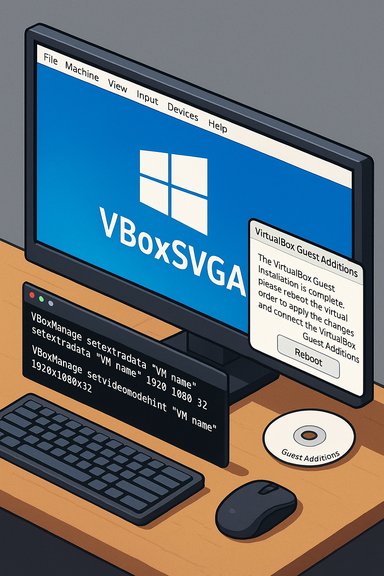
VBoxManage setextradata "VM name" "CustomVideoMode1" "1920x1080x32"
VBoxManage controlvm "VM name" setvideomodehint 1920 1080 32
VBoxManage setextradata global GUI/MaxGuestResolution any
Source: Guiding Tech How to Fix Windows Resolution in VirtualBox
 Background / Overview
VirtualBox presents a virtual GPU to guests. Without the enhanced drivers provided by the VirtualBox Guest Additions, guests fall back to generic VESA or “Standard VGA” modes and offer only a few low resolutions (800×600, 1024×768, etc.. Modern Windows (Windows 10/11) expects a more capable driver model (WDDM) for proper scaling, DPI handling, and full-screen resolution. Installing the Guest Additions, selecting the recommended graphics controller, and allocating adequate VRAM are the foundational fixes for resolution problems. The VirtualBox documentation also exposes advanced tools (VBoxManage setextradata and controlvm setvideomodehint) to define and apply custom resolutions when the GUI options aren’t sufficient. Why resolution problems happen (short technical summary)
- Virtual machines initially use a basic display adapter that exposes only standard VESA modes. Guests rely on drivers to access higher or dynamic resolutions.
- VirtualBox Guest Additions installs a vendor-specific driver that supports automatic resizing, seamless mouse integration, and higher resolutions. For Windows guests, Guest Additions provide a WDDM-capable video driver for Vista and later, which is required for proper Direct3D and modern display behavior.
- The VM’s Graphics Controller selection (VBoxVGA, VBoxSVGA, VMSVGA) determines the emulated adapter. VBoxSVGA is the VirtualBox-recommended adapter for Windows 7 and newer guests; using legacy controllers limits features or breaks modern guests’ display behavior.
- Host-side constraints (host screen size, multi-monitor scaling, GPU driver issues, or Hyper-V conflicts on Windows hosts) also affect what the guest can use. VirtualBox’s GUI sometimes limits guest resolutions to the host monitor size unless overridden.
Quick checklist (what to do first)
- Confirm Guest Additions are installed in the Windows guest.
- In the VM Settings → Display, max out Video Memory (e.g., 128–256 MB) and set Graphics Controller to VBoxSVGA for Windows 7/10/11 guests.
- Reboot the guest and try View → Full-screen or resize the VM window. If the resolution still doesn’t appear, use VBoxManage to add a custom mode or send a video mode hint.
Step-by-step: Install Guest Additions (the essential fix)
Why Guest Additions matter
Guest Additions installs the virtual video driver, mouse integration, clipboard sharing, and dynamic display resizing. Without them, the guest’s display is restricted to the generic VESA fallback. The VirtualBox manual instructs mounting the Guest Additions ISO via Devices → Insert Guest Additions CD Image and running the installer inside the guest. For Windows guests, this installs the WDDM-capable driver required by Windows 8/10/11.How to install Guest Additions in Windows (detailed)
- Start the VM and log into Windows.
- From the VirtualBox VM window menu choose Devices → Insert Guest Additions CD Image. VirtualBox will mount VBoxGuestAdditions.iso inside the guest.
- If AutoPlay runs, accept it and launch VBoxWindowsAdditions.exe; otherwise open This PC and double-click the VirtualBox Guest Additions CD drive.
- Right-click the installer that matches your architecture and choose Run as administrator. Install all components, including the video driver when prompted. Expect screen flicker while video drivers install — this is normal.
- Reboot the guest after installation. After reboot, the guest should support dynamic resizing and more resolutions; test by resizing the VM window or entering full-screen mode.
Caveats and tips
- Guest Additions must match the VirtualBox host version for best results. If you updated VirtualBox recently, reinstall the Guest Additions inside the guest to match. Community reports show mismatched versions can cause display instability.
- Windows may warn that the driver is unsigned; accept and proceed if you trust your VirtualBox install. The VirtualBox manual documents digitalsign warnings during Additions installation.
Step-by-step: Fix Graphics Controller & VRAM
Recommended settings for Windows 10 / Windows 11 guests
- Open VirtualBox Manager → select VM → Settings → Display.
- Set Video Memory to the maximum available (e.g., 128–256 MB depending on host and VirtualBox version).
- Set Graphics Controller to VBoxSVGA for Windows 7 and later guests. Use VMSVGA for most Linux guests. Avoid VBoxVGA for modern Windows guests unless you need a legacy adapter.
Why this matters
VBoxSVGA offers better 3D support and compatibility with Guest Additions for modern Windows guests. Using the wrong controller can limit accelerated graphics, disable seamless resizing, or cause the guest to behave as if it had a legacy card. The VirtualBox manual explicitly recommends VBoxSVGA for Windows 7+.Safety notes
- Changing the graphics controller for an existing VM can occasionally flag “invalid configuration” or require reinstallation of Guest Additions — back up your VM or create a snapshot before making the switch. Community threads show users sometimes revert controller choices after problems, or re-install Guest Additions afterward.
When you still don’t see your desired resolution: VBoxManage tricks
If Guest Additions and the VBoxSVGA controller are installed and you still can’t select a specific resolution (for example, you need 1920×1080 on a headless host or unusual multi‑monitor setups), VirtualBox provides two powerful CLI options:1) Add a CustomVideoMode entry
This registers an extra VESA mode for the VM:VBoxManage setextradata "VM name" "CustomVideoMode1" "1920x1080x32"
- This tells VirtualBox to expose a custom mode; the manual documents CustomVideoMode1..16 for VESA modes. Note: Windows guests with Guest Additions install their own driver and may ignore VESA, but custom modes still help in many configurations.
2) Apply the new mode immediately (while VM is running)
If the guest has Guest Additions installed you can request a mode change dynamically:VBoxManage controlvm "VM name" setvideomodehint 1920 1080 32
- This instructs the running VM to switch to the requested resolution (requires Guest Additions). The manual documents setvideomodehint explicitly and community examples show this paired approach (setextradata followed by setvideomodehint) works well when GUI options fail.
Global override (if the GUI restricts guest resolutions)
To remove the host-size restriction so guests can use larger resolutions than the host display, run:VBoxManage setextradata global GUI/MaxGuestResolution any
- Use this with caution — the GUI limit exists to prevent guests from offering sizes the host cannot realistically render. The VirtualBox docs describe this global extra-data setting.
Practical worked example
- Ensure VM is powered off, then increase Video Memory to 128 MB and set Graphics Controller = VBoxSVGA.
- Power on guest → install Guest Additions, reboot.
- On the host open an elevated Command Prompt and run:
- VBoxManage setextradata "MyWin11" "CustomVideoMode1" "1920x1080x32"
- VBoxManage controlvm "MyWin11" setvideomodehint 1920 1080 32
- Inside guest: Settings → Display should now list 1920×1080 (or the guest will immediately switch if Guest Additions honored the hint).
Troubleshooting: common failure modes and fixes
Guest Additions refuses to install or causes freezes
- Ensure the Guest Additions ISO matches your VirtualBox host version. If the latest build causes problems, community reports suggest rolling back to a previous VirtualBox/Guest Additions version temporarily. Expect some variability across host OS (Windows/macOS/Linux) and VirtualBox releases.
setvideomodehint or custom-mode doesn’t apply
- Confirm Guest Additions are present and running inside the guest.
- Verify you used the correct VM name or UUID in VBoxManage commands. Use VBoxManage list vms to check names.
- On Windows hosts, ensure Hyper‑V is disabled for best compatibility; Hyper‑V can interfere with VirtualBox CPU/VMX features. Community troubleshooting often flags Hyper‑V interference as a root cause for erratic VM behavior.
Broken or unreadable UI after enabling 3D acceleration
- Some combinations of host GPU drivers and Guest Additions can produce artifacts or transparency issues in the guest (e.g., start menu text unreadable). If you see UI corruption, disable 3D acceleration or update host GPU drivers, then reinstall Guest Additions. The VirtualBox manual documents 3D acceleration as experimental on some platforms and notes guest-side driver expectations.
Permissions or non-admin users
- On Windows hosts, non-admin users may lack permission to run certain VirtualBox operations (e.g., inserting ISO or modifying ProgramData). If the GUI options are greyed out for a non-admin account, replicate the steps as an administrator or grant the required NTFS permissions carefully. Community posts document this behavior.
Critical analysis: strengths and risks
Strengths of the Guest Additions + VBoxManage approach
- Powerful and flexible: Once Guest Additions are installed, VirtualBox supports dynamic resizing, shared clipboard, and improved graphics performance; VBoxManage gives admins the ability to add precise modes and override defaults. These are robust tools for both hobbyists and IT pros.
- Cross-platform: The Guest Additions workflow and VBoxManage work on Windows, macOS, and Linux hosts, making the steps transferable across environments.
- Recoverable: If a graphics change causes issues, VirtualBox snapshots let you revert the VM to a known good state before applying risky changes like switching graphics controllers.
Known risks and caveats
- Version mismatch hazards: Installing Guest Additions that don’t match the host VirtualBox version can cause freezes or display instability; community threads show users needing to downgrade or reinstall matching versions. Always align versions and test on a snapshot.
- Experimental Direct3D / 3D acceleration: VirtualBox’s Direct3D support is limited and sometimes experimental; relying on it for production graphical workloads is risky. Expect glitches; use the VM for desktop apps and testing, not for GPU-heavy production rendering workflows.
- Host GPU driver and Hyper‑V interactions: Host-side GPU drivers and Microsoft Hyper‑V (on Windows host) can interfere with VirtualBox’s ability to provide consistent acceleration or even proper CPU virtualization. Keep host drivers updated, and disable Hyper‑V if you encounter unexplained graphics or performance issues.
- Custom mode brittleness: Custom VESA modes and setvideomodehint are powerful but platform-sensitive. Some older guests or certain kernel/driver combos ignore hints. Testing and fallback plans (snapshots) are essential.
Advanced notes (for power users)
- You can insert the Guest Additions ISO programmatically with VBoxManage storageattach if you automate VM provisioning; the manual documents storing the ISO in the host VirtualBox installation directory. For unattended provisioning, VBoxManage unattended install options can bake Guest Additions into images.
- VirtualBox reads CustomVideoMode1..16 sequentially — skipping numbers can cause ignored entries. Use consecutive indices when adding multiple custom modes.
- To allow guests to use resolutions larger than the host display, set the global GUI/MaxGuestResolution to any — but remember the host still needs to render the display meaningfully. Use this only when you understand the host-side implications.
Quick reference commands
- Mount Guest Additions (GUI): Devices → Insert Guest Additions CD Image.
- Add custom resolution (host):
- VBoxManage setextradata "VM name" "CustomVideoMode1" "1920x1080x32"
- Apply mode immediately (guest running and Guest Additions installed):
- VBoxManage controlvm "VM name" setvideomodehint 1920 1080 32
- Remove GUI resolution caps (global):
- VBoxManage setextradata global GUI/MaxGuestResolution any
Final checklist before you click “Start”
- [ ] Guest Additions installed inside the Windows guest and the guest rebooted.
- [ ] VM Display settings: Graphics Controller = VBoxSVGA, Video Memory increased, 3D acceleration enabled only if needed.
- [ ] Host GPU drivers updated and Hyper‑V disabled on Windows host if you see virtualization conflicts.
- [ ] If a custom resolution is required, prepare to use VBoxManage setextradata plus controlvm setvideomodehint and keep a snapshot handy.
Conclusion
Resolution problems in VirtualBox aren’t mysterious — they’re almost always caused by missing or mismatched guest drivers, a graphics-controller mismatch, or host-side constraints. The reliable sequence is to install the VirtualBox Guest Additions (so Windows gets a WDDM-capable driver), choose VBoxSVGA and adequate VRAM in the VM Display settings, and if needed use VBoxManage to add and force a custom video mode. These steps are documented in the VirtualBox manual and supported by community practice; they resolve the majority of Windows-in‑VirtualBox display issues while balancing safety (use snapshots) and flexibility (CLI overrides). For edge cases — mismatched versions causing crashes, experimental Direct3D behavior, or host tool interference — the safest path is to snapshot the VM, test changes incrementally, and if necessary revert to a prior VirtualBox/Guest Additions build that worked in your environment. Community reports and the VirtualBox docs make this conservative, test-first approach the practical best practice.Source: Guiding Tech How to Fix Windows Resolution in VirtualBox
