

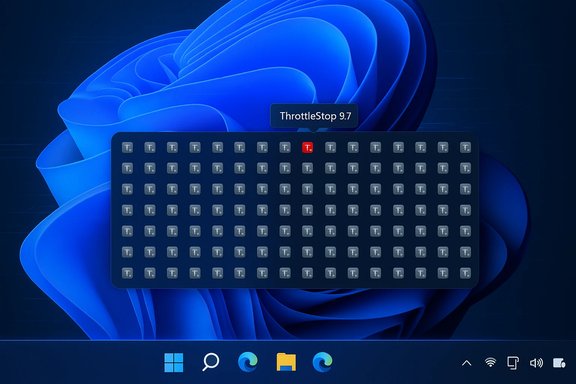
Windows 11 users and power‑users are reporting a startling visual glitch: the Other system tray icons list in Settings fills with hundreds of disabled entries for ThrottleStop, leaving the Taskbar overflow brittle, confusing, and slow to load on some systems. The issue surfaced across forums and community threads and appears to be a reproducible interaction between how ThrottleStop registers notification‑area entries and how Windows 11 caches and displays those entries — a problem that has prompted fixes in later ThrottleStop builds and a handful of manual workarounds for affected machines.
ThrottleStop is a lightweight but powerful utility used primarily by laptop enthusiasts and overclockers to monitor and adjust CPU power limits, turbo behavior, and thermal controls. Because it exposes sensors and controls, ThrottleStop adds one or more icons to the Windows notification area (system tray) so users can quickly access readings and profiles.
Windows 11 manages tray icons and the “Taskbar corner overflow” (the chevron that expands hidden icons) using a per‑user cache. That cache is shown in Settings → Personalization → Taskbar → Other system tray icons, where toggles let you force particular icons to be shown or hidden. When apps register or re‑register their notification icons, Windows updates this cache — but race conditions, timing differences during boot, or apps that create many separate icon tooltips can confuse the cache and produce duplicate or ghost entries. Community reports and threads documenting dozens or hundreds of ThrottleStop entries illustrate this exact behavior.
The ThrottleStop duplication problem is a good example of how small timing and registration differences between apps and the Windows shell can cascade into usability problems. The community and the ThrottleStop developer responded: a release fixed the registration behavior, and tried‑and‑true Windows maintenance steps clean the aftermath. For most power users the recommended path is clear: update, reset the tray cache if needed, and apply a mild startup delay for background monitoring tools to avoid repeating the pattern.
The Windows 11 taskbar and notification area will continue to evolve, and these kinds of community‑documented interactions are valuable: they help vendors fix compatibility in application updates (as ThrottleStop did), and they give users concrete, reversible steps to recover a clean, usable Taskbar. The combination of application updates and a measured, backup‑first reset process will get most machines back to normal without compromising system stability.
Source: TechPowerUp Hundreds of disabled Throttlestop icons in Other System Tray Icons...
Source: TechPowerUp https://www.techpowerup.com/forums/...ther-system-tray-icons-on-windows-11.345319/]
 Background / Overview
ThrottleStop is a lightweight but powerful utility used primarily by laptop enthusiasts and overclockers to monitor and adjust CPU power limits, turbo behavior, and thermal controls. Because it exposes sensors and controls, ThrottleStop adds one or more icons to the Windows notification area (system tray) so users can quickly access readings and profiles.Windows 11 manages tray icons and the “Taskbar corner overflow” (the chevron that expands hidden icons) using a per‑user cache. That cache is shown in Settings → Personalization → Taskbar → Other system tray icons, where toggles let you force particular icons to be shown or hidden. When apps register or re‑register their notification icons, Windows updates this cache — but race conditions, timing differences during boot, or apps that create many separate icon tooltips can confuse the cache and produce duplicate or ghost entries. Community reports and threads documenting dozens or hundreds of ThrottleStop entries illustrate this exact behavior.
What users are seeing
- The Settings page under Other system tray icons becomes slow to populate and may show long lists of ThrottleStop entries, often marked as disabled and sometimes repeating IDs many times over.
- Only the most recent ThrottleStop entry actually shows an active system tray icon; older entries are inert but remain in the list.
- Toggling visibility for a single ThrottleStop line does not reliably converge the list into a single entry; duplicates can reappear after reboot or after ThrottleStop relaunches.
- In extreme cases the Settings UI is sluggish to open because it enumerates an unusually large number of cached icons.
Why this happens — technical analysis
At a high level, the problem is a clash between three pieces of behavior:- How ThrottleStop reports multiple telemetry or sensor indicators as separate notification‑area items (the application can surface more than one small tooltip/icon to represent different sensors).
- How Windows 11 enumerates and remembers notification area items in the per‑user TrayNotify cache (registry values such as IconStreams and PastIconsStream).
- Timing/race conditions during shell startup where an app registers multiple notification items in rapid sequence or restarts before Windows has a stable shell state.
What has changed in ThrottleStop (developer response and fixes)
TechPowerUp’s release notes for ThrottleStop 9.7 explicitly list a fix: “Fixed the Notification Area icons for improved Windows 11 compatibility.” That change was rolled out in the December 26, 2024 ThrottleStop 9.7 release and has since been packaged in later point updates. Independent reporting and community tests confirm that updating ThrottleStop to 9.7+ corrected the repeated‑creation/multiplication behavior for many users — the app now behaves more consistently when registering notification‑area indicators on Windows 11. However, users who already accumulated many cached entries still need to clear the cache in order to restore a clean Settings list. Important caveat: some users on forums reported continued residual entries even after upgrading to 9.7.x until they manually cleared the tray cache. That indicates the fix prevents further multiplication but does not retroactively remove cached registry entries created by older runs. Treat the release‑note fix as a preventative improvement rather than a one‑click cure for existing caches.How to fix it — safe steps and options
Below are short‑term and persistent options ranked from least invasive to most direct. Always create a system restore point and/or backup the registry before making changes that affect the system configuration.Quick, low‑risk steps
- Restart Explorer.exe: Open Task Manager (Ctrl+Shift+Esc), find Windows Explorer, right‑click and choose Restart. That forces the shell to reload and can temporarily normalize icon registrations. This is the fastest, least invasive first step.
- Update ThrottleStop: Download and install the latest ThrottleStop (9.7 or later) to take advantage of the Notification Area compatibility fixes. Updating prevents future multiplication. After updating, restart the system and confirm whether new duplicates stop appearing.
- Stop ThrottleStop from auto‑starting: If you don’t need ThrottleStop at logon, remove it from startup (Task Manager → Startup tab) or disable the scheduled Task that launches it. Delaying or preventing autostart reduces the chance of rapid re‑registrations while the shell initializes.
Reset the notification area icon cache (intermediate, commonly used)
This removes cached (past) notification icons and forces Windows to rebuild the list from currently active apps. It is the standard community remedy for duplicate/ghost tray entries.- Close ThrottleStop (and any other apps whose icons you want to preserve reconfiguration for).
- Open the Registry Editor (Win+R → regedit) and navigate to:
HKEY_CURRENT_USER\Software\Classes\Local Settings\Software\Microsoft\Windows\CurrentVersion\TrayNotify - Back up the TrayNotify key by exporting it (right‑click → Export).
- Delete the two binary values named IconStreams and PastIconsStream.
- Restart Explorer:
- Open Task Manager → Details/Processes → find explorer.exe → End task.
- From Task Manager: File → Run new task → type explorer.exe → Enter.
- Reopen Settings → Personalization → Taskbar → Other system tray icons and re‑toggle the icons you want visible.
Advanced / last‑resort options
- Use a registry script or a vetted batch file that deletes IconStreams/PastIconsStream and restarts Explorer in one step. Only run scripts from sources you trust and inspect the commands first. Several community contributors maintain simple utilities for this task.
- If the Settings UI remains unresponsive or the chevron/overflow fails to render correctly, some users found that toggling individual icons on (turn all on) temporarily restores the overflow and then lets them selectively hide items afterward. This is less reliable but sometimes useful when the registry approach is not an option.
- If you prefer not to risk registry edits, uninstall ThrottleStop, clear the cache with the steps above, then reinstall the latest ThrottleStop. Removing the app before clearing the cache will avoid re‑adding entries while you reset the cache.
Step‑by‑step: clearing the tray cache (safe checklist)
- Make a System Restore point or export the TrayNotify key in Regedit.
- Close ThrottleStop and any monitoring apps.
- Run regedit and navigate to TrayNotify path noted above.
- Delete IconStreams and PastIconsStream only.
- Restart Explorer (Task Manager → Restart).
- Start ThrottleStop (latest version) and verify that the Other system tray icons list shows only the expected entries.
- Reconfigure any “always show” toggles you prefer.
Short‑term workarounds and operational recommendations
- Set ThrottleStop to not start immediately at logon; use a manual start or a delayed task (Task Scheduler) to give the shell time to initialize.
- If you rely on startup automation, add a small startup delay (a few seconds) in the scheduled task to avoid the race window where multiple registers occur.
- Consider using the latest stable ThrottleStop release and check its change log before upgrading or downgrading, since the behavior has been explicitly corrected in 9.7.x builds.
Risks, cautions and what to watch for
- Registry edits are sensitive. Deleting the wrong key can corrupt user settings; always export the key before changing or deleting values. The IconStreams/PastIconsStream tweak is widely used but must be done precisely and with care.
- ThrottleStop itself is a power‑user tool. Misconfiguring voltage or power limits can cause instability, system crashes, or in extreme cases hardware stress. The tray icon duplication issue is cosmetic/system‑UI related, but it’s a reminder that tools like ThrottleStop modify low‑level behaviors — treat them accordingly.
- Clearing the tray cache resets preferences. Deleting IconStreams/PastIconsStream removes each user’s saved visibility choices for all tray icons. Expect to spend a few minutes re‑toggling which icons you want shown or hidden after the reset.
- Enterprise or managed devices: corporate group policies or MDM may prevent editing the registry or reinstalling software. Engage IT support before attempting registry changes on managed machines.
- Unverified speculative causes: while the community evidence strongly suggests ThrottleStop’s multiple sensor/tooltip registrations and Windows’ caching behavior as root causes, some aspects (exact internal registration order, race windows across specific Windows builds or OEM drivers) are not fully documented by Microsoft publicly. Treat causal statements as evidence‑informed rather than a definitive vendor root‑cause until Microsoft or the ThrottleStop author publish an explicit technical post‑mortem.
Why Microsoft’s tray design matters (context for readers)
Windows 11 changed Taskbar and notification‑area behavior compared with Windows 10, and those changes have exposed edge cases where tray icon registration and the shell’s icon cache interact poorly with certain apps or startup sequences. Over time the ecosystem has produced both official patches from Microsoft and practical community tools (ExplorerPatcher, Windhawk, StartAllBack) that either restore old behaviors or provide workarounds for power users. This ThrottleStop multiplication problem is one symptom in a broader class of notification‑area fragility that power users have documented and mitigated with the registry reset technique and app updates.Final analysis and recommendation
The immediate takeaway for affected users is twofold:- Short term: update to ThrottleStop 9.7+ to stop new duplicates from appearing, and clear the tray cache (IconStreams/PastIconsStream) if your Settings list is already littered with past entries. Restarting Explorer is an easy first step and often sufficient for small cases.
- Medium term: if you run monitoring utilities at logon, consider delaying their startup so the shell fully initializes before they register notification items. This embraces the pragmatic solution of eliminating race windows that can cause Windows to create extra cached entries.
The ThrottleStop duplication problem is a good example of how small timing and registration differences between apps and the Windows shell can cascade into usability problems. The community and the ThrottleStop developer responded: a release fixed the registration behavior, and tried‑and‑true Windows maintenance steps clean the aftermath. For most power users the recommended path is clear: update, reset the tray cache if needed, and apply a mild startup delay for background monitoring tools to avoid repeating the pattern.
Quick reference — commands and paths (copyable)
- Registry path to tray cache:
- HKEY_CURRENT_USER\Software\Classes\Local Settings\Software\Microsoft\Windows\CurrentVersion\TrayNotify
- Values typically deleted to reset the cache:
- IconStreams
- PastIconsStream
- To restart Explorer from an elevated PowerShell or Command Prompt:
- taskkill /F /IM explorer.exe
- start explorer.exe
The Windows 11 taskbar and notification area will continue to evolve, and these kinds of community‑documented interactions are valuable: they help vendors fix compatibility in application updates (as ThrottleStop did), and they give users concrete, reversible steps to recover a clean, usable Taskbar. The combination of application updates and a measured, backup‑first reset process will get most machines back to normal without compromising system stability.
Source: TechPowerUp Hundreds of disabled Throttlestop icons in Other System Tray Icons...
Source: TechPowerUp https://www.techpowerup.com/forums/...ther-system-tray-icons-on-windows-11.345319/]
