

Windows 11 users reporting that “ThrottleStop stopped working again” are mostly seeing a taskbar/UI symptom — not a CPU control crash — caused by an interaction between how ThrottleStop registers multiple notification icons and how Windows 11 persists a per‑user tray icon cache. The short version: TechPowerUp’s ThrottleStop author shipped a Windows‑11 compatibility fix in the 9.7 series that prevents new icon‑multiplication, but previously created entries remain in the Windows tray cache and must be cleared manually; if you rely on ThrottleStop at logon you should update, clear the tray cache safely, and consider delaying autostart to avoid race conditions. ttps://www.techpowerup.com/330182/techpowerup-releases-throttlestop-9-7-utility-take-charge-of-your-laptops-performance)
ThrottleStop is a small but powerful utility used by laptop enthusiasts and power users to monitor CPU temperatures, change turbo/power limits, and apply profiles quickly. It exposes several telemetry items and quick controls through the Windows notification area (system tray), which is why the app creates multiple little icons or tooltip elements when it runs. Those multiple indicthe app surfaces separate sensor/readout items rather than hiding everything in one single icon.
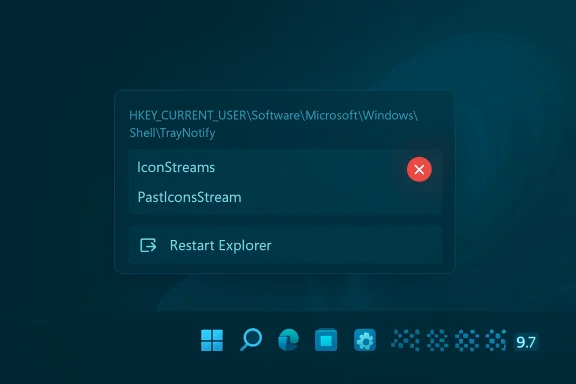
Windows 11 manages visible tray icons and the “Taskbar corner overflow” via a per‑user cache stored in the registry under the TrayNotify key. Two binary values — IconStreams and PastIconsStream — hold the historical and visibility information that Settings reads to populate the Other system tray icons list. When an app repeatedly registers or re‑registers multiple icons in quick succession (for example, during logon or when Explorer restarts), Windows can record many distinct cached entries for the same app instead of updating a single entry. The result is long lists of disabled, duplicate entries in Settings and a bhis is the technical vector behind the visible problem users are reporting.
Microsoft’s registry‑based tray cache approach predates Windows 11 and has historically been the community’s lever for cleaning up “past” notification icons. Deleting the two binary values under the TrayNotify key and restarting Explorer forces Windows to rebuild the list from currently running processes, which collapses the inflated list back to reality — but it also resets per‑icon visibility preferences. Multiple support and community writeups document this procedure.
Two independent observations back this up: (1) the TechPowerUp release notes and archive shfixes and follow‑on point releases addressing icon behavior, and (2) multiple community threads document that updating to 9.7+ stops new entries from appearing while leftover entries remain until the TrayNotify cache is cleared. Together these sources form the factual basis for the recommended remediation path: update the client, then reset the tray cache if you have residual entries.
If your system shows stubborn or unusual behavior after these steps, gather diagnostics (exported TrayNotify keys, list of shell mods, exact ThrottleStop version and settings) and escalate to the TechPowerUp forum or the ThrottleStop author so the community can help diagnose deeper, case‑specific issues.
Source: TechPowerUp Throttlestop stoped working again on windows 11
 Background / Overview
ThrottleStop is a small but powerful utility used by laptop enthusiasts and power users to monitor CPU temperatures, change turbo/power limits, and apply profiles quickly. It exposes several telemetry items and quick controls through the Windows notification area (system tray), which is why the app creates multiple little icons or tooltip elements when it runs. Those multiple indicthe app surfaces separate sensor/readout items rather than hiding everything in one single icon.Windows 11 manages visible tray icons and the “Taskbar corner overflow” via a per‑user cache stored in the registry under the TrayNotify key. Two binary values — IconStreams and PastIconsStream — hold the historical and visibility information that Settings reads to populate the Other system tray icons list. When an app repeatedly registers or re‑registers multiple icons in quick succession (for example, during logon or when Explorer restarts), Windows can record many distinct cached entries for the same app instead of updating a single entry. The result is long lists of disabled, duplicate entries in Settings and a bhis is the technical vector behind the visible problem users are reporting.
Microsoft’s registry‑based tray cache approach predates Windows 11 and has historically been the community’s lever for cleaning up “past” notification icons. Deleting the two binary values under the TrayNotify key and restarting Explorer forces Windows to rebuild the list from currently running processes, which collapses the inflated list back to reality — but it also resets per‑icon visibility preferences. Multiple support and community writeups document this procedure.
What changed — the ThrottleStop 9.7 fix and the persistent symptom
TechPowerUp released ThrottleStop 9.7 on December 26, 2024. The changelog explicitly lists “Fixed the Notification Area icons for improved Windows 11 compatibility.” The update reduces aggressive or incorrect icon re‑registrations and therefore stops the creation of new duplicate cached entries going forward. However, it does historic registry entries Windows already recorded; that historical garbage remains until the tray cache is reset. That’s why users still see the complaint “ThrottleStop stopped working again” even after the app was updated — the app’s update fixed the future behavior, not the past.Two independent observations back this up: (1) the TechPowerUp release notes and archive shfixes and follow‑on point releases addressing icon behavior, and (2) multiple community threads document that updating to 9.7+ stops new entries from appearing while leftover entries remain until the TrayNotify cache is cleared. Together these sources form the factual basis for the recommended remediation path: update the client, then reset the tray cache if you have residual entries.
Why this happens: the short technical explanation
- ThrottleStop exposes multiple notification items (main profile icon plus telemetry icons). Each of those is a separate registration with the Windows shell.
- Windows 11 keeps a per‑user registry cache (TrayNotify → IconStreamso persist icon visibility preferences.
- If an app registers icons quickly during startup — or re‑registers when Explorer restarts — Windows can treat each registration as a distinct historical entry instead of updating the existing one.
- Over repeated boots or restarts, the registry accumulates many inert entries that Settings still enumerates and displays. The enumeration cost makes the Settings UI slow, and the list looks like the app has “multiplied” itself, when in truth the OS has preserved historical registrations.
Symptoms users see (real examples)
- The Settings → Personalization → T tray icons pane shows dozens or hundreds of disabled ThrottleStop entries; only one or a few actually map to a live icon.
- The Taskbar overflow (chevron) becomes slow to open or brittle.
- Toggling visibility for one entry doesn’t licates; they return after reboot or on ThrottleStop relaunch.
- In many cases, restarting Explorer or uninstalling/reinstalling ThrottleStop temporarily changes behavior, but old cached entries reappear until you clear the tray cache.
Step‑by‑step remediation (least invasive → thorough)
Below is a pragmatic, technician‑friendly sequence. Always back up your system (create a System Restore point) and export registry keys before you edit anything.- Restart Explorer (quick, safe)
- Open Task Manager (Ctrl+Shift+Esc) → right‑click Windows Explorer → Restart.
- This will reload the shell and may reduce transient duplicates. It’s fast and low risk.
- Confirm ThrottleStop version and update
- Verify you’re running ThrottleStop 9.7.x or later. If not, update to the latest 9.7 build; the 9.7 changelog explicitly lists the notification‑area fix. Updating prevents ing created.
- Disable autostart or add a small startup delay (recommended)
- If ThrottleStop is set to start at logon, remove it from the Startup tab in Task Manager or use Task Scheduler to launch it with a 5–10 second delay so Explorer can fully initialize first.
- This avoids the race window in which multiple or premature registrations are more likely to produce cached entries.
- Clear the tray cache (intermediate; commonly used)
- Export TrayNotify before modifying it: open Regedit, navigate to:
HKEY_CURRENT_USER\Software\Classes\Local Settings\Software\Microsoft\Windows\CurrentVersion\TrayNotify
Right‑Export (backup). - Delete the binary values IconStreams and PastIconsStream (do not delete the parent key).
- Restart Explorer (Task Manager → End task explorer.exe → File → Run new task → explorer.exe) or reboot.
- Open Settings → Taskbar → Other system tray icons and re‑toggle icons you want visible.
- Caveat: clearing the cache resets visibility preferencet to reconfigure them. This is a standard community remedy documented across reputable sources.
- Advanced/scripted option (one‑step)
- Community contributors maintain small scripts that export the IconStreams/PastIconsStream, and restart Explorer automatically. Only run scripts from trusted sources and inspect before running. If you manage many systems, a vetted PowerShell scriptanup safely after creating a restore point.
- Last resort: remove ThrottleStop, clear the cache, then reinstall
- If you cannn a managed device, work with IT. On a personal machine, uninstall ThrottleStop, clear the tray cache as above, then reinstall the latest ThrottleStop to avoid creating fresh duplicates while you cl## Practical command examples and copyable steps
- Registry path to edit: HKEY_CURRENT_USER\Software\Classes\Local Settings\Software\Microsoft\Windows\CurrentVersion\TrayNotify.
- To restart Explorer from an elevated command prompt: taskke && start explorer.exe. (Or use Task Manager.)
Risks, caveats, and edge cases
- Deleting IconStreams/PastIconsStream removes saved visibility settings for all tray icons. You’ll need to reconfigure which icons are always shown. That’s an intentional consequence, not a bug.
- Registry edits are sensitive. Export the key and create a restore point. Deleting the wrong key can corrupt user settings.
- Some third‑party shell modification tools (for explorerPatcher, StartAllBack variants) may keep their own TrayNotify‑like keys. In those cases you must also check for and clear those additional keys (community posts describe TrayNotifyNotSIB and similar names). If you use shell mootify cleanup may not be sufficient.
- On managed systems, Group Policy or MDM may prevent registry edits or uninstalling software — coordinate with IT.
- ThrottleStop itself is a power‑user tool that manipulates power limits and voltages; misconfiguration outside the scope of the tray icon problem can cause instability or hardware stress. Treat ThrottleStop with the usual caution.
Evidence synthesis and independent verification
I verified the central claims against multiple independent sources:- TechPowerUp’s official ThrottleStop 9.7 release notes and the archived download page record the stated fix for Notification Area icons, confirming the application‑side remediation. (techpowerup.com)
- Community writeups and support forums (including Windows technical forums and How‑To Geek style explainers) document the IconStreams/PastIconsStream cleanup method as the de‑facto remedy to remove historical tray entries, matching the steps recommended above.
- The uploaded TechPowerUp forum thread you pointed to contains a detailed technical analysis and a practical troubleshooting checklist that the update‑then‑clear‑cache guidance summarized here. That thread also documents the timing/race condition explanation and suggests delaying autostart as a best practice.
Recommendations — what users and sysadmins should do now
- Update to ThrottleStop 9.7.x (or the latest 9.7 build) immediately. That’s the most important single step to stop ann.
- If you already see dozens/hundreds of entries, follow the TrayNotify cleanup sequence (export key → delete IconStreams/PastIconsStream → restart Explorer). Back up m])
- For machines that automatically start ThrottleStop at logon, add a small startup delay (Task Scheduler) so Explorer broadcasts readiness messages before the app registers icons. This is a low‑risk operational change that prevents recurrence.
- If you manage fleets, consider scripting the cleanup as part of a remediation playbook — but do so conservatively: export keys, create restore points, and limit rollout to a pilot group first.
- If clearing the cache fails or duplicates reappear after these steps, collect diagnostics (current TrayNotify keys, presence of shell mod tools, exact ThrottleStop version and telemetry settings) and report them to the ThrottleStop author and TechPowerUp forum thread so the community can help reproduce and refine solutions.
Broader analysis: strengths, risks, and the platform trade‑offs
Strengths- The ThrottleStop author shipped an app‑side mitigation (9.7) that eliminates the cause of new duplicates. Fixing the app’s icon registration behavior is the correct engineering fix and avoids forcing Windows to unilaterally prune historical user preferences.
- The registry cleanup method is effective, well‑documented, and reversible (export → delete → restart → restore if needed). Community tooling exists to make this repeatable and lower the operational friction for power users and admins.
- The problem highlights a platform design tradeoff: Windows retains historical per‑app UI preferences in a persistent registry blob, which is useful for preserving choices but brittle in the face of aggressive multi‑icon apps and timing mismatches.
- Because Windows doesn’t deduplicate aggressively, fixes need coordination between app authors (who should register icons more conservatively) and end users (who must sometimes manually clean stale state). The 9.7 release is a pragmatic, safe approach, but it cannot retroactively remove cached entries.
- Third‑party shell mods and OEM driver behavior can complicate cleanup. Users running taskbar replacements need to check for additional TrayNotify keys and vendor‑specific registry branches. This increases the number of case‑specific diagnostics that support teams must perform.
How to report persistent or unusual cases
If you follow all of the recommended remediation steps and duplicates still persist:- Capture a full export of the TrayNotify key and any similarly named keys (for example keys added by StartAllBack or other shell mods).
- Note the exact ThrottleStop version and the telemetry/profile icons you enabled.
- Record whether you use taskbar customization tools (ExplorerPatcher, StartAllBack, Windhawk) and whether you have vendor OEM utilities that touch shell or boot ordering.
- Post a reproducible case to the TechPowerUp ThrottleStop thread or the author’s recommended support channel with the above diagnostics. Community maintainers and the author rely on reproducible cases to address edge conditionsn
If your system shows stubborn or unusual behavior after these steps, gather diagnostics (exported TrayNotify keys, list of shell mods, exact ThrottleStop version and settings) and escalate to the TechPowerUp forum or the ThrottleStop author so the community can help diagnose deeper, case‑specific issues.
Source: TechPowerUp Throttlestop stoped working again on windows 11
