Windows 11 Release Preview KB5070311: Copilot+ AI Drag Tray and LSASS Fix

  • Thread Author
Microsoft is pushing a focused polish cycle to Windows 11 Release Preview Insiders with KB5070311 — delivering builds 26100.7296 and 26200.7296 — that blend Copilot+ PC AI upgrades, broad File Explorer and Settings refinements, the now‑familiar Drag Tray for drag‑to‑share workflows, and an important non‑security stability fix for LSASS.

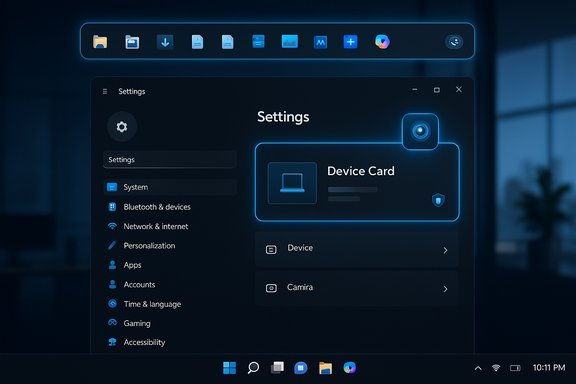
Dark-mode Windows Settings screen featuring a glowing neon-blue Device Card and docked icons.Background / Overview​

Microsoft packaged this Release Preview flight as KB5070311, targeting both Windows 11, version 24H2 (Build 26100.x) and 25H2 (Build 26200.x) tracks. The update follows Microsoft’s recent pattern of delivering enablement-style cumulative packages into Insider channels, then exposing experiences progressively using server-side gating and device entitlements. That means features listed in the notes may appear on some machines immediately and remain hidden on others until Microsoft expands the rollout.
This release contains two distinct bands of changes:
  • A gradual rollout set that is being selectively enabled on Copilot+ PCs or gated groups of Insiders (new camera/AI experiences, Click to Do refinements, Agents in Settings, Drag Tray improvements).
  • A normal rollout set comprised of quality and reliability fixes, including a patch addressing an LSASS instability caused by an access violation.
The notes specifically call out dependencies and market restrictions for several features — for example, Copilot+ PC functionality that requires a high‑performance Neural Processing Unit (NPU) and vendor drivers. Microsoft documentation confirms that Windows Studio Effects and other Copilot+ experiences depend on NPU capability and OEM driver support.

What’s new — quick scan​

  • Copilot+ PC camera behavior: Windows Studio Effects can now run on an additional camera (USB webcams or rear cameras) on supported Copilot+ devices.
  • Click to Do and Agent-driven Settings: UI streamlining, broader results in Settings search, and inline recommended controls for faster changes (Copilot+ gated).
  • Drag Tray: multi-file sharing, smarter target suggestions, and a supported toggle in Settings > System > Nearby sharing to turn it off. Availability is staged.
  • File Explorer dark‑mode and UI polish: consistent dark dialogs for copy/move/confirm flows; refreshed progress and error dialogs; thumbnail and toolbar bug fixes.
  • Settings: migration of keyboard character repeat and cursor blink controls into Settings Accessibility, a new Device Card on Settings home (U.S. + Microsoft account), and an updated About layout.
  • Widgets: set a default dashboard and dashboard alert badges; Widget Board behavior tweaks.
  • OneDrive UI icon refresh, pen haptics in the system UI, display/graphics stutter fixes, Smart Card and Windows Hello ESS tweaks, and controls for Virtual Workspaces in Advanced Settings.
  • Security/stability: resolves an LSASS crash condition (access violation) reported in the normal rollout notes.
The Release Preview notes emphasize that many items are being rolled out gradually, and that some features are region‑ or device‑restricted (notably Copilot+ experiences and some Drag Tray availability).

Deep dive: Drag Tray — why it matters and how it’s changing​

What Drag Tray is and what’s new in KB5070311​

The Drag Tray is Microsoft’s evolving drag‑to‑share surface: when a user drags one or multiple files toward the top edge of the screen, a lightweight tray appears with app targets and a “More options” link that opens the full Share UI. In this release Microsoft expanded the experience to support multi‑file sharing, smarter app/folder ranking, and — crucially — a supported toggle to disable Drag Tray (Settings > System > Nearby sharing). However, the feature is still being controlled via gradual rollout.
Third‑party and community coverage documented early tests of the Drag Tray and pointed out that it can be enabled experimentally with tools like ViVeTool in earlier Insider builds; the KB5070311 notes mark that functionality as now having an official on/off control for Insiders where the feature is enabled. Independent reporting and hands‑on reviews described the same basic behavior, corroborating Microsoft’s design intent to make sharing feel more like contemporary mobile platforms.

Strengths and UX impact​

  • Fewer clicks for common tasks: Drag Tray can significantly shorten share workflows — especially for touch and hybrid devices — by reducing the need to navigate nested context menus.
  • Better discoverability for sharing targets: Smart ranking of relevant apps and direct folder targets reduces friction for multi‑app workflows (e.g., drag to Outlook, Teams, Phone Link).
  • Power‑user escape hatch: Adding a supported toggle addresses previous community complaints and removes reliance on unsupported registry edits or ViVeTool flags.

Caveats and risks​

  • Controlled rollout variability: Because the feature is CFR/gated, QA and enterprise pilots will see inconsistent behavior across otherwise identical systems. This complicates testing and documentation.
  • Accidental invocation: The tray appears as part of drag gestures; for power users who frequently drag files inside the shell for file management, this could initially create friction until settings or muscle memory adjust.
  • Unknown third‑party app behavior: App targets that aren’t prepared to receive dragged payloads may behave inconsistently; developers should test integrations where their apps participate in the system share targets.
Recommendation: Accept the toggle as a good compromise and validate the feature on dedicated test hardware before permitting it across production fleets.

File Explorer and dark mode — finishing touches with practical benefits​

KB5070311 continues Microsoft’s incremental work to eliminate jarring white flashes in an otherwise dark UI. The update extends dark‑mode coverage to high‑frequency File Explorer surfaces: Folder Options, copy/move progress and chart views, delete/replace dialogs, and multiple error dialogs. This results in a more cohesive dark theme that reduces luminance jumps on OLED and high‑contrast displays.
Other Explorer fixes in the build:
  • Thumbnails for certain video files failing to render due to EXIF metadata are corrected.
  • A sporadic “old white toolbar” that previously appeared has been removed.
  • The “Open” context menu entry now consistently shows the correct app icon, replacing cases where a generic icon appeared.
Why this matters: small visual inconsistencies and missing thumbnails drive disproportionate user complaints. The fixes here are quality‑of‑life improvements that improve perceived polish and daily usability, especially for users who spend significant time in Explorer handling files.
Testing notes for sysadmins and power users:
  • Validate copy/move behavior in both default and expanded dialog modes.
  • Reproduce thumbnail generation on media files containing a variety of EXIF metadata sets.
  • Confirm the absence of toolbar regressions across different File Explorer views and after multiple file operations.

Copilot+ PC experiences and Windows Studio Effects — constraints and verification​

KB5070311 extends Windows Studio Effects to alternate cameras (e.g., external USB webcams, rear laptop cameras) on supported Copilot+ PCs, allowing AI camera enhancements to be applied to additional connected cameras via Settings > Bluetooth & devices > Cameras. Microsoft’s Copilot+ documentation and Windows Studio Effects support pages confirm that these effects require a device with a supported NPU and OEM‑provided Studio Effects drivers; available effects vary by NPU capability (40+ TOPS is the high‑end Copilot+ target). Cross‑verification: Windows Studio Effects documentation sets clear prerequisites (Windows 11 22H2+, supported NPU, and vendor drivers). Independent outlets and hands‑on reviews also reported the change to support secondary cameras in recent preview builds, lending consistent corroboration. Practical constraints:
  • Many Copilot+ features remain device‑ and market‑gated. Expect that some OEMs will lag in driver availability or opt‑in, meaning the feature may not appear on a device even if it has compatible hardware.
  • Some AI experiences are tied to a Microsoft account or region and therefore aren’t universally available. KB5070311 notes explicitly reference regional availability differences.

Settings app consolidation — small migrations that matter​

KB5070311 continues the long‑running work of moving legacy Control Panel controls into modern Settings. Specifically:
  • Character repeat delay/rate and cursor blink rate have moved into Settings > Accessibility (Keyboard / Text cursor).
  • A Device Card appears on Settings home to show key specs and usage details when signed into a Microsoft account (initially U.S. only).
For administrators and power users this trend reduces dependence on the legacy Control Panel but requires them to re-map documentation, GPO expectations, and automation scripts that previously targeted Control Panel dialogs. Enterprises should inventory where policies reference Control Panel interfaces and test the new Settings endpoints for compliance and scripting equivalence.

Widgets, OneDrive, pens, and other polish​

KB5070311 includes multiple small but useful updates:
  • Widgets: set a default dashboard and dashboard icons show numeric alert badges for quick glanceability.
  • OneDrive: the new OneDrive icon appears in Accounts and Settings homepages.
  • Pens: haptic feedback now triggers during specific system UI interactions on pens supporting haptics. This improves tactile confirmation for window snapping and close operations.
These items fall squarely into Microsoft’s “polish” bucket — little refinements that reduce cognitive load and improve satisfaction for daily users.

Security & Stability: LSASS fix and Quick Machine Recovery tweak​

The release notes for KB5070311 call out a non‑security stability fix that resolves an issue where LSASS (Local Security Authority Subsystem Service) could become unstable due to an access violation. LSASS instability can manifest as sign‑in failures, credential issues, or system instability, so this is a noteworthy reliability repair.
Microsoft’s staged preview model means the fix is part of the Release Preview package; enterprises should monitor the formal Microsoft Update Catalog and Support site for the KB entry and canonical remediation steps before deploying widely. At the time of this review the formal Microsoft support article or catalog entry dedicated to KB5070311 may not yet be published; the Insider release notes represent the authoritative preview documentation for this flight. This gap is common for preview packages, but admins should be cautious and watch for the formal KB. Additionally, Quick Machine Recovery behavior was adjusted so that, when both “quick machine recovery” and “automatically check for solutions” are enabled, QMR runs a one‑time scan by default rather than looping — a small but practical reliability and UX fix.

Deployment, testing, and enterprise considerations​

  • Staged rollout means inconsistent visibility: Test on representative hardware and ensure your pilot ring includes devices with and without Copilot+ entitlements to capture behavior differences.
  • Backup and rollback diligence: As always with Insider/Release Preview flights, restrict installs to test/dev machines and maintain recent system images and rollback plans.
  • Driver dependencies: Copilot+ features require OEM drivers for NPUs and Camera Studio Effect drivers. Coordinate with hardware vendors before enabling Copilot+ workflows.
  • Policy mapping: Move Control Panel references to Settings in documentation and GPO mapping exercises. Validate any automation or scripts that touched older Control Panel entries.
  • Opt‑out option for Drag Tray: If the Drag Tray impairs workflows for editors, CAD users, or media professionals, the supported toggle provides a clean remediation path without hacks. Test the toggle behavior across profile types.

Strengths, limitations, and risk analysis​

Strengths​

  • Practical polish: Closing dark‑mode gaps, fixing thumbnail and toolbar bugs, and harmonizing context dialogs materially improves UX.
  • User control: Adding an official toggle for Drag Tray shows Microsoft is listening to power‑user feedback and balancing experimentation with control.
  • AI experience expansion with guardrails: Extending Windows Studio Effects to alternate cameras on Copilot+ PCs is a meaningful convenience upgrade for docked setups and multi‑camera scenarios, and Microsoft’s NPU/driver prerequisites are explicit.

Limitations and risks​

  • Inconsistent rollouts complicate support: Controlled feature rollouts lead to variability that can make triage and documentation more complex for help desks and admins.
  • Dependency on OEM drivers and hardware: Several items (Studio Effects, Copilot+ features) depend on third‑party drivers and NPUs; mismatched vendor timelines can lead to disappointment or inconsistent behavior.
  • Preview nature: Release Preview is not final; regression risk remains. Don’t deploy these builds to production endpoints without thorough testing.
Flag for admins: the LSASS fix is important, but verify the formal KB and change control documentation before mass rollout; preview notes are authoritative for Insiders but may lack the formal remediation guidance found in final KB support pages.

Practical checklist for testers and enthusiasts​

  • Enroll a non‑critical test device in Release Preview and ensure image and rollback options are in place.
  • Validate File Explorer dark dialogs, thumbnail generation for problematic EXIF‑tagged videos, and the absence of the old white toolbar.
  • Test Drag Tray behavior, including multi‑file drops and ranking of suggested targets; confirm the Settings toggle works if you prefer to disable the feature.
  • On Copilot+ hardware, confirm Windows Studio Effects on secondary cameras via Settings > Bluetooth & devices > Cameras and review performance/battery implications; ensure OEM Studio Effects drivers are installed.
  • Confirm Windows Hello ESS and peripheral fingerprint enrollment flows after the update on devices using these features.

Conclusion​

KB5070311 (Builds 26100.7296 and 26200.7296) is representative of Microsoft’s current strategy: incremental, user‑facing polish combined with gated AI experiences for Copilot+ PCs and a steady stream of reliability fixes. The release improves everyday ergonomics (dark mode in File Explorer, refreshed dialogs), expands Copilot+ camera workflows, and brings the Drag Tray closer to a supported experience by adding a toggle — while simultaneously resolving an LSASS stability issue that can impact sign‑in reliability. Insiders and testers should validate the changes on dedicated hardware, coordinate with OEMs for driver support where necessary, and watch for the formal KB/Update Catalog entries before production deployment. Note: the Release Preview announcement and community hands‑on coverage are the primary corroborating artifacts for this preview flight; the canonical Microsoft Support KB entry for KB5070311 may follow after the preview window — monitor Microsoft’s Update Catalog and support pages for the final KB article.

Source: Neowin KB5070311: Windows 11 gets Drag Tray, File Explorer, Settings upgrades in release preview
 

Microsoft has begun seeding KB5070311 to Release Preview Insiders — rolling Windows 11 builds 26100.7296 (24H2) and 26200.7296 (25H2) — and the update focuses less on sweeping new features and more on polish, user control, and device-specific Copilot+ improvements, including a supported way to disable the controversial Drag Tray, new Spotlight desktop actions, and smarter keyboard backlight behavior.

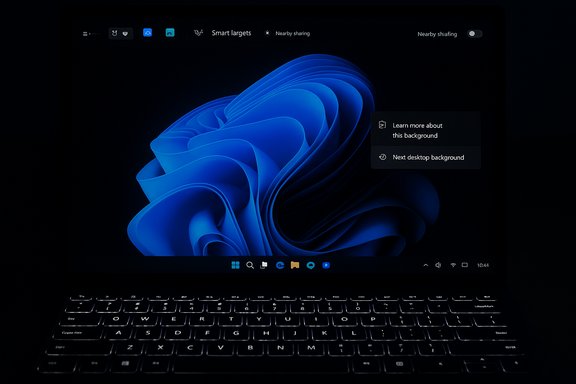
A laptop with a glowing keyboard displays the Windows 11 blue swirl wallpaper and a background options menu.Background​

Microsoft’s recent preview cumulative updates follow a pattern: ship enablement-style packages into Insider channels and then progressively unlock experiences using server-side gating and device entitlements. That means the presence of a new UI or capability in the build does not guarantee it will be visible on every machine — features are rolled out in stages and may be limited by region, hardware (for example, Copilot+ NPU requirements), or driver support. This controlled feature rollout approach reduces risk for Microsoft but increases variability for testers and administrators. KB5070311 landed to Release Preview on November 17, 2025 and is being treated as the preview leg of what Microsoft expects to ship as the December 2025 cumulative update during Patch Tuesday. The build strings to watch are 26100.7296 (24H2) and 26200.7296 (25H2). These numbers are the primary identifiers for this preview flight.

Overview: what KB5070311 delivers​

At a glance, KB5070311 combines three practical UX areas with a raft of system fixes and Copilot+ device refinements:
  • Windows Spotlight additions: two new context-menu entries — Learn more about this background and Next desktop background — to make Spotlight more actionable from the desktop.
  • Drag Tray enhancements and a supported toggle: multi-file sharing, smarter target suggestions (apps and folders), easier folder drops, and a new on/off control in Settings > System > Nearby sharing. Availability is staged.
  • Keyboard backlight improvements: HID-compliant keyboards can show clearer key illumination in low light and use smarter adjustment logic to conserve battery on laptops; behavior depends on hardware and drivers.
  • File Explorer dark-mode polish: additional dialog surfaces (copy/move/confirm/delete dialogs) and UI elements now respect dark mode to reduce jarring white flashes during file operations.
  • Security/stability fix for LSASS: the update addresses an LSASS instability that could produce an access violation and impact sign-in reliability. This is part of the normal rollout fixes.
These items are combined with numerous smaller fixes (Widgets, OneDrive icon updates, Smart Card/Windows Hello tweaks, Quick Machine Recovery adjustments, pen haptics, etc. and Copilot+ device‑specific features, such as expanded Windows Studio Effects support for alternate cameras.

Deep dive: Desktop Spotlight — quicker context, fewer steps​

What changed​

When Windows Spotlight is active as the desktop background, right‑clicking the Spotlight icon now surfaces two explicit actions: Learn more about this background (opens the image’s metadata/landing information) and Next desktop background (immediately cycles to another Spotlight picture). These are small additions, but they aim to reduce friction and bring the most-used Spotlight actions into the desktop context menu rather than hiding them behind Settings.

Why it matters​

  • Discoverability: Users no longer need to navigate into Settings to get basic Spotlight information or to quickly change an image.
  • Integration with Copilot (where available): In earlier Insider flights Microsoft also exposed Copilot interactions from Spotlight; KB5070311 continues that trend on Copilot+‑enabled devices while keeping the Spotlight menu useful for non‑Copilot systems.

Caveats and verification​

The new menu entries are visible in Release Preview builds where Microsoft has enabled the feature via server-side gating. User reports and Microsoft Insider notes confirm the presence of these menu items in pilot devices, but some Insiders still report delayed visibility depending on enrollment and regional gating. If you don’t see the options right away, that’s expected behavior under Controlled Feature Rollout (CFR).

Deep dive: Drag Tray — from experiment to user control​

What the Drag Tray is​

The Drag Tray is a lightweight, top-of-screen surface that appears when you drag files toward the screen edge; it shows app targets and quick share options that let you drop and share files without navigating full Share dialogs. The UI is inspired by mobile drag-to-share patterns and aims to speed common workflows like dragging an image into an email or into Teams.

KB5070311 improvements​

  • Multi-file sharing: You can drag a selection of files and the tray now supports multi-item drops.
  • Smarter suggestions: The tray ranks relevant apps and folders more intelligently, improving the chance your preferred target appears in the top row.
  • Direct folder movement: It’s easier to drop straight into a folder target without opening the full Share UI.
  • Supported on/off toggle: A dedicated toggle under Settings > System > Nearby sharing allows users to disable Drag Tray without registry edits or third‑party tools — a direct response to community feedback.

Strengths​

  • Reduces clicks and context switching: For touch and hybrid devices, Drag Tray shortens the steps needed to share or move files.
  • User control: The settings toggle is a pragmatic concession — it acknowledges the feature’s polarizing nature and gives power users an easy opt-out.

Risks and real-world friction​

  • Accidental invocation: Users who perform a lot of precise drag-and-drop (editors, file managers, power users) may find the tray intrusive until they adjust their muscle memory.
  • Rollout inconsistency: Because the feature is gated, two identical machines can behave differently, complicating testing and documentation. Administrators should factor CFR when planning pilots.
  • Third-party integration: Some apps are not prepared to handle dragged payloads as share targets; developers should test their app’s behavior as targets in the Drag Tray flow.

Deep dive: Keyboard backlight — clearer keys, smarter power​

KB5070311 includes improvements to keyboard backlight performance on HID-compliant accessories. The change is aimed at enhancing key visibility in low-light conditions and making the backlight adjust more intelligently to conserve battery on portable devices. The update primarily modifies system behavior for devices that expose backlight controls through standardized HID channels.

How to verify and what to expect​

  • On supported laptops and peripherals, keys should appear more evenly lit under low ambient light.
  • Backlight intensity may now ramp more smoothly or reduce automatically to save energy.
  • This behavior depends on the keyboard firmware and OEM drivers; if a vendor exposes proprietary lighting controls, those may override system-managed HID behaviors. Verify with OEM driver updates where lighting behavior is critical.
Because hardware and driver variations are numerous, the observable impact will differ. Independent coverage and device‑level testing confirm the update’s intent, but there are no universal battery‑savings numbers published — treat claims of improved “battery life” as optimistic and hardware-dependent until vendors provide concrete test results.

Other notable fixes and UI polish​

KB5070311 continues Microsoft’s long-running effort to close dark‑mode gaps and eliminate visual inconsistencies:
  • File Explorer dialogs (Folder Options, copy/move progress, delete/replace prompts) now better respect dark themes, reducing white flashes and improving perceived polish.
  • Thumbnails for video files with certain EXIF metadata are fixed.
  • OneDrive UI icon refreshes, pen haptics integration, and improved monitor mode queries reduce stutter on high-resolution setups.
  • Quick Machine Recovery now runs a one-time scan by default (if both QMR and automatic solution checks are enabled), avoiding looping scans.
These changes are practical quality-of-life improvements rather than headline features, but they address frequent user complaints and help the system feel finished.

Copilot+ PC dependencies and camera updates​

KB5070311 extends several Copilot+ experiences, notably allowing Windows Studio Effects to run on an additional camera (USB webcams or rear cameras) on supported Copilot+ hardware. Importantly, Copilot+ functionality frequently depends on device NPUs and OEM drivers; Microsoft’s notes explicitly call out these dependencies, and the experiences are gated to eligible devices to avoid degraded performance on unsupported hardware. If you manage Copilot+ deployment, coordinate with OEMs for NPU drivers and Windows Studio Effect packages; without vendor support, the experience may be absent or unstable.

Verification and cross‑checks​

Key claims in this article were validated across multiple independent sources:
  • Microsoft’s Windows Blog and Insider release posts announce the Release Preview flight and describe the controlled rollout approach and build numbers.
  • Independent reporting (Pureinfotech and forum tracking) recaps the same build numbers, Spotlight additions, Drag Tray toggle, keyboard backlight notes, and File Explorer dark-mode refinements. These independent write-ups confirm the practical contents and availability caveats reported in Microsoft’s notes.
  • Community reporting and Q&A threads document user experiences and lingering questions about Drag Tray behavior and its availability, illustrating the rollout variability and the kinds of real-world friction Insiders have reported.
Where claims remain dependent on hardware, platform drivers, or server-side gating (for example, Copilot+ availability and precise keyboard backlight behavior), those items have been flagged as device-dependent and require vendor verification. If Microsoft later publishes a formal Support KB with deeper file lists and known‑issue notes, that will be the canonical enterprise reference — until then, Insider blog posts and the Release Preview notes are the authoritative artifacts for these preview builds.

Practical guidance: testers, IT, and enthusiasts​

  • Test on expendable hardware or a VM. Keep mission-critical machines off preview flights.
  • Join the Release Preview Channel: Settings > Windows Update > Windows Insider Program, choose Release Preview, and enable “Get the latest updates as soon as they’re available” to increase the chance of seeing staged features.
  • Validate the following areas after installation:
  • File Explorer dark dialogs and thumbnail fixes.
  • Drag Tray behavior (multi-file drops, target ranking) and the Settings > System > Nearby sharing toggle to disable it.
  • Keyboard backlight behavior on representative portable devices and confirm OEM driver updates.
  • For Copilot+ and camera effects, ensure test devices have the required NPU hardware and updated OEM drivers; otherwise the capability will be absent.
  • Keep a rollback plan: use system images or the built-in recovery/“Go back” window if a preview flight introduces regressions.

Strengths: what Microsoft got right​

  • User control over experimental features: Shipping a supported Drag Tray toggle is a pragmatic, user-first move that removes the need for unsupported registry edits or third-party tools.
  • Perceptual polish: Extending dark-mode coverage in File Explorer and smoothing various UI transitions yields a disproportionate improvement in daily usability.
  • Targeted reliability fixes: Addressing LSASS instability and QMR looping tackles real stability issues that can materially affect sign-in and recovery flows.
  • Incremental Copilot+ expansion: Enabling Windows Studio Effects on alternate cameras is a practical quality-of-life enhancement for creators and multi-camera setups that have the necessary hardware support.

Risks and limitations: what to watch​

  • Controlled Feature Rollout makes testing harder: CFR means identical builds will behave differently across devices, complicating QA and enterprise validation. Expect to document both “feature-on” and “feature-off” behaviors.
  • Hardware and driver dependencies: Copilot+, camera effects, and keyboard backlight improvements rely on OEM drivers and device capabilities; mismatch or missing drivers can lead to inconsistent behavior.
  • No single canonical KB yet for some preview packages: Enterprises that require formal KB entries for change control should wait for Microsoft’s stable‑channel KB and Update Catalog entries before mass deployment. Community trackers and Insider notes are useful, but provisional.
  • Potential for accidental UX friction: The Drag Tray improves speed for many users but can interfere with precise workflows; use the new toggle if it impacts production activities.

Final assessment and recommendations​

KB5070311 is a pragmatic, quality-focused preview update that fits Microsoft’s current development posture: small, high-signal UX wins and targeted stability patches delivered in an enablement package and revealed progressively. For most users and administrators the update is not a “must‑install” on production systems — its value is highest for testers, enthusiasts, and pilot rings validating Copilot+ entitlements or new sharing flows.
Recommendations:
  • For IT and enterprises: hold off on broad deployment until the update reaches the Stable Channel and Microsoft publishes the formal KB entry; use pilot rings to evaluate feature impact (especially Drag Tray and Copilot+ dependencies).
  • For Insiders and power users: install on a non-critical device or VM, enable “Get the latest updates as soon as they’re available,” and test the new share flows, Spotlight context actions, and keyboard backlight behavior; file feedback in the Feedback Hub when necessary.
  • For device vendors: prioritize updated drivers and Studio Effects packages to ensure Copilot+ experiences perform as intended on released hardware.
KB5070311 demonstrates that Microsoft continues to tune daily interactions in Windows 11 rather than introducing dramatic one-off features. The release is a good example of iterative product refinement — and the new supported controls (notably the Drag Tray toggle) show Microsoft is listening to the community’s call for more user choice.
KB5070311 will likely proceed from Release Preview into the stable December cumulative update cycle; until then, the advice remains consistent: test on representative hardware, validate driver dependencies for Copilot+ and peripherals, and use the new Settings toggle to disable Drag Tray where it conflicts with production workflows.
Source: Windows Report KB5070311 Upgrades Drag Tray, Desktop Spotlight Menu, and Keyboard Backlight in Windows 11 24H2 & 25H2
 

Microsoft has started rolling KB5070311 to the Release Preview channel — advancing Windows 11 builds to 26100.7296 (24H2) and 26200.7296 (25H2) — and the package delivers a mix of polish, a critical stability fix, and several Copilot+ PC–only AI upgrades that expand camera effects, refresh Click to Do, and tighten Settings and File Explorer integration.

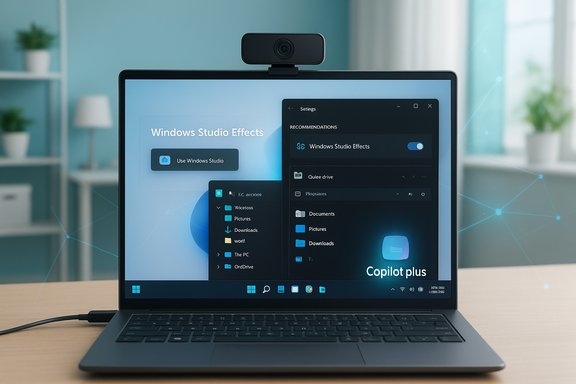
Laptop screen shows Windows Studio Effects and Copilot Plus UI with a camera on top.Background / Overview​

Windows servicing in 2025 increasingly separates the distribution of binary updates from the staged enabling of features. KB5070311 is distributed as a Release Preview cumulative (so the binaries land broadly for Release Preview Insiders), but many of the visible features are still gradually rolled out and hardware- or region-gated, especially features that require Copilot+ NPUs and vendor drivers. That means installing KB5070311 may update system files and reliability fixes immediately while the AI experiences are unlocked later via server-side flags, OEM driver updates, or sign-in entitlements. Key high-level items in KB5070311:
  • Copilot+ PC camera improvements: Windows Studio Effects usable on additional cameras (external USB webcams and rear laptop cameras) on supported Copilot+ devices.
  • Click to Do refinements: a leaner context menu and automatic context invocation for large images and tables on Copilot+ PCs.
  • Agent-driven Settings changes: deeper search results, inline recommended controls, and explanatory dialogs when settings cannot be further adjusted.
  • File Explorer UI polish: more consistent dark-mode dialogs and updated search placeholder text on Copilot+ devices.
  • Quality/stability: a non-security fix addressing an LSASS access-violation instability.
These items embed both functionality that affects everyday usability (dark-mode fixes, improved progress/confirmation dialogs) and strategic, AI-driven capabilities intended to showcase the Copilot+ hardware story — i.e., Windows features that rely on on-device NPUs to lower latency and preserve privacy when possible.

What KB5070311 Changes — Deep Dive​

Windows Studio Effects: AI camera enhancements for more cameras​

The most practical Copilot+ change in KB5070311 is that Windows Studio Effects can now be applied to an alternate camera — for example, an external USB webcam or a laptop’s rear (outward-facing) camera — on supported Copilot+ devices. Historically Studio Effects were limited to the primary front-facing camera on many laptops; this update removes that limitation on devices where the required NPU and OEM driver support are present. How to enable (on devices where the feature is visible):
  • Open Settings > Bluetooth & devices > Cameras.
  • Select the secondary or external camera in the connected cameras list.
  • Open Advanced camera options and toggle Use Windows Studio Effects.
  • Adjust specific effects from the camera settings page or from the Studio Effects quick setting in Quick Settings.
Why this matters
  • Hybrid workers who use docking stations and external webcams now stand a better chance of getting on-device background blur, eye-contact correction, and voice focus without routing video through cloud services. That reduces latency and can improve privacy in many meeting scenarios.
  • Creators who shoot with higher-end external cameras gain parity with the built-in camera experience, avoiding a long-standing awkwardness where the “better” external camera couldn’t use the same on-device AI effects.
Caveats and verified requirements
  • Studio Effects require a Copilot+ NPU and the OEM/driver package that exposes Studio Effects support to the OS; on many builds the updated drivers rolled out first to Intel-powered Copilot+ systems with AMD and Snapdragon devices phased afterwards. Microsoft’s Insider notes explicitly mention driver and NPU prerequisites, and the rollout is staged by OEM platform.
  • Expect some performance and battery trade-offs when applying real-time effects; on-device inference consumes compute and power, particularly for higher-fidelity effects like teleprompter-style eye contact or creative filters.
Practical verification: Microsoft’s Insider post documents the setting and the initial platform rollout; independent hands‑on coverage confirms the feature behaves as described on preview Copilot+ units.

Click to Do: cleaner menu, automatic context invocation​

KB5070311 continues the evolution of Click to Do, Microsoft’s contextual selection-to-action overlay that ties selections to Copilot prompts and rapid tasks. The update pushes a streamlined context menu that prioritizes Copy, Save, Share, Open for common actions, and adds behavior where the menu can open automatically when the system detects large images or tabular content — speeding workflows like extracting tables or saving large images without searching through multiple UI layers.
Notable usability improvements:
  • Cleaner, action-first layout in the context menu for faster decisions.
  • Automatic invocation on large images/tables to reduce friction in the common case of copying or exporting content.
  • Continued Copilot integration to feed selections into the assistant for summarization, conversion (e.g., Convert-to-Excel), or sharing.
Availability and gating
  • Many of the advanced Click to Do behaviors are gated to Copilot+ hardware and may additionally require a Microsoft account, specific regional availability, or Microsoft 365 entitlements for export workflows (for example, converting detected tables into an Excel file). That gating remains part of Microsoft’s staged rollout approach.

Agent improvements in Settings​

KB5070311 upgrades the Settings app “Agent” experience — the in-place assistant that helps users find and adjust settings. Key changes:
  • Search results surface more items with a scroll bar for easier navigation.
  • Recently modified settings expose inline agent recommendations to reduce the number of clicks required to enact changes.
  • When a setting cannot be adjusted further, the agent now presents a dialog explaining why and suggesting alternatives.
Why this matters
  • It reduces friction for common administration tasks and consumer management flows, helping both power users and novices find the right controls faster.
  • For managed devices, the new explanatory dialogs can surface required admin policies or entitlements that block certain changes — a useful clarity point for helpdesk workflows.
Limitations
  • The agent-driven flows and inline recommendations are currently emphasized for Copilot+ PCs during the staged rollout and so may not be visible on every device after the KB installs.

File Explorer polish, dark mode, and search cues​

KB5070311 continues a pattern of UI refinement across File Explorer:
  • Dialogs used during file copy/move/delete flows now better respect dark mode for visual consistency.
  • Progress, confirmation, and error dialogs have been refreshed, and a legacy white toolbar that occasionally reappeared has been fixed.
  • On Copilot+ PCs, the File Explorer search box receives updated placeholder text that highlights the enhanced Windows Search capabilities driven by Microsoft’s ongoing AI work. This is mainly a discoverability/visual cue rather than a functional change in the search engine itself.
Practical impact
  • These changes are modest but improve perceived quality and reduce jarring theme inconsistencies that power users and designers frequently call out.
  • The File Explorer hover commands and Ask Copilot affordances (rolled out in earlier previews) continue to be part of Microsoft’s strategy to blend local file management with AI assistance, a trend that administrators should evaluate from an information governance perspective.

Drag Tray, Widgets, Windows Hello, and other polish​

KB5070311 also touches a range of smaller but practical features:
  • Drag Tray (the drag-to-share surface at the top of the screen) gains multi-file support, smarter target suggestions, and a Settings toggle to disable it.
  • Windows Hello ESS gains peripheral fingerprint sensor support, enabling external biometric readers under Enhanced Sign-in Security.
  • Widgets and Quick Machine Recovery behaviors are adjusted for consistency and reliability.
These items reflect the typical “wide patch” nature of a Release Preview cumulative: lots of small fixes and quality-of-life updates that collectively tidy the OS.

Security/stability: LSASS access-violation fix​

Separately from the Copilot+ feature set, KB5070311 includes a non-security fix addressing an LSASS (Local Security Authority Subsystem Service) instability that could cause crashes due to an access violation. This is a substantive reliability correction because LSASS problems can directly affect sign-in stability and system reliability. Administrators should treat this as a high-priority quality fix and validate sign-in behaviors during pilot deployments.

Cross-checks and verification​

The most load-bearing technical claims in this article have been cross-referenced against Microsoft’s Insider announcements and independent reporting:
  • The capability to use Windows Studio Effects on alternate cameras is described in Microsoft’s Insider blog entry for preview builds and corroborated by independent hands-on reporting.
  • Build numbers (26100.7296 and 26200.7296) and Release Preview distribution are confirmed in recent update summaries and community reporting.
  • The LSASS access-violation fix and File Explorer dark-mode polish are reported in multiple update summaries and community changelogs.
Caveat: not every behavioral nuance is independently reproducible on all hardware. The staged enablement model, device entitlements tied to NPUs and OEM drivers, and region- or licensing-based gating (e.g., Microsoft 365 requirements for some export flows) mean that some claims about availability are conditional. If a specific capability (for example, table-to-Excel conversion or an Ask Copilot hover action) is not visible on a machine, the likely causes are either server-side rollout gating, missing OEM driver updates, or licensing/region restrictions.

Practical guidance — consumers, enthusiasts, and IT admins​

For individual users and enthusiasts​

  • If you’re a Release Preview Insider and want to test the new Copilot+ UX, enroll in the Release Preview channel and check Windows Update. Remember that installing the KB does not guarantee immediate feature visibility; some features will appear later.
  • On Copilot+ hardware, test the updated camera behavior with any external USB webcams you use for meetings. Verify quick-settings access and power/performance trade-offs when effects are active.

For IT administrators and security teams​

  • Inventory devices capable of Copilot+ experiences (devices with 40+ TOPS NPUs or vendor Copilot+ certification) and note which ones are Intel, AMD, or Snapdragon based — OEM driver timing varies by platform.
  • Pilot KB5070311 in a controlled group before wider deployment. Focus tests on: sign-in reliability (LSASS), camera workflows for hybrid work, File Explorer behavior in managed accounts, and any DLP or privacy interplay with Copilot Vision/Ask Copilot features.
  • If your organization prohibits on-screen sharing or Copilot Vision scanning, use centralized policy or Intune settings to restrict those affordances. Microsoft exposes admin controls for several sharing features; test these thoroughly.
  • Coordinate with OEMs for the Windows Studio Effects driver updates. Without vendor support, the Copilot+ camera enhancements won’t be available even after KB5070311 is installed.

Security, privacy and performance analysis​

Strengths
  • On-device AI for camera and dictation features reduces cloud round-trips and therefore exposes less telemetry in common workflows; Copilot+ NPUs enable low-latency experiences that can preserve privacy and responsiveness.
  • The LSASS fix addresses a systemic stability issue that could have affected sign-in reliability; shipping the remedy in Release Preview is responsible and should reduce sign-in regressions in subsequent broader releases.
Risks and cautions
  • The broadened Copilot/Click to Do affordances (Ask Copilot hints in File Explorer, Copilot Vision scan buttons, and automatic Click to Do invocation) expand the OS’s ability to surface, analyze, and transmit content to Copilot workflows. Organizations with strict data governance or DLP requirements must explicitly validate these flows and consider policy controls before enabling them organization-wide.
  • Performance and battery impact: advanced camera effects and local SLMs consume NPU/CPU cycles. On mobile devices and laptops, sustained use of high-fidelity effects will increase power draw and heat. Test and document realistic user scenarios in pilot groups.
  • Uneven experience: Microsoft’s staged rollout and regional/license gating means identical device inventories may show different UI surfaces. This can complicate helpdesk workflows and end-user training; administrators should prepare documentation that accounts for both “pre-gated” and “post-gated” states.
Unverifiable or conditional claims
  • Precise timing for when AMD- and Snapdragon-based Copilot+ devices will receive the Windows Studio Effects driver is described only as “coming weeks” or “phased rollout” in Microsoft notes; that timeline cannot be precisely verified in advance and should be treated as conditional on OEM driver delivery. Flagging this as a timing risk is prudent.

Deployment checklist​

  • Confirm business need for Copilot+ features (video conferencing quality, on-device transcription, table extraction workflows).
  • Inventory hardware that meets Copilot+ criteria and identify OEM driver status.
  • Pilot KB5070311 on Release Preview-inscribed devices in a lab or small user group.
  • Test sign-in and authentication paths (smart cards, Windows Hello ESS, LSASS stability).
  • Validate privacy/DLP controls for any Copilot Vision or Ask Copilot affordances.
  • Train helpdesk staff on visibility differences due to staged rollout and gating.
  • Monitor telemetry for performance/thermal/battery regressions and be prepared to roll back or apply mitigations if needed.

Conclusion​

KB5070311 is a classic mid-cycle cumulative that mixes sensible quality fixes with a set of gated, hardware-accelerated AI features meant to highlight what Copilot+ PCs can do. The most tangible wins are the expanded Windows Studio Effects support for alternate cameras and the Click to Do UI polish that reduces friction for common tasks. The LSASS fix is an important reliability patch that justifies inclusion in pilot rings.
However, the staged enablement model, OEM driver dependencies, and licensing/region gates mean the full user experience will be uneven while Microsoft rolls the features out. Organizations should treat KB5070311 as a pilot milestone: install the package to obtain the stability fixes and binaries, but validate and plan for the feature rollout separately — inventory Copilot-capable devices, coordinate with OEMs for driver updates, and put DLP/privacy guardrails in place for any Copilot-driven sharing or scanning features. For power users and enthusiasts, the changes make Windows 11 feel steadily more polished and more aware of the modern hybrid workflows that rely on external webcams, rapid content extraction, and contextual assistant help. For IT teams, the work remains: map devices, pilot carefully, and manage rollout so the benefits arrive without surprising behavior or governance gaps.
Source: Windows Report KB5070311 Preview Rolls Out New Camera & Click to Do Upgrades to Copilot+ PCs
 

KB5070311 is a Release Preview cumulative that stitches together small but cumulative usability wins — notably a supported toggle for Virtual Workspaces in Advanced Settings and a long‑needed wave of dark‑mode polish for File Explorer — while also delivering Copilot+ device refinements and an important LSASS stability fix that administrators should not ignore.

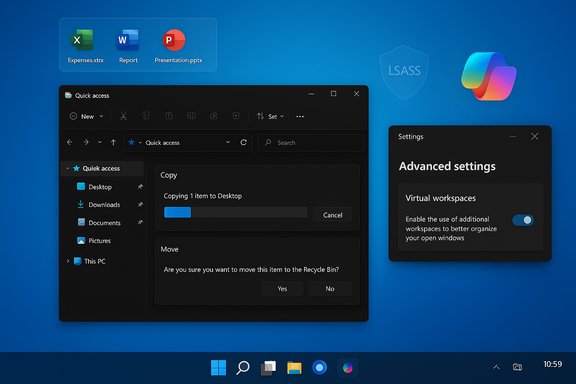
Dark Windows desktop with File Explorer, Settings panel, and Office shortcuts on a blue gradient background.Background / Overview​

Microsoft packaged KB5070311 as a Release Preview flight that updates Windows 11 on both the 24H2 and 25H2 servicing tracks (reported builds for this preview are 26100.7296 for 24H2 and 26200.7296 for 25H2). The package is characteristic of Microsoft’s recent "enablement-style" cumulative approach: the binaries land broadly for Insiders, but many visible experiences are staged via server-side gating so they appear on subsets of machines over time rather than immediately for everyone.
That staged delivery model matters because it separates what shipped in code from what you actually see in the UI; feature flags, regional entitlements, OEM drivers and device-class requirements (particularly for Copilot+ features that depend on NPUs) all influence whether a given machine will present the new experiences. Treat KB5070311 as a broad maintenance and polish roll that also carries device‑gated feature enablement.

What KB5070311 Changes — Quick summary​

  • Virtual Workspaces control moved to Advanced Settings, giving a supported on/off and discoverable location for users and administrators.
  • File Explorer receives expanded dark‑mode coverage — copy/move/delete dialogs, Folder Options and other high‑frequency surfaces now better respect Dark theme, reducing jarring white flashes.
  • Drag Tray (the drag‑to‑share top‑of‑screen tray) gains multi‑file sharing improvements and a supported toggle under Settings > System > Nearby sharing.
  • Copilot+ PC improvements: Windows Studio Effects can be applied to an alternate camera (external USB webcams or rear cameras) on supported Copilot+ devices; Click to Do and agent‑driven Settings enhancements are included but remain hardware/region gated.
  • A non‑security but high‑impact stability fix addresses an LSASS access‑violation crash scenario that could affect sign‑in reliability.
The update bundle is intentionally broad: lots of small, quality‑of‑life fixes plus a handful of Copilot+ hardware‑dependent features. Administrators should treat it as a preview/test artifact and validate the LSASS fix and other reliability items in pilot rings before broader deployment.

Deep dive: Virtual Workspaces in Advanced Settings​

What changed​

KB5070311 surfaces a toggle and management control for Virtual Workspaces inside the Advanced Settings area of Windows. This moves a previously scattered or hidden experience into a supported, discoverable Settings location so users and admins can control workspace behavior without relying on registry hacks or third‑party utilities. Early reporting and notes indicate the control is aimed at simplifying multi‑desktop and workspace workflows and aligning the feature with the rest of the Settings-based management model.

Why this matters​

  • Discoverability: Power users and IT admins no longer need to hunt for obscure flags or undocumented workarounds; the setting is centralized.
  • Manageability: A supported toggle simplifies configuration in enterprise images and user training materials.
  • Consistency: Moving features from legacy Control Panel or hidden switches into Settings is part of a consistent UX and lifecycle strategy that Microsoft has been following.

Caveats and validation​

Although the control is visible in the Release Preview notes, Microsoft’s staged rollout model means the control may not appear immediately on every device that receives the KB. Enterprises should test and document the presence or absence of the control in their pilot ring and avoid assuming universal availability until the feature is fully rolled out.

Deep dive: File Explorer — consistent Dark mode and UI polish​

The problem being solved​

For years, Dark mode in Windows has been undermined by a patchwork of modern and legacy surfaces: while WinUI elements and many modern apps respected a dark palette, older Win32 dialogs used bright white backgrounds, producing momentary "white‑flash" interruptions during routine tasks such as file copy, move, or delete. Those flashes are especially intrusive on OLED screens and in low‑light environments.

What KB5070311 does​

This update extends dark‑theme coverage to several high‑frequency File Explorer surfaces and related dialogs, including:
  • Copy/Move progress windows (compact and expanded views)
  • Delete confirmations and Empty Recycle Bin prompts
  • Replace/Skip/Override conflict dialogs
  • Folder Options and some error/permission dialogs
Testers report darker grey backgrounds, revised state colors (e.g., transfer progress accent shifting in dark mode), and more coherent visuals across shell operations.

Concrete user benefits​

  • Reduced visual disruption: fewer jarring luminance jumps while doing routine file operations.
  • Improved perceived polish: the shell feels more consistent and modern.
  • Accessibility gains: when contrast and color semantics are tuned properly, dark-mode consistency can aid certain low‑vision workflows.

Known limitations​

  • Some newly themed legacy dialogs do not yet honor custom system accent colors and instead use a fixed palette in early previews.
  • The dark treatment is being enabled gradually via server flags; you may not see it immediately even after installing the update.

Deep dive: Drag Tray, Nearby sharing and multi‑file sharing​

KB5070311 continues work on the Drag Tray — the compact share tray that appears at the top of the screen when users drag files to share or attach. The update adds:
  • Multi‑file sharing support
  • Smarter app and folder target ranking
  • A supported toggle in Settings > System > Nearby sharing to disable Drag Tray entirely
This is a significant usability change: the toggle replaces community workarounds (registry edits, ViVeTool flags) with a supported switch, giving users control over a feature that some find helpful and others find intrusive.
Strengths and tradeoffs are clear: the Drag Tray reduces friction for touch and hybrid workflows but can produce accidental invocations for precision desktop users. The supported off switch is a pragmatic compromise. Testers should evaluate the feature for workflows that rely heavily on drag gestures (video editing, multi‑window file management) and confirm behavior across multiple apps.

Deep dive: Copilot+ PC improvements and Windows Studio Effects​

What’s new​

KB5070311 widens Windows Studio Effects so they can be applied to an additional camera on supported Copilot+ PCs (e.g., external USB webcams or rear laptop cameras). The update also pushes Click to Do refinements and agent-driven improvements in Settings, but many of these experiences are gated to Copilot+ hardware.

Requirements and constraints​

  • Hardware: Many Copilot+ features require an NPU (Neural Processing Unit) and vendor-provided Studio Effects drivers. Microsoft’s documentation and device‑level test reports confirm that available effects depend on NPU capability and OEM driver support.
  • Drivers and OEM opt-in: OEMs must ship drivers enabling Studio Effects on secondary cameras; without these drivers, the capability will be absent even on otherwise compatible hardware.
  • Gating: Features are often region‑, account‑, or entitlement‑gated (Microsoft account, Microsoft 365, or specific market restrictions).

Practical impact​

For hybrid workers and creators who prefer external webcams, the change removes a long-standing limitation. But expect battery and compute trade‑offs: real‑time on‑device inference consumes NPU/CPU cycles and power, particularly for high-fidelity effects such as creative filters or teleprompter‑style eye‑contact. Validate battery and thermal behavior on test devices before wide deployment.

Stability: LSASS access‑violation fix​

KB5070311 includes a non‑security fix for an LSASS (Local Security Authority Subsystem Service) instability caused by an access violation. LSASS problems can directly affect sign‑in reliability and overall system stability, making this fix one of the higher‑priority items for administrators looking to validate the release.
Recommendation: include sign‑in flow and authentication tests in any pilot deployment of KB5070311 — particularly for domain-joined devices, Remote Credential Guard scenarios and other identity‑sensitive configurations.

Other polish and migrations​

KB5070311 carries a long tail of modest but practical fixes and UI polish, including:
  • Migration of some keyboard character repeat and cursor blink controls into Settings > Accessibility.
  • OneDrive icon refreshes, pen haptics integration, Quick Machine Recovery behavior adjustments, and thumbnail generation fixes for certain video files.
  • A new Device Card on the Settings home (initially U.S. + Microsoft account) and layout updates to the About page.
These changes are cumulative quality‑of‑life improvements rather than headline features, but they collectively raise the platform polish and reduce frequent user complaints.

Cross‑verification and source confidence​

Key claims — the build numbers for the Release Preview flight (26100.7296 / 26200.7296), the presence of dark‑mode polish in File Explorer, the Drag Tray toggle and the LSASS fix — are repeatedly referenced in the preview notes and independent reporting captured in the coverage and community trackers. That multi‑source corroboration increases confidence in the practical contents of KB5070311, while hardware‑dependent Copilot+ features remain conditional pending OEM driver availability and server‑side enablement.
Where claims depend on future OEM driver rollouts, regional gating, or server flips, they are flagged as conditional and require per‑device validation. Do not assume universal availability merely because the binary landed in the Release Preview channel.

Testing checklist — what reviewers and IT should validate​

  • Confirm build and patch: check that target machines report Build 26100.7296 (24H2) or 26200.7296 (25H2) after applying KB5070311.
  • File Explorer dark mode: perform copy/move/delete operations in Dark system mode and confirm dialogs and progress views respect dark styling. Verify Folder Options and common confirmation dialogs.
  • Drag Tray behavior: test drag gestures with single and multiple files; verify the Nearby sharing toggle disables the tray as expected.
  • Virtual Workspaces: verify the Advanced Settings control exists and works as expected for enabling/disabling workspaces. Document differences across devices.
  • Copilot+ features: test Windows Studio Effects on alternate cameras only on devices with the required NPU and OEM drivers; monitor CPU/NPU utilization, battery, and thermal behavior.
  • Authentication: reproduce sign‑in flows and Remote Credential Guard scenarios to validate the LSASS fix; monitor event logs for residual errors.
  • Rollback plan: ensure a reliable rollback strategy (system image or "Go back" within the Windows recovery window) is in place for pilot systems.

Critical analysis — strengths, risks, and practical recommendations​

Strengths​

  • Tangible polish: Dark‑mode consistency and dialog refreshes are small but widely felt improvements that materially improve daily user experience.
  • User control: Adding supported toggles for Drag Tray and Virtual Workspaces reduces the need for unofficial workarounds and respects user choice.
  • Stability focus: The LSASS fix addresses an issue that can affect sign‑in and system reliability, which is essential for enterprise environments.

Risks and tradeoffs​

  • Inconsistent exposure: Server-side gating and device entitlements create an inconsistent test surface: two identical machines may show different behaviors, complicating troubleshooting and documentation.
  • Hardware dependencies: Copilot+ experiences are NPU- and driver-dependent; without vendor support these features may be absent. Don’t assume presence across an OEM fleet.
  • Preview quality: This is a Release Preview cumulative; preview flights can still carry regressions that impact productivity. Use pilot rings and avoid installing on mission‑critical devices.

Recommendations​

  • Pilot KB5070311 in a controlled ring (disposable hardware or VMs) and validate the checklist above.
  • For organizations, wait for a broadly rolled out build and a formal Microsoft Support KB entry before mass deployment.
  • If Copilot+ features are important, coordinate with OEM partners for driver availability and test with representative hardware.

Troubleshooting: "There is an internal server error on Cloudflare's network. Please try again in a few minutes." — How to access the WindowsReport article​

If you encountered a Cloudflare internal server error while trying to open the WindowsReport story about KB5070311, that error is typically transient and external to your machine. Use this practical, ordered troubleshooting checklist:
  • Wait briefly and retry. Cloudflare internal errors are often temporary; a retry after a few minutes sometimes succeeds.
  • Hard‑refresh the page (Ctrl+F5 on many browsers) to bypass cached error responses.
  • Try a different browser or open a private/incognito window to rule out corrupted browser state or extensions.
  • Clear your browser cache and cookies for the affected site and reload.
  • Disable or temporarily whitelist privacy extensions (ad blockers, script blockers, anti‑fingerprinting tools) — some aggressive extensions can interfere with Cloudflare checks.
  • Attempt access from a different network (cellular hotspot or another Wi‑Fi) to rule out a network‑level block or ISP routing issue.
  • If you manage DNS at the client, flush local DNS cache (ipconfig /flushdns on Windows) and retry.
  • If the site still fails, retrieve the story from a cache or alternate source: search engine cached pages, the Wayback Machine, or independent outlets that covered the same update. Because KB5070311 has broad community coverage, other outlets and forum trackers documented the same items.
  • As a last resort, wait and retry later — Cloudflare errors often resolve as the publisher or Cloudflare adjusts edge configuration.
If you encounter persistent blocking that affects multiple sites behind Cloudflare, contact your network administrator or ISP with the timestamped error and any diagnostic details (trace route, IP address seen in the error page) so they can investigate routing and firewall policies.

Final takeaway​

KB5070311 is a classic example of a modern Windows cumulative update that bundles broad quality‑of‑life polish with targeted device‑gated innovations. The visible user benefits — a supported Virtual Workspaces control, a more consistent dark File Explorer, a manageable Drag Tray toggle, and Copilot+ camera flexibility — are practical and meaningful for everyday workflows. However, Microsoft’s staged rollout model and the hardware and driver dependencies for Copilot+ experiences demand a cautious, test‑first approach for both enthusiasts and administrators.
Prioritize pilot testing (with focus on File Explorer dark dialogs, Drag Tray behavior, Virtual Workspaces, Copilot+ camera effects and authentication flows), validate the LSASS fix, keep rollback procedures ready, and coordinate with OEMs where NPU‑dependent features matter. If access to online coverage was blocked by a Cloudflare internal error, the troubleshooting checklist above will usually restore access or point you to alternative cached coverage until the site becomes reachable again.
In short: KB5070311 tidies many of Windows 11’s small but persistent irritants while continuing the platform’s broader move to Settings-driven controls and device‑aware AI experiences — a pragmatic update that rewards cautious testing and phased adoption.

Source: Windows Report KB5070311 Adds Virtual Workspaces to Advanced Settings & Consistent Dark Mode in File Explorer
 

Back
Top