

If your screen suddenly flashes bright red, it feels like an emergency — but in many recent reports the culprit is not a dying monitor or failing GPU, it’s a software-side colour/rendering regression introduced by a Windows update and how Windows applies colour profiles and compositing. The immediate reaction — panic, unplugging cables, blaming hardware — is understandable. The safer, faster path is a short checklist of diagnostic steps, followed by measured fixes and an understanding of why updates sometimes produce dramatic visual regressions.
Windows 11 users began reporting sudden, dramatic colour shifts — entire displays or specific windows showing a solid red tint — after installing routine updates. For many people the red tint covered the whole screen; for others it appeared in certain contexts only, such as login/lock screens, video playback, or full‑screen games. Early diagnostics from affected users and community threads ruled out simple cable or connector failures: swapping HDMI/DP cables, reseating connectors and even trying different monitors frequently failed to cure the problem.
The community investigation rapidly produced two important patterns:
Because the situation involves both user reports and staged Microsoft updates, this article pulls together the most credible troubleshooting steps, explains the plausible technical root causes, highlights the risks for creative professionals and IT managers, and offers safe mitigation strategies until an unequivocal, tested fix is broadly available.
A few specific mechanisms can produce a red screen/tint:
Until Microsoft publicly confirms that a particular regression (such as the red‑screen symptom) is fixed and included in a mainstream cumulative update, assume that preview packages are experimental. If you depend on consistent colour fidelity, prioritize prudence over speed: wait for the tested, non‑optional Patch Tuesday update or validate the preview carefully in your environment.
For creatives and IT managers, the incident is a reminder to treat preview updates as test builds and to keep robust backups, validated reference hardware and a rollback plan. For everyone else, the practical takeaway is simple: don’t rush to replace hardware at the first sign of a red screen; follow the diagnostic checklist above, collect evidence, and apply the safest remediation — whether that’s resetting the driver, switching colour profiles, uninstalling the offending update, or waiting for the broadly distributed patch that follows the preview cycle.
Source: mint Windows 11 bug has screens suddenly flashing red - here’s what’s happening and what you should do | Mint
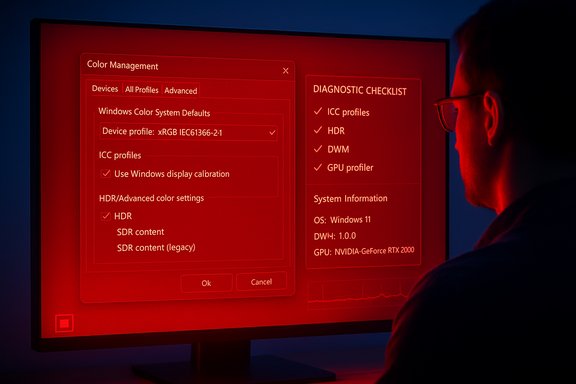 Background / Overview
Windows 11 users began reporting sudden, dramatic colour shifts — entire displays or specific windows showing a solid red tint — after installing routine updates. For many people the red tint covered the whole screen; for others it appeared in certain contexts only, such as login/lock screens, video playback, or full‑screen games. Early diagnostics from affected users and community threads ruled out simple cable or connector failures: swapping HDMI/DP cables, reseating connectors and even trying different monitors frequently failed to cure the problem.The community investigation rapidly produced two important patterns:
- The flashes and tints often appeared after installing an optional preview/feature update or the latest cumulative preview package.
- The behaviour persisted across reboots and sometimes after rolling back display driver updates, which pointed away from a strictly hardware/driver mismatch and toward how Windows applies colour management, HDR/tone mapping, or compositing changes introduced by the update.
Because the situation involves both user reports and staged Microsoft updates, this article pulls together the most credible troubleshooting steps, explains the plausible technical root causes, highlights the risks for creative professionals and IT managers, and offers safe mitigation strategies until an unequivocal, tested fix is broadly available.
What’s actually happening — technical primer
How Windows handles colour and where updates can break it
Windows displays pixels through a pipeline that involves multiple components: the application or video renderer, the GPU driver and its pixel-processing blocks, the Desktop Window Manager (DWM) compositor, the system colour management framework (ICC/WCS profiles), and any HDR/tone‑mapping layers. An update that touches servicing binaries, the compositor, or display-related libraries can change how colour profiles are selected and applied, or how HDR metadata is interpreted during compositing.A few specific mechanisms can produce a red screen/tint:
- A corrupted or misapplied ICC colour profile assigned system-wide or per-display can force everything into a skewed colour space where red dominates.
- A regression in the HDR/tone mapping path may bung HDR metadata handling, producing a saturated red cast in video and games if metadata is misinterpreted.
- Changes to DWM or composition order can make an accessibility filter, colour‑correction utility, or vendor overlay suddenly apply to all surfaces.
- A GPU driver API change or newly introduced GPU‑side bug can corrupt the colour lookup tables used by the hardware scaler, producing a full‑screen red shift.
Why users initially confuse this with hardware failure
Red flashes or sustained red tints mimic classic hardware symptoms: failing GPU silicon, dying VRAM, or a monitor panel fault can cause similar artefacts. That leads many to assume expensive repairs or replacement are required. The key differentiators pointing to a software cause are:- The red tint appears (or disappears) immediately after installing or uninstalling a Windows update.
- The tint persists after replacing cables and even after connecting a different monitor.
- Rolling back the most recent driver update or toggling a Windows colour profile temporarily removes the problem.
Immediate actions (what to do the moment your screen turns red)
These are short, safe steps to try in order, designed to restore a usable display quickly. Perform steps 1–6 first; they are non-destructive and fast.- Press Win + Ctrl + Shift + B to reset the graphics driver.
- This built‑in shortcut restarts the GPU driver and compositor and often clears transient display glitches. The screen may flash or flicker once; wait 10–20 seconds.
- Disable Night light and Colour filters (Accessibility).
- Settings → System → Display → Night light: turn off.
- Settings → Accessibility → Colour filters: ensure filters are off (some filters force a strong red/green/blue appearance).
- Toggle HDR and related settings.
- Settings → System → Display → Use HDR: disable or enable and toggle to see if behaviour changes. Faulty HDR metadata handling can flip colour pipelines.
- Check for third‑party colour apps and overlays.
- Quit or disable software like f.lux, Wallpaper Engine, desktop color calibration utilities, or vendor overlays (NVIDIA/AMD color tools). Those apps can inject filters or profiles that cause red tints.
- Open Color Management and switch to sRGB/default profile.
- Search “Color Management”, choose the affected display, and set the system default to the built‑in sRGB profile. If an ICC profile is corrupt, this often restores normal colour.
- Try an external monitor or a different input.
- If possible, connect to another screen or use the laptop’s built‑in display to confirm whether the issue is system‑wide or confined to one monitor.
Deeper troubleshooting and safer rollbacks
If the quick actions fail, follow this sequence to find a durable fix without damaging your system or data.- Boot to Safe Mode
- Safe Mode loads minimal drivers and prevents most third‑party overlays. If the red tint disappears in Safe Mode, a third‑party app or driver is the likely cause.
- Update or roll back GPU drivers
- Try the vendor’s latest WHQL driver (NVIDIA/AMD/Intel) first. If the problem began right after a display driver update, roll back to the previous known good driver in Device Manager.
- Uninstall the suspect Windows update (if the red tint began immediately afterward)
- Settings → Windows Update → Update history → Uninstall updates. If you’re comfortable with command line, run an elevated:
- wusa /uninstall /kb:5067036
- Note: optional preview updates sometimes bundle SSUs or LCUs that complicate rollback; if uninstall is blocked, use Windows Recovery Environment → Troubleshoot → Uninstall Updates.
- Run SFC and DISM to repair corrupted system files
- Open an elevated command prompt and run:
- sfc /scannow
- DISM /Online /Cleanup-Image /RestoreHealth
- Create or restore a System Restore point
- If you have a restore point from before the issue, use it. If you don’t, create one once your system is stable for the future.
- If the problem persists and you’re short on time, create a temporary workaround profile
- Create a new Windows user and switch to it; a profile‑specific ICC setting can sometimes be bypassed this way while you collect diagnostics.
- Gather diagnostics and report to Microsoft
- Record a short screen clip, take photos, capture winver output and the update history, and file a Feedback Hub report. Provide as much context as possible: exact build, KB numbers, graphics driver version, and attached monitor model.
When to suspect hardware and what to check
If every software-based step fails, or the red occurs outside Windows (for example, inside the firmware/BIOS/UEFI screens or during POST), consider hardware checks:- Boot into the UEFI/BIOS menus: if the red tint is present there, the problem is almost certainly hardware or firmware.
- Test the GPU in another machine (if possible), or test another GPU in the suspect machine to isolate the fault.
- For laptops, inspect for overheating and run vendor diagnostics. Persistent red bands or weird coloured artefacts on BIOS screens need hardware attention.
- If you see red during the Windows boot splash but not in BIOS, the GPU/firmware hand‑off is suspect.
Practical advice for creatives and colour‑critical workflows
Colour‑sensitive professionals face real consequences from a red‑tint glitch: misgraded video, incorrect proofs, lost hours recalibrating monitors. For designers and video editors:- Immediately pause any colour‑critical work until the display is confirmed accurate.
- Use an external, hardware‑calibrated reference monitor if available; do not rely on a single device for critical deliverables.
- Keep hardware calibration logs and CM profiles exported so you can reapply them quickly after a rollback.
- For urgent deadlines, temporarily move editing to another validated machine or cloud workstation until a confirmed fix is installed.
What to tell IT managers and admins
Enterprise and IT pros should treat this as a case study in update staging and risk management.- Block or defer optional/preview updates in production rings. Preview builds are for pilot deployments and early testing; subject them to your existing validation plan.
- If the October preview (or any optional KB) has already been applied broadly, prepare a rollback and communications plan for affected users. Document step-by-step rollback instructions and maintain an IT-approved driver repository.
- Create a remediation script that checks for multiple taskmgr.exe instances (a known regression in the same preview) and terminates them when necessary: taskkill /im taskmgr.exe /f.
- Collect telemetry: gather affected build numbers, GPU driver versions, and the update KB to feed into vendor escalation and Microsoft support cases.
Known risks and trade-offs with installing preview packages
Installing optional/preview updates speeds access to fixes, but it increases exposure to regressions. The October preview package included a broad set of changes — UI tweaks, File Explorer updates, and servicing fixes — which is why some users saw useful fixes while others encountered new bugs. Two practical takeaways:- Don’t install optional preview packages on mission‑critical or colour‑sensitive machines unless you can test them first in a controlled pilot.
- If you need the fix immediately and it’s only available in the optional KB, weigh the benefit against other reported regressions (for example, duplicated Task Manager instances reported by users after applying the same preview).
Best-practice checklist before and after applying updates
- Maintain regular System Restore points and image backups.
- Test previews on a small pilot group with representative hardware.
- Keep vendor GPU drivers archived so you can rollback quickly.
- For creative workstations, keep a validated hardware reference monitor.
- If an update introduces a visual regression, capture diagnostics and revert the update for affected machines until Microsoft issues a patch.
Why the messaging and timeline matter (and what to expect next)
Microsoft stages changes through Insider channels → Release Preview → mainstream rollout. That structure is intentional: it gets fixes into the field for early telemetry while limiting exposure. The October preview that many users installed was rolled out as an optional package to Release Preview devices before the scheduled mainstream Patch Tuesday. That means fixes and regressions can both appear in preview builds; once telemetry confirms stability, the fixes roll into the cumulative update distributed to the wider population.Until Microsoft publicly confirms that a particular regression (such as the red‑screen symptom) is fixed and included in a mainstream cumulative update, assume that preview packages are experimental. If you depend on consistent colour fidelity, prioritize prudence over speed: wait for the tested, non‑optional Patch Tuesday update or validate the preview carefully in your environment.
Conclusion — calm, methodical action beats panic
A screen that suddenly turns red is alarming, but it is not automatically a hardware death sentence. Recent incidents show that Windows updates — particularly optional or preview packages — can interact with colour pipelines, HDR handling and compositor code in ways that produce dramatic but reversible visual faults. The correct approach is: reset the graphics stack (Win + Ctrl + Shift + B), rule out overlays and colour filters, try a safe mode boot, and then apply measured rollbacks or updates while gathering diagnostics.For creatives and IT managers, the incident is a reminder to treat preview updates as test builds and to keep robust backups, validated reference hardware and a rollback plan. For everyone else, the practical takeaway is simple: don’t rush to replace hardware at the first sign of a red screen; follow the diagnostic checklist above, collect evidence, and apply the safest remediation — whether that’s resetting the driver, switching colour profiles, uninstalling the offending update, or waiting for the broadly distributed patch that follows the preview cycle.
Source: mint Windows 11 bug has screens suddenly flashing red - here’s what’s happening and what you should do | Mint
