

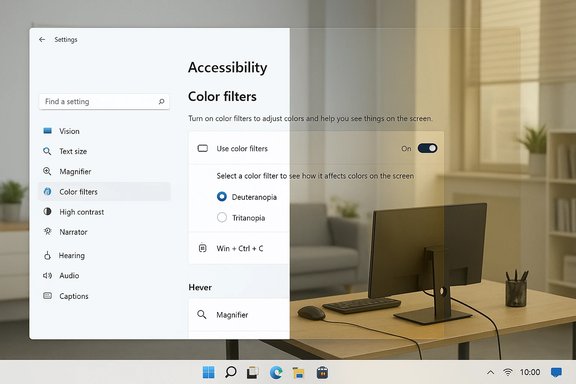
If the colors on your PC make it hard to read, Windows includes a simple, built‑in way to change the entire color palette: Color filters. These filters can help people with color vision deficiencies, reduce visual noise for light‑sensitive users, or create high‑contrast displays that make small UI elements easier to see. The feature is available in both Windows 11 and Windows 10, and can be toggled from the Accessibility (Ease of Access) settings or with a keyboard shortcut once enabled.
Color filters were added as a system accessibility feature to let users adjust how colors are presented across the desktop, apps, and system UI. The built‑in filters include modes targeted at common types of color blindness (deuteranopia, protanopia, tritanopia), plus grayscale, inverted, and a few other variants. The goal is not to permanently alter color accuracy for designers, but to provide a low‑friction way to make on‑screen information distinguishable when color alone is the differentiator. Microsoft documents the setting under Accessibility in Windows Settings for both Windows 11 and Windows 10, and provides a short path to enable and test filters. Color filters are part of a broader accessibility ecosystem that includes Contrast themes, Magnifier, Narrator, and Night Light. They’re a recommended first step for users who struggle to distinguish colors, and they complement other display controls such as brightness, scaling, and high‑contrast modes. Community discussions and historical documentation confirm color filters have been part of Windows since at least the Windows 10 era and have been refined in successive builds.
Note: when specific technical claims become time‑sensitive (for example, driver bugs, Windows KB rollups that touch display subsystems, or newly reported HDR regressions), re‑verify with the latest release notes and support pages. The basic enable/disable steps are stable, but interactions with drivers and HDR pipelines can depend on recent updates.
However, treat Color filters as a visibility tool, not a color‑management solution. If your work relies on precise color fidelity, do not use filters during those tasks. On HDR or WCG systems, test filters briefly and be prepared to disable them in production workflows. Keep a short diagnostic checklist handy—turning filters off and restarting the graphics driver often clears the majority of color anomalies that show up after updates or software installs.
Color filters are one of those small, high‑impact accessibility features that often go unnoticed until you need them. They’re easy to enable, reversible, and thoughtfully designed for common visual impairments. When used with awareness of their limitations—particularly around HDR, color‑critical work, and third‑party overlays—they are a straightforward way to make Windows genuinely easier to see and use for many people.
Source: Microsoft Support Use color filters in Windows - Microsoft Support
 Background / Overview
Color filters were added as a system accessibility feature to let users adjust how colors are presented across the desktop, apps, and system UI. The built‑in filters include modes targeted at common types of color blindness (deuteranopia, protanopia, tritanopia), plus grayscale, inverted, and a few other variants. The goal is not to permanently alter color accuracy for designers, but to provide a low‑friction way to make on‑screen information distinguishable when color alone is the differentiator. Microsoft documents the setting under Accessibility in Windows Settings for both Windows 11 and Windows 10, and provides a short path to enable and test filters. Color filters are part of a broader accessibility ecosystem that includes Contrast themes, Magnifier, Narrator, and Night Light. They’re a recommended first step for users who struggle to distinguish colors, and they complement other display controls such as brightness, scaling, and high‑contrast modes. Community discussions and historical documentation confirm color filters have been part of Windows since at least the Windows 10 era and have been refined in successive builds.How to enable and use Color filters
Windows 11 — quick steps
- Press Windows key + U to open Accessibility (or open Start > Settings > Accessibility).
- Select Color filters under the Vision section.
- Turn the Color filters switch to On.
- Choose a filter from the list and watch the preview update immediately to see which option helps most.
- Optionally enable the keyboard shortcut toggle so you can press Windows + Ctrl + C to toggle filters on/off quickly.
Windows 10 — quick steps
- Open Settings (Windows + I) > Ease of Access > Color filters (or in some older builds: Settings > Ease of Access > Color & high contrast).
- Switch Turn on color filters to On.
- Select the desired filter. You can also enable the keyboard shortcut to toggle filters with Win + Ctrl + C.
What filters are available — quick reference
- Red‑green (Deuteranopia) — for green‑weak users.
- Red‑green (Protanopia) — for red‑weak users.
- Blue‑yellow (Tritanopia) — for blue‑yellow deficiencies.
- Grayscale — removes color entirely.
- Grayscale inverted — removes color and inverts light/dark polarity.
- Inverted — direct color inversion (useful for photosensitivity or dramatic UI changes).
Why this matters (accessibility and UX)
- For people with color blindness: Many common UI patterns rely on color only (for example, red vs green in status indicators). Color filters change the display so these differences become distinguishable by hue, contrast, or luminance. This reduces errors and frustration.
- For people sensitive to light or contrast: Filters like Grayscale or Grayscale inverted can reduce visual clutter, minimize glare, or make reading long blocks of text easier without changing font sizes or scaling.
- Low‑effort, system‑wide solution: Unlike third‑party overlays, Windows’ color filters are supported by the OS and designed to work across apps and the shell. That reduces incompatibilities and eliminates the need to install extra utilities.
Technical considerations — how filters interact with modern display stacks
Color filters operate at the compositor/display pipeline level: the filter modifies the pixel values as the OS composes windows and renders the final image to the screen. This makes them effective across applications, but also introduces a few important interactions and limitations:- Not color‑accurate for design work. Filters change appearance for legibility, not for faithful color presentation. Avoid using them during color‑critical tasks (photo editing, color grading, print proofs). If you need accurate color, disable filters and rely on calibrated ICC profiles and hardware calibration.
- HDR and Wide Color Gamut (WCG) complexities. On HDR or WCG displays, the color pipeline involves additional transformations (tone mapping, metadata handling). System‑level filters may interact unpredictably with HDR compositing, yielding unexpected saturation or tint shifts in some scenarios. Users who work in HDR should test filters carefully and prefer temporary toggles rather than persistent filters. Recent community troubleshooting guides show HDR toggles and Night Light can both change final appearance in ways that appear similar to filter artifacts.
- Third‑party overlays and calibration software can conflict. Tools such as f.lux, Wallpaper Engine, or GPU vendor color utilities inject color transformations that can stack with Windows filters and create odd results (deep tints or washed palettes). When diagnosing color issues, disable these utilities first. Community threads repeatedly point to third‑party overlays as root causes when color suddenly shifts after an update.
- Shortcuts and focus/elevation behavior. The quick toggle (Win + Ctrl + C) must be enabled in Settings. In certain contexts, global hotkeys can be ignored—particularly for applications started with elevated privileges—so the toggle might not always activate if the target app runs as administrator. If the shortcut does not work as expected, use Settings or Quick Settings (Accessibility) to switch filters off.
Troubleshooting: common problems and safe fixes
If colors suddenly look wrong after an update or after installing software, follow a safe, step‑by‑step diagnosis sequence. These steps are non‑destructive and commonly recommended by community responders and official guidance.- Verify Color filters are off. Open Settings > Accessibility > Color filters and ensure the toggle is off. Some users report a filter being enabled accidentally after updates.
- Toggle Night Light off (Settings > System > Display > Night light). Night Light changes color temperature and can be confused with filter artifacts.
- Restart the graphics stack: press Win + Ctrl + Shift + B to restart the GPU driver and Desktop Window Manager. This step often clears transient tinting caused by driver or compositor glitches.
- Quit color‑adjustment utilities (f.lux, vendor color tools, Wallpaper Engine). These often apply overlays that conflict with filters.
- Open Color Management and switch to the default sRGB profile for the display. A corrupted ICC profile can force skewed colors. If that fixes it, remove custom ICC profiles for troubleshooting.
- If the issue began after a driver or Windows update, consider rolling back the graphics driver via Device Manager or uninstalling the recent update (if feasible). Use safe commands and system restore points where available.
Strengths — what Windows does well here
- Integrated, supported accessibility feature. Because color filters are a native OS feature, they’re maintained and tested across system updates more reliably than third‑party solutions. Microsoft’s documentation makes the setting accessible in a central location: Settings > Accessibility.
- Low friction and immediate preview. The preview in Settings shows how filters will affect the real UI, letting users trial options quickly without installing tools or changing hardware. Independent guides consistently praise the immediate feedback and the keyboard toggle convenience.
- Multiple targeted filters for common deficiencies. The inclusion of deuteranopia, protanopia, and tritanopia filters demonstrates a practical focus on common accessibility needs rather than offering only generic high‑contrast modes.
- Ease of toggling. With the optional Win + Ctrl + C shortcut and Quick Settings accessibility entry, users can enable or disable filters as needed without diving into Settings every time.
Risks and limitations — where caution is warranted
- Not suitable for color‑critical work. Filters change color data; photographers, designers, and anyone doing color grading must avoid using them during production work. This is the single most important caveat for creative professionals.
- Potential for interaction bugs on HDR/WCG setups. On HDR monitors, filters can interact with tone mapping, producing strange saturation or tint shifts. Users with HDR workflows should test filters only temporarily. Community troubleshooting literature documents cases where HDR/tone‑mapping regressions caused red or green casts that were resolved only by toggling HDR or color profiles.
- Overlay conflicts and false positives. Color problems are often misdiagnosed as hardware failures though they’re caused by software filters, ICC profiles, or overlays. Diagnose methodically before assuming monitor or GPU hardware faults. Forum histories show many users solved “red screen” problems simply by switching off color filters or removing a misapplied ICC profile.
- Keyboard shortcut edge cases. The quick toggle relies on a global hotkey; it may be disabled by system policy in managed (enterprise) environments or behave inconsistently when interacting with elevated applications. Enable the setting in Accessibility if the shortcut doesn’t work by default.
Best practices for everyday users and admins
- For users who need occasional adjustments: enable the keyboard shortcut and use Win + Ctrl + C for fast toggles. Pair filters with Magnifier or increased text size for maximal legibility without altering color for longer periods.
- For daily‑use accessibility: pick the filter that solves the actual visibility problem and keep a note of when it’s active (for instance, disable during creative sessions). Consider creating a short checklist for switching filters when collaborating with others who need color accuracy.
- For IT administrators: if deploying images to users with visual impairments, document where Color filters live and include a short runbook for enabling/disabling them. Avoid preconfiguring global ICC overrides that could conflict with user‑chosen filters. Test deployments on HDR hardware where available to identify potential tone‑mapping quirks.
- For visual troubleshooting: include Color filters in your standard diagnostic list (Settings toggle, Night Light, third‑party overlays, ICC profile, driver restart, safe boot). That sequence fixes a significant share of reported color‑shift cases.
Cross‑checks, verification and things that changed over time
Multiple independent how‑to guides and Microsoft’s official article align on the facts: (1) location in Settings (Accessibility / Ease of Access), (2) presence of multiple filters including red‑green and blue‑yellow modes, and (3) the optional Win + Ctrl + C toggle. Confirmations from How‑To Geek, Windows Central, MakeUseOf, and MajorGeeks reinforce these points and show the feature’s behavior is stable across both Windows 10 and Windows 11. History and user reports indicate Windows added these filters in Windows 10 and refined the Settings placement across versions. Community archives and Microsoft feature notes show that hotkey behavior and the location of the setting have evolved, and Microsoft introduced safeguards (such as requiring the hotkey to be explicitly enabled) to prevent accidental activation. If a user sees a difference in the UI path, it’s most likely due to Windows build differences or enterprise policy. Flag any behavior that contradicts the official Settings flow for testing against the installed OS build number.Note: when specific technical claims become time‑sensitive (for example, driver bugs, Windows KB rollups that touch display subsystems, or newly reported HDR regressions), re‑verify with the latest release notes and support pages. The basic enable/disable steps are stable, but interactions with drivers and HDR pipelines can depend on recent updates.
Final verdict — should you use Color filters?
For anyone who struggles to distinguish color‑coded information or for people with photosensitivity, Color filters are an excellent, low‑risk first step. They’re built into Windows, quick to toggle, and supported across the OS. For most users they solve concrete problems without the overhead of calibration hardware or third‑party utilities.However, treat Color filters as a visibility tool, not a color‑management solution. If your work relies on precise color fidelity, do not use filters during those tasks. On HDR or WCG systems, test filters briefly and be prepared to disable them in production workflows. Keep a short diagnostic checklist handy—turning filters off and restarting the graphics driver often clears the majority of color anomalies that show up after updates or software installs.
Quick reference — one‑page cheat sheet
- Enable: Settings > Accessibility (or Ease of Access in Windows 10) > Color filters > Toggle On.
- Shortcut: Enable “Keyboard shortcut for color filters” in the same pane, then press Win + Ctrl + C to toggle.
- Common fixes for strange color tint: turn off Color filters, disable Night Light, restart graphics (Win + Ctrl + Shift + B), remove third‑party color apps, reset to sRGB ICC profile.
- Best use: accessibility and legibility improvements, not color grading.
Color filters are one of those small, high‑impact accessibility features that often go unnoticed until you need them. They’re easy to enable, reversible, and thoughtfully designed for common visual impairments. When used with awareness of their limitations—particularly around HDR, color‑critical work, and third‑party overlays—they are a straightforward way to make Windows genuinely easier to see and use for many people.
Source: Microsoft Support Use color filters in Windows - Microsoft Support
