

AMD Adrenaline theraithes on Windows 10 have a surprisingly consistent playbook: messy installs, OS/driver timing mismatches, and aggressive power‑management features. This article lays out a tested, low‑risk workflow to stop crashes, recover a broken display stack, and choose the best long‑term path for stability — with clear step‑by‑step instructions, technical checks, and a frank assessment of residual risks.
Windows 10 users reporting frequent driver crashes with AMD Adrenalin commonly see one or more of these symptoms: application exits, driver timeouts (TDR), the display switching to the Microsoft Basic Display Adapter, or an immediate freeze / BSOD when launching a game or loading a save. Many of these issues trace back to a small set of root causes: corrupted driver state, mismatched UWP/store components, Windows update interactions that change timing behavior, and hardware/firmware settings that push the GPU into unstable power states. Community and vendor guidance converge on a reproducible remedy: clean the driver stack, install a vetted AMD or OEM package, and verify system firmware and power settings.
e‑page quick recovery guide
Source: Born2Invest https://born2invest.com/?b=style-237461312/
 Overview
Windows 10 users reporting frequent driver crashes with AMD Adrenalin commonly see one or more of these symptoms: application exits, driver timeouts (TDR), the display switching to the Microsoft Basic Display Adapter, or an immediate freeze / BSOD when launching a game or loading a save. Many of these issues trace back to a small set of root causes: corrupted driver state, mismatched UWP/store components, Windows update interactions that change timing behavior, and hardware/firmware settings that push the GPU into unstable power states. Community and vendor guidance converge on a reproducible remedy: clean the driver stack, install a vetted AMD or OEM package, and verify system firmware and power settings. Background: why Adrenalin crashes happen on Windows 10
The modern driver stack is timing-sensitive
Graphics drivers operate at kernel level and interact tightly with Windows' power and scheduling subsystems. Small changes in OS servicing or driver internals can change timing relationships and surface as intermittent crashes or timeouts in some workloads. Both Microsoft and AMD have published updates that aim to reduce mis‑detections and timing mismatches, but the problem space is inherently multi‑vendor and configuration dependent. That explains why installing a single cumulative update or driver build sometimes fixes many users while lead.Leftover components and UWP/store mismatches
A frequent failure mode is a partial or mixed installation: an Adrenalin driver install layered on top of remnants from older Crimson/Catalyst packages or conflicting UWP “Radeon Settings Lite” installations. Those remnants can leave Device Manager showing “Microsoft Basic Display Adapter between the driver runtime and the Adrenalin UI. The proven community remedy for such cases is a full cleanup (DDU) follow‑by a clean install.Windows 10 lifecycle changes and vendor messaging
Microsoft’s October 14, 2025, end‑of‑support milestone changed how vendors document compatibility. AMD’s release notes sometimes omit Windows 10 explicitly even though the driver package remains compatible for many SKUs; AMD has publicly clarified this nuance. That means Windows 10 users still receive driver updates in many cases, but the long‑term support model is shifting and testing is essential before deploying the latest Adrenalin builds to production machines.The safe, tested recovery and install workflow
This step‑by‑step plan compresses the community playbook and vendor guidance into you can follow in sequence. It’s the method used by support pros and community moderators to repair the display stack reliably.Preflight: inventory and backups
- Create a full system image or at least. Driver changes can render a system hard to recover without an image.
- Record your GPU hardware ID: Device Manager → Display adapters → right‑click →→ Hardware Ids (copy the PCI\VEN_1002&DEV_xxxx string). Keep it in a text file for INF checks.
- Download the exact driver packages you’ll need ahead of time (AMD official package and an older stable build you previously used). Store them offline.
Step 1 — Try the low‑risk path first
- Let Windows‑signed driver (Settings → Update & Security → Windows Update → View optional updates → Driver updates). If that driver provides a stable desktop and video playback, stop here. This is the lowest‑risk approach for most users.
Step 2 — If instability persists, perform a clean uninstall with DDU
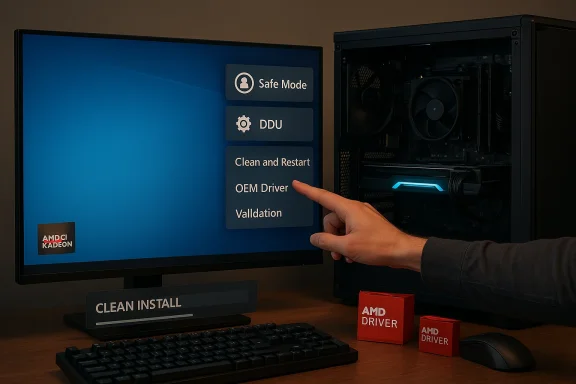
- Boot to Safe Mode and run Display Driver Uninstaller (DDU). Use the “Clean and restart” option. This removes driver remnants that commonly break subsequent installs. DDU remains the community standard for a reliable clean state.
Step 3 — Reinstall the AMD driver the right way
- Download the official Adrenalin package from AMD or the OEM package for laptops. Prefer an OEM package for systems with switch bundles often include power management and UWP components tailored to the device.
- Consider a driver‑only install (skip the Adrenalin UI) if you suspect UI/overlay components contribute to crashes. Community tests show s sometimes avoid overlay/TDR regressions.
Step 4 — Validation
- Reboot, run a multi‑monitor and video test, and then perform an extended gaming session (or a repeatable benchmark) to reproduce the workload that previously crashed. Capture DxDiag and Event Viewer entries for TDRs or application errors if problems continue.
Step 5 — If crashes continue: rollback and isolate
- Roll back to your archived known‑good driver (Device Manager → Roll Back Driver) and test again.
- If rollback helps, keep the known‑good installer archived and file logs with AMD and Microsoft. Collect minidumps and clear reproduction steps — vendors require these to triage cross‑stack timing bugs.
Practiashes persist
These are lower‑risk tweaks to try while you gather logs or await vendor fixes.- Disable overlays and recording: Turn off Radeon Overlay, Instant Replay, and in‑game overlays. Overaphics stack and are frequently implicated in crashes.
- Try conservative underclock / undervolt: Reduce GPU clocks slightly or lower power targets temporarily to see if the crash frequency drops — useful for troubleshooting thermal/timing margins. power settings**: Select High Performance and disable PCI Express Link State Power Management (Advanced power settings → PCI Express → Link State Power Management). This prevents aggressive low‑power transitions that can trigger TDRs.
- Disable switchable graphics: Some mobile GPUs enter aggressive low‑power states that cause stability issues. Utilities like MSI Afterburner can disable ULPM for testing (only recommended for temporary troubleshooting).
- Install OS cumulative updates that address timing/identification issues: Microsoft has rolled preview and cumulative updates that fixed misclassification of supported GPUs and reouts for affected systems. Test these on a non‑critical machine first.
e‑page quick recovery guide
- Create image/restore point.
- Try Windows Update driver (Optional/Driver updates). If stable — stop.
- Boot Safe Mode → run DDU → Clean and Restart.
- Install AMD or OEM driver package (driver‑only if necessary signature.
- Reboot → validate with games/benchmarks. Capture logs if issues recur.
- If unstable, rollback to archived driver and file a support case with AMD/Microsoft.
What to do for laptops and OEM machines
- Prefer OEM drivers and packages. Laptop vendors wrap drivers with power and switchable‑graphics logic that plain AMD packages do not include. Using the OEM package reduces the chance of mismatches with ACPI and switching firmware. If you must use a generic Adrenalin package, expect additional troubleshooting (DDU, manual INF installs) on some models.
- If your display or UWP app is broken after a generic install, remove the UWP store app, DDU, and reinstall the OEM package to restore a coherent runtime. Mixed apps with different Adrenalin runtimes is a common source of “Radeon software and driver versions do not match” errors.
Risk assessment and security considerations
- Driver signing and Secure Boot: Installing unsigned legacy drivers or editing INFs to add device IDs weakens kernel integrity and should be avoided on f you must test unsigned drivers, re‑enable signature enforcement and Secure Boot immediately after.
- Windows 10 lifecycle risk: Microsoft’s end‑of‑support date changes how vendors publish compatibility. While AMD may retain compatibility or maintenance builds for Windows 10 hardware, long‑term testing and feature attention will shift to Windows 11. Organizations should plan migration or ESU/mitigation strategies.
- Third‑party driver packages: Avoid repackaged or third‑party installers from untrusted sites; they can contain malicious modifications. Always download drivers from AMD, Microsoft Update Catalog, or Community posts emphasize provenance risks.
Why the December/November updates matter (and what they actually fixed)
Community reports and vendor notes show a mix of fixes arriving from both Microsoft and AMD across late 2024–2025. Microsoft flighted updates that corrected mis‑identification and timing behaviors in the OS (reducing TDR triggers in some cases), while AMD’s Adrenalin releases fixed game‑specific crash cases and overlay/runtime issues. That split responsibility explains why some users saw immediate improvement after a Windows cumulative, while others required a later AMD hotfix or driver rollback. Test before mass deployment and collect logs if you need vendor escalation.Advanced diagnostics for power‑users and sysadmins
Essential logs to collect before filing a vendor report
- DxDiag text file (run dxdiag → Save All Information).
- Minidump files (Windows\Minidump) for BSODs.
- Event Viewer System and Application logs around the crash time.
- Radeon log files and Adrenalin's Diagnostic outputs (if the UI still launches).
Document the exact Windows build, AMD driver version, and the reproduction steps for the crash — vendors often ask for frame‑timing captures or a short video of thoduce test plan - Confirm OS build (Settings → System → About).
- Install the candidate driver on a test machine.
- Run the offending title for 30–60 minutes (or a reliable benchmark loop).
- Monitor frame times with CapFrameX or run the built‑in benchmark capture.
- If crash occurs, immediately save logs and avoid rebooting until you collect minidumps.
limitations of the current ecosystem
Strengths
- AMD continues to ship Adrenalin builds that address many modern games and compatibility issues; vendor release notes list fixes and known issues so users can make informed choices.
- A robust community playbook exists (Windows Update → OEM → DDU → manuals a wide range of legacy and modern hardware.
Limitations and risks
- Because the problem space spans drivers, OS servicing, BIOS/firmware, and hardware tolerances, a single fix rarely remedies Expect some edge cases.
- Windows 10’s EOL shifts testing emphasis to Windows 11, creating maintenance‑mode behavior for older lines. Organizations should plan migration paths rather than rely on indefinite fixes.
Special notes and unverifiable claims
The link you provided (a Born2Invest article) could not be validated by its unique assertions should be treated cautiously until the live page or raw text is available for review. Prefer AMD, Microsoft, and community logs for definitive troubleshooting details.Final recommendations — the “best” fix for most users
- For single‑user desktops: follow the clean‑install workflow (DDU → AMD/OEM driver → test). If you prefer the lowest risk, use the Microsoft‑signed driver offered via Windows Update. Keep a rollback installer archived.
- For gamers on mission‑critical rigs: avoid installing preview OS updates or untested drivers shortly before competitive events. Pilot changes on a separate rig and prefer AMD’s WHQL/ther than beta drops. If a new Adrenalin release introduces crashes, roll back to your last stable build and wait for a vendor hotfix.
- For IT admins and fleets: adopt a staged pilot → ring → broad deployment model. Use offline .msu installers from Microsoft Catalog for controlled rollouts, and arcrs for emergency rollback. Consider ESU or migration plans for devices where Windows 10 security posture matters.
Conclusion
AMD Adrenalin crashes on Windows 10 are fixable in the majority of cases with a pragmatic, evidence‑based approach: inventory and backup, clean the driver state with DDU, install a vetted AMD or OEM package, and validate with controlled tests. When problems persist, a targeted rollback and structured log capture enable effective escalation to AMD and Microsoft. The ecosystem’s strength lies in vendor updates plus a mature community playbook — but Windows 10’s changed lifecycle and the multi‑vendor nature of modern graphics bugs mean there’s no universal “one‑click” cure. Follow the steps above, prefer official packages, archive a known‑good driver, and test updates before you push them to critical machines to keep your system stable.Source: Born2Invest https://born2invest.com/?b=style-237461312/
