

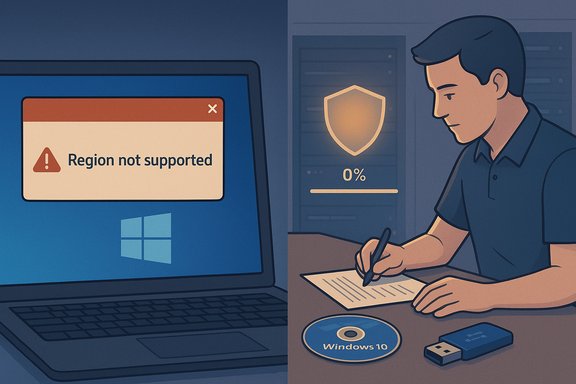
Microsoft's consumer Extended Security Updates (ESU) for Windows 10 — the one‑year safety valve intended to keep older PCs patched after end of mainstream support — is failing to enroll for a noticeable number of users, leaving affected machines at elevated risk unless owners take corrective action or upgrade to Windows 11. Reports show two consistent failure patterns: the enrollment wizard tells users their region is unsupported, and other devices — particularly those that are or were bound to work/school accounts — are being treated as organizational devices and refused the consumer ESU path. Community troubleshooting and Microsoft support threads have converged on several technical causes and practical workarounds, including an effective but blunt fix: perform an in‑place repair upgrade using a Windows 10 ISO to restore the enrollment flow.
Background
What is Windows 10 ESU and why it matters
Extended Security Updates (ESU) for Windows 10 was introduced as a short, paid (or limited free) bridge for users who could not or would not migrate to Windows 11 immediately. The consumer ESU offering provided three enrollment routes — a free cloud‑backed option that uses a Microsoft Account and OneDrive sync, redemption with Microsoft Rewards points, or a one‑time paid purchase — and offered security‑only updates for a defined period rather than new features. The intent was clear: provide security patches only to eligible Windows 10 devices so they remain safe from actively exploited vulnerabilities while owners plan upgrades or hardware replacement.Important timeline and geographic nuance
Technical rollouts were staged and regionally varied. Microsoft acknowledged a phased rollout and flagged that EEA (European Economic Area) consumers would have slightly different handling and concessions — including a widened free path under specific re‑authentication rules — with enrollment signals rolling out in early October and coverage for some EEA devices beginning around October 15, 2025. At the same time, community reporting emphasized that prerequisite updates and the precise Windows build (Windows 10, version 22H2 with the latest cumulative and servicing stack updates) are essential for the enrollment UI to appear. Several recent cumulative updates — notably the August 2025 rollup referenced as KB5063709 and subsequent SSUs — contained fixes that corrected early enrollment wizard crashes and enabled a reliable enrollment experience on updated systems.What users are seeing: two recurring error clusters
1) "Region not supported" messages
A number of users report receiving an explicit error that the Windows 10 ESU plan is not available in their region. For many of those reports the geography did not align with any known Microsoft exclusion — for example, users in EEA countries that should be covered nonetheless saw temporarily unavailable in your region. Microsoft’s public rollout statement describes staggered regional availability and acknowledges local market differences, but the practical effect is the same: eligible devices are not always able to enroll when the UI appears to say their region is blocked.2) "We can’t enroll you in Extended Security Updates right now" and organizational flagging
The second frequent failure mode is an enrollment attempt that simply fails with a generic “We can’t enroll you in Extended Security Updates right now. Close this window and try again.” Community investigation shows this message commonly appears when Windows treats a consumer PC as an organisational device. If a machine is domain‑joined, Entra/Azure AD joined, or has a work/school account previously associated, the enrollment flow believes an organisation ESU license is required rather than the consumer path. That mismatch blocks completion of the consumer wizard and leaves the device unprotected.Why enrollment fails: the technical checklist
The community and Microsoft support threads converge on a concise set of gating items. If any one of these is unmet or misconfigured, the enrollment UI may be absent or fail:- Windows 10 version must be 22H2 (consumer editions: Home, Pro, Pro Education, Pro for Workstations).
- The latest cumulative updates and servicing‑stack updates (SSUs) must be installed — in particular the August 2025 cumulative (KB5063709) and any later LCUs that address enrollment wizard stability. Without these the UI often crashes or never appears.
- Enrollment generally requires signing into the device with an Administrator Microsoft Account (MSA). Local or child accounts, and sometimes accounts with family restrictions, will be blocked.
- Devices that are domain‑joined or managed by MDM/Intune are not eligible for the consumer ESU path and must be serviced via enterprise licensing.
- Certain Windows services and in‑app sign‑in components must be functional: wlidsvc (Microsoft Account Sign‑in Assistant), VaultSvc (Credential Manager), LicenseManager, and the Connected User Experiences and Telemetry service (DiagTrack). If these are stopped or blocked by policy, the enrollment flow will fail silently.
Community‑tested fixes and workarounds
Quick, non‑destructive steps to try first
Before doing anything invasive, make a backup and then walk this checklist:- Confirm Windows build: run
winverand ensure you see Windows 10, version 22H2. - Install all pending updates, including the latest cumulative (check for KB5063709 or later) and servicing stack updates, then reboot.
- Sign into Windows with an adult Microsoft Account (MSA) that has administrator rights. If you must, add a new MSA as an admin user and try enrollment from there.
- Ensure the key services are running. In an elevated PowerShell, check:
Get-Service wlidsvc, VaultSvc, LicenseManager- If stopped, set
wlidsvcto Automatic and start it; ensure VaultSvc and LicenseManager are not disabled. Community posts report success after enabling these.
Forced local eligibility evaluation (community method)
If prerequisites are met but the UI still refuses to appear or closes, the community‑documented sequence below is a safe, reversible local override that commonly forces Windows to run an eligibility check and display the ESU enrollment UI:- Enable and start telemetry service:
sc.exe config DiagTrack start=autosc.exe start DiagTrack
- Add the feature‑override registry entry that unlocks the consumer ESU enrollment UI:
reg.exe add "HKLM\SYSTEM\CurrentControlSet\Policies\Microsoft\FeatureManagement\Overrides" /v 4011992206 /t REG_DWORD /d 2 /f
- Reboot, then force an eligibility evaluation:
cmd /c ClipESUConsumer.exe -evaluateEligibility
- Reboot and open Settings → Update & Security → Windows Update to look for the Enroll now prompt.
4011992206) and uses the built‑in ClipESUConsumer.exe tool to ask Microsoft’s enrollment endpoints whether the device can be enrolled; it does not itself purchase or assign an ESU license. If you wish to undo the override later the registry value can be removed. Several Microsoft Q&A and community threads corroborate this sequence as an effective troubleshooting step.When enrollment UI opens then immediately closes
This specific failure commonly ties back to broken WebAuth/App sign‑in components or cached credentials. Steps that helped multiple users:- Clear cached credentials in Control Panel → Credential Manager (remove Microsoft/Live entries). Reboot.
- Reset Microsoft Store and re‑register AAD broker packages (run as Admin):
wsreset.exeand re‑register the Store/AAD broker packages withAdd-AppxPackage. Reinstall WebView2 runtime if necessary.
The last‑resort but reliable fix: in‑place repair (ISO) / repair upgrade
If nothing else succeeds, a Windows 10 in‑place repair upgrade (also called a repair install) using the official Windows 10 ISO or Media Creation Tool will refresh system files while preserving user files and applications. Community reports and Microsoft Q&A show this often repairs the enrollment path and removes the false organizational state preventing consumer enrollment. This is the same workaround XDA and other outlets observed: download the Windows 10 ISO and run the upgrade/repair to restore a normal enrollment flow. Back up before attempting.Security, privacy, and operational implications
Telemetry requirement and privacy trade‑offs
Some fixes require enabling Connected User Experiences and Telemetry (DiagTrack) and signing in with a Microsoft Account that’s periodically re‑authenticated. For EEA users Microsoft relaxed some cloud requirements for free enrollment, but periodic sign‑in and minimal telemetry remain part of the consumer ESU lifecycle. That creates a trade‑off: get security updates but accept cloud ties and limited telemetry, or isolate the device but forgo easy enrollment. Users concerned about telemetry should be aware enabling DiagTrack is necessary in many situations to evaluate ESU eligibility locally.Time‑boxing and urgency
ESU is explicitly a short runway. The consumer ESU window was tightly time‑boxed around Windows 10’s end of mainstream support, and community guidance repeatedly warned that waiting until the last minute risks being unprotected if your device hasn’t received the staged enrollment rollout. Because rollout timing varied by region and Microsoft supplied fixes in mid‑2025 cumulative updates to address wizard bugs, the safest posture was to verify prerequisites and enroll as soon as the UI appeared. If enrollment remains blocked after attempting the fixes above, users should either perform the in‑place repair or plan to upgrade to Windows 11 to avoid a security gap.Practical recommendations — what to do now
- Backup first. Create a full image or at least export critical files to an external drive/cloud before attempting registry edits or an in‑place repair.
- Verify your build and updates: run
winverand confirm 22H2 and install all pending updates, especially any referenced LCU/SSU. - Try the non‑destructive checks: MSA admin sign‑in, enable wlidsvc/VaultSvc/LicenseManager if stopped, clear cached credentials, reset Store components.
- If the enrollment UI is absent or fails, try the documented feature override +
ClipESUConsumer.exe -evaluateEligibilitysequence; test whether Enroll now appears. Remember this is reversible. - If that fails, perform an in‑place repair upgrade using the Windows 10 ISO (keep files/apps). This has the highest reported success rate for stubborn cases. Back up first.
- If you’re on a managed or domain‑joined PC, contact your IT admin — consumer ESU is not supported for enterprise‑managed devices and organizations must use commercial ESU channels.
Critical analysis: strengths, weaknesses, and risk assessment
Strengths of Microsoft’s approach
- The consumer ESU program provided a much‑needed, time‑boxed safety net that can be claimed quickly in many cases, with a free cloud‑backed path for qualifying users and a low‑cost paid alternative that covers multiple devices tied to one Microsoft Account. The design reflects a pragmatic compromise between user needs and Microsoft’s product lifecycle constraints.
Weaknesses and communication failures
- The rollout’s phasing and regional differences, combined with a hard dependency on specific servicing updates (e.g., KB5063709), produced confusion and inconsistent user experience. That confusion was compounded by the UI’s opaque failure modes (generic error messages and spun‑close dialogs) and by the fact that common system states — such as a device previously connected to a work/school account — can silently block consumer enrollment. The result: users who expected a simple in‑OS enrollment found themselves unprotected.
Operational risk for users
- Any user who assumes the ESU enrollment will be instant and automatic risks creating an exposure window: if their machine doesn't show the enrollment UI and they miss the operational deadline, they'll be without security updates. The community fixes (service enablement, registry override, in‑place repair) are effective but require technical comfort, admin rights, or the willingness to perform a repair install — not realistic for all consumers.
Privacy trade‑offs and compliance concerns
- Enabling telemetry services (DiagTrack) and binding updates to an MSA raises privacy considerations, particularly in privacy‑sensitive jurisdictions. The EEA concession softens some obligations but does not eliminate the need for periodic re‑authentication, creating a continuing cloud dependency that some users may not accept.
Final verdict and actionable conclusion
Windows 10 ESU remains a valuable stopgap, but the enrollment experience has proven brittle for a broad cross‑section of users due to build and update prerequisites, service and sign‑in component dependencies, and the staged regional rollout. Community‑validated remediation steps — checking and starting key services, applying the feature‑override and running the built‑inClipESUConsumer.exe evaluation, and, when necessary, performing an in‑place repair upgrade using the Windows 10 ISO — will fix enrollment in most cases. For devices that are domain‑joined or organizationally managed, the right path is to coordinate with IT for the enterprise ESU alternative.If you haven’t yet secured an ESU entitlement and you rely on Windows 10, take three immediate steps: verify you’re on Windows 10 22H2 and fully patched; sign in with an administrator Microsoft Account and check required services; and, if troubleshooting fails, perform an in‑place repair upgrade after a full backup. These steps give the best chance to recover the enrollment path without needing to leap directly to Windows 11 under duress.
Checklist (quick reference)
- Confirm Windows 10, version 22H2 (
winver). - Install latest cumulative + SSU (check for KB5063709 or later).
- Sign into an Administrator Microsoft Account (MSA).
- Start wlidsvc, VaultSvc, LicenseManager, DiagTrack if stopped.
- Try registry override +
ClipESUConsumer.exe -evaluateEligibility. - If all else fails, back up and run an in‑place repair upgrade via ISO.
Source: XDA Windows 10 ESU enrollment doesn't work for some users, leaving them vulnerable

