

When the Pocket‑lint writer described Fluent Search as the “second brain” that finally found years of scattered files on a battered laptop, the praise was easy to understand — Fluent Search is a compact, keyboard‑centric Windows search launcher that aims to fix the things Windows Search still gets wrong, and it does so with a surprising mix of speed, configurable hotkeys, and a mouse‑free “Screen Search” that can even read on‑screen text using OCR.
Windows has always shipped a search function, but for many users the built‑in experience feels slow, over‑indexing, and sometimes noisy — surfacing web suggestions or sponsored apps when all you want is a local file. Community testing and utility roundups routinely point users toward third‑party alternatives because they are faster, lighter, and often more precise for file‑centric workflows.
Fluent Search positions itself in that space as a modern, keyboard‑first launcher and local search tool. It’s available as a free download for Windows and ships in multiple flavours (installer, portable, and Microsoft Store packaging). The app bundles traditional filename and content search with extras — hotkeys, Screen Search overlays, OCR for non‑selectable text, and a powerful set of settings to tune search behavior and result grouping. The developer documentation is explicit about default shortcuts (Ctrl+Alt to open the main search box; Ctrl+M to activate Screen Search) and the large array of configuration options.
Source: Pocket-lint This app has helped me find those pesky files in Windows that go hiding
 Background / Overview
Windows has always shipped a search function, but for many users the built‑in experience feels slow, over‑indexing, and sometimes noisy — surfacing web suggestions or sponsored apps when all you want is a local file. Community testing and utility roundups routinely point users toward third‑party alternatives because they are faster, lighter, and often more precise for file‑centric workflows.Fluent Search positions itself in that space as a modern, keyboard‑first launcher and local search tool. It’s available as a free download for Windows and ships in multiple flavours (installer, portable, and Microsoft Store packaging). The app bundles traditional filename and content search with extras — hotkeys, Screen Search overlays, OCR for non‑selectable text, and a powerful set of settings to tune search behavior and result grouping. The developer documentation is explicit about default shortcuts (Ctrl+Alt to open the main search box; Ctrl+M to activate Screen Search) and the large array of configuration options.
What Fluent Search actually does — feature breakdown
Fluent Search combines a short list of distinct but complementary capabilities into one utility. Below are the most notable features and how they matter to real Windows workflows.Core search and indexing
- Instant launcher: The main entry point is a compact overlay that wakes on a hotkey (default Ctrl+Alt). Type any part of a filename, app name, or tag and results appear immediately. This is comparable to other launchers, but Fluent Search’s default result grouping and fuzzy matching aim to deliver the right result with minimal typing.
- Customizable indexer: Fluent Search maintains its own file index (with options to include or exclude drives/folders) and can also integrate with the Windows Search indexer where useful. That dual approach is intended to balance speed with completeness: the app can scan unindexed locations while still benefiting from the OS index when available. The settings let you control what is indexed and how aggressively fuzzy matching behaves.
Screen Search — navigate the UI without a mouse
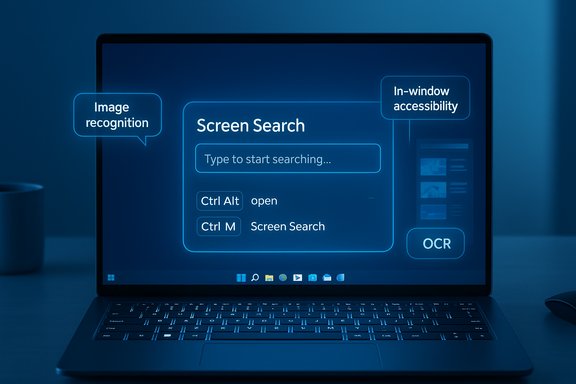
- Screen Search overlay: Pressing Ctrl+M activates a label overlay that annotates clickable UI elements across windows; type the two‑ or three‑letter label shown to select an element. This works across many apps and reduces reliance on the touchpad for navigation. The feature supports two engines — image‑recognition and in‑window accessibility data — and runs in Auto to pick the best method.
- OCR support: Fluent Search can extract text from the visible screen and match queries to that text, which is helpful when you need to get to text inside images, PDFs without text layers, or video frames. The OCR interface and language options are exposed in the app settings.
Hotkeys, shortcuts and workflows
- Extensive hotkey system: Fluent Search exposes global hotkeys and context‑aware keyboard gestures so users can map keys to search scopes (e.g., documents only), actions (open file, open parent folder), or macro‑like triggers that sequence tasks. The app can disable hotkeys for full‑screen apps or specific processes — useful during games or presentations.
- Search tags and filters: Search tags (like .pdf or tag:work) and saved search mappings speed repetitive lookups. Power users can define search shortcuts so a short alias expands into a long query.
Extras: previews, grouping, and tasks
- Result grouping and previews: Results can be grouped by type or by the related app, and a quick preview pane shows file snippets without opening the full app. This reduces false positives and speeds triage of similarly named files.
- Scripting and triggers: The app has a “Tasks” system and triggers that let you string actions — open a set of apps, run shell commands, or parse files — which turns Fluent Search into a lightweight automation hub beyond simple file lookup.
Why Fluent Search feels different — performance, battery, and resource use
The central practical complaint about Windows Search is twofold: it can be slow on large file sets or misconfigured indexes, and its background indexing can cause measurable CPU/disk usage on older laptops. Fluent Search approaches this from the other end — a smaller, targeted index with on‑demand scanning and a design focused on rapid hotkey response. Community writeups and product notes consistently emphasize the app’s attempts to reduce background load and speed instantaneous queries.- Real‑world battery impact: Anecdotal reports — including the Pocket‑lint writer’s account — indicate better battery life after switching off Windows Search indexing and relying on Fluent Search for day‑to‑day queries. That effect is feasible: smaller or suspended background indexers reduce periodic disk I/O and CPU activity on idle systems. However, battery improvement scales with hardware, indexing frequency, and what other background services are active; the only reliable way to confirm gains on a specific machine is to measure before and after with consistent workloads. Treat battery claims as plausible but anecdotal unless you verify them on your hardware.
- Index size and install footprint: The Microsoft Store package and third‑party download aggregators currently list Fluent Search around ~80–85 MB for the Store package; other EXE installers and portable builds may vary, sometimes larger depending on packaging and bundled resources. This means the Store app’s footprint is modest for a utility of this power, but downloaded installers hosted off‑store can differ in size.
Comparing Fluent Search to other Windows search tools
Fluent Search is not the only third‑party search tool worth considering. The best‑known alternatives and what they excel at:- Everything (Voidtools): Gold standard for instant filename search across drives; practically instantaneous result lists for metadata‑only searches with very low resource use when indexed. Everything indexes the NTFS Master File Table for speed, which makes it extremely fast for pure name matches. Fluent Search focuses on a broader set of integrations (apps, browser tabs, settings, Screen Search) and a different interaction model. Use Everything when blazing speed for filenames is your only priority.
- Agent Ransack / FileLocator: Designed for content and advanced pattern matching (regex, boolean), and targeted on‑demand scanning without heavy background services. If you need precise content searches inside documents, these tools are excellent complements to Fluent Search.
- Files / third‑party file managers: Replacement file managers emphasize dual‑pane layouts, tagging, and previewing rather than quick launcher searches. If you spend a lot of time doing manual file operations, a modern file manager may be a more appropriate productivity upgrade than a launcher.
Security, privacy, and safety considerations
Third‑party system utilities deserve scrutiny because they interact with the file system, OS accessibility features, and potentially cloud sync. A few concrete points to keep in mind:- Permissions and indexing scope: When you grant Fluent Search access to drives and folders, you’re allowing it to index filenames and, if enabled, preview file content. Only include folders you trust and avoid indexing encrypted or sensitive directories unless necessary. The app’s settings let you exclude delete operations from results to reduce accidental removals.
- Store vs non‑Store builds: The Microsoft Store package is signed and vetted under store policies; downloading EXE installers or portable packages from other sites may be legitimate (developers often publish direct downloads), but verify checksums and prefer official channels when possible. Packaging differences can also explain discrepancies in reported file sizes.
- OCR and privacy: OCR on visible screen content is powerful but also sensitive. If you enable OCR scanning and have sensitive text on screen (passwords, personal documents), be mindful of how you use screen search and whether you allow any automatic collections or cloud sync of results. The Fluent Search docs show OCR runs locally and exposes language controls, but users handling highly sensitive data should default to manual use and disable any cloud sync options.
- Automation and tasks: The Tasks/trigger system raises the possibility of running shell commands or scripts. Use caution when importing task configurations from third parties, and prefer local, audited tasks for automation.
Practical setup and recommended settings
For readers who want to try Fluent Search without full commitment, here are concise, practical steps and sensible defaults to try first:- Install the Microsoft Store package (or official EXE if you prefer portable installs). The Store package is ~80–85 MB and auto‑updates; EXE builds may differ in size.
- Start with defaults: allow Fluent Search to index your Documents, Desktop, and Downloads folders only. Keep system and program files excluded initially.
- Disable Windows Search background indexing if you want to test battery and performance differences; monitor CPU/disk usage before and after with Resource Monitor. Do this only after confirming you won’t lose access to any critical features that rely on the Windows index.
- Learn the hotkeys: Ctrl+Alt to open the main search, Ctrl+M for Screen Search. Adjust hotkeys if they conflict with other apps.
- Enable previews but turn off direct delete from results until you’re comfortable. This prevents accidental removals from quick searches.
Strengths — where Fluent Search shines
- Keyboard speed and reduced friction: For users who prefer keyboard workflows, Fluent Search delivers; Screen Search and global hotkeys let you operate the PC with minimal mouse travel.
- Integrated multi‑scope results: The app pulls together files, apps, settings, and even browser tabs into one interface, meaning fewer context switches.
- Useful modern features: OCR, configurable search tags, preview pane, and the Tasks system increase utility beyond a simple launcher. These are compelling for power users and people who manage a lot of ad hoc files.
- Small and fast for many workflows: The Store package is modestly sized and, for many machines, noticeably snappier than default Search — particularly on older laptops where background indexing taxed SSD/HDD cycles.
Risks, limitations, and caveats
- Not a one‑size‑fits‑all replacement: Fluent Search fills a specific niche: fast lookup + UI navigation. It doesn’t replace robust content search engines (Agent Ransack) or purpose‑built file managers for bulk file operations.
- Index completeness vs immediacy: If you disable Windows Search indexing in favor of Fluent Search’s indexer, you may need to tune which folders are crawled. Some network shares, encrypted volumes, and cloud locations behave differently and may require separate configuration. The app’s changelog notes ongoing improvements to integrate with the Windows indexer, which helps but is not a perfect substitute for some enterprise scenarios.
- Third‑party packaging variance: Non‑Store downloads can vary in size and packaging. Use the official site or the Store to avoid unexpected installers. File size differences across distribution channels are common; verify before installing.
- Dependence on accessibility data for Screen Search: Screen Search’s in‑window engine relies on accessibility metadata. For apps lacking that data, the image‑recognition mode can work, but it’s inherently more brittle in complex UIs or hardware‑accelerated displays. Expect occasional misses on highly custom application interfaces.
- Anecdotal battery claims: While lower background indexing activity plausibly improves battery life, gain varies and is not guaranteed. Any claim of “longer battery life” should be tested by the user on their specific machine and workload.
Verdict and recommendations for Windows users
Fluent Search is an intelligent, well‑crafted launcher that addresses many of the practical frustrations people have with Windows Search: slow responses, background overhead, and the occasional urge to surface web results when you want local files. For users who:- regularly hunt for long‑forgotten documents,
- prefer keyboard navigation, or
- want a single hub for apps, tabs, settings and files,
Final thoughts
The Pocket‑lint author’s enthusiasm for Fluent Search — a free app that “acts like a second brain” for buried files — rings true in practical tests and developer documentation. The app’s modern design, Screen Search with OCR, and flexible hotkeys deliver a fresh approach to the perennial problem of finding what you’ve saved and forgotten. Just be mindful of privacy settings, choose the Store or official channel for downloads, and treat claims about battery life or absolute speed as something to verify on your own hardware. When properly configured, Fluent Search is a sensible, keyboard‑first Windows search alternative that deserves a spot in any productivity‑oriented toolkit.Source: Pocket-lint This app has helped me find those pesky files in Windows that go hiding
