

When a MakeUseOf writer described Windows Search as “painfully slow and cluttered” and swore by a trio of third‑party launchers—Fluent Search, PowerToys Run, and Command Palette—their setup crystallized a practical truth for many Windows 11 power users: a small set of focused tools can outperform the OS’s default search for speed, precision, and flexibility. The MakeUseOf piece lays out a pragmatic, multi‑tool strategy for replacing or augmenting Windows Search with alternatives that each solve a specific problem in everyday workflows.
Windows ships a capable, integrated search system that indexes file names, file properties, and (optionally) full file contents so queries return in fractions of a second once the index is built. Microsoft documents two primary indexing modes—Classic (partial) and Enhanced (whole‑PC)—and the platform’s Search Indexer is explicitly designed to update in the background and store indexing data locally. That said, indexing can use noticeable CPU and disk time while it catches up or rebuilds, and some edge cases and misconfigurations can trigger prolonged activity that impacts battery life or responsiveness on constrained devices. Third‑party launchers exist because they use different strategies: some maintain their own, lightweight indexes; others leverage NTFS change journals for near‑real‑time filename lookup; some perform on‑demand scans for exact content matches. The practical result is a toolkit approach: pick the right launcher for what you do (fast filename lookup, keyboard‑first app launch, or deep UI/screen search), and let each tool do what it does best.
Conclusion
The MakeUseOf author’s working setup is not an indulgent accumulation of widgets; it’s a considered strategy that answers concrete problems in distinct ways. Fluent Search, PowerToys Run/Command Palette, and Everything each bring unique strengths—deep UI search and OCR, instant app and command launches, and millisecond filename lookup, respectively. Together they form a cohesive, keyboard‑centric toolkit that sidesteps many of Windows Search’s friction points while remaining configurable and extensible. For anyone frustrated by slow or noisy results from the built‑in indexer, trialing one or two of these tools—and tuning hotkeys, privacy settings, and indexing scope—can deliver a measurable, lasting productivity boost.
Source: MakeUseOf I use three search apps on Windows 11 — and each one solves a different problem
 Background / Overview
Windows ships a capable, integrated search system that indexes file names, file properties, and (optionally) full file contents so queries return in fractions of a second once the index is built. Microsoft documents two primary indexing modes—Classic (partial) and Enhanced (whole‑PC)—and the platform’s Search Indexer is explicitly designed to update in the background and store indexing data locally. That said, indexing can use noticeable CPU and disk time while it catches up or rebuilds, and some edge cases and misconfigurations can trigger prolonged activity that impacts battery life or responsiveness on constrained devices. Third‑party launchers exist because they use different strategies: some maintain their own, lightweight indexes; others leverage NTFS change journals for near‑real‑time filename lookup; some perform on‑demand scans for exact content matches. The practical result is a toolkit approach: pick the right launcher for what you do (fast filename lookup, keyboard‑first app launch, or deep UI/screen search), and let each tool do what it does best.Why the three‑app approach works
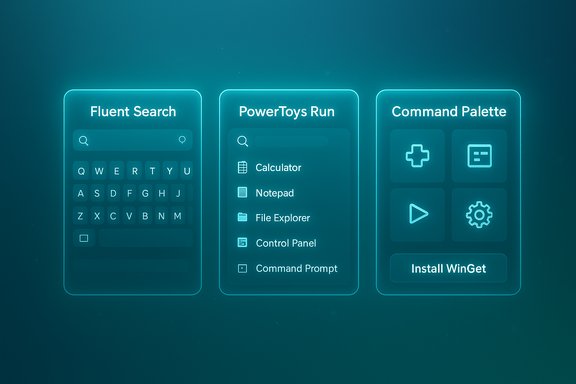
The idea behind using multiple search utilities at once isn’t redundancy—it’s specialization. The MakeUseOf author’s workflow separates duties among:- Fluent Search for deep local search and in‑app/screen content.
- PowerToys Run for instant app launching and quick commands.
- Command Palette (PowerToys’ successor to Run) for extensibility, WinGet integration, and advanced workflows.
Fluent Search: the fast, keyboard‑first deep searcher
What it is and what it does
Fluent Search is a dedicated desktop search and launcher that ships with a native file indexer, a screen search (keyboard‑controlled overlays and OCR), in‑app content search, and a plugin architecture. It’s designed to be a true “second brain” for finding files, open tabs, buttons, and other on‑screen UI elements. The app’s website and docs highlight features like a native indexer optimized to minimize CPU use, Screen Search with OCR for non‑selectable text, and search “apps” for things like browser history and bookmarks.Verified claims and cross‑checks
- Fluent Search maintains its own index and exposes search apps for files, browser data, and screen content—confirmed by the official site and the project’s GitHub repository.
- Default keyboard activation is configurable, and the docs show the common default (Ctrl + Alt) for the main overlay and Ctrl + M for Screen Search activation—so the MakeUseOf description of a center‑screen minimal bar and fast, typed results aligns with the product documentation.
- Fluent Search supports OCR and on‑screen element detection, which is a differentiator versus many launchers that only index names and paths. The product documentation explicitly describes OCR settings and language tags.
Strengths
- Deep local awareness: Fluent Search can locate UI elements, open browser tabs, and invisible on‑screen text with OCR—useful when the thing you want is inside an app rather than a filesystem item.
- Local indexer: Because it manages its own lightweight index, Fluent Search avoids some of the startup and background churn associated with rebuilding a full Windows index on large volumes.
- Customizability: Hotkeys, themes, extension plugins, and search tags let you tune the result ordering and scope.
Limitations and cautions
- Single‑maintainer risk: Fluent Search is a focused project with a small developer team; users should be mindful of update cadence and verify new releases before deploying widely in enterprise environments. The project is active on GitHub and distributed in multiple builds (installer, portable, store), but the codebase and supply chain model matter for security‑conscious deployments.
- Permissions and privacy: Fluent Search indexes browser history and local storage to offer web‑related results. These are processed locally—but users should audit settings and understand what is being read and stored by the indexer. The app’s docs explain profile selection and indexing options.
PowerToys Run: the nimble quick‑launcher
Purpose and behavior
PowerToys Run is a tiny, fast launcher bundled with Microsoft PowerToys. It focuses on app and file launching, quick calculations, and a handful of system commands. Its default hotkey is Alt + Space (customizable), and its behavior follows the classic “Quick Launcher” model: press the hotkey, start typing, and the matching apps/files/commands appear instantly. Microsoft’s PowerToys documentation and release notes make clear that Run is lightweight and meant for micro‑interactions.Where it shines
- Speed and simplicity: Run is fast to invoke and returns results quickly, making it ideal for short, repetitive tasks.
- Lightweight footprint: Implemented as a PowerToys module, it’s minimal in resource use when idle.
- Small utility features: Inline calculations, system commands, and small utilities (calculator, shutdown/hybernate via commands) add real‑world time savings.
Known quirks and risks
- Hotkey conflict: Alt + Space is a long‑standing Windows shortcut for the window title menu; PowerToys Run’s default mapping has been controversial and triggered multiple GitHub issues and user reports. You may wish to change the default hotkey to avoid interfering with legacy window management shortcuts.
- Functional overlap with Command Palette: Microsoft’s PowerToys team explicitly positioned Command Palette as the next‑generation successor to Run. Run still works, but users should consider that Command Palette is intended to supersede it.
Command Palette: PowerToys’ extensible successor
What Command Palette adds
Command Palette is PowerToys’ modern replacement/upgrade to Run. It preserves the quick‑launch experience but adds a full extension model, WinGet integration for app installation, richer system commands, and better integration for developer workflows. Microsoft’s documentation describes the Canvas: a launcher invoked by Win+Alt+Space by default (customizable) that supports prefix tokens (for commands), plugin aliases, and extension installation. The Verge and other outlets have covered Command Palette’s arrival as PowerToys’ flagship launcher.Extensibility and ecosystem
- Extensions and SDK: Command Palette supports C# extensions and ships with templates to generate new plugins from within the palette itself. Microsoft provides sample projects and a developer guide to create and deploy extensions. That makes CmdPal attractive for teams or users who want to build internal tools (Winget installers, Steam or Git integrations, converters, QR readers).
- Everything integration (ECP): Community extensions like EverythingCommandPalette (ECP/ECP3) connect Command Palette to Everything for millisecond filename lookups. That combination gives you both the extensibility of CmdPal and the instant filename search of Everything’s NTFS‑based indexer.
Strengths
- Extensible by design: The extension model is the defining strength—enterprise IT teams can create curated commands and distribute them, and hobbyists can assemble a personal command center.
- WinGet integration: You can search for and install applications directly from the palette, which is a practical time‑saver when setting up new machines.
- Window Walker integration: It absorbs PowerToys’ Window Walker functionality to quickly switch windows/tabs.
Limitations and cautions
- Complexity: Command Palette’s power comes with complexity—if you only want a tiny, minimal launcher, Command Palette may be overkill.
- Hotkey ergonomics: Default hotkey Win+Alt+Space has raised usability questions and conflicts in some workflows; the setting is changeable, but users should test and adjust.
Everything (Voidtools) — the speed champion for filenames
Everything uses the NTFS USN Journal to maintain a tiny in‑memory database of every file name and path on NTFS volumes. Because it indexes only names and paths (by default), it can respond in milliseconds even on multi‑terabyte systems while using a fraction of the resources of a full content indexer. Voidtools’ documentation and FAQ confirm everything’s architecture, low RAM footprint, and support for real‑time updates via the USN Journal. Pairing Everything with a launcher (via the Command Palette Everything extension or other bridges) gives near‑instant file path results.How to combine Everything with Command Palette
- Install Everything and ensure it’s running (the non‑lite version is recommended for IPC with extensions).
- Install the EverythingCommandPalette extension (ECP/ECP3) from its GitHub or the Microsoft Store; configure the extension to point to the Everything instance if needed.
- Use the palette to query filenames with Everything’s millisecond response while retaining the extensibility of CmdPal. Implementation notes and configuration options are documented in the extension’s repo and wiki.
Putting it together: a recommended setup
- Install PowerToys and enable Command Palette (or keep Run for minimalism). Configure the hotkey so it does not conflict with OS shortcuts (Win+Alt+Space is default; many users prefer Win+Space or Ctrl+Space—test for conflicts with input methods).
- Install Fluent Search and configure it to index the folders you rely on (Documents, Projects, large app data) and enable Screen Search/OCR if you need to interact with in‑app or non‑selectable content. Customize the main overlay hotkey to something ergonomic like Ctrl+Alt or Ctrl+Space.
- Install Everything for lightning‑fast filename lookups. Configure it to include the drives you want and enable the HTTP or IPC options if needed for extensions.
- If you want Everything results inside Command Palette, install the EverythingCommandPalette extension (ECP/ECP3) and confirm the Everything process is running. Test that CmdPal queries are returning file paths and that any hotkeys inside the extension don’t conflict with your global shortcuts.
- Audit privacy and security: verify which browser profiles Fluent Search is indexing, review PowerToys’ list of enabled extensions, and ensure all installers come from trusted channels (Microsoft Store, official GitHub, or vendor pages). Keep a restore point before making system‑wide changes.
Strengths — why this setup is compelling
- Performance on demand: Everything + Command Palette provides millisecond filename lookups while PowerToys/Fluent Search fill gaps for commands and in‑app content.
- Keyboard‑first productivity: All three tools emphasize keyboard navigation, reducing context switches and mouse dependency for heavy keyboard users.
- Extensibility and automation: Command Palette’s extension SDK and Fluent Search’s plugin model enable complex workflows like Winget‑based installs or Steam library launches directly from the launcher.
- Incremental adoption: Each tool can be trialed independently; you don’t need to rip out Windows Search to get immediate wins.
Risks, caveats, and what to watch for
- Hotkey collisions and system shortcuts: PowerToys Run originally used Alt+Space, which conflicts with a longstanding Windows shortcut and created user friction and GitHub issues. Command Palette uses Win+Alt+Space by default—test and change shortcuts to match your muscle memory.
- Extension trust and supply chain: Extensions are powerful but increase attack surface. Only install extensions from trusted authors or repositories and, in enterprise settings, treat extension deployment like software deployment (review code or vendor reputation).
- Index duplication and storage: Running multiple indexers (Windows Search, Fluent Search, Everything) can duplicate indexing work and storage usage. If disk space or privacy is a concern, adjust which systems index what: keep Everything for names, Fluent Search for in‑app and UI search, and disable whole‑PC Enhanced indexing if you don’t need it. Microsoft documents how to switch indexing modes and what each mode indexes.
- Battery and CPU during heavy indexing: Index rebuilds or first‑run indexing can spike CPU and disk IO. This is a known behavior for Windows Search and can also happen in third‑party indexers during initial scans. Schedule initial indexing on AC power or during idle times.
- Enterprise compliance: Corporate devices may have policies preventing third‑party indexing or restricting background services. Validate with IT before deploying widely.
Troubleshooting and practical tips
- If your hotkeys don’t work: check for conflicts with IME/language switching (Win+Space or other system shortcuts), use PowerToys’ hotkey conflict tool, and enable low‑level keyboard hooks if an overlay fails to capture input.
- If Everything results don’t appear inside CmdPal: ensure Everything is running (non‑lite version when required), and check that the CmdPal extension’s instance name is set correctly. The extension’s wiki and GitHub issues are helpful for configuration details.
- If Windows Search is consuming excessive CPU: visit Settings → Privacy & Security → Searching Windows to choose Classic or Enhanced indexing modes, or rebuild the index from Advanced indexing options. Microsoft’s support doc explains tradeoffs and how indexing behaves.
Final analysis: how many launchers do you actually need?
The MakeUseOf author’s three‑app configuration is a pragmatic, user‑driven approach that balances speed, coverage, and extensibility. For most users:- If you need only minimal app launching and occasional calculations: PowerToys Run (or even the Start menu) will suffice.
- If you need to find files by name across massive datasets in milliseconds: Everything is unmatched.
- If you need to interact with UI elements, browser tabs, or non‑selectable on‑screen text: Fluent Search’s Screen Search and OCR make it uniquely useful.
- If you want a future‑proof, extensible command center with WinGet, developer extensions, and system commands: Command Palette is the direction Microsoft is investing in now.
Conclusion
The MakeUseOf author’s working setup is not an indulgent accumulation of widgets; it’s a considered strategy that answers concrete problems in distinct ways. Fluent Search, PowerToys Run/Command Palette, and Everything each bring unique strengths—deep UI search and OCR, instant app and command launches, and millisecond filename lookup, respectively. Together they form a cohesive, keyboard‑centric toolkit that sidesteps many of Windows Search’s friction points while remaining configurable and extensible. For anyone frustrated by slow or noisy results from the built‑in indexer, trialing one or two of these tools—and tuning hotkeys, privacy settings, and indexing scope—can deliver a measurable, lasting productivity boost.
Source: MakeUseOf I use three search apps on Windows 11 — and each one solves a different problem
