

FlyOOBE’s latest publicized build — the release labeled 2.3.833 in community listings — doubles down on what the project has become: a compact, technician-friendly Out‑Of‑Box Experience (OOBE) toolkit that automates installer routing, first‑boot personalization, debloat profiles, and a GUI wrapper for advanced feature‑flag toggles (ViVeTool), while also surfacing the hard trade‑offs that come with bypassing Microsoft’s hardware checks.
FlyOOBE began life as Flyby11: a focused community utility designed to let technically inclined users and refurbishers run an official Windows image on hardware that Microsoft’s retail installer would otherwise block. Over successive releases the project intentionally expanded into a broader provisioning tool: it now orchestrates ISO acquisition, applies well‑known LabConfig/registry edits, steers Setup into alternate code paths, and adds post‑install automation such as debloat profiles, account choices, and scriptable provisioning. The result is a single, portable executable aimed at reproducible day‑one configurations for technicians and small IT teams.
Two implementation details matter because they define both FlyOOBE’s utility and its limits. First, FlyOOBE packages orchestration techniques (server‑variant setup routing and LabConfig registry flags) rather than kernel‑level exploits; it does not modify Windows kernel code or create hardware features out of thin air. Second, it bundles a GUI for ViVeTool — the community console app used to flip Windows feature flags by numeric IDs — so advanced toggles that used to require command‑line familiarity can be performed inside a friendly interface. Both design choices make the product powerful and convenient, but also introduce the usual supply‑chain and privilege considerations that accompany any elevated installer helper.
What the recent 2.x preview cycle does emphasize — across multiple changelogs — is:
Mitigations:
Mitigations:
Mitigations:
That said, the tool’s convenience requires disciplined operational controls. Always verify release assets against the official repository, run workflows in test environments first, require code review for any PowerShell extension, and accept that upgrades performed with bypass tooling are unsupported — meaning future updates and security patches may be unreliable or behave unpredictably. Organizations that need guaranteed update behavior or warranty compliance should not use FlyOOBE as a policy; hobbyists and refurbishers who accept the risk‑reward tradeoff will find it useful.
Source: Neowin https://www.neowin.net/amp/flyoobe-23833/
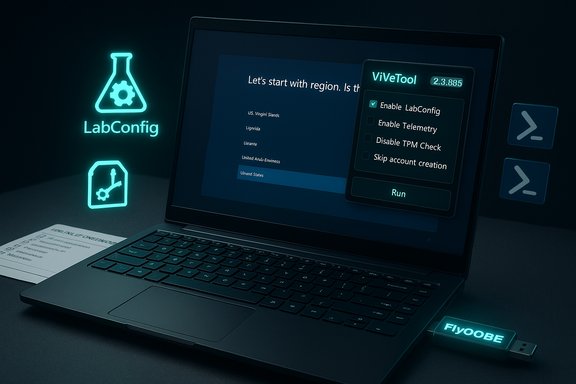 Background / Overview
FlyOOBE began life as Flyby11: a focused community utility designed to let technically inclined users and refurbishers run an official Windows image on hardware that Microsoft’s retail installer would otherwise block. Over successive releases the project intentionally expanded into a broader provisioning tool: it now orchestrates ISO acquisition, applies well‑known LabConfig/registry edits, steers Setup into alternate code paths, and adds post‑install automation such as debloat profiles, account choices, and scriptable provisioning. The result is a single, portable executable aimed at reproducible day‑one configurations for technicians and small IT teams.Two implementation details matter because they define both FlyOOBE’s utility and its limits. First, FlyOOBE packages orchestration techniques (server‑variant setup routing and LabConfig registry flags) rather than kernel‑level exploits; it does not modify Windows kernel code or create hardware features out of thin air. Second, it bundles a GUI for ViVeTool — the community console app used to flip Windows feature flags by numeric IDs — so advanced toggles that used to require command‑line familiarity can be performed inside a friendly interface. Both design choices make the product powerful and convenient, but also introduce the usual supply‑chain and privilege considerations that accompany any elevated installer helper.
What FlyOOBE actually does — technical primer
Two pragmatic bypass techniques
FlyOOBE focuses on two widely used, documented approaches to get Windows Setup past front‑end compatibility checks:- Server‑variant setup routing: historically the Windows Server installer entry point performs fewer consumer‑side compatibility checks. FlyOOBE can invoke or emulate that path so a retail Windows image proceeds where the consumer installer would otherwise stop on TPM, Secure Boot, or CPU checks. This is an orchestration of existing Setup code paths, not a modified OS image.
- LabConfig / registry edits and light media steering: for in‑place upgrades, Setup recognizes a small set of keys (commonly called LabConfig or AllowUpgradesWithUnsupported* flags) such as BypassTPMCheck and BypassCPUCheck. FlyOOBE automates creation of these entries or applies small wrapper logic around official ISOs so Setup ignores selected checks. These edits are auditable registry changes applied during setup orchestration.
OOBE automation and provisioning
FlyOOBE’s real value for technicians is the day‑one automation layer. It lets operators:- Skip forced Microsoft account sign‑in and create local accounts during OOBE.
- Bypass network/region checks to finish OOBE offline or in restricted environments.
- Apply curated debloat profiles (Minimal, Balanced, Full) that remove or unprovision Appx packages and OEM utilities.
- Run PowerShell extensions (scriptable setup hooks) during first logon to install drivers, security agents, or management tooling.
- Toggle hidden Windows feature flags through an integrated ViVeTool GUI for one‑click enable/disable operations.
What’s new (and uncertain) in the 2.3.833 listing
Community posts and aggregate summaries refer to a build labeled 2.3.833 and describe continued UX polish, faster startup, and expanded ViVeTool integration. However, at the time of the public reporting the precise release tag and asset for 2.3.833 could not be conclusively matched to a single GitHub release entry; users should therefore verify any build number against the project’s official Releases page before trusting a downloaded binary. That caveat is explicitly recommended by maintainers and repeated in community commentary.What the recent 2.x preview cycle does emphasize — across multiple changelogs — is:
- UI and responsiveness improvements (faster startup, smaller memory footprint).
- Consolidation of the legacy Flyby11/UpgradeOOBE logic into the main toolkit, with a clearer separation so the upgrade component can be removed if you only want OOBE features.
- Improved extensions metadata and safer logging for PowerShell hooks, including author/source display for third‑party extensions.
- Better ViVeTool integration: a GUI wrapper that reduces friction for feature‑flag toggles and attempts to show errors/status inline.
Step‑by‑step: a conservative, safe workflow for ViVeTool toggles through FlyOOBE
These steps condense the recommended, low‑risk pattern for using FlyOOBE’s ViVeTool integration. Read everything before you act; these operations run with elevated privileges and can alter the runtime feature store.- Backup first.
- Create a full block‑level disk image (not just file backups) so you can fully restore the device if something goes wrong.
- Verify the binary.
- Download FlyOOBE only from the project’s official GitHub Releases page and verify SHA‑256 checksums when provided. Never use third‑party mirrors.
- Test in a VM or sacrificial hardware.
- Validate the exact combination of Windows build + feature ID in a virtualized environment first; feature IDs can be build‑specific.
- Run FlyOOBE elevated.
- Unpack the ZIP, right‑click the executable, and choose “Run as administrator.” The tool needs elevation to write registry flags and to run ViVeTool.
- Use the ViVeTool module.
- Open the ViVeTool tile/module inside FlyOOBE, paste the numeric feature IDs, choose enable/disable, and follow the tool’s prompts. Always cross‑check IDs against reputable community lists and confirm they exist on your target Windows build. Reboots are often required.
- Verify results and create a recovery point.
- After a successful toggle and reboot, confirm the system’s behavior, update history, and build number. Then capture a fresh disk image if everything looks correct.
Risks, limitations and mitigation
FlyOOBE solves real operational problems, but those gains come with clear tradeoffs. The most important risk domains are supply‑chain security, update fragility, and security‑feature erosion.1) Supply‑chain and malware risk
Tools that run during setup and require admin rights are prime targets for impersonation. The FlyOOBE maintainer has publicly warned about counterfeit mirrors distributing tampered builds; community reporting has documented at least one impersonation attempt. The safest distribution model is the official GitHub Releases page with checksum verification. Auditors should treat any unsigned/third‑party rehosted binary as suspect.Mitigations:
- Always verify SHA‑256 checksums.
- Prefer air‑gapped or controlled download channels in enterprise imaging labs.
- Digitally sign your provisioning scripts and vet third‑party extensions before running them.
2) Update fragility and long‑term support gaps
Microsoft’s policy is explicit: installing Windows on unsupported hardware may affect update eligibility. Devices upgraded through bypass techniques are not guaranteed future feature or security updates; servicing rules can and do change. This creates a maintenance liability: a device that boots today may fail to receive future patches or might break on a major feature update that reintroduces checks.Mitigations:
- Reserve unsupported upgrades for non‑critical systems or devices where permanent vendor support is not required.
- Maintain a clear migration plan and regular audit process for patched status.
- Keep rollback images and official install media available.
3) Security‑feature erosion
Bypassing TPM and Secure Boot checks does not create a TPM or restore firmware‑anchored protections. Features that rely on hardware attestation (measured boot, BitLocker with TPM‑backed keys, hardware credential protection) will be weakened or unavailable. This is not a cosmetic change; it materially reduces the platform’s ability to resist certain firmware and OS‑level threats.Mitigations:
- If you must run on unsupported hardware, apply compensating controls: strong local encryption keys, hardened account policies, and limited network exposure.
- Consider using software‑based encryption cautiously and understand its threat model versus hardware‑backed protections.
Operational recommendations for refurbishers and small IT teams
- Use FlyOOBE for reproducible provisioning, not as a general support policy. Its value is in automation and day‑one shaping, not in delivering vendor support compliance.
- Build standardized imaging workflows: prepare official ISOs (via known scripts), use Rufus or enterprise imaging tools for USB creation, then run FlyOOBE from the boot environment or immediately after first login to perform OOBE customizations. This hybrid approach pairs fast media creation with per‑device polish.
- Maintain a minimal, audited extension library. Prefer internally curated PowerShell extensions or those from known community maintainers with published source and metadata visible in the FlyOOBE extensions engine.
- Keep a post‑deployment checklist: verify Windows Update, confirm virtualization and BitLocker status, and re‑apply any necessary vendor drivers. Treat any device that fails to receive updates as a high‑risk asset.
How FlyOOBE compares with related tooling
FlyOOBE and tools such as Rufus or raw ViVeTool serve complementary roles:- Rufus: excels at creating bootable USB media and now offers UI checkboxes to steer Setup behavior on the boot media itself. Use Rufus for fleet USB creation and standardized installs.
- ViVeTool: a console utility that toggles Windows feature IDs by numeric code; FlyOOBE’s ViVeTool wrapper simply provides a GUI for the same underlying actions. ViVeTool remains the canonical command‑line tool for users who prefer scriptable automation outside FlyOOBE.
- FlyOOBE: focuses on the OOBE — first sign‑in choices, debloat, PowerShell extensions, and integrated checks. It’s the orchestration layer that sits alongside media creation and lower‑level toggles. For many refurbishers the trio forms a full provisioning stack: Rufus for media, FlyOOBE for OOBE shaping, and ViVeTool for targeted feature experiments.
Strengths — why FlyOOBE matters
- Repeatable provisioning: profiles and extensions enable consistent, reproducible device images across many machines, saving hands‑on time.
- Day‑one control: the tool surfaces OOBE choices that can remove telemetry nudges, skip Microsoft account enforcement, and disable AI surfaces like Copilot during first boot.
- Open‑source transparency: code and changelogs on GitHub let auditors and operators inspect exactly what FlyOOBE does rather than rely on an opaque patched ISO.
- Small, portable footprint: a no‑install executable designed for USB toolkits and quick provisioning runs.
Weaknesses and open questions
- Operational brittleness: FlyOOBE relies on current Windows Setup behavior. Microsoft can change Setup code paths or enforcement rules in a feature update, breaking bypass paths. This makes any unsupported upgrade a probabilistic long‑term maintenance burden.
- Supply‑chain threats: the presence of counterfeit mirrors and trojanized builds in the ecosystem is a real hazard; checksum verification and strict download hygiene are mandatory.
- Partial eradication of AI surfaces: removals are largely configuration and package‑level; cumulative updates can restore removed components, so “removing Copilot” via provisioned package changes is not an immutable guarantee. Expect some re‑introduction through future servicing.
Final assessment and practical verdict
FlyOOBE is now a mature, pragmatic toolkit for a defined audience: refurbishers, technicians, enthusiasts, and small IT teams who value repeatable provisioning and day‑one control over strict vendor support guarantees. Its combination of installer routing, OOBE automation, debloat profiles, and integrated ViVeTool support fills an operational niche that used to require several separate scripts and manual steps. For those users, FlyOOBE can materially reduce labor, lower e‑waste by extending device life, and standardize privacy‑oriented first‑boot states.That said, the tool’s convenience requires disciplined operational controls. Always verify release assets against the official repository, run workflows in test environments first, require code review for any PowerShell extension, and accept that upgrades performed with bypass tooling are unsupported — meaning future updates and security patches may be unreliable or behave unpredictably. Organizations that need guaranteed update behavior or warranty compliance should not use FlyOOBE as a policy; hobbyists and refurbishers who accept the risk‑reward tradeoff will find it useful.
Practical checklist (quick reference)
- Backup: full disk image before any attempt.
- Source hygiene: download only from the official GitHub Releases page and verify SHA‑256 checksums.
- Test: validate changes in a VM or sacrificial hardware.
- Audit: review any PowerShell extension code and prefer known authors.
- Harden: apply compensating controls if TPM/Secure Boot are bypassed (restricted network, strong local protections).
Source: Neowin https://www.neowin.net/amp/flyoobe-23833/
