

A new update to the popular FlyOOBE utility has added a targeted way to hunt down and remove Windows 11’s built‑in AI surfaces — but it also brings the exact trade‑offs that make deep OS surgery both powerful and risky for enthusiasts and admins alike.
FlyOOBE (formerly Flyby11) began life as an Out‑Of‑Box Experience toolkit and installer helper that lets power users customize and debloat Windows installs during setup. Over time it grew into a broader toolkit: OOBE customization, one‑click debloat presets, hardware‑bypass helpers for some unsupported upgrades, and an extensions system for repeatable setup profiles. The project is actively maintained on GitHub and has moved quickly through preview and stable releases, with the developer positioning FlyOOBE as a lightweight, pragmatic tool for users who want more control over how Windows 11 is configured from the first boot. The headline in this release cycle is FlyOOBE version 2.4.854, which introduces a new “Slopilot” detection and control surface and integrates optional deep cleanup capabilities that can invoke external tooling such as RemoveWindowsAI. The developer frames Slopilot not as an anti‑AI statement but as a pro‑choice control — a way for users to discover what Microsoft has added under the label “AI” and decide what they want to keep.
For readers who prize control and are comfortable with risk: Slopilot plus RemoveWindowsAI is a pragmatic, documented solution. For most others: prefer supported controls, staged testing, and a conservative, repeatable approach to system management. In every case, verify download sources, test extensively, and be ready to restore if a future update exposes the kinds of servicing fragility these tools can produce.
Source: TechRadar https://www.techradar.com/computing...-11s-ai-features-but-id-proceed-with-caution/
 Background / Overview
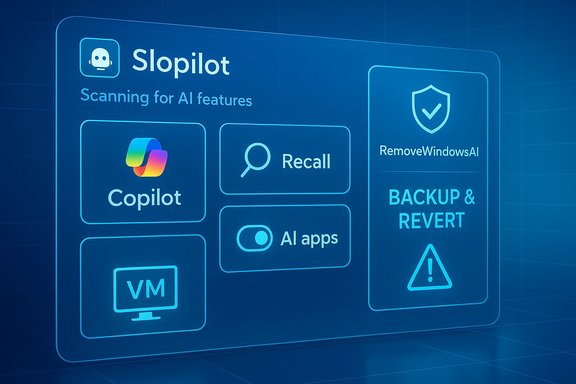
FlyOOBE (formerly Flyby11) began life as an Out‑Of‑Box Experience toolkit and installer helper that lets power users customize and debloat Windows installs during setup. Over time it grew into a broader toolkit: OOBE customization, one‑click debloat presets, hardware‑bypass helpers for some unsupported upgrades, and an extensions system for repeatable setup profiles. The project is actively maintained on GitHub and has moved quickly through preview and stable releases, with the developer positioning FlyOOBE as a lightweight, pragmatic tool for users who want more control over how Windows 11 is configured from the first boot. The headline in this release cycle is FlyOOBE version 2.4.854, which introduces a new “Slopilot” detection and control surface and integrates optional deep cleanup capabilities that can invoke external tooling such as RemoveWindowsAI. The developer frames Slopilot not as an anti‑AI statement but as a pro‑choice control — a way for users to discover what Microsoft has added under the label “AI” and decide what they want to keep. What’s in FlyOOBE 2.4 (the short list)
- Slopilot: a refined detection layer for AI‑labelled components across Windows 11 that surfaces packages, scheduled tasks, and settings the tool believes relate to AI features.
- Optional deep cleanup: FlyOOBE can optionally hand off to or coordinate with third‑party tools such as RemoveWindowsAI to perform more aggressive removals.
- Browser and OOBE improvements: improved browser detection and a more accurate extensions engine.
- Global search and personalization enhancements, with smaller internal optimizations and stability fixes.
What RemoveWindowsAI is — and why FlyOOBE links to it
RemoveWindowsAI is an open‑source PowerShell project (maintained under the handle “zoicware”) that consolidates a set of community‑sourced techniques to remove or neutralize first‑party AI features in Windows 11. At a high level the project can:- Flip registry and policy keys to hide or disable UI toggles (Copilot, Recall, Input Insights, AI Actions).
- Remove Appx/MSIX packages (both installed and provisioned manifests) for Copilot, Recall and various AI components in Paint, Notepad and other inbox apps.
- Delete scheduled tasks and local data used by features like Recall.
- Attempt to remove or neutralize Component‑Based Servicing (CBS) entries and optionally install a custom blocker package so Windows Update treats the component as intentionally blocked.
Technical breakdown: what “deep cleanup” actually touches
Understanding the layers RemoveWindowsAI can affect is crucial to deciding whether to run it.- Registry / Policy edits (least invasive). These are the feature flags Microsoft exposes (and equivalents used internally) that show or hide UI elements such as the Copilot button or the Recall activation toggle. Reversible and low risk when used alone, these changes do not delete packages.
- Appx/MSIX removal (moderate risk). The script invokes Remove‑AppxPackage for user installs and Remove‑AppxProvisionedPackage to strip provisioned manifests so that new accounts do not receive the app. Removing visible packages is usually straightforward; altering provisioned manifests is more invasive because it changes how new profiles (and sometimes OEM customizations) are provisioned.
- Scheduled tasks and local data cleanup (destructive). Recall stores locally captured snapshots and indices. The script removes the scheduled tasks and deletes local indices — privacy‑preserving in one sense, but irreversibly destructive for anyone who relied on those snapshots for recovery or search.
- CBS surgery and blocker packages (highest risk). This is the most consequential action: manipulating the Component‑Based Servicing inventory or installing a custom blocker package forces Windows Update and provisioning mechanics to treat the targeted packages as intentionally blocked. That durability is appealing but intentionally diverges a machine’s servicing inventory from Microsoft’s expected baseline — and that divergence is what most experts warn can cause upgrade/feature‑update fragility later.
Strengths: why FlyOOBE + RemoveWindowsAI are attractive to many users
- One‑stop visibility and action. Slopilot surfaces items that previously required manual hunting through Settings, Package manifests, and scheduled tasks. That discovery workflow is valuable to users who want transparency before action.
- Automation for power users. Combining detection and optional hand‑off to a trusted community script saves many tedious steps and reduces human error when the goal is to surgically remove unwanted features.
- Open‑source, documented approach. RemoveWindowsAI’s repository is public; the operations it performs (and their risks) are plainly listed, which helps experienced admins and testers audit and validate changes before they run them at scale.
- Revert/Backup modes. The removal script documents backup and revert options; while not a perfect safety net, these mitigations are a meaningful improvement over opaque “one‑and‑done” deletions.
Risks and the real trade‑offs (what the headlines often miss)
- Servicing divergence = upgrade fragility. Manipulating CBS and installing blocker packages means your machine no longer matches Microsoft’s expected servicing inventory. That can lead to Windows Update refusing certain changes, failing feature updates, or reintroducing components unpredictably. This is not hypothetical; reviewers and community testers repeatedly flag this as the primary long‑term danger.
- Data loss in cleanup. Deleting Recall indices and snapshot stores permanently removes those local records unless you have an external backup. For users who use Recall for productivity or recovery, the deletion is final.
- False positives from AV and supply‑chain risk. Heavy modification scripts are frequently flagged as malicious by anti‑virus engines. The RemoveWindowsAI README itself warns of false positives; conversely, FlyOOBE has had copycat or fake distributions in the wild, creating a separate malware risk if users download from unofficial sources. Always verify downloads and checksums.
- Unpredictable OEM/custom builds. Machines with OEM customizations or enterprise image overlays can behave differently; package families used by multiple features may create surprising dependencies. What removes “Copilot” on one PC might break an unrelated feature on another.
- Support and compliance consequences. Corporate or managed devices that deviate from vendor‑supplied servicing inventories may lose formal support or fail compliance scans. For enterprise use, an official, tested management plan is the safer path.
Practical guidance: how to approach FlyOOBE 2.4 + RemoveWindowsAI safely
- Back up first. Create a full system image and export any data you can’t re‑create. Relying on a simple restore point is insufficient for servicing‑level changes.
- Test in a VM or spare machine. Validate removals and reboots, then simulate feature updates to observe how the servicing inventory behaves.
- Use FlyOOBE for discovery, not blind automation. Let Slopilot show you what exists; decide which items you want to toggle or remove and document the intended changes.
- Enable backup/revert mode in RemoveWindowsAI if you decide to run it; keep the revert bundle safe offline.
- Avoid CBS blocker installs on production devices unless you understand update rollback and recovery steps. Treat blocker packages as experimental.
- Use FlyOOBE 2.4 Slopilot to generate a report of detected AI components.
- Manually review the list and mark items you intend to disable with registry/policy flips only.
- Reboot and validate functionality (search, Office, peripherals).
- If you still want durable removal, test RemoveWindowsAI in backup mode on a VM, run through the revert process, and test a simulated feature update.
- Proceed to your production machine only after repeated successful tests.
Alternatives and less invasive options
- Official Settings & Group Policy controls. Microsoft still exposes supported toggles (Copilot button, Recall settings, privacy toggles). These should be exhausted first because they maintain servicing consistency.
- Enterprise management policies. Intune, Group Policy and CSPs can centrally manage many AI surfaces without needing to rewrite servicing metadata. Organizations should invest in supported controls rather than community servicing surgery.
- Targeted app uninstalls. Remove specific inbox apps via Add/Remove programs and script supported removals rather than indiscriminate CBS surgery. This reduces upgrade risk.
Supply‑chain and authenticity: why download provenance matters
FlyOOBE’s popularity makes it a target for copycats. Security outlets have flagged fake or malicious distributions pretending to be FlyOOBE, which underscores the importance of downloading from the official GitHub repository or the project’s verified website, and verifying checksums. Similarly, RemoveWindowsAI is a community script published on GitHub; confirm author handles and repository integrity before running code with Administrator privileges. Never circumvent AV permanently to run unsigned scripts without a thorough audit.The numbers and the narrative
FlyOOBE’s developer has cited millions of downloads in recent months, reflecting the appetite among enthusiasts for more control over Windows 11’s setup and bloat. Independent reporting and aggregator sites show the project surging in popularity alongside viral interest in scripts that remove AI surfaces. Those raw download numbers are developer‑reported and should be treated as an indicator of popularity rather than a quality or safety guarantee. RemoveWindowsAI likewise went viral in community channels and mainstream coverage, with reviewers noting both the breadth of its reach and the bluntness of some of its operations. Both projects are emblematic of a modern tension: users want agency over platform features, and community tooling will fill gaps where official options feel incomplete — sometimes at the cost of long‑term reliability.Final analysis: who should use FlyOOBE 2.4 + RemoveWindowsAI, and who should not
- Use it if: you are an experienced Windows power user, sysadmin or hobbyist who understands Windows servicing mechanics; you can test in virtualized environments; you need durable opt‑outs for privacy, performance, or policy reasons; and you accept the maintenance burden that may follow.
- Avoid it if: you manage production or corporate endpoints subject to vendor support, you lack a tested recovery plan, you run critical workflows that depend on intact upgrade chains, or you are unwilling to troubleshoot servicing‑related update failures.
Conclusion
FlyOOBE 2.4 adds a valuable discovery surface and an explicit integration path to aggressive, community‑driven cleanup tooling. It gives users clearer visibility into the AI features that Microsoft now surfaces across Windows 11 and offers an easier path to remove what they don’t want. Those capabilities meet a real user need — but they also require respect for servicing mechanics, disciplined testing, and robust backup strategies.For readers who prize control and are comfortable with risk: Slopilot plus RemoveWindowsAI is a pragmatic, documented solution. For most others: prefer supported controls, staged testing, and a conservative, repeatable approach to system management. In every case, verify download sources, test extensively, and be ready to restore if a future update exposes the kinds of servicing fragility these tools can produce.
Source: TechRadar https://www.techradar.com/computing...-11s-ai-features-but-id-proceed-with-caution/
