

FlyOOBE’s latest publicized build promises more polish, deeper OOBE control, and continued support for technicians who need to run or customize Windows installs on hardware that Microsoft’s consumer installer may block — but the release also spotlights the perennial trade-offs of bypass tooling: brittle compatibility, security exposure, and the necessity of rigorous download hygiene.
FlyOOBE started life as Flyby11, a compact community utility whose original purpose was narrowly focused: let technically inclined users and refurbishers bypass strict Windows 11 installer gates (TPM 2.0, Secure Boot, and curated CPU lists) so an official Windows image could be applied to otherwise “unsupported” hardware. Over time the project evolved into a broader Out‑Of‑Box Experience toolkit, adding first‑boot automation, debloat profiles, and scriptable provisioning while keeping the core installer‑routing mechanics auditable and transparent. The project’s public distribution and changelogs are maintained on GitHub and the developer has emphasized official release downloads as the legitimate distribution source. The release referenced in the Neowin listing (FlyOOBE 2.3.833) appears in community chatter and on aggregate software pages, but its precise tag/asset could not be conclusively matched to a single GitHub release entry at the time of this writing; users should therefore treat any specific build number as requiring verification against the official Releases page before trusting an installer binary. The project’s GitHub releases page, release notes, and in‑app security advisories are the canonical sources for version details and checksums.
Source: Neowin https://www.neowin.net/software/flyoobe-23833/
 Background / Overview
FlyOOBE started life as Flyby11, a compact community utility whose original purpose was narrowly focused: let technically inclined users and refurbishers bypass strict Windows 11 installer gates (TPM 2.0, Secure Boot, and curated CPU lists) so an official Windows image could be applied to otherwise “unsupported” hardware. Over time the project evolved into a broader Out‑Of‑Box Experience toolkit, adding first‑boot automation, debloat profiles, and scriptable provisioning while keeping the core installer‑routing mechanics auditable and transparent. The project’s public distribution and changelogs are maintained on GitHub and the developer has emphasized official release downloads as the legitimate distribution source. The release referenced in the Neowin listing (FlyOOBE 2.3.833) appears in community chatter and on aggregate software pages, but its precise tag/asset could not be conclusively matched to a single GitHub release entry at the time of this writing; users should therefore treat any specific build number as requiring verification against the official Releases page before trusting an installer binary. The project’s GitHub releases page, release notes, and in‑app security advisories are the canonical sources for version details and checksums. What FlyOOBE actually does — technical primer
At its core, FlyOOBE combines three distinct capabilities into a single, portable GUI:- Installer routing and compatibility bypasses — steering Windows Setup into alternate code paths (historically, a server‑variant path) or applying well‑known LabConfig/registry flags that tell Setup to skip checks for TPM, Secure Boot, CPU family, or minimum RAM. These are orchestration techniques, not kernel‑level exploits.
- OOBE automation — intercepting and automating first‑boot choices (local account creation, skipping forced Microsoft account sign‑in, privacy defaults, setting a default browser, removing “AI surfaces” like Copilot) and applying curated debloat profiles. These actions are performed via package unprovisioning, policies, and registry edits.
- Scriptable provisioning and extensions — running PowerShell hooks or community extensions during setup to install drivers, push apps, or enforce configuration policies. This gives refurbishers and small IT teams a reproducible workflow for day‑one device state.
Two pragmatic bypass techniques (what FlyOOBE packages)
- Server‑variant setup routing: The Windows Server installation path historically performs fewer consumer‑side preflight checks. FlyOOBE can invoke or emulate that entry point so that a retail Windows image can proceed past some front‑end gating. This results in a stock Windows 11 image being written to disk without the consumer installer quitting on TPM or model checks.
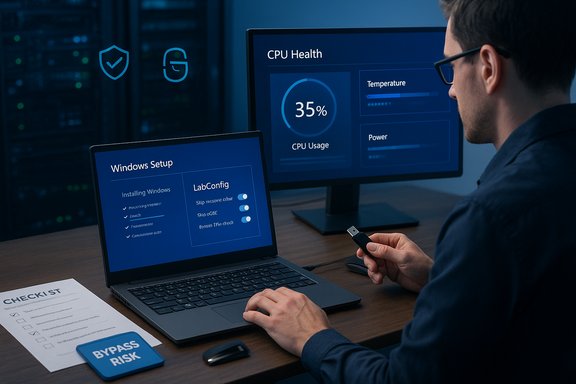
- LabConfig / registry flags and light media steering: For in‑place upgrades, Setup recognizes a small set of flags (commonly referred to in the community as LabConfig) such as BypassTPMCheck and BypassSecureBootCheck. FlyOOBE wraps the creation of these keys or adds small wrapper logic to official ISOs so Setup ignores specific checks. These edits are auditable and reversible in principle.
The new release highlights (what changed in the recent FlyOOBE builds)
Recent FlyOOBE development has been focused less on inventing new bypass tricks and more on making the toolkit more usable, safer to operate, and more appropriate for technician workflows:- UI and UX polish — faster startup, lower memory usage, redesigned action buttons and a consolidated Home dashboard to make common tasks discoverable faster.
- Separation of scope — the upgrade/bypass logic (legacy Flyby11 or UpgradeOOBE) has been made a distinct component from the OOBE toolkit so the surface area for potential AV false positives or supply‑chain tampering is reduced.
- Improved extensions engine — extensions now display author/source metadata, and the system has safer execution hooks and better logging so operators can audit what runs during setup.
- AI surface detection — the tool can scan ISOs / in‑progress installs for AI‑related packages and offer to disable or remove Copilot/Recall appx packages and related taskbar elements at OOBE time. This is implemented via provisioning toggles and unprovision steps rather than deep binary rewrites.
The immutable compatibility limits: POPCNT and SSE4.2
A central technical reality that reshaped this tooling landscape is Microsoft’s move in recent Windows 11 builds (notably 24H2 and later preview builds) to require specific CPU instruction support — POPCNT and, in practice for some builds, the broader SSE4.2 set. These are microarchitectural instructions present in many modern CPUs but missing from older chips (Core 2 Duo era and earlier, or early AMD architectures).- Independent technical reporting and community analysis confirm that Windows 11 24H2 and some preview builds refuse to boot or explicitly block installation on CPUs lacking POPCNT and/or SSE4.2. This is a platform‑level requirement, not a front‑end check that a shortcut can add back in software.
Security, supply‑chain and operational risks — a sober appraisal
FlyOOBE is powerful, but that power carries real and well‑documented hazards:- No hardware protections are created by bypasses. Bypassing TPM or Secure Boot checks does not provide the cryptographic protections those platform features deliver (measured boot, hardware‑backed BitLocker keys, secure credential storage). Systems installed with bypasses remain weaker against firmware and OS‑level attacks.
- Update fragility and unsupported status. Microsoft explicitly states that installing Windows on devices that don’t meet minimum requirements is unsupported; update behavior can be changed by Microsoft at any time. While many community installs keep receiving monthly cumulative updates, that is probabilistic, not guaranteed. Enterprises and production deployments must treat this as an operational risk.
- Elevated script execution risk. FlyOOBE’s extensions run PowerShell scripts with high privilege during setup. Unvetted or third‑party scripts are a vector for backdoors, credential theft, or destructive operations. The tool now shows extension authorship, but every script must be audited before use.
- Supply‑chain impersonation and tampered builds. The project’s maintainer has publicly warned about counterfeit or mirror sites distributing modified, potentially malicious builds. Mainstream outlets have reported on copycat domains hosting trojanized versions of the tool. The developer’s guidance is emphatic: download only from the official GitHub Releases page and verify checksums.
How to use FlyOOBE responsibly — a practical technician checklist
FlyOOBE is a legitimate toolkit for specific users (enthusiasts, refurbishers, lab technicians). Use it only after you accept and manage the trade‑offs. This checklist compresses recommended practices drawn from developer guidance and community experience:- Verify the build and source
- Always download releases from the official GitHub Releases page or the project’s canonical website. Do not use third‑party mirrors. Verify SHA‑256 checksums or signed assets where available.
- Test first
- Rehearse the entire workflow in a virtual machine or a sacrificial device. Confirm that your target CPU supports POPCNT/SSE4.2 and that drivers for key hardware are available. FlyOOBE exposes health checks for CPU instruction support — use them.
- Take image‑level backups
- Create full block‑level images before in‑place upgrades. File‑level backups (File History) are insufficient for a failed upgrade rollback. Maintain recovery media for the original OS version.
- Use conservative debloat profiles
- Start with Minimal or Balanced debloat profiles. Removing deeply integrated packages can break functionality or OEM update paths; escalate only after controlled validation.
- Audit every extension and script
- Only run signed, reviewed, or well‑documented PowerShell extensions. Prefer extensions hosted in the official repository and authored by known maintainers; check the displayed author/source metadata in the UI.
- Treat bypass installs as stopgaps
- For production or security‑sensitive endpoints plan migration to supported hardware. Use FlyOOBE installations where cost/availability constraints make that unavoidable, but not as a permanent enterprise baseline.
Step‑by‑step: a safe baseline workflow (condensed)
- Obtain official Windows ISO from Microsoft and verify it.
- Download FlyOOBE from the official GitHub Releases page and verify SHA‑256.
- Run FlyOOBE from a technician workstation (USB toolkit recommended).
- Run the built‑in health check. If POPCNT/SSE4.2 is missing, stop unless testing on sacrificial hardware.
- Select the desired flow: clean install or in‑place upgrade. Choose a conservative debloat profile.
- Review and enable only audited extensions. Re‑verify extension scripts locally.
- Proceed with setup, monitor logs during OOBE, and validate drivers, BitLocker behavior, and Windows Update post‑install.
Strengths, blind spots and final evaluation
Notable strengths
- Repeatable provisioning: Profiles and extensions let refurbishers produce consistent day‑one states quickly, saving hands‑on time.
- Day‑one user control: Integrated OOBE controls reduce post‑install cleanup by handling account choice, privacy defaults, and AI surface attenuation at setup time.
- Open source and small footprint: Public code and release notes increase auditability; the tool is portable and convenient for on‑site tech work.
Key blind spots and risks
- Update and support fragility: Unsupported installations lack guaranteed servicing and could later fail to receive feature or security updates.
- Security erosion: Bypassing TPM/Secure Boot reduces hardware‑anchored protections that defend against sophisticated firmware and OS attacks.
- Supply‑chain exposure: Copycat domains and tampered builds have been reported; strict download hygiene is mandatory.
Where FlyOOBE makes sense
- Refurbishers and small labs needing fast, repeatable day‑one configs for resale or donation devices.
- Enthusiasts and hobbyists who accept operational risks to extend an older PC’s usable life.
- Test and sandbox environments where unsupported hardware is permissible and rollback options exist.
Closing analysis: balance of value versus risk
FlyOOBE exemplifies a recurring pattern in community tooling: consolidate well‑known, auditable techniques into a polished GUI and you get immense practical value for a specific audience. For technicians and refurbishers the time saved and the reproducibility gained are real and measurable. The project’s emphasis on transparency (open source releases, changelogs, in‑app extension metadata) and on reducing supply‑chain exposure by preferring official ISOs and GitHub releases are pragmatic mitigations. That said, the landscape has hardened: platform‑level requirements such as POPCNT and SSE4.2 are not front‑end checks that can be routed around; they are runtime constraints baked into recent Windows builds. Moreover, the human cost of a trojanized installer or an unreviewed privileged script is catastrophic compared with the convenience of a one‑click setup. The correct posture for any responsible operator is therefore conservative: verify every binary, validate workflows in test environments, maintain rollback images, and plan migration to supported hardware as a long‑term strategy. If you intend to use FlyOOBE, download from the official GitHub Releases or the project’s canonical website, verify checksums, run the health checks, and treat any bypass install as a deliberate, documented compromise with a clear rollback and replacement plan. The tool is powerful and useful — but only when wielded with the discipline and safeguards it demands.Source: Neowin https://www.neowin.net/software/flyoobe-23833/
