

Forty years after the first boxed copies of Microsoft Windows left the factory, one of the operating system’s most recognizable and consequential interface elements — the Start menu — has completed a long, uneven arc from a simple program launcher to a device-aware, scrollable canvas that now links desktops, phones, and AI-driven services.
The Start menu’s origin is inseparable from the consumerization of the PC: Windows 1.0 introduced a graphical shell in 1985, but it wasn’t until Windows 95 that a coherent, persistent launcher and taskbar anchored the desktop experience and created a single entry point for apps, documents, settings, and system controls. The Start concept was designed to make software discoverable for large audiences and to hide the complexity of file and program locations behind a simple menu metaphor. This original design decision reshaped how people approached the PC and has continued to shape Windows design trade-offs ever since. Over four decades Microsoft has repeatedly rethought that entry point — sometimes incrementally, sometimes with radical breaks — to address changing hardware (touchscreens, high‑DPI panels, ARM SoCs), new interaction patterns (search-first workflows, voice, AI), and evolving expectations about discoverability, personalization, and privacy. The Start menu’s story is therefore both a product history and a design case study in how an OS balances backward compatibility, discoverability, and modernization.
Benefits of the Windows 10 approach included:
Key tradeoffs in the Windows 11 Start:
But that potential also raises important governance questions:
For users and IT teams the practical takeaway is simple: approach major shell changes with informed caution, test where appropriate, and use the new toggles provided to tailor Start to your needs. The Start menu’s endurance is a testament to an important truth in interface design: small, well‑placed affordances matter — and when they change, the people who depend on them deserve clarity, choice, and stability.
Source: Windows Central https://www.windowscentral.com/micr...e-windows-start-menu-has-changed-in-40-years/
 Background
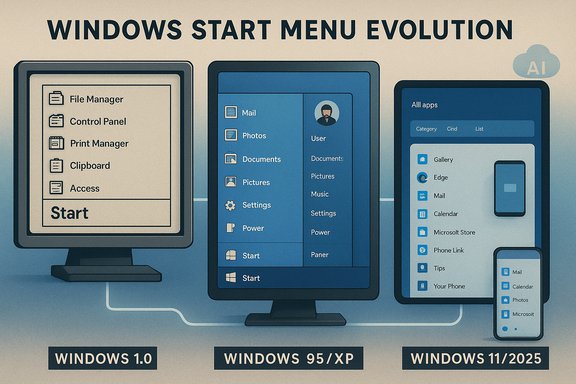
The Start menu’s origin is inseparable from the consumerization of the PC: Windows 1.0 introduced a graphical shell in 1985, but it wasn’t until Windows 95 that a coherent, persistent launcher and taskbar anchored the desktop experience and created a single entry point for apps, documents, settings, and system controls. The Start concept was designed to make software discoverable for large audiences and to hide the complexity of file and program locations behind a simple menu metaphor. This original design decision reshaped how people approached the PC and has continued to shape Windows design trade-offs ever since. Over four decades Microsoft has repeatedly rethought that entry point — sometimes incrementally, sometimes with radical breaks — to address changing hardware (touchscreens, high‑DPI panels, ARM SoCs), new interaction patterns (search-first workflows, voice, AI), and evolving expectations about discoverability, personalization, and privacy. The Start menu’s story is therefore both a product history and a design case study in how an OS balances backward compatibility, discoverability, and modernization. The first two decades: invention, consolidation, and refinement
1985–1994: From tiled windows to a usable shell
Windows 1.0 (shipping to manufacturing November 20, 1985) established the idea of a graphical shell layered over MS‑DOS: small bundled apps, a mouse-driven model, and a constrained visual vocabulary suited to 256 KB–level machines. The early Windows releases prioritized predictable, compact UI components over expressive visuals simply because hardware demanded it. These constraints also planted the mental models — windows, icons, menus — that would make a later centralized launcher meaningful.1995: The birth of the Start menu (Windows 95)
The Start menu as we recognize it debuted with Windows 95 on August 24, 1995. It replaced the Program Manager and provided a hierarchical, discoverable access point for programs, documents, settings, and system commands. The Start button + taskbar combination simplified launching and switching apps and became the defining spatial metaphor for the Windows desktop. That single change made PCs far easier for mainstream users to understand and was pivotal in Windows’ consumer dominance.Late 1990s and Windows Me: incremental additions
Windows 98 and Windows Me kept the Start menu’s basic structure while adding small features — multi‑user logoff, browser Favorites hooks, and update links — that reflected the growing influence of the Internet and the move toward always‑connected machines. These were conservative, compatibility‑first improvements rather than redesigns.The 2000s: personalization, search integration, and social affordances
Windows XP: two columns, more personality
Windows XP (2001) introduced the two‑column Start layout: a left column for pinned and frequently used programs, and a right column for user folders and system features. It added a prominent user picture and soft visual polish that helped the Start menu feel more personal and approachable for a wide audience. The ability to pin frequently used apps prefigured later customization trends and reduced friction for common workflows.Vista and Windows 7: search becomes first‑class
Windows Vista (2007) integrated search into the Start menu, allowing users to find files, settings, and programs without navigating deep hierarchies. Windows 7 (2009) refined that integration and added Jump Lists for quick access to recent files and tasks. These releases moved the Start menu from a static list into a more search-aware launcher — a trend that matched broader shifts toward search-driven interfaces across platforms.The tablet era experiment and the backlash: Windows 8 and 8.1
In 2012 Microsoft made a dramatic break with the Start menu, replacing it with a full‑screen Start screen dominated by Live Tiles and touch‑friendly controls. The design aimed to create a unified mobile/desktop experience, but the tile-first, full‑screen approach was heavily optimized for touch and alienated mouse‑and‑keyboard desktop users. The split between two interaction paradigms created confusion, and Microsoft’s reintroduction of the Start button in Windows 8.1 showed the company responding to strong negative feedback. Windows 8 remains one of the most controversial UX decisions in Microsoft’s history. Lessons from the Windows 8 era are explicit: radical, default‑wide changes to a long‑learned mental model can erode trust and productivity if not handled with optional opt‑ins or clear migration paths.The reconciliation: Windows 10 — hybrid design and extreme customization
Windows 10 (2015) represented a compromise: the Start menu returned and merged classic program lists with Live Tiles in a two‑pane layout. The hybrid model attempted to satisfy both desktop and tablet users and gave administrators and consumers more customization power than previous versions. Windows 10’s Start became a flexible surface — tiles could be resized, rearranged, grouped, or removed; full‑screen Start was optional; and Search became a separate, decoupled experience on the taskbar. For many power users this was the most configurable Start menu Microsoft had shipped.Benefits of the Windows 10 approach included:
- Broad customization options for visual density and pin layout.
- Retention of legacy familiarity for enterprise users.
- Dynamic tile affordances for glanceable information.
Windows 11 (2021): center alignment and minimalism
Windows 11 (announced 2021) reset the Start aesthetic: a centered taskbar, a simplified launcher with static icons replacing Live Tiles, and a focus on rounded geometry, spacing, and a cleaner, more minimalist look. The menu emphasized pinned apps at the top and a “Recommended” feed below for recent files and app suggestions. This more restrained design aimed to modernize Windows for a post‑mobile, cloud‑connected era — but at the cost of many customization options beloved in Windows 10. Critics pointed to restricted sizing, reduced control over content, and the use of the Start canvas for promotional recommendations and cloud nudges.Key tradeoffs in the Windows 11 Start:
- Strength: cleaner visual language, tighter alignment with modern design systems.
- Weakness: reduced ability to resize, fewer tile behaviors, and a stronger tendency to surface Microsoft Store content and cloud services in the Recommended area.
November 2025: a significant redesign and the return of a continuous Start surface
What changed (the practical feature set)
Microsoft shipped a preview of a major Start menu redesign as part of the October 28, 2025 optional non‑security update (KB5067036), packaged for Windows 11 versions 24H2 and 25H2. The redesign elevates the “All apps” inventory to the main canvas, replacing the prior two‑step flow (open Start → click All apps) with a single, vertically scrollable surface that houses:- Pinned — the top area for pinned apps (now wider rows and up to eight icons per row by default).
- Recommended — a middle feed for recent items and suggested apps (now optionally hideable via Settings).
- All — the main, scrollable list of installed apps, available in three views: Category, Grid, and List.
Three “All” views explained
- Category view (default): apps are auto‑grouped into topical buckets (Productivity, Games, Creativity, Communication, Other). The system surfaces frequently used apps within each category.
- Grid view: a denser, alphabetized grid suited for horizontal scanning on widescreens.
- List view: the classic alphabetical list for deterministic, keyboard‑centric workflows.
Rollout mechanics, enablement, and early issues
Microsoft has adopted a staged, server‑side rollout model for this redesign: installing the optional KB (KB5067036) is often necessary but not always sufficient, because feature flags and controlled enablement are used to gate exposure and monitor telemetry. Independent reporting and Microsoft’s Q&A notices confirm that some users with the requisite build numbers still may not immediately see the new Start until server‑side flags flip. The October 2025 preview also surfaced early reliability issues for some users: a Task Manager duplication bug tied to the update was reported by independent outlets and acknowledged in community forums, prompting caution among administrators and power users about rushing to install the optional preview on production machines. Microsoft has provided workarounds while working on fixes. This demonstrates the risk of packaging UX changes alongside servicing updates: new features can activate latent issues in other subsystems.Critical analysis — strengths, risks, and unintended consequences
Strengths: discoverability, adaptability, and cross‑device continuity
- Reduced friction and fewer clicks. Moving the All apps surface to the main canvas eliminates a repeated navigation step, making app discovery faster for users with large app catalogs. This mirrors mobile launcher paradigms that users already understand.
- Flexible browsing modes. Category and Grid views provide alternatives for visual scanning and task‑oriented discovery, which can boost productivity for users who think in terms of what they want to do (task) rather than which app name.
- Responsive layout. Adapting the Start canvas to screen size is a sensible usability optimization for ultrawide, multi‑monitor, and high‑DPI devices.
- Phone Link consolidation. Embedding a Phone Link panel inside Start surfaces mobile continuity features where users are already looking, smoothing simple cross‑device flows like transferring photos and messages.
Risks: complexity, governance, and the “invisible rollout”
- Controlled enablement complicates IT governance. Server‑side feature gating means that fleets may see inconsistent behaviors across identical builds. For IT administrators, staged rollouts are sensible for quality assurance, but they complicate change management and user education.
- Bundling UX with servicing updates can expose fragile subsystems. The Task Manager duplication bug shows how a large UX change delivered through a preview servicing package can interact with unrelated components and cause regressions. Enterprises should test optional previews in isolated labs before broad deployment.
- Automation, recommendations, and privacy implications. The Recommended feed and Phone Link integration are useful, but they are also vectors for promoting store content and cloud services. Microsoft’s toggles to hide recommendations help, but the default experience still nudges users toward Microsoft services and subscriptions — a commercial design choice that merits scrutiny around discoverability vs. advertising.
- Loss of deep customization for power users. Windows 10’s wide customization set was a strength for advanced users and administrators. Windows 11’s cleaner default is more consistent but reduces tweakability, and while the November 2025 changes restore some control (hiding Recommended), the menu is still less granular than earlier eras. This tension may drive a subset of users toward third‑party Start replacements.
Design and product lessons (distilled)
- Preserve mental models when changing core affordances — radical replacements without optional opt‑ins risk user backlash (Windows 8).
- Offer progressive disclosure: provide advanced settings for power users but sensible defaults for mainstream users.
- Stage risky changes and keep telemetry transparent so administrators can evaluate trade‑offs before rollout.
- Make promotional content opt‑in or clearly separable from functional recommendations to honor user control over their workspace.
Practical guidance for users and IT teams
For consumers and enthusiasts
- If you prefer stability, defer optional previews like KB5067036 until Microsoft ships the features in a regular cumulative update or until fixes appear for known regressions.
- If you’re curious and have a secondary device, install the optional KB and experiment: try Category, Grid, and List views and decide whether the new single‑surface flow helps your workflow.
- Use Settings → Personalization → Start to hide the Recommended feed if you prefer a compact, pins‑only launcher.
For administrators and IT decision‑makers
- Test KB5067036 in a lab environment before broad deployment. The staged enablement model means build numbers alone won’t determine exposure, but testing will reveal any interactions with enterprise tooling.
- Update deployment plans to account for server‑side feature gating and user education steps (e.g., one‑page quick guides on how the new Start views work).
- Consider third‑party Start replacements for lock‑step user experience across managed fleets if the new Start does not meet enterprise needs; but evaluate support, security, and licensing trade‑offs carefully.
Looking forward: where the Start menu goes next
The November 2025 redesign marks an important pivot: Start is becoming more than a program launcher — it’s a workspace hub that adapts to device type and surfaces cross‑device continuity. That shift is likely to accelerate as Windows ties deeper into Copilot and other on‑device AI features: Start could become the natural place for system‑generated suggestions, quick actions, and AI‑assisted task shortcuts.But that potential also raises important governance questions:
- What signals should the OS surface automatically, and which should require explicit permission?
- How will Microsoft balance promoted content with neutral utility?
- How will enterprises control feature exposure at scale without fragmenting the user experience?
Conclusion
From the hierarchical folder lists of the 1990s to today’s adaptive, scrollable Start canvas, the Start menu’s evolution reflects broader changes in hardware, software, and user expectations. The November 2025 redesign is the latest step in a forty‑year progression: it restores discoverability lost in earlier iterations, adds device‑aware behavior and cross‑device continuity, and returns more flexible browsing modes — but it also underscores ongoing tensions between simplicity and control, staged rollouts and predictable governance, and helpful recommendations and commercial nudges.For users and IT teams the practical takeaway is simple: approach major shell changes with informed caution, test where appropriate, and use the new toggles provided to tailor Start to your needs. The Start menu’s endurance is a testament to an important truth in interface design: small, well‑placed affordances matter — and when they change, the people who depend on them deserve clarity, choice, and stability.
Source: Windows Central https://www.windowscentral.com/micr...e-windows-start-menu-has-changed-in-40-years/
