

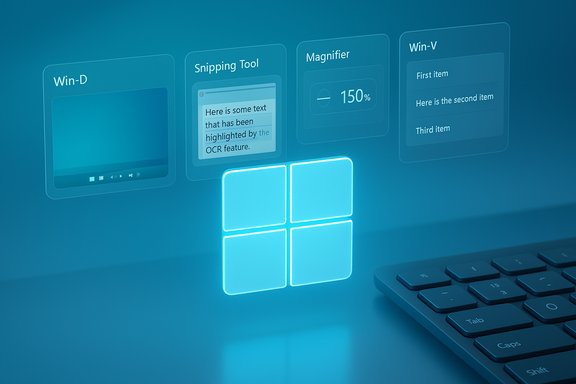
Windows 11 quietly delivers a handful of underrated keyboard shortcuts that repay practice with blunt, everyday productivity wins — four in particular deserve more attention: Win + D to show or hide the desktop, Snipping Tool → Text Actions (OCR) to extract text from screenshots, Win + Plus/Minus to control the Magnifier, and Win + V to browse your clipboard history. These aren’t flashy features, but they solve real, recurring friction: clearing screen clutter in seconds, turning images into editable text without retyping, zooming into shared screens quickly, and recovering lost copy-paste items. The rest of this feature drills into each shortcut, verifies what Microsoft documents, cross-checks independent reporting, flags limitations and privacy considerations, and shows practical workflows so you can start using them today.
Windows has shipped decades of keyboard shortcuts and incremental accessibility tools, but many of the most useful commands live out of sight of casual users. Over successive Windows 11 updates Microsoft has both added new capabilities to built-in apps (Snipping Tool, Magnifier) and expanded the OS-level clipboard and window-management toolbox. For readers who rely on laptops, trackpads, or touchscreens — or who want to stop reaching for a mouse mid-task — mastering a compact set of high-impact shortcuts produces outsized gains in speed and ergonomics. The four shortcuts in focus here map directly to those goals: navigation, capture-to-text, readable zoom, and multi-item clipboard management.
Source: Pocket-lint 4 hidden Windows 11 shortcuts you really should be using more
 Background
Windows has shipped decades of keyboard shortcuts and incremental accessibility tools, but many of the most useful commands live out of sight of casual users. Over successive Windows 11 updates Microsoft has both added new capabilities to built-in apps (Snipping Tool, Magnifier) and expanded the OS-level clipboard and window-management toolbox. For readers who rely on laptops, trackpads, or touchscreens — or who want to stop reaching for a mouse mid-task — mastering a compact set of high-impact shortcuts produces outsized gains in speed and ergonomics. The four shortcuts in focus here map directly to those goals: navigation, capture-to-text, readable zoom, and multi-item clipboard management.Overview: Why these four matter now
- Win + D: instant desktop — useful for grabbing files, clearing the screen for a presentation, or revealing widgets and shortcuts without manually minimizing dozens of windows. It’s a toggle, so pressing it again restores your previous workspace.
- Snipping Tool → Text Actions: screenshot OCR — transforms static screenshots into selectable, copyable text, with quick tools for copying as plain text, copying as a table, and automatic redaction of phone numbers and email addresses. This moves common tasks (capturing receipts, extracting verification codes, saving quoted text) from friction to one-click productivity.
- Win + Plus / Win + Minus (Magnifier): fast, flexible zoom — an accessibility tool that doubles as a reviewer’s magnifier during video calls, letting you zoom into any shared screen or dense UI without leaning forward. Windows’ Magnifier supports multiple view modes and configurable zoom increments. Independent reporting consistently notes extreme zoom levels available for low-vision scenarios.
- Win + V: clipboard history — stores multiple copied items (text, images) and surfaces them in a small popup so you can paste previous entries without re-copying them. Windows’ implementation supports pinning and optional cloud sync. Microsoft documents limits and behavior; independent guides reproduce the same constraints.
Win + D — Minimize everything, restore with the same key
What it does and why it’s useful
Pressing Windows key + D shows the desktop by minimizing all open windows; pressing it again restores them to the previous state. It’s the fastest way to reach a file or desktop widget when you’re mid‑workflow and don’t want to hunt through taskbar thumbnails or Alt+Tab lists. This is a universal, single‑hand shortcut that works regardless of which app has focus.Practical use cases
- Grab a desktop screenshot target (file or widget) without losing the arrangement of open windows.
- Hide all open apps quickly before sharing your screen or stepping away from your machine.
- Reveal desktop shortcuts or files when search or Explorer would be slower.
How to use it (quick steps)
- Press Windows + D to minimize all windows and show the desktop.
- Press Windows + D again to restore everything exactly as it was.
Strengths and caveats
- Strength: deterministic toggle — you never need to remember which windows were minimized; the second press restores them.
- Caveat: some OEM or enterprise images may alter taskbar behavior (the “show desktop” corner button can be enabled/disabled in Settings), so if you rely on the visual corner instead of the shortcut, confirm your taskbar settings.
Snipping Tool: Text Actions (OCR) — turn screenshots into editable text
What changed
Snipping Tool in Windows 11 now includes a Text Actions toolbar button that performs local Optical Character Recognition (OCR) on captured images. After taking a snip (Win + Shift + S or opening Snipping Tool directly), click the Text Actions icon to highlight recognized text and reveal options such as Copy all text, Copy as table, and Quick redact to hide phone numbers and email addresses automatically. Microsoft states that OCR is performed locally on-device.Why this is a gamechanger
For journalists, finance teams, developers, and anyone who repeatedly retypes text from images (invoices, receipts, verification pages), this eliminates transcription labor and typing errors. It’s faster than a mobile OCR app because the capture, extraction, and paste loop happens entirely on the PC you’re already using.How to access and use Text Actions
- Capture a snip with Win + Shift + S (selected area) or open Snipping Tool and create a new snip.
- With the snip open in Snipping Tool, click the Text Actions button (square icon with horizontal lines).
- Select text manually, click Copy all text, or use Quick redact to hide emails/phone numbers.
- Paste the copied content into your document or application.
Strengths, accuracy and limits
- Strength: local OCR, fast extraction with table-aware copy when the image contains tabular layout. Microsoft explicitly notes text recognition happens on-device, which reduces cloud‑upload concerns for most users.
- Accuracy: modern OCR is excellent for printed, high-contrast text (receipts, invoices, screenshots). Handwritten text or low-resolution screenshots remain error-prone — expect to proofread. Independent how‑to coverage shows practical accuracy is high for clear UI screenshots but degrades with noise or slanted text.
- Privacy caveat: Text Actions is documented as local processing, but features that sync or integrate across devices (Phone Link workflows that open mobile photos in Snipping Tool) may require your consent or a Microsoft account. Review settings before syncing sensitive captures.
Practical tips
- Use Copy as table when extracting tables from web pages or PDFs rendered as images — it preserves cell layout better than plain text.
- Quick redact is useful for sharing screenshots; still double‑check redactions manually before sending sensitive images.
- If the Text Actions icon is missing, update Snipping Tool and the Windows build, or check whether the feature has rolled out to your channel.
Win + Plus / Win + Minus — Magnifier for comfortable zooming (and small-print rescue)
What Magnifier does
The Magnifier is an accessibility tool that enlarges part or all of the display; it’s invoked with Win + Plus (+) and dismissed with Win + Esc. Magnifier supports three view modes (Full Screen, Lens, Docked) and configurable zoom increments. Between keyboard and mouse controls you can pan, resize the lens, and temporarily toggle full-screen. Microsoft documents the controls and view modes; independent guides commonly report that Magnifier supports extreme zoom levels used by low‑vision users.Why this shortcut is invaluable in meetings
When someone shares a complex spreadsheet or a tiny dialog during a video call, Magnifier lets you zoom in without disrupting the call layout or leaning into the screen. Use the lens mode to follow the cursor or docked mode to keep a magnified strip at the top of the screen while keeping content context below it.Controls and usage (quick guide)
- Press Win + Plus (+) to turn Magnifier on and zoom in.
- Press Win + Minus (-) to zoom out; press repeatedly to adjust.
- Use Ctrl + Alt + Mouse Wheel to change zoom level smoothly.
- Cycle Magnifier view with Ctrl + Alt + M (Full / Docked / Lens).
- Exit with Win + Esc.
How far can you zoom?
Multiple independent sources and accessibility guides report a maximum zoom level of up to 1600% in Windows’ Magnifier settings, and many low‑vision users rely on those extreme levels. Microsoft’s Magnifier settings expose the zoom slider and increments, but the exact maximum can vary by Windows build, display scaling, and device hardware; therefore, treat the 1600% value as an accurate, commonly available ceiling reported across guides, but verify it on your system if you need extreme magnification.Strengths and caveats
- Strength: instant, system-level zoom that follows focus or the cursor; supports keyboard-only workflows.
- Caveat: high-magnification workflows can make UI elements disappear off-screen; practice switching between full and 1x views (Ctrl + Alt + Spacebar) to reorient yourself. Also, Magnifier behavior can vary on multi-monitor setups or with custom scaling.
Quick tips
- Use lens mode during live demos to magnify a small area without magnifying the presenter’s entire screen.
- Create a small habit: when someone shares a screen with tiny text, press Win + Plus immediately rather than leaning in — it preserves your camera framing and reduces neck strain.
- If you need consistent magnification for long sessions, configure Magnifier’s Zoom increments to small steps (5% or 10%) for fine control.
Win + V — Clipboard history and cloud sync
What Win + V gives you
Windows + V opens the clipboard history panel and shows recent items you copied: text, images (bitmaps), and HTML. You can pin items so they persist across reboots, delete individual items, clear the whole history (except pinned items), and — optionally — sync selected items across other Windows devices when signed into the same Microsoft account. Microsoft documents the exact size and count limits for the feature: up to 25 items in history, and a 4 MB limit per item.Why this shortcut matters
We copy and paste dozens of times a day; hitting Ctrl+C a fraction too late is a frequent productivity drag. Clipboard history turns the clipboard into a short-term vault, rescuing previously copied items without interrupting your flow.How to enable and use
- Press Win + V the first time to see the prompt and enable clipboard history.
- Once enabled, press Win + V to open the history popup and click the item you want to paste.
- Pin frequent snippets via the ellipsis menu so they survive restarts.
- Enable sync in Settings → System → Clipboard if you want items available on other Windows devices (manual or automatic sync choices exist).
Limits, privacy and practical concerns
- Limit: 25 items (un-pinned items roll off as new items are added). Larger items over 4 MB won’t be saved. Pinned items don’t consume the 25‑item quota.
- Privacy: syncing clipboard items uses your Microsoft account and uploads selected items to Microsoft’s cloud; avoid enabling automatic sync if you copy sensitive data (passwords, account numbers). Use manual sync for selective sharing or keep clipboard history local only.
- Edge case: clipboard history clears on restart unless items were pinned or synced; factor that into workflows that depend on long-lived snippets.
Practical workflows
- When compiling research notes, copy multiple quotes and use Win + V to paste selected items into your draft without toggling back and forth.
- For repetitive form-filling, pin commonly used addresses and boilerplate to the top of clipboard history.
- Use manual sync if you occasionally need a snippet on another PC (open Win + V on the source and choose the sync action for that item).
Cross-check: verification and independent reporting
All four features are supported by Microsoft documentation and multiple independent outlets:- Microsoft published Snipping Tool Text Actions and its local OCR behavior in official support notes and blog announcements; independent guides (Guiding Tech, MakeUseOf) echoed the rollout and usage patterns. If you cannot find the Text Actions UI, check Snipping Tool app updates and Windows build channels.
- Magnifier keyboard shortcuts, view modes, and controls are documented on Microsoft’s accessibility pages; independent accessibility blogs and how‑to sites repeatedly report the 1600% maximum zoom available in settings, though Microsoft’s public documentation emphasizes the slider and increments without uniformly announcing the numeric ceiling across all pages. Given hardware and build differences, verify the ultimate maximum zoom on your device if you rely on extreme magnification. This is a minor but verifiable nuance that matters for low‑vision users.
- Clipboard history (Win + V) — Microsoft explicitly documents the 25-item history limit and 4 MB size limit per item; independent writers and community guides confirm this behavior and recommend alternatives (PowerToys, third‑party clipboard managers) when the limits are insufficient.
- Win + D is a long-standing Windows shortcut described in Microsoft’s keyboard shortcut pages and widespread documentation; practical articles and help forums confirm its toggle behavior and show‑desktop alternatives (taskbar corner button, Aero Shake).
Risks, privacy concerns and enterprise considerations
- Clipboard sync: if you enable automatic sync, clipboard contents (including unstructured text and pinned items you explicitly sync) are uploaded to Microsoft’s cloud tied to your account. Do not enable sync on devices used for highly sensitive work (unrestricted personal devices are less risky, but enterprise security and compliance policies may forbid sync). Use manual sync or a local clipboard manager when privacy is required.
- OCR and PII: Snipping Tool’s Quick Redact covers common identifiers (emails, phone numbers), but OCR can mis-detect or miss items. For sensitive screenshots, manual redaction with a pixel‑based editor (or deliberate cropping) is still recommended before sharing. Microsoft notes Quick Redact targets emails and numbers; validate results.
- Accessibility extremes: Magnifier’s high zoom can render some UI elements unusable or hide context (menus that appear off-screen). Low‑vision workflows require testing on the specific device and display configuration. Verify lens/docked modes and zoom increments for daily use.
- Version and rollout fragmentation: Microsoft sometimes introduces features via Insider channels before broad release; if a feature is absent, check app and OS updates rather than assuming a bug. Snipping Tool updates may be delivered via the Microsoft Store and can depend on your Windows build.
Advanced tips and power-user extensions
- Combine shortcuts: use Win + Shift + S to snip, then Alt + Tab to bring your editor forward, then open Snipping Tool’s Text Actions to extract and paste — a tight loop for fast capture → extract → compose work.
- Remap or extend: use Microsoft PowerToys (FancyZones for complex window layouts) or AutoHotkey for multi-step macros (e.g., a single hotkey to capture a preconfigured region, extract text, and paste into a target app). PowerToys can also provide an alternative clipboard with deeper search capabilities for heavy users.
- Accessibility shortcuts: Learn Magnifier’s view toggles (Ctrl + Alt + F/D/L) and temporary reveal (Ctrl + Alt + Spacebar) to avoid disorientation when magnified. Magnifier’s settings let you change zoom increments — switch to small increments if you require fine control.
- Use pinning strategically: Pin frequently used clipboard snippets to survive restarts, and use the clipboard’s ellipsis menu to clear items you no longer need to reduce clutter and surface only relevant snippets.
Conclusion: small shortcuts, big returns
These four Windows 11 shortcuts are simple to learn and repeatedly repay the time investment. Win + D gets you to the desktop in a second and puts everything back with the same key; Snipping Tool’s Text Actions replaces manual retyping with near-instant OCR and redaction tools; Win + Plus/Minus gives immediate, configurable zoom that spares your neck and eyes; and Win + V turns the clipboard into a short, searchable vault and reduces interrupted workflows. Microsoft’s documentation confirms the official behavior and limits, while independent how‑to guides and accessibility blogs provide hands‑on perspective and practical workarounds. For daily productivity and accessibility, these four shortcuts are high‑ROI, low‑risk additions to any Windows user’s toolkit — just be mindful of cloud sync and OCR edge cases, and keep your apps and Windows builds updated so you see the latest capabilities.Source: Pocket-lint 4 hidden Windows 11 shortcuts you really should be using more
