Free 12 Month Microsoft 365 Personal Copilot for College Students

  • Thread Author
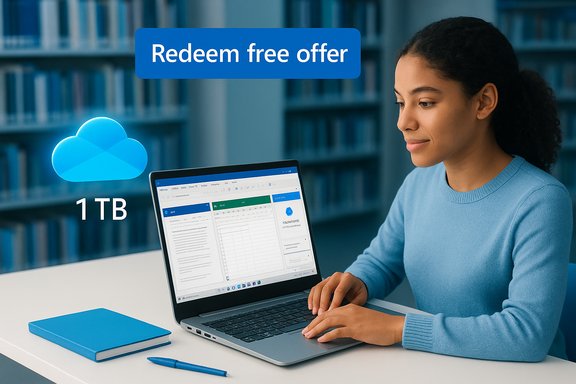
Woman in a library uses a laptop with a 'Redeem free offer' banner and a 1 TB cloud icon.
Microsoft is giving eligible college students a full year of Microsoft 365 Personal — including the integrated Copilot AI assistant — at no charge, a time‑limited promotion that can unlock premium Office apps, 1 TB of OneDrive storage and embedded AI features across Word, Excel, PowerPoint and Outlook for qualifying students in selected markets.

Background / Overview​

Microsoft announced a targeted education push that bundles Copilot‑enabled productivity into a free, 12‑month Microsoft 365 Personal subscription for verified college students in specific countries. The official promotion page advertises the offer as “Study smarter with Copilot and Microsoft 365,” and the company states the program is available in the United States, the United Kingdom and Canada. The Microsoft landing page makes clear this is a consumer‑grade Personal subscription tied to the student’s personal Microsoft Account, not a tenant‑managed campus Microsoft 365 Education seat. Independent reporting at major outlets confirms the headline: eligible students can redeem a 12‑month Microsoft 365 Personal subscription that includes Copilot functionality and the standard Personal plan features (notably 1 TB of OneDrive) and that Microsoft framed this as part of broader education commitments announced at a White House AI education meeting. Coverage also reported the offer will be time‑limited and that Microsoft is offering follow‑on student discounts for continuation after the free year for qualified users.

What the offer actually includes​

Below is a concise, verified list of what students receive when they successfully redeem the promotional Microsoft 365 Personal seat:
  • Full Microsoft 365 Personal subscription for 12 months — the same consumer Personal bundle that provides desktop and web versions of Word, Excel, PowerPoint, OneNote and Outlook where supported.
  • Copilot integrated into supported apps — Copilot appears as an in‑app assistant and sidebar in Office apps to help with drafting, summarization, slide generation and exploratory data analysis; feature availability varies by device and by market.
  • 1 TB of OneDrive cloud storage — Microsoft’s consumer Personal plan includes one terabyte of OneDrive storage associated with the Personal seat. This is the documented storage allotment for Personal.
  • Copilot study features and learning tools — the student page highlights study‑centric Copilot features such as Deep Research, Study Live, Copilot Quizzes, Copilot Vision and image generation tools — again subject to device/region rollouts.
  • Consumer security and creative extras — consumer Defender protections, Microsoft Designer and Clipchamp enhancements are bundled according to the Personal plan’s consumer features, where available.
Important caveat: the promotional seat is a personal, consumer subscription that belongs to the student’s Microsoft Account. It does not make the student’s account part of an institutionally managed tenant with enterprise governance or campus‑level data protections unless the school separately provides tenant‑grade services. That distinction affects data governance, retention and administrative controls.

Who is eligible and where it’s available​

Microsoft’s official student page and contemporaneous reporting make the eligibility rules straightforward in principle but precise in practice:
  • Basic eligibility: Must be a college student (undergraduate or postgraduate) actively enrolled at an accredited institution and able to verify current enrollment. The verification flow will list acceptable documents or verification methods.
  • Markets: The Microsoft page explicitly lists availability in the United States, United Kingdom and Canada; feature availability may vary by device and region.
  • What’s excluded: People who are no longer enrolled, or who are not in a recognised degree programme, typically will not qualify. The verification flow is the arbiter of accepted documentation.
Independent coverage and industry summaries corroborate these points and note that community college and many vocational students were included in Microsoft’s messaging, but the final determination is made by the verification provider and the sign‑up UI shown during redemption.

Deadline, timing and region‑specific notes​

The promotional window has been reported differently across outlets. The authoritative Microsoft promotion page does not show a single, universal expiry date on the public landing text — it emphasizes that the free 12‑month offer is available to college student users and that app/feature availability varies by device and language. Several reputable news outlets that covered Microsoft’s White House announcement reported a sign‑up deadline in the earlier fall window (for example, October 31st was cited by major press reports at the time of the announcement). Because Microsoft may run regional windows or extend promotions, the live sign‑up UI is the single definitive source for the current deadline in your market. Check the live “Redeem free offer” flow on Microsoft’s student Copilot page for the authoritative redemption cutoff that applies to you.

How to claim — validated step‑by‑step​

This is the exact, practical flow to claim the offer as verified against Microsoft’s student page and independent how‑to reporting:
  1. Open a browser and go to Microsoft’s Copilot for Students / “AI for Students” landing page.
  2. Find the “Study smarter with Copilot and Microsoft 365” section and click Redeem free offer.
  3. Sign in with your Microsoft Account (or create one). If you plan to use Copilot for coursework under institutional guidance, the FAQ recommends signing in with your school email when working on that work; however the promotion is tied to a personal Microsoft Account for the Personal plan.
  4. Complete the academic verification flow. The UI will ask for a valid school email or let you upload documentation (student ID, class schedule, acceptance letter). Have these ready.
  5. Expect an email confirmation — Microsoft typically emails activation instructions within 24 hours, although some users have reported delays of 24–48 hours during peak demand. Check spam/junk if you don’t see it.
  6. During signup you may be prompted to provide a payment method — this is commonly requested in promotional sign‑ups to enable auto‑renewal after the free year. Adding a payment method does not necessarily mean you will be charged during the free period, but you should confirm renewal and cancellation settings immediately to avoid unwanted charges. Add the payment method if required, then turn off recurring billing in your Microsoft account if you do not intend to continue with a paid plan after the free year.
  7. After activation, sign into Office on the web or install the Office apps (or open them if installed) and sign in with the Microsoft Account used for redemption to access Copilot and the Personal plan features.
Practical tips: take a short, dated screenshot of any verification success screen and create a calendar reminder for 10–14 days before the promo ends so you can decide whether to keep the service at the discounted rate or cancel before auto‑renewal. Many users treat the year as an evaluation period and cancel before the renewal if they don’t want to pay.

Feature‑level clarifications and common misstatements​

A number of syndicated and social posts have introduced inconsistencies; here are the most important verifiable clarifications:
  • Storage confusion: The correct consumer‑plan storage allocation for Microsoft 365 Personal is 1 TB OneDrive per user. References to “up to 5 TB” or similar are inaccurate for Microsoft 365 Personal and likely reflect either misreading combined family allowances or third‑party bundling. Confirmed reporting and Microsoft’s plan documentation identify 1 TB for Personal. Do not rely on claims of larger Personal‑plan quotas without explicit confirmation during signup.
  • What “Copilot” means in this offer: Microsoft uses “Copilot” as an umbrella brand for several AI experiences. The student promotion provides a consumer Copilot seat embedded in Microsoft 365 Personal. It is not the same as the paid, tenant‑aware Microsoft 365 Copilot enterprise add‑on that can access a tenant’s Microsoft Graph and provide tenant‑grounded responses for organization content. Put simply: students get Copilot in their personal apps — useful for drafting, summarizing and research — but the enterprise tenant‑grounded Copilot remains distinct and licensed differently.
  • In‑app feature limits and AutoSave: Some Copilot features (for example, Excel Copilot working on open spreadsheets) require that files be saved in OneDrive (or SharePoint) and AutoSave be enabled for seamless in‑app assistance. Offline local files without AutoSave may be incompatible with some Copilot actions. This operational caveat is published in Microsoft’s support documentation and has been repeatedly referenced in reporting.
If you see claims that the student seat includes enterprise features, unlimited Copilot usage, or unusual storage amounts, treat those as inaccurate until you confirm the precise wording in Microsoft’s sign‑up flow and product pages.

Privacy, data usage and academic integrity — what to watch for​

Giving an AI assistant access to your documents and prompts comes with tradeoffs. These are the verified privacy and governance items every student should check immediately after activation:
  • Data training and opt‑out: Microsoft’s consumer Copilot experiences may use conversational data to improve models unless the user opts out in account privacy settings. The Microsoft Copilot FAQ plainly states Copilot draws on live internet grounding and explains privacy controls — after activation, review Copilot privacy and training settings if you want to limit model training. For enterprise or education tenants, different contractual safeguards often apply (tenant contracts typically limit model training).
  • Sensitive data: Avoid pasting or uploading personally identifiable, proprietary or sensitive research data into Copilot prompts unless you understand institutional policy and Microsoft’s data handling terms. If your coursework or research involves sensitive data, prefer institution‑managed systems or consult campus IT/legal counsel.
  • Academic integrity: Copilot can draft essays, plot analyses, or generate full drafts. Universities are rapidly updating academic integrity policies to address AI assistance. Use Copilot as a drafting and revision tool, not a shortcut to submitting work you were required to produce independently, and follow your school’s AI disclosure policies when required.

Strengths of the offer — why it matters for students​

  • Immediate productivity boost: Embedded Copilot across Word, Excel and PowerPoint removes friction from drafting, data analysis and slide creation — useful for report writing, labs and multimedia assignments.
  • Substantial storage: 1 TB of OneDrive provides a single, backed‑up place for documents, datasets and media projects without juggling separate consumer cloud services.
  • Hands‑on AI experience: Students can test and learn how to use generative AI responsibly as part of their toolkit — a relevant workplace skill as employers adopt similar assistants.
  • Cost avoidance: A free 12‑month evaluation avoids immediate expense while letting students and faculty assess educational use cases and compliance requirements.

Risks and practical pitfalls​

  1. Renewal and billing surprises — many promotional flows request a payment method; subscriptions typically auto‑renew unless the student cancels. Always confirm the renewal price shown during signup and set a calendar reminder to cancel before the renewal if you do not want to pay.
  2. Feature variability by device and region — not every Copilot capability is available everywhere immediately. Some premium agents, Vision features, or region‑specific capabilities may be phased or gated. If a feature is critical for a class, verify availability for your account and device in advance.
  3. Privacy and training exposure — consumer Copilot interactions can be used to improve models unless you explicitly opt out. For coursework with sensitive content, prefer institutional systems with contractual protections.
  4. Academic policy conflicts — generative output must be used in accordance with your institution’s academic integrity rules; misusing AI assistance could result in academic sanctions. Faculty should clarify acceptable use and adapt assessment design accordingly.

Troubleshooting and best practices​

  • If verification email does not arrive within 24–48 hours, check spam/junk and retry the verification flow; user reports indicate occasional delays at peak volumes.
  • Keep clear scans or screenshots of enrollment documents in case the instant verification fails and you’re asked to upload dated proof.
  • After activation, immediately review and set privacy/training toggles for Copilot, and confirm the subscription renewal date in your Microsoft Account → Services & Subscriptions page.

Quick checklist (one page you can copy)​

  1. Visit the Microsoft Copilot “AI for Students” page and click Redeem free offer.
  2. Sign in with or create a Microsoft Account. Decide whether to use your school email or personal email per the FAQ guidance.
  3. Complete academic verification with your school email, student ID or enrollment document. Keep scans ready.
  4. Add a payment method if the sign‑up flow requires it, but immediately note the renewal date and disable recurring billing if you don’t want to continue after 12 months.
  5. Review privacy and Copilot training settings after activation. Opt out of training if you prefer.
  6. Create a calendar reminder to revisit renewal decisions 10–14 days before the end of the free year.

Final analysis — value, tradeoffs and a straight verdict​

For students who qualify, the promotion represents a high‑value, low‑risk trial of Microsoft’s AI‑enhanced productivity stack: a year of the full Personal experience plus embedded Copilot in core apps and a terabyte of cloud storage is genuinely useful for coursework, group projects and portfolio building. Microsoft’s official pages and major independent outlets consistently describe the program this way. That said, the offer must be treated as a time‑boxed evaluation. Practical risks — automatic renewal, regional feature rollouts, differences between consumer Copilot and enterprise Copilot, academic integrity concerns and privacy/training choices — are real and require simple but immediate user actions (review privacy toggles, manage billing, and consult your school’s policy on AI use). Those precautions convert a generous promotional year into a safe, educational experiment.
One last cautionary note: some secondary articles and social posts misstated the storage allotment or inflated feature lists. The verified facts are clear on storage (1 TB for Personal) and the nature of the seat (a consumer Personal seat with Copilot features). Treat any divergent numbers — for example, claims of “up to 5 TB” on a Personal seat — as inaccurate unless you see them reflected in Microsoft’s live sign‑up UI for your account.
Students who are eligible should move promptly to check Microsoft’s Redeem flow, verify their eligibility documents and claim the subscription if they want to try Copilot inside the apps they already use. The live sign‑up flow is definitive for region‑specific deadlines and feature availability; verify the UI during redemption and keep an eye on renewal settings so the free year stays exactly that — free.
Source: thedailyjagran.com Get Free Microsoft 365 Personal With Copilot For A Year: Eligibility, Features, And How To Claim
 

Microsoft’s latest student push hands qualifying college and university students a full year of Microsoft 365 Personal — including the desktop Office apps, 1 TB of OneDrive storage, and built‑in Copilot AI features — at no cost for 12 months, with a streamlined verification flow that uses a valid school email to confirm enrollment.

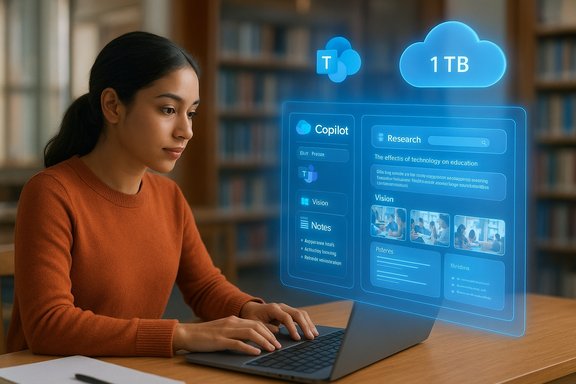
A woman uses a holographic AI assistant interface projected from her laptop.Background / Overview​

Microsoft has rolled out a limited‑time student promotion that provides one year of Microsoft 365 Personal free to eligible college students. The consumer plan normally bundles premium versions of Word, Excel, PowerPoint, Outlook, OneDrive (1 TB), Teams, and other Microsoft services for a single user, and the student promotion layers in Copilot‑enabled features for that 12‑month period.
The official student landing content highlights Copilot features aimed at study workflows — Deep Research, Vision, Podcasts, guided learning modes, image and video generation tools, and an integrated Copilot sidebar inside productivity apps. Microsoft’s materials also make clear that feature availability varies by device, platform, and region; some Copilot features are explicitly available only in the United States, the United Kingdom, and Canada.
Despite broad press coverage and many campus notices about the promotion, the precise promotional window and local availability varied in reporting and campus messaging. Microsoft’s student page advertises the free 12‑month offer; however, some university notices and independent reports tie the promotion to an October 2025 redemption window, while a handful of other reports mention later cut‑off dates. Because the promotion timing can differ by region and can be updated by Microsoft, students should verify the current redemption deadline on Microsoft’s official student/Copilot pages before attempting to claim the offer.

What the student package includes​

Microsoft’s student promotion offers the full consumer Microsoft 365 Personal experience for one user for 12 months. Key components you can expect from a claimed seat:
  • Full desktop Office apps: Word, Excel, PowerPoint, Outlook, OneNote, and the latest updates for those apps available to Microsoft 365 Personal subscribers.
  • Copilot AI features: Integrated, productivity‑focused AI inside Office apps and the Copilot app experience — features pitched for study workflows such as research summarization, the Copilot sidebar, Vision (multimodal prompts), image and video generation tools, and new guided modes.
  • 1 TB OneDrive storage: A personal cloud vault for documents, projects, media and backups — useful for storing assignments, presentations, and research assets.
  • Teams and SharePoint access: Personal access to Microsoft Teams and lightweight SharePoint integration for collaboration on group projects.
  • Cross‑device installs: Use across PCs, Macs, tablets and phones under the typical device limits of a Microsoft 365 Personal subscription.
  • Continuation discounts: Promotional materials and reporting indicate students who keep the service after the free year commonly qualify for a reduced subscription rate (student pricing), although the exact renewal price may vary by region.
These elements make the promotion attractive for students who want the desktop apps, a large personal cloud allotment, and early hands‑on time with Microsoft’s AI tools without the immediate cost.

How to redeem the free year (step‑by‑step)​

  • Open a modern web browser and visit Microsoft’s Copilot/Students landing page and locate the “Study smarter with Copilot and Microsoft 365” panel.
  • Click the “Redeem free offer” button to begin the student promotion flow.
  • Sign in with the personal Microsoft account you want associated with the subscription (Outlook.com, Hotmail, Live, etc.. If you don’t have a personal Microsoft account, create one ahead of time.
  • Complete the student verification step. Microsoft typically accepts:
  • Verification via your official school email address (instant verification in many cases), or
  • Uploading proof of enrollment such as a student ID, current course schedule, or acceptance letter where instant verification is not supported.
  • Watch for a confirmation message in the web flow indicating your request is being processed. Microsoft may send a follow‑up email with activation instructions; allow at least 24 hours for the email to arrive, and check spam/junk folders.
  • Follow the instructions in the confirmation message to finalize activation and start installing the desktop apps and using Copilot features.
  • After activation, immediately review Services & subscriptions in your Microsoft account and decide whether to leave recurring billing on (for convenience) or turn it off to prevent automatic renewal at the end of the 12 months.
Practical tips for a frictionless claim:
  • Use a personal Microsoft account when redeeming; institutional (school) accounts often cannot accept consumer promotions directly and may behave differently.
  • Have your student proof ready (school email, ID, schedule) in case automatic verification fails.
  • Take a screenshot of any verification success pages and set a calendar reminder at least two weeks before the promo expiry to check renewal options.

Why this matters: strengths of the offer for students​

  • Real desktop apps, not just web‑only tools. Students get full Word, Excel and PowerPoint installs, which is crucial for offline work, advanced features (macros, add‑ins), and when internet access is inconsistent.
  • Generous personal cloud storage. 1 TB of OneDrive means students can store portfolios, video projects and datasets in a single, synced place — useful for coursework, collaboration and backup.
  • Early access to AI study tools. Copilot capabilities built for researching, summarizing long articles, creating study guides, drafting and editing, and visual media creation promise time savings for routine academic tasks.
  • Single user seat keeps privacy boundaries simple. A personal Microsoft 365 Personal seat is managed end‑to‑end by the student (not tied to a university tenant), which can be helpful for personal projects and for keeping academic and personal files separate.
  • Opportunity to learn AI‑augmented workflows. Gaining experience with integrated Copilot features during college can be a valuable skill for future workplaces that increasingly adopt AI tools.

Risks, limitations and things students must watch closely​

  • Regional feature differences. Not all Copilot capabilities are available everywhere. Microsoft’s student materials flag that certain AI features are only available in the U.S., the U.K., and Canada. Students outside those regions may receive the core apps and some AI features but not the full multimodal Copilot experience.
  • Promotion timing is not uniformly reported. While Microsoft advertises a 12‑month free student seat, published timelines in campus bulletins and news outlets tied redemptions to an October 2025 window in some regions. Because the exact promotional deadlines and rules can vary, students must confirm current eligibility and cut‑off dates on Microsoft’s official pages before relying on the offer.
  • Auto‑renewal and billing surprises. The promotional flow may require a payment method for activation (common for trials). Unless students purposely disable recurring billing, subscriptions typically auto‑renew at the then‑current rate at the end of the free period. Immediately check your Microsoft account settings after activation to avoid unexpected charges.
  • Academic integrity and instructor policies. Copilot can generate drafts, summaries and even code; many instructors and institutions have specific rules about AI assistance. Using Copilot‑generated content without disclosure may violate course or institutional conduct policies.
  • Privacy and sensitive research. Personal Microsoft 365 accounts do not carry the same enterprise data protections as institutionally‑managed campus tenants. For sensitive, regulated, or human‑subjects research, students should consult campus IT about which environment (personal Copilot vs institutionally provided tools) is appropriate to meet data protection and governance rules.
  • Accuracy and hallucinations. Like all generative AI tools, Copilot can produce incorrect or misleading statements. It should be treated as a productivity assistant, not a definitive source — always verify facts and citations independently.
  • Regulatory / consumer matters. Microsoft’s consumer AI strategy and pricing have attracted regulatory scrutiny in some markets. That scrutiny can create changes to product packaging, pricing or the set of features included in a subscription over time.

Technical and policy clarifications students should verify before redeeming​

  • Which Copilot features will be available in your country? Microsoft lists specific feature availability by country for certain capabilities; check the student landing page’s regional notes.
  • Do you need to use a personal Microsoft account or your school account? The consumer offer is designed for a personal account that is then verified as a student. Institutional accounts are frequently unsuitable for purchasing or redemptions of consumer subscriptions.
  • Will you be asked to add a payment method? Many promotional flows request a card to enable auto‑renewal. If you won’t continue after the free year, either skip adding a payment method (if allowed) or set a calendar reminder to cancel before renewal.
  • What’s the confirmed promotional end date for your region? Different university communications and news outlets reported varying redemption cut‑offs; check Microsoft’s live student/Copilot pages for the authoritative, current window.
  • How is student status rechecked? Microsoft’s student discounts traditionally require re‑verification annually; understand the re‑verification policies to avoid lapses and unexpected price changes.

Academic integrity and responsible use guidance​

  • Treat Copilot like an assistant, not a ghostwriter. Use it to summarize complex readings, brainstorm structure, find primary sources faster, or draft an outline — but ensure submitted work reflects your own critical thinking and follows course policies.
  • Cite human and AI assistance where required. If your instructor requires disclosure of AI use, follow those rules precisely. Generate a short note in your document’s footnote or methodology describing how Copilot was used.
  • Validate factual claims and citations. Copilot synthesizes internet sources; always confirm key facts and bibliographic references with authoritative sources and primary literature.
  • Avoid using Copilot for sensitive datasets or regulated data. For institutional research involving personal data, HIPAA‑protected content, or other regulated material, use institutionally managed tools with appropriate governance.

For campus IT and faculty — short checklist to manage student uptake​

  • Communicate the difference between a student’s personal Microsoft 365 Personal seat and institutional Microsoft 365 (tenant) accounts.
  • Remind students that personal subscriptions are not governed by campus data protections; provide clear guidance on what data types must be stored and processed inside institutional systems.
  • Update academic integrity policies to define acceptable AI use, disclosure requirements, and penalties for misuse.
  • Provide training resources and short modules that teach students how to use Copilot productively and responsibly (e.g., verifying sources, citation hygiene, editing AI outputs).
  • Coordinate with the university legal and procurement teams to determine whether the institution should offer its own Copilot licensing to faculty and staff for coursework and research governance.

The bigger picture: where this fits in Microsoft’s strategy​

Microsoft’s promotional push for students is a clear play to make Copilot and AI‑augmented workflows ubiquitous among future professionals. Giving students hands‑on time with Copilot inside Office apps accelerates familiarity and creates a downstream user base comfortable with AI tools in word processing, spreadsheets, presentations and communications.
At the same time, Microsoft’s individual consumer product lineup has been evolving: higher‑tier “Premium” bundles and stand‑alone Copilot Pro offerings exist alongside the more mainstream Microsoft 365 Personal plan. Those product changes, alongside regulatory attention in several markets on how AI features were packaged and priced, mean the capabilities and limits of what a “free year” includes may continue to shift.
Students should view this promotion as a learning opportunity — take advantage of the AI features, but stay vigilant about privacy, academic policy and the renewal mechanics.

Final verdict — is it worth claiming?​

For eligible students, the promotion is an attractive, low‑risk way to gain a year of premium productivity tools and an introduction to AI‑assisted workflows. The combination of the desktop Office apps, 1 TB OneDrive, Teams access and Copilot features represents real, everyday value for coursework, collaboration and portfolio work.
However, redeeming the offer responsibly means checking regional availability, managing billing settings, understanding the limits of Copilot (accuracy and feature availability), and using the tools in a way that aligns with academic integrity rules and data protection requirements. Students planning to rely on Copilot for research or regulated data should consult campus IT and faculty before use.
If you plan to claim the free year:
  • Verify current eligibility and the promotional cut‑off on Microsoft’s official student/Copilot page.
  • Use a personal Microsoft account and prepare proof of enrollment.
  • Add a payment method only if necessary and immediately set a reminder to cancel auto‑renewal if you don’t intend to continue.
  • Learn the limits and safe practices for AI assistance; always validate outputs and disclose AI use per course rules.
This one‑year offer is a powerful bridge into modern, AI‑augmented productivity. With careful verification of the rules and disciplined management of privacy and billing, students can gain months of valuable tools and experience without the upfront cost.

Source: Observer Voice College Students Get Free One-Year Access to Microsoft 365 Personal: Here's How
 

Back
Top