

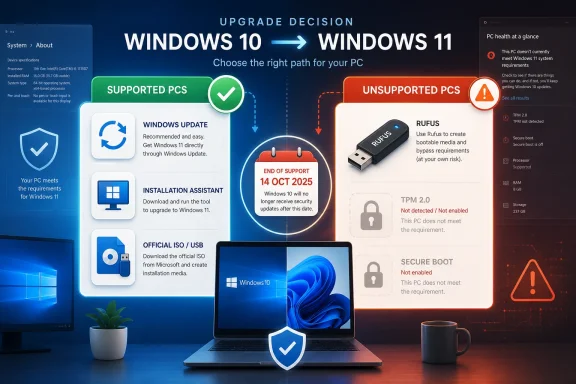
Microsoft still lets many Windows 10 users move to Windows 11 without buying a new license, using Windows Update, the Installation Assistant, installation media, or an ISO, while unsupported PCs can often be upgraded with tools such as Rufus that bypass Microsoft’s hardware checks. That is the practical answer, but not the whole story. The larger truth is that the Windows 11 upgrade has become a test of how much risk users are willing to accept to keep otherwise functional hardware alive. Microsoft wants this migration to look like a security modernization; for millions of PC owners, it feels just as much like an enforced hardware refresh.
The PCMag UK guide is useful because it strips the upgrade process down to what users actually care about: can I install Windows 11 without paying Microsoft again, and can I do it on a machine Microsoft says is not eligible? The answer remains yes in many cases, provided the existing Windows 10 installation is activated and the user is comfortable navigating Microsoft’s upgrade tools or creating installation media.
But the word free deserves scrutiny. Microsoft is not charging most Windows 10 users a direct upgrade fee, which is consistent with the Windows-as-a-service era that began with Windows 10. The price is instead paid in hardware compliance, Microsoft account nudges, backup prompts, and a narrowing definition of what counts as a supported PC.
That distinction matters because Windows 11 is not merely an operating system upgrade in the old retail-box sense. It is a policy checkpoint. A machine may be fast enough for office work, browsing, development, light gaming, or home lab duty, yet still be rejected because its CPU generation, TPM configuration, or Secure Boot status does not satisfy Microsoft’s rules.
The result is a strange split-screen moment. On one side, Microsoft presents Windows 11 as the natural next step for Windows 10 users. On the other, the company’s own requirements exclude a large population of machines that still run Windows 10 perfectly well.
That simplicity is by design. Microsoft wants compatible Windows 10 machines to move over with as little friction as possible, and for mainstream users that is the safest route. It preserves files and apps, uses Microsoft’s own installer, and keeps the machine inside the supported lane.
The catch is that Windows 11 compatibility is not just about whether the machine can technically run the code. Microsoft’s requirements include a compatible 64-bit processor, TPM 2.0, UEFI firmware with Secure Boot capability, sufficient RAM and storage, and graphics support that meets the baseline. The most controversial pieces remain TPM 2.0, Secure Boot, and the supported CPU list.
TPM 2.0 is not inherently unreasonable. It supports security features such as measured boot, credential protection, encryption scenarios, and device attestation. Secure Boot likewise helps block some classes of boot-level tampering. The problem is not that these technologies are useless; it is that Microsoft turned them into gates for an OS upgrade on a huge installed base of older-but-usable PCs.
That is why the PC Health Check tool became such a cultural artifact of the Windows 11 transition. It does not merely tell you whether your PC can run Windows 11. It tells you whether Microsoft recognizes your hardware as belonging in the next phase of the Windows ecosystem.
Windows Update is the least dramatic path. It appears when Microsoft has decided the machine is ready, and it behaves like a major feature update rather than a traditional OS replacement. For ordinary users, this is the route least likely to introduce surprises.
The Installation Assistant is for the impatient or the unlucky. If Windows Update is not offering Windows 11 but the machine is compatible, the assistant can force the issue without requiring a USB drive or ISO. It is still Microsoft’s installer, still checks the machine, and still aims to preserve apps and files.
The Media Creation Tool and ISO route are more flexible. They allow users and admins to create USB installation media, upgrade multiple PCs, or keep a local installer available. For technicians, family IT departments, and small offices, this is often the practical option because it avoids downloading the same payload repeatedly.
There is an old-school comfort to this. Mount an ISO, run setup.exe, choose whether to keep files and apps, and let Windows do the work. It is familiar enough that longtime Windows users can almost perform it from muscle memory.
Yet even here, the supported path remains conditional. The installer is not just installing Windows; it is enforcing Microsoft’s view of the minimum acceptable PC.
Rufus has long been one of those utilities that power users keep in their toolkit without much ceremony. It writes bootable USB drives cleanly, reliably, and quickly. In the Windows 11 era, it has also become a pressure-release valve for Microsoft’s hardware cutoff.
The process is straightforward enough for a careful home user. Download the Windows 11 ISO, open Rufus, select a USB drive, choose the ISO, and use the customization prompt to remove selected Windows 11 requirements. Then run setup.exe from the USB drive on the Windows 10 machine and proceed with the upgrade.
That ease is exactly why the method is controversial. It lowers the barrier between “unsupported” and “installed” to a checkbox. The user is not reverse-engineering Windows or patching binaries by hand; they are using a mainstream utility to create installation media that tells Windows setup to stop enforcing certain gates.
But this is where readers need to be clear-eyed. Installing Windows 11 on unsupported hardware is not the same as making that hardware supported. It may work. It may work well. It may keep receiving updates for now. But the machine remains outside Microsoft’s official support posture.
That is the trade. Rufus does not magically transform an aging laptop into a device Microsoft will bless for Windows 11. It gives the owner a way to decide that Microsoft’s blessing is not the final word.
Microsoft’s line is not based purely on perceived performance. It is based on a combination of security capabilities, driver model expectations, CPU generation, reliability telemetry, and platform strategy. Some of those reasons are defensible; others are debatable.
For enthusiasts, the distinction between unsupported and incapable is crucial. Windows has always had a culture of running on machines outside the neat boundaries of vendor guidance. That culture exists because PC hardware is varied, durable, and often better than its official lifecycle suggests.
For businesses, however, unsupported is a much bigger word. A home user can tolerate a failed feature update, a driver wrinkle, or a future reinstall. An IT department managing hundreds or thousands of endpoints cannot casually build its fleet strategy around an unsupported bypass.
That difference should shape the advice. Rufus may be a reasonable experiment for a personal machine, a lab box, a spare laptop, or a PC that would otherwise become e-waste. It is much harder to justify as policy for regulated environments, security-sensitive roles, or production devices.
That date turned Windows 11 from a preference into a deadline. Before October 2025, staying on Windows 10 was a conservative decision for many users. After that date, staying on Windows 10 without ESU became an explicit security tradeoff.
Microsoft has softened the landing for consumers by offering a one-year Extended Security Updates path through October 13, 2026. Depending on the option, users can enroll by using Windows Backup with a Microsoft account, redeeming Microsoft Rewards points, or paying a fee. That buys time, not a future.
This is why the “not ready to upgrade” section of the PCMag guide matters. For users with incompatible hardware, ESU may be the least disruptive option. It keeps Windows 10 patched for another year while the user decides whether to replace the PC, attempt an unsupported Windows 11 upgrade, move to another OS, or retire the device.
But ESU also reveals Microsoft’s leverage. The company can say, accurately, that users have options. It can also use the looming end date to push account sign-ins, cloud backup, and Windows 11 hardware adoption. The security message and the ecosystem message are intertwined.
There is real value there. The Windows threat model has changed since the Windows 7 and early Windows 10 eras. Credential theft, firmware attacks, ransomware, supply-chain compromise, and identity-based intrusions have pushed platform security from a checkbox into a core design concern.
The issue is that Microsoft often weakens its own argument by packaging it with the language of inevitable upgrade cheerleading. Telling users it is a great time to buy a new PC may be true for OEM partners, but it lands poorly with someone whose existing machine is fast, reliable, and blocked mainly by a support matrix.
A more honest framing would separate three claims. Windows 11 is more secure on supported modern hardware. Unsupported installs may work but carry risk. Windows 10 users need a security plan now that standard support has ended.
That framing respects the intelligence of the audience. It does not pretend that every unsupported PC is junk. It also does not pretend that bypassing hardware checks is consequence-free.
For a technically comfortable user with an incompatible PC, the calculation is more personal. If the device is not mission-critical and has a reliable backup, Rufus-created media can be a practical way to extend its life. The user should go in knowing that future compatibility, update behavior, driver support, and Microsoft’s tolerance for bypasses are not guaranteed.
For IT professionals, the answer is much stricter. Unsupported Windows 11 installs may solve a short-term inventory problem while creating a longer-term governance problem. Asset management, compliance, security baselines, vendor support, and incident response all become murkier when the OS is running outside official requirements.
For small businesses, the temptation is obvious. Replacing a dozen working PCs is expensive. But so is explaining after a breach that the company standardized on an unsupported workaround because it was cheaper than hardware refresh planning.
That does not mean every business must replace everything immediately. It does mean the decision belongs in a risk register, not a casual how-to. ESU, staged hardware replacement, virtual desktops, refurb procurement, and role-based prioritization are all more defensible than pretending unsupported Windows 11 is the same as supported Windows 11.
An in-place upgrade is designed to preserve apps and data, but design intent is not a guarantee. Power loss, storage faults, driver issues, encryption complications, and user error can all turn a routine migration into recovery work. On older machines, the odds of a marginal SSD, fragile hard drive, or dusty thermal profile are higher than owners want to admit.
The minimum sensible preparation is a verified copy of personal files on external storage or a trusted cloud service. Better preparation includes a full system image, recovery media, BitLocker recovery keys if encryption is enabled, and a clear way to reinstall critical applications.
This matters even more for unsupported upgrades. If the installation fails, rolls back poorly, or exposes a driver problem, the user may need to return to Windows 10, perform a clean install, or move files to another machine. Backups convert those options from panic into procedure.
The boring advice is the durable advice: do not make the first full inventory of your data after setup has already failed.
To be fair, Microsoft is not solely responsible for hardware aging. Firmware vendors stop updating systems. Component makers end driver support. Security expectations rise. Old platforms accumulate architectural compromises that are difficult to paper over forever.
Still, the Windows 11 transition highlights a broader industry habit: sustainability rhetoric often weakens when it collides with platform control. A machine can be too old for the official Windows future while still being entirely usable for daily computing. That gap produces frustration, workarounds, and a secondary market of unofficial advice.
Rufus sits squarely in that gap. It is not just a convenience tool; it is a protest against premature retirement. Every unsupported install says, in effect, that the owner believes the hardware still has useful life left.
The counterargument is also real. Keeping insecure or poorly supported machines in use can shift costs from the owner to everyone else on the network. Botnets, ransomware, and credential theft do not care that a laptop was expensive in 2017.
The responsible middle position is not “upgrade everything blindly” or “bypass every check proudly.” It is to evaluate the machine, the user, the workload, and the consequences of failure.
Some of that is convenient. Settings sync, OneDrive backup, device recovery, Microsoft Store app restoration, and account-based licensing can make migrations easier. For users who already live in Microsoft’s ecosystem, Windows 11 can feel more coherent than Windows 10.
For others, it feels like a negotiation they never asked to enter. Local accounts are harder to reach in consumer setup flows. Backup prompts blur the line between data protection and cloud storage upsell. Search, widgets, Edge, Copilot-era features, and Microsoft 365 integrations all reinforce the sense that Windows is becoming less of a neutral desktop and more of a managed Microsoft environment.
That context changes how we read a simple upgrade guide. The steps may be technical, but the destination is strategic. Moving from Windows 10 to Windows 11 means accepting not just a new Start menu, but a newer Microsoft model of identity, security, telemetry, and service attachment.
That does not make the upgrade bad. It makes it consequential.
The upgrade ladder is straightforward. First, check compatibility with Microsoft’s tool. Second, try Windows Update. Third, use the Installation Assistant or official installation media if Windows Update is not offering the upgrade. Fourth, consider Rufus only if the machine is unsupported and the owner accepts the support tradeoff.
That order matters because it preserves accountability. Microsoft’s tools keep users on the supported path when possible. Rufus is for cases where the user consciously decides that hardware longevity outweighs official support status.
The worst approach is the middle ground of denial: staying on Windows 10 without ESU because “it still works,” or installing Windows 11 through a bypass while assuming Microsoft has implicitly approved it. Both are forms of magical thinking.
A PC does not become secure because it boots. An upgrade does not become supported because the desktop appears.
Source: PCMag UK How to Upgrade Your PC to Windows 11 for Free, Even If It's Incompatible
 The Free Upgrade Is Real, but the Permission Structure Is the Product
The PCMag UK guide is useful because it strips the upgrade process down to what users actually care about: can I install Windows 11 without paying Microsoft again, and can I do it on a machine Microsoft says is not eligible? The answer remains yes in many cases, provided the existing Windows 10 installation is activated and the user is comfortable navigating Microsoft’s upgrade tools or creating installation media.But the word free deserves scrutiny. Microsoft is not charging most Windows 10 users a direct upgrade fee, which is consistent with the Windows-as-a-service era that began with Windows 10. The price is instead paid in hardware compliance, Microsoft account nudges, backup prompts, and a narrowing definition of what counts as a supported PC.
That distinction matters because Windows 11 is not merely an operating system upgrade in the old retail-box sense. It is a policy checkpoint. A machine may be fast enough for office work, browsing, development, light gaming, or home lab duty, yet still be rejected because its CPU generation, TPM configuration, or Secure Boot status does not satisfy Microsoft’s rules.
The result is a strange split-screen moment. On one side, Microsoft presents Windows 11 as the natural next step for Windows 10 users. On the other, the company’s own requirements exclude a large population of machines that still run Windows 10 perfectly well.
Compatibility Is Where the Upgrade Stops Being a Download
For supported PCs, the upgrade path is deliberately ordinary. Open Settings, go to Windows Update, check for updates, and accept Windows 11 if it appears. If it does not, Microsoft’s Windows 11 Installation Assistant performs much the same function with a more direct push from the user.That simplicity is by design. Microsoft wants compatible Windows 10 machines to move over with as little friction as possible, and for mainstream users that is the safest route. It preserves files and apps, uses Microsoft’s own installer, and keeps the machine inside the supported lane.
The catch is that Windows 11 compatibility is not just about whether the machine can technically run the code. Microsoft’s requirements include a compatible 64-bit processor, TPM 2.0, UEFI firmware with Secure Boot capability, sufficient RAM and storage, and graphics support that meets the baseline. The most controversial pieces remain TPM 2.0, Secure Boot, and the supported CPU list.
TPM 2.0 is not inherently unreasonable. It supports security features such as measured boot, credential protection, encryption scenarios, and device attestation. Secure Boot likewise helps block some classes of boot-level tampering. The problem is not that these technologies are useless; it is that Microsoft turned them into gates for an OS upgrade on a huge installed base of older-but-usable PCs.
That is why the PC Health Check tool became such a cultural artifact of the Windows 11 transition. It does not merely tell you whether your PC can run Windows 11. It tells you whether Microsoft recognizes your hardware as belonging in the next phase of the Windows ecosystem.
Microsoft’s Supported Path Is Boring for a Reason
The official upgrade routes fall into three broad categories: Windows Update, the Installation Assistant, and installation media created from Microsoft’s download page. They all serve slightly different audiences, but they share the same principle: if the PC qualifies, Microsoft wants the upgrade to feel routine.Windows Update is the least dramatic path. It appears when Microsoft has decided the machine is ready, and it behaves like a major feature update rather than a traditional OS replacement. For ordinary users, this is the route least likely to introduce surprises.
The Installation Assistant is for the impatient or the unlucky. If Windows Update is not offering Windows 11 but the machine is compatible, the assistant can force the issue without requiring a USB drive or ISO. It is still Microsoft’s installer, still checks the machine, and still aims to preserve apps and files.
The Media Creation Tool and ISO route are more flexible. They allow users and admins to create USB installation media, upgrade multiple PCs, or keep a local installer available. For technicians, family IT departments, and small offices, this is often the practical option because it avoids downloading the same payload repeatedly.
There is an old-school comfort to this. Mount an ISO, run setup.exe, choose whether to keep files and apps, and let Windows do the work. It is familiar enough that longtime Windows users can almost perform it from muscle memory.
Yet even here, the supported path remains conditional. The installer is not just installing Windows; it is enforcing Microsoft’s view of the minimum acceptable PC.
Rufus Turns the Upgrade Into an Act of Defiance
The most politically interesting part of the PCMag guide is not the Installation Assistant or the ISO. It is Rufus, the third-party USB creation tool that can prepare Windows 11 installation media while removing checks for TPM 2.0, Secure Boot, RAM, and other requirements.Rufus has long been one of those utilities that power users keep in their toolkit without much ceremony. It writes bootable USB drives cleanly, reliably, and quickly. In the Windows 11 era, it has also become a pressure-release valve for Microsoft’s hardware cutoff.
The process is straightforward enough for a careful home user. Download the Windows 11 ISO, open Rufus, select a USB drive, choose the ISO, and use the customization prompt to remove selected Windows 11 requirements. Then run setup.exe from the USB drive on the Windows 10 machine and proceed with the upgrade.
That ease is exactly why the method is controversial. It lowers the barrier between “unsupported” and “installed” to a checkbox. The user is not reverse-engineering Windows or patching binaries by hand; they are using a mainstream utility to create installation media that tells Windows setup to stop enforcing certain gates.
But this is where readers need to be clear-eyed. Installing Windows 11 on unsupported hardware is not the same as making that hardware supported. It may work. It may work well. It may keep receiving updates for now. But the machine remains outside Microsoft’s official support posture.
That is the trade. Rufus does not magically transform an aging laptop into a device Microsoft will bless for Windows 11. It gives the owner a way to decide that Microsoft’s blessing is not the final word.
Unsupported Does Not Always Mean Unusable
There is a persistent misconception that a PC rejected by Windows 11 is necessarily obsolete. In many cases, that is false. A 7th-generation Intel Core laptop with an SSD and 16GB of RAM can still feel perfectly competent for web work, Office, video calls, and remote administration.Microsoft’s line is not based purely on perceived performance. It is based on a combination of security capabilities, driver model expectations, CPU generation, reliability telemetry, and platform strategy. Some of those reasons are defensible; others are debatable.
For enthusiasts, the distinction between unsupported and incapable is crucial. Windows has always had a culture of running on machines outside the neat boundaries of vendor guidance. That culture exists because PC hardware is varied, durable, and often better than its official lifecycle suggests.
For businesses, however, unsupported is a much bigger word. A home user can tolerate a failed feature update, a driver wrinkle, or a future reinstall. An IT department managing hundreds or thousands of endpoints cannot casually build its fleet strategy around an unsupported bypass.
That difference should shape the advice. Rufus may be a reasonable experiment for a personal machine, a lab box, a spare laptop, or a PC that would otherwise become e-waste. It is much harder to justify as policy for regulated environments, security-sensitive roles, or production devices.
Windows 10’s End of Support Changed the Upgrade Math
The urgency around Windows 11 is no longer theoretical. Windows 10 reached end of support on October 14, 2025, which means ordinary consumer and business editions no longer receive standard free security updates unless covered by an Extended Security Updates arrangement or a servicing exception such as certain long-term servicing releases.That date turned Windows 11 from a preference into a deadline. Before October 2025, staying on Windows 10 was a conservative decision for many users. After that date, staying on Windows 10 without ESU became an explicit security tradeoff.
Microsoft has softened the landing for consumers by offering a one-year Extended Security Updates path through October 13, 2026. Depending on the option, users can enroll by using Windows Backup with a Microsoft account, redeeming Microsoft Rewards points, or paying a fee. That buys time, not a future.
This is why the “not ready to upgrade” section of the PCMag guide matters. For users with incompatible hardware, ESU may be the least disruptive option. It keeps Windows 10 patched for another year while the user decides whether to replace the PC, attempt an unsupported Windows 11 upgrade, move to another OS, or retire the device.
But ESU also reveals Microsoft’s leverage. The company can say, accurately, that users have options. It can also use the looming end date to push account sign-ins, cloud backup, and Windows 11 hardware adoption. The security message and the ecosystem message are intertwined.
The Security Argument Is Stronger Than the Sales Pitch
Microsoft’s best argument for Windows 11 is security. A baseline that assumes TPM 2.0, Secure Boot, virtualization-based security, and modern CPU features gives Microsoft a cleaner foundation than the sprawling compatibility universe of Windows 10.There is real value there. The Windows threat model has changed since the Windows 7 and early Windows 10 eras. Credential theft, firmware attacks, ransomware, supply-chain compromise, and identity-based intrusions have pushed platform security from a checkbox into a core design concern.
The issue is that Microsoft often weakens its own argument by packaging it with the language of inevitable upgrade cheerleading. Telling users it is a great time to buy a new PC may be true for OEM partners, but it lands poorly with someone whose existing machine is fast, reliable, and blocked mainly by a support matrix.
A more honest framing would separate three claims. Windows 11 is more secure on supported modern hardware. Unsupported installs may work but carry risk. Windows 10 users need a security plan now that standard support has ended.
That framing respects the intelligence of the audience. It does not pretend that every unsupported PC is junk. It also does not pretend that bypassing hardware checks is consequence-free.
The Practical Upgrade Path Depends on Who Owns the Risk
For a typical home user with a compatible PC, the advice is simple: use Windows Update or Microsoft’s Installation Assistant, back up first, and keep personal files and apps during setup unless there is a reason to start fresh. The upgrade should be unremarkable, and unremarkable is exactly what you want from an operating system migration.For a technically comfortable user with an incompatible PC, the calculation is more personal. If the device is not mission-critical and has a reliable backup, Rufus-created media can be a practical way to extend its life. The user should go in knowing that future compatibility, update behavior, driver support, and Microsoft’s tolerance for bypasses are not guaranteed.
For IT professionals, the answer is much stricter. Unsupported Windows 11 installs may solve a short-term inventory problem while creating a longer-term governance problem. Asset management, compliance, security baselines, vendor support, and incident response all become murkier when the OS is running outside official requirements.
For small businesses, the temptation is obvious. Replacing a dozen working PCs is expensive. But so is explaining after a breach that the company standardized on an unsupported workaround because it was cheaper than hardware refresh planning.
That does not mean every business must replace everything immediately. It does mean the decision belongs in a risk register, not a casual how-to. ESU, staged hardware replacement, virtual desktops, refurb procurement, and role-based prioritization are all more defensible than pretending unsupported Windows 11 is the same as supported Windows 11.
Backups Are the Unsexy Step That Decides Whether This Is Brave or Reckless
Every Windows upgrade guide eventually says “back up your files,” and most readers glide past it. That is a mistake. The difference between a manageable upgrade failure and a personal disaster is often one current backup.An in-place upgrade is designed to preserve apps and data, but design intent is not a guarantee. Power loss, storage faults, driver issues, encryption complications, and user error can all turn a routine migration into recovery work. On older machines, the odds of a marginal SSD, fragile hard drive, or dusty thermal profile are higher than owners want to admit.
The minimum sensible preparation is a verified copy of personal files on external storage or a trusted cloud service. Better preparation includes a full system image, recovery media, BitLocker recovery keys if encryption is enabled, and a clear way to reinstall critical applications.
This matters even more for unsupported upgrades. If the installation fails, rolls back poorly, or exposes a driver problem, the user may need to return to Windows 10, perform a clean install, or move files to another machine. Backups convert those options from panic into procedure.
The boring advice is the durable advice: do not make the first full inventory of your data after setup has already failed.
Microsoft’s Hardware Line Has an E-Waste Shadow
The Windows 11 hardware cutoff has always had an environmental undertone. PCs are not phones, and many users reasonably expect them to last longer than a few annual refresh cycles. A desktop with replaceable parts and adequate performance should not feel disposable because a support list says so.To be fair, Microsoft is not solely responsible for hardware aging. Firmware vendors stop updating systems. Component makers end driver support. Security expectations rise. Old platforms accumulate architectural compromises that are difficult to paper over forever.
Still, the Windows 11 transition highlights a broader industry habit: sustainability rhetoric often weakens when it collides with platform control. A machine can be too old for the official Windows future while still being entirely usable for daily computing. That gap produces frustration, workarounds, and a secondary market of unofficial advice.
Rufus sits squarely in that gap. It is not just a convenience tool; it is a protest against premature retirement. Every unsupported install says, in effect, that the owner believes the hardware still has useful life left.
The counterargument is also real. Keeping insecure or poorly supported machines in use can shift costs from the owner to everyone else on the network. Botnets, ransomware, and credential theft do not care that a laptop was expensive in 2017.
The responsible middle position is not “upgrade everything blindly” or “bypass every check proudly.” It is to evaluate the machine, the user, the workload, and the consequences of failure.
Windows 11 Is Also a Gateway to Microsoft’s New Default Assumptions
The upgrade is not only about TPM and CPUs. Windows 11 carries a different set of defaults and pressures than Windows 10. Microsoft account integration is stronger, cloud backup is more prominently promoted, and the operating system increasingly behaves as a front end for Microsoft’s services.Some of that is convenient. Settings sync, OneDrive backup, device recovery, Microsoft Store app restoration, and account-based licensing can make migrations easier. For users who already live in Microsoft’s ecosystem, Windows 11 can feel more coherent than Windows 10.
For others, it feels like a negotiation they never asked to enter. Local accounts are harder to reach in consumer setup flows. Backup prompts blur the line between data protection and cloud storage upsell. Search, widgets, Edge, Copilot-era features, and Microsoft 365 integrations all reinforce the sense that Windows is becoming less of a neutral desktop and more of a managed Microsoft environment.
That context changes how we read a simple upgrade guide. The steps may be technical, but the destination is strategic. Moving from Windows 10 to Windows 11 means accepting not just a new Start menu, but a newer Microsoft model of identity, security, telemetry, and service attachment.
That does not make the upgrade bad. It makes it consequential.
The Upgrade Playbook Is Clearer Than Microsoft’s Message
If there is a practical lesson in the PCMag guide, it is that users should pick the least dramatic method that solves their problem. A compatible PC should not be upgraded with a bypass tool. An unsupported PC should not be treated as supported merely because a bypass succeeds. A Windows 10 machine that cannot be responsibly moved today should be enrolled in ESU or retired from risky use.The upgrade ladder is straightforward. First, check compatibility with Microsoft’s tool. Second, try Windows Update. Third, use the Installation Assistant or official installation media if Windows Update is not offering the upgrade. Fourth, consider Rufus only if the machine is unsupported and the owner accepts the support tradeoff.
That order matters because it preserves accountability. Microsoft’s tools keep users on the supported path when possible. Rufus is for cases where the user consciously decides that hardware longevity outweighs official support status.
The worst approach is the middle ground of denial: staying on Windows 10 without ESU because “it still works,” or installing Windows 11 through a bypass while assuming Microsoft has implicitly approved it. Both are forms of magical thinking.
A PC does not become secure because it boots. An upgrade does not become supported because the desktop appears.
The Concrete Choices Before the Windows 10 Holdouts
The Windows 10-to-11 migration has reached the point where waiting is itself a decision. The path forward depends less on enthusiasm for Windows 11 than on the age of the hardware, the sensitivity of the work, and the owner’s appetite for maintenance.- A compatible Windows 10 PC should be upgraded through Windows Update, the Installation Assistant, or Microsoft-created installation media rather than through a bypass workflow.
- An incompatible PC can often be upgraded with Rufus-created Windows 11 media, but that does not make the machine officially supported.
- A user who stays on Windows 10 should enroll in Extended Security Updates if the device will remain connected to the internet beyond the normal support window.
- A business should treat unsupported Windows 11 installs as exceptions requiring documented risk acceptance, not as a fleet-wide modernization strategy.
- A full backup, recovery plan, and verified access to important files should come before any in-place operating system upgrade.
- A working old PC may still have value, but its future should be matched to its risk: lab machine, offline role, Linux conversion, donation, recycling, or carefully managed Windows use.
Source: PCMag UK How to Upgrade Your PC to Windows 11 for Free, Even If It's Incompatible
