

PCMag’s guide to upgrading a Windows 10 PC to Windows 11 for free, including unsupported machines, lands at a moment when Windows 10 is already past its October 14, 2025 support deadline and still holds roughly 28.5 percent of Windows version share worldwide as of April 2026. The practical answer is simple: eligible PCs can still use Microsoft’s official upgrade tools, while ineligible PCs can often be moved with third-party installation media. The harder truth is that Microsoft’s Windows 11 migration problem was never only about download buttons. It is about trust, hardware policy, security tradeoffs, and the uncomfortable number of perfectly functional PCs stranded by a support line Microsoft drew in silicon.
The basic upgrade path remains familiar. If a Windows 10 PC passes Microsoft’s compatibility checks, Windows 11 can arrive through Windows Update, the Windows 11 Installation Assistant, the Media Creation Tool, or a directly downloaded ISO. None of those paths require buying a Windows 11 license if the existing Windows 10 installation is properly activated.
That part is easy to forget because Microsoft’s public messaging has long blurred “upgrade to Windows 11” with “buy a new Windows 11 PC.” From Redmond’s perspective, that makes commercial and support sense. New hardware means modern firmware, supported CPUs, better security defaults, and fewer edge cases for OEMs and IT help desks.
But for users, the distinction matters. A free software upgrade is not free if it requires replacing a laptop that still performs ordinary work well. The PCMag piece captures that tension neatly: Microsoft is telling users the door is open, but its bouncer is checking TPM versions, Secure Boot status, and processor lists before letting them through.
Windows 11’s formal minimums are not exotic by 2026 standards. Microsoft wants a 64-bit processor with at least two cores, 4GB of RAM, 64GB of storage, UEFI firmware with Secure Boot capability, TPM 2.0, and a compatible graphics stack. In the real world, however, the trap is not always raw speed or memory. It is often a machine from the wrong CPU generation, a disabled firmware TPM, or an older system that can run Windows 11 but cannot qualify for it.
That distinction has defined the Windows 11 era. Windows 10 was famous for running on almost anything that could tolerate it. Windows 11 is the release where Microsoft decided that capability was no longer enough.
But IT pros know the checker is not the same thing as a nuanced hardware assessment. It does not ask whether a seven-year-old business desktop is still fast enough for Office, browsing, remote work, and light development. It asks whether the machine fits Microsoft’s Windows 11 support matrix.
Sometimes the fix is simple. A system may have TPM support through Intel PTT or AMD fTPM but have it disabled in firmware. Secure Boot may be off because the machine was configured years ago for compatibility, dual booting, or old deployment habits. In those cases, the PC may be closer to compliance than the user thinks.
The danger is that Microsoft’s pass/fail model encourages two bad reactions. Some users give up too early and replace hardware they did not need to replace. Others jump directly to bypass tools without first checking whether their PC can be made compliant through firmware settings.
That is why the compatibility step should not be treated as a verdict until the BIOS or UEFI configuration has been checked. For many enthusiast and business-class machines, especially from the Windows 10 era, TPM 2.0 support may be present but invisible until enabled. The cheapest upgrade is still the one hiding behind a firmware toggle.
The Installation Assistant is the next rung down the ladder: still official, still straightforward, but more assertive. It is designed for users who do not want to wait for Windows Update to offer the release. PCMag’s description is accurate in spirit: download the assistant, run it, accept the terms, let it install, and reboot when prompted.
The Media Creation Tool and ISO route matter more for people who manage more than one PC or want reusable installation media. A USB installer is useful when upgrading several systems, repairing a broken installation, or keeping an offline copy of the installer on hand. The ISO is also the natural path for virtual machines, lab environments, and more controlled upgrade testing.
All of these official options share one important assumption: the PC is supported. They are not designed to litigate Microsoft’s hardware policy. They are designed to move a valid, compatible Windows 10 installation to Windows 11 while preserving apps and files when possible.
That “when possible” deserves emphasis. Any in-place OS upgrade should be treated as a controlled risk, not a casual app update. Backups are not optional. A user who cannot afford to lose the contents of a machine should not begin by trusting an installer, even an official one.
This is not magic. Rufus is not licensing Windows for free, and it is not making old hardware officially supported. It is changing the setup path so Windows Setup does not stop at Microsoft’s front gate.
For enthusiasts, that distinction is obvious. For ordinary users, it is easy to miss. A bypassed install may boot, update, and run normally for everyday tasks, but it exists outside Microsoft’s preferred support lane. If something breaks because of a driver, firmware limitation, future feature update, or hardware security expectation, Microsoft can point back to the requirements and say the PC was never a supported Windows 11 target.
The appeal is still obvious. A laptop with an unsupported Intel or AMD processor may remain perfectly competent for web apps, email, writing, streaming, and remote desktops. Throwing it away because it missed a CPU list is hard to defend from a household budget perspective, and harder still from an environmental one.
That is why Rufus occupies such a strange place in the Windows ecosystem. It is not a pirate tool. It is not obscure. It is widely used by legitimate admins, repair shops, hobbyists, and power users. But in the Windows 11 story, it also functions as a referendum on Microsoft’s hardware cutoff.
A bypass install on a machine with TPM disabled is not the same as a bypass install on a machine with no TPM path at all. A reasonably modern system with a slightly unsupported processor is not the same risk as an old box with legacy BIOS, ancient graphics drivers, and marginal storage. The PCMag walkthrough shows the mechanical process, but the judgment call remains with the user.
Security is the central tension. Microsoft’s Windows 11 requirements were built around a more modern baseline for hardware-backed protection, virtualization-based security, Secure Boot, and stronger identity assumptions. Whether every cutoff was necessary is debatable. But the direction of travel is not.
That matters because operating systems are no longer judged only by whether the desktop loads. A PC may appear to run Windows 11 well while missing the platform assumptions Microsoft uses for current and future defenses. A home user may accept that tradeoff. A business with compliance obligations probably cannot.
Administrators should be especially careful here. An unsupported Windows 11 install may be tempting for squeezing another year or two out of a fleet, but it can complicate inventory, help desk support, cyber insurance conversations, and audit posture. If the organization has Microsoft Intune, Endpoint Analytics, or other management tools in place, the cleaner move is to identify upgradeable hardware, enroll remaining Windows 10 systems in Extended Security Updates where appropriate, and retire the rest on a schedule.
The home calculus is different. If the alternative is an unpatched Windows 10 machine, an unsupported Windows 11 install may be the less bad option for a technically capable user who understands backup, recovery, and driver risk. But it should not be sold as the same thing as a supported upgrade.
That turned the Windows 11 hardware wall into a mass-market problem. Before the deadline, staying on Windows 10 was a preference. After the deadline, it became a security decision.
Microsoft did offer lifelines, including consumer Extended Security Updates paths and business ESU options, but those are fundamentally delay mechanisms. They buy time; they do not turn Windows 10 back into the strategic future of the platform. The company wants the installed base on Windows 11 and eventually whatever follows it.
This is why PCMag’s piece is useful beyond its step-by-step value. It reflects what users are actually doing in 2026: checking compatibility, trying official channels, and then deciding whether the machine is worth saving through unofficial installation media. Microsoft can shape the supported path, but it cannot fully control the installed base’s response to a hard cutoff.
The uncomfortable irony is that Windows 10’s long life made this harder. Microsoft spent a decade proving that Windows could be a durable, continuously serviced platform across many generations of hardware. Then Windows 11 arrived and reintroduced the idea that hardware generations matter sharply. Users noticed the reversal.
That does not mean Windows 11 is unusable or sinister. It does mean the migration is not just a kernel and shell upgrade. It is also a nudge into OneDrive, Microsoft account recovery, cloud sync, Edge defaults, Microsoft Store plumbing, and an operating system increasingly designed around subscription services and AI-branded features.
This is part of why some Windows 10 holdouts are not merely lazy. Many remember Windows 11’s early taskbar regressions, Start menu changes, default-app friction, and advertising experiments. Even where Microsoft has improved the experience, the accumulated impression remains: Windows 11 asks users to move not only to a newer OS, but to Microsoft’s preferred operating model.
For IT departments, that model can be useful. Centralized identity, device compliance, BitLocker, Defender, Intune, and hardware-backed security can all make Windows 11 easier to govern than a messy Windows 10 estate. For a home user with a local account and a five-year-old laptop, it can feel like the operating system has become less personal and more transactional.
That tension explains why a how-to guide about free upgrades becomes newsworthy at all. If Windows 11 were an irresistible upgrade on universally eligible hardware, nobody would need a workaround story in 2026. The existence of the workaround is evidence of a market Microsoft has not fully persuaded.
A family laptop used for school portals, tax forms, streaming, and email may not justify replacement simply because its processor missed the supported list. A garage PC used for manuals and diagnostics may not need Copilot+ performance. A small nonprofit may have a dozen office desktops that are old but serviceable, and no appetite for an immediate hardware refresh.
The official line also underplays the repair economy. Independent technicians and technically fluent relatives are often the real migration path for older PCs. They will back up data, enable firmware TPM where possible, create Rufus media where necessary, and decide on a machine-by-machine basis whether Windows 11 is a reasonable destination.
That approach is messier than Microsoft’s. It is also closer to reality.
The risk is that users may follow a recipe without understanding the context. Rufus can make an installer that bypasses checks, but it cannot promise long-term support, driver availability, firmware correctness, or future feature update compatibility. A user who proceeds should know how to restore from backup, reinstall Windows 10 if needed, or move to another OS if Windows 11 proves unreliable.
That last option deserves more attention than it usually gets. For some older PCs, Linux may be a better long-term home than unsupported Windows 11. For others, ChromeOS Flex or a lightweight role-specific setup may extend useful life without pretending the machine is a first-class Windows 11 citizen. Windows is not the only way to keep a computer out of the recycling stream.
That does not mean every organization had the budget or operational simplicity to refresh on time. But it does mean the remaining Windows 10 population should be treated as a managed exception, not a casual oversight. The right question for IT is not “Can we bypass the installer?” It is “What risk are we accepting, for which devices, and until what retirement date?”
Unsupported Windows 11 can create ambiguity in places where ambiguity is expensive. Asset tools may show a machine on Windows 11, but that does not mean it satisfies the organization’s hardware security baseline. A compliance report that says “Windows 11 installed” is not the same as a compliance report that says the device is supported, encrypted, patched, and aligned with policy.
There may be edge cases. A lab machine, kiosk, spare device, or isolated workstation might justify a workaround under strict controls. But as a fleet strategy, bypassing Windows 11 requirements is a bet against the vendor’s support model. That is not a bet most CIOs want to explain after an incident.
The better enterprise lesson from the PCMag guide is procedural rather than tactical. Inventory matters. Firmware settings matter. Procurement cycles matter. Organizations that still have large numbers of Windows 10 systems in 2026 need a sober map of which devices can be made compliant, which can be protected through ESU temporarily, and which should be removed from production.
A 28.5 percent share after end of support is not a rounding error. It represents millions of machines, many of them in homes, small businesses, schools, workshops, and secondary roles where replacement cycles are slow. Some are neglected. Some are constrained by software. Some are blocked by hardware rules. Some are held back by user preference.
That persistence weakens the triumphal version of the Windows 11 story. Microsoft did not simply convince the world to move. It waited out Windows 10, applied the support deadline, improved Windows 11 over time, and let hardware churn do a large part of the work.
None of that makes Windows 11 a failure. The OS is far more mature now than it was at launch. Many early annoyances have been softened, driver support is broad, gaming is strong, and modern security defaults matter. For new PCs, Windows 11 is the normal and sensible baseline.
But the unsupported-PC workaround story shows the unresolved fracture. Microsoft wants Windows to be a secure, modern, hardware-backed platform. Users want useful PCs to remain useful. Those goals overlap, but not perfectly.
Source: PCMag How to Upgrade Your PC to Windows 11 for Free, Even If It's Incompatible
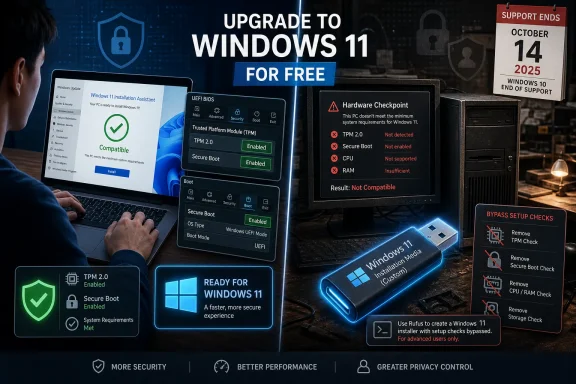 Microsoft’s Free Upgrade Still Comes With a Hardware Toll Booth
The basic upgrade path remains familiar. If a Windows 10 PC passes Microsoft’s compatibility checks, Windows 11 can arrive through Windows Update, the Windows 11 Installation Assistant, the Media Creation Tool, or a directly downloaded ISO. None of those paths require buying a Windows 11 license if the existing Windows 10 installation is properly activated.That part is easy to forget because Microsoft’s public messaging has long blurred “upgrade to Windows 11” with “buy a new Windows 11 PC.” From Redmond’s perspective, that makes commercial and support sense. New hardware means modern firmware, supported CPUs, better security defaults, and fewer edge cases for OEMs and IT help desks.
But for users, the distinction matters. A free software upgrade is not free if it requires replacing a laptop that still performs ordinary work well. The PCMag piece captures that tension neatly: Microsoft is telling users the door is open, but its bouncer is checking TPM versions, Secure Boot status, and processor lists before letting them through.
Windows 11’s formal minimums are not exotic by 2026 standards. Microsoft wants a 64-bit processor with at least two cores, 4GB of RAM, 64GB of storage, UEFI firmware with Secure Boot capability, TPM 2.0, and a compatible graphics stack. In the real world, however, the trap is not always raw speed or memory. It is often a machine from the wrong CPU generation, a disabled firmware TPM, or an older system that can run Windows 11 but cannot qualify for it.
That distinction has defined the Windows 11 era. Windows 10 was famous for running on almost anything that could tolerate it. Windows 11 is the release where Microsoft decided that capability was no longer enough.
The Compatibility Checker Is a Gatekeeper, Not a Diagnostic Philosophy
Microsoft’s PC Health Check app is the official first stop, and PCMag is right to put it early in the process. It gives ordinary users a quick answer: this PC meets Windows 11 requirements, or it does not. For a household user, that may be the difference between clicking an upgrade button and assuming the machine has reached the end of the road.But IT pros know the checker is not the same thing as a nuanced hardware assessment. It does not ask whether a seven-year-old business desktop is still fast enough for Office, browsing, remote work, and light development. It asks whether the machine fits Microsoft’s Windows 11 support matrix.
Sometimes the fix is simple. A system may have TPM support through Intel PTT or AMD fTPM but have it disabled in firmware. Secure Boot may be off because the machine was configured years ago for compatibility, dual booting, or old deployment habits. In those cases, the PC may be closer to compliance than the user thinks.
The danger is that Microsoft’s pass/fail model encourages two bad reactions. Some users give up too early and replace hardware they did not need to replace. Others jump directly to bypass tools without first checking whether their PC can be made compliant through firmware settings.
That is why the compatibility step should not be treated as a verdict until the BIOS or UEFI configuration has been checked. For many enthusiast and business-class machines, especially from the Windows 10 era, TPM 2.0 support may be present but invisible until enabled. The cheapest upgrade is still the one hiding behind a firmware toggle.
Microsoft’s Official Tools Are Boring, Which Is Exactly Their Value
For compatible PCs, the best upgrade method is still the least dramatic one. Windows Update is the cleanest route because it lets Microsoft stage the upgrade in the context of that device’s known drivers and servicing state. If Windows 11 appears there, the user should usually take the hint.The Installation Assistant is the next rung down the ladder: still official, still straightforward, but more assertive. It is designed for users who do not want to wait for Windows Update to offer the release. PCMag’s description is accurate in spirit: download the assistant, run it, accept the terms, let it install, and reboot when prompted.
The Media Creation Tool and ISO route matter more for people who manage more than one PC or want reusable installation media. A USB installer is useful when upgrading several systems, repairing a broken installation, or keeping an offline copy of the installer on hand. The ISO is also the natural path for virtual machines, lab environments, and more controlled upgrade testing.
All of these official options share one important assumption: the PC is supported. They are not designed to litigate Microsoft’s hardware policy. They are designed to move a valid, compatible Windows 10 installation to Windows 11 while preserving apps and files when possible.
That “when possible” deserves emphasis. Any in-place OS upgrade should be treated as a controlled risk, not a casual app update. Backups are not optional. A user who cannot afford to lose the contents of a machine should not begin by trusting an installer, even an official one.
Rufus Turns the Hardware Wall Into a Speed Bump
The most attention-grabbing part of PCMag’s guide is the unsupported-PC path using Rufus. Rufus has become the Windows enthusiast’s pocketknife for bootable USB media, and its Windows 11 options can remove checks for TPM 2.0, Secure Boot, and minimum RAM during installation media creation. In practical terms, that means an older Windows 10 PC that Microsoft’s own tools reject may still accept Windows 11 from a modified USB installer.This is not magic. Rufus is not licensing Windows for free, and it is not making old hardware officially supported. It is changing the setup path so Windows Setup does not stop at Microsoft’s front gate.
For enthusiasts, that distinction is obvious. For ordinary users, it is easy to miss. A bypassed install may boot, update, and run normally for everyday tasks, but it exists outside Microsoft’s preferred support lane. If something breaks because of a driver, firmware limitation, future feature update, or hardware security expectation, Microsoft can point back to the requirements and say the PC was never a supported Windows 11 target.
The appeal is still obvious. A laptop with an unsupported Intel or AMD processor may remain perfectly competent for web apps, email, writing, streaming, and remote desktops. Throwing it away because it missed a CPU list is hard to defend from a household budget perspective, and harder still from an environmental one.
That is why Rufus occupies such a strange place in the Windows ecosystem. It is not a pirate tool. It is not obscure. It is widely used by legitimate admins, repair shops, hobbyists, and power users. But in the Windows 11 story, it also functions as a referendum on Microsoft’s hardware cutoff.
Unsupported Does Not Mean Unusable, But It Does Mean You Own the Risk
The phrase “incompatible PC” is doing too much work. Some machines are incompatible because they lack security features Microsoft considers foundational. Some are incompatible because they have CPUs Microsoft chose not to validate. Some may be technically capable but configured incorrectly. Those are very different situations.A bypass install on a machine with TPM disabled is not the same as a bypass install on a machine with no TPM path at all. A reasonably modern system with a slightly unsupported processor is not the same risk as an old box with legacy BIOS, ancient graphics drivers, and marginal storage. The PCMag walkthrough shows the mechanical process, but the judgment call remains with the user.
Security is the central tension. Microsoft’s Windows 11 requirements were built around a more modern baseline for hardware-backed protection, virtualization-based security, Secure Boot, and stronger identity assumptions. Whether every cutoff was necessary is debatable. But the direction of travel is not.
That matters because operating systems are no longer judged only by whether the desktop loads. A PC may appear to run Windows 11 well while missing the platform assumptions Microsoft uses for current and future defenses. A home user may accept that tradeoff. A business with compliance obligations probably cannot.
Administrators should be especially careful here. An unsupported Windows 11 install may be tempting for squeezing another year or two out of a fleet, but it can complicate inventory, help desk support, cyber insurance conversations, and audit posture. If the organization has Microsoft Intune, Endpoint Analytics, or other management tools in place, the cleaner move is to identify upgradeable hardware, enroll remaining Windows 10 systems in Extended Security Updates where appropriate, and retire the rest on a schedule.
The home calculus is different. If the alternative is an unpatched Windows 10 machine, an unsupported Windows 11 install may be the less bad option for a technically capable user who understands backup, recovery, and driver risk. But it should not be sold as the same thing as a supported upgrade.
Windows 10’s End of Support Made the Workaround Mainstream
The Windows 11 bypass conversation was once a hobbyist sideshow. Windows 10’s end of support changed that. After October 14, 2025, mainstream Windows 10 users no longer receive ordinary free security fixes, bug fixes, or technical support from Microsoft, except through specific extended programs or special servicing channels.That turned the Windows 11 hardware wall into a mass-market problem. Before the deadline, staying on Windows 10 was a preference. After the deadline, it became a security decision.
Microsoft did offer lifelines, including consumer Extended Security Updates paths and business ESU options, but those are fundamentally delay mechanisms. They buy time; they do not turn Windows 10 back into the strategic future of the platform. The company wants the installed base on Windows 11 and eventually whatever follows it.
This is why PCMag’s piece is useful beyond its step-by-step value. It reflects what users are actually doing in 2026: checking compatibility, trying official channels, and then deciding whether the machine is worth saving through unofficial installation media. Microsoft can shape the supported path, but it cannot fully control the installed base’s response to a hard cutoff.
The uncomfortable irony is that Windows 10’s long life made this harder. Microsoft spent a decade proving that Windows could be a durable, continuously serviced platform across many generations of hardware. Then Windows 11 arrived and reintroduced the idea that hardware generations matter sharply. Users noticed the reversal.
The “Free” Upgrade Is Also a Data and Account Migration
The upgrade price is only one dimension of cost. Windows 11 brings users further into Microsoft’s current account, cloud, and telemetry model. Windows 11 Home and consumer-oriented Windows 11 Pro setup flows have pushed harder toward Microsoft account sign-in and internet connectivity than many Windows 10 users prefer.That does not mean Windows 11 is unusable or sinister. It does mean the migration is not just a kernel and shell upgrade. It is also a nudge into OneDrive, Microsoft account recovery, cloud sync, Edge defaults, Microsoft Store plumbing, and an operating system increasingly designed around subscription services and AI-branded features.
This is part of why some Windows 10 holdouts are not merely lazy. Many remember Windows 11’s early taskbar regressions, Start menu changes, default-app friction, and advertising experiments. Even where Microsoft has improved the experience, the accumulated impression remains: Windows 11 asks users to move not only to a newer OS, but to Microsoft’s preferred operating model.
For IT departments, that model can be useful. Centralized identity, device compliance, BitLocker, Defender, Intune, and hardware-backed security can all make Windows 11 easier to govern than a messy Windows 10 estate. For a home user with a local account and a five-year-old laptop, it can feel like the operating system has become less personal and more transactional.
That tension explains why a how-to guide about free upgrades becomes newsworthy at all. If Windows 11 were an irresistible upgrade on universally eligible hardware, nobody would need a workaround story in 2026. The existence of the workaround is evidence of a market Microsoft has not fully persuaded.
Where the Official Advice Stops Helping
Microsoft’s preferred guidance is coherent: check compatibility, upgrade if supported, buy a new PC if not, or use Windows 10 ESU temporarily. That is clean advice for a vendor. It is not always sufficient advice for the person holding the old machine.A family laptop used for school portals, tax forms, streaming, and email may not justify replacement simply because its processor missed the supported list. A garage PC used for manuals and diagnostics may not need Copilot+ performance. A small nonprofit may have a dozen office desktops that are old but serviceable, and no appetite for an immediate hardware refresh.
The official line also underplays the repair economy. Independent technicians and technically fluent relatives are often the real migration path for older PCs. They will back up data, enable firmware TPM where possible, create Rufus media where necessary, and decide on a machine-by-machine basis whether Windows 11 is a reasonable destination.
That approach is messier than Microsoft’s. It is also closer to reality.
The risk is that users may follow a recipe without understanding the context. Rufus can make an installer that bypasses checks, but it cannot promise long-term support, driver availability, firmware correctness, or future feature update compatibility. A user who proceeds should know how to restore from backup, reinstall Windows 10 if needed, or move to another OS if Windows 11 proves unreliable.
That last option deserves more attention than it usually gets. For some older PCs, Linux may be a better long-term home than unsupported Windows 11. For others, ChromeOS Flex or a lightweight role-specific setup may extend useful life without pretending the machine is a first-class Windows 11 citizen. Windows is not the only way to keep a computer out of the recycling stream.
Enterprise IT Has Fewer Excuses and Higher Stakes
The unsupported upgrade story is most defensible at the consumer edge. In managed environments, it becomes harder to justify. Businesses had years of notice that Windows 10 support would end in October 2025, and Windows 11’s hardware requirements have been known since its launch.That does not mean every organization had the budget or operational simplicity to refresh on time. But it does mean the remaining Windows 10 population should be treated as a managed exception, not a casual oversight. The right question for IT is not “Can we bypass the installer?” It is “What risk are we accepting, for which devices, and until what retirement date?”
Unsupported Windows 11 can create ambiguity in places where ambiguity is expensive. Asset tools may show a machine on Windows 11, but that does not mean it satisfies the organization’s hardware security baseline. A compliance report that says “Windows 11 installed” is not the same as a compliance report that says the device is supported, encrypted, patched, and aligned with policy.
There may be edge cases. A lab machine, kiosk, spare device, or isolated workstation might justify a workaround under strict controls. But as a fleet strategy, bypassing Windows 11 requirements is a bet against the vendor’s support model. That is not a bet most CIOs want to explain after an incident.
The better enterprise lesson from the PCMag guide is procedural rather than tactical. Inventory matters. Firmware settings matter. Procurement cycles matter. Organizations that still have large numbers of Windows 10 systems in 2026 need a sober map of which devices can be made compliant, which can be protected through ESU temporarily, and which should be removed from production.
Microsoft Won the Adoption Chart but Not the Argument
By April 2026, Windows 11 had clearly overtaken Windows 10 in global Windows version share. That is a major milestone, and Microsoft can fairly claim that the migration has finally turned. The problem is that the remaining Windows 10 share is still too large to dismiss as statistical residue.A 28.5 percent share after end of support is not a rounding error. It represents millions of machines, many of them in homes, small businesses, schools, workshops, and secondary roles where replacement cycles are slow. Some are neglected. Some are constrained by software. Some are blocked by hardware rules. Some are held back by user preference.
That persistence weakens the triumphal version of the Windows 11 story. Microsoft did not simply convince the world to move. It waited out Windows 10, applied the support deadline, improved Windows 11 over time, and let hardware churn do a large part of the work.
None of that makes Windows 11 a failure. The OS is far more mature now than it was at launch. Many early annoyances have been softened, driver support is broad, gaming is strong, and modern security defaults matter. For new PCs, Windows 11 is the normal and sensible baseline.
But the unsupported-PC workaround story shows the unresolved fracture. Microsoft wants Windows to be a secure, modern, hardware-backed platform. Users want useful PCs to remain useful. Those goals overlap, but not perfectly.
The Upgrade Path Is Clearer Than the Policy Behind It
The concrete advice is now fairly straightforward, even if the politics are not. A user should first check whether the PC is truly unsupported, then use Microsoft’s official tools if it qualifies, and only then consider a bypass installer with eyes open. The worst choice is drifting along on an unpatched Windows 10 machine while assuming nothing has changed.- A Windows 10 PC that passes Microsoft’s compatibility checks should be upgraded through Windows Update or the Windows 11 Installation Assistant before using more elaborate methods.
- A PC that fails the compatibility check should have its firmware settings reviewed for TPM, fTPM, PTT, UEFI mode, and Secure Boot before being written off.
- A Rufus-created installer can bypass several Windows 11 setup checks, but it does not make the resulting installation officially supported by Microsoft.
- A full backup should come before any in-place upgrade, because preserving apps and files is an installer option rather than a disaster recovery plan.
- Businesses should treat unsupported Windows 11 installations as exceptions requiring documented risk acceptance, not as a fleet migration strategy.
- Windows 10 ESU can buy time for some users and organizations, but it is a bridge away from Windows 10 rather than a new long-term home.
Source: PCMag How to Upgrade Your PC to Windows 11 for Free, Even If It's Incompatible
