

I swapped FancyZones for a true tiling window manager on Windows — and it changed how I work, how I think about windows, and how often I touch the mouse.
For years, Microsoft PowerToys’ FancyZones has been the go-to way to tame window chaos on Windows. It offers a polished, GUI-driven editor to create custom zones, assign per-monitor layouts, and snap applications into predictable spots. FancyZones is fast to adopt and low risk: you drag, drop, or use a keyboard shortcut and windows land where you expect. It’s an excellent solution for most users who want tidier screens without deep configuration.
But FancyZones is a manual layout system — it expects you to place windows into zones. That’s a different mental model than a tiling window manager, where the runtime enforces a layout and new windows are automatically placed and resized. On Linux, tiling managers like i3, bspwm, and Sway have long offered keyboard-first, automatic reflow workflows; on Windows, new projects are bringing that same philosophy to the platform.
Komorebi is one of the more mature Windows tilers. It’s designed as a daemon + CLI + optional helpers: the core window manager runs in the background, a command-line utility (komorebic) talks to it, and a small hotkey daemon (whkd) wires keystrokes to commands. It’s not for the casual user, but if you crave automatic tiling, keyboard-driven workspaces, and scriptable window control on Windows, komorebi represents a practical, modern option.
Installation tips:
Autostart approaches:
FancyZones:
If you’re curious but cautious: try the quickstart, use the provided sample configs, and keep a recovery plan (komorebic stop, restore point, or a backed-up komorebi.json) while you iterate. For people who love the disciplined efficiency of i3 or bspwm on Linux, komorebi is the closest, practical Windows equivalent — just be ready to edit JSON, map keys, and enjoy windows that obey the rules you set.
Source: MakeUseOf I replaced FancyZones with a real tiling window manager on Windows
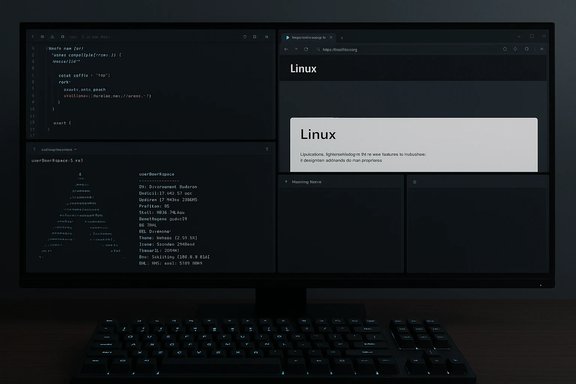 Background / Overview
For years, Microsoft PowerToys’ FancyZones has been the go-to way to tame window chaos on Windows. It offers a polished, GUI-driven editor to create custom zones, assign per-monitor layouts, and snap applications into predictable spots. FancyZones is fast to adopt and low risk: you drag, drop, or use a keyboard shortcut and windows land where you expect. It’s an excellent solution for most users who want tidier screens without deep configuration.But FancyZones is a manual layout system — it expects you to place windows into zones. That’s a different mental model than a tiling window manager, where the runtime enforces a layout and new windows are automatically placed and resized. On Linux, tiling managers like i3, bspwm, and Sway have long offered keyboard-first, automatic reflow workflows; on Windows, new projects are bringing that same philosophy to the platform.
Komorebi is one of the more mature Windows tilers. It’s designed as a daemon + CLI + optional helpers: the core window manager runs in the background, a command-line utility (komorebic) talks to it, and a small hotkey daemon (whkd) wires keystrokes to commands. It’s not for the casual user, but if you crave automatic tiling, keyboard-driven workspaces, and scriptable window control on Windows, komorebi represents a practical, modern option.
What komorebi is — and what it isn’t
Komorebi is a tiling window manager for Windows that:- Runs alongside Explorer and integrates with the Desktop Window Manager without replacing the shell.
- Uses a declarative JSON configuration (komorebi.json) for gaps, workspace rules, per-monitor layouts, and ignored apps.
- Exposes more than 150 CLI subcommands through a companion tool (komorebic) so you can script or bind actions.
- Intentionally keeps changes opt-in so users decide which shell behaviors to modify.
Installing komorebi and its hotkey daemon
If you want to try komorebi, practical installation methods exist and are straightforward for anyone familiar with WinGet or Scoop:- winget install LGUG2Z.komorebi
- winget install LGUG2Z.whkd
Installation tips:
- Use a package manager (winget or Scoop) to keep komorebi and whkd on your PATH and to make updates easy.
- Verify the installed binaries using the provided --version flags (komorebic --version and whkd --version) after install.
- If the hotkey daemon isn’t found after installing, confirm PATH and the install location; package-managers generally handle this correctly, but manual MSI installs might not.
Quickstart: get a working configuration in minutes
Komorebi will not tile out of the box without configuration, but the project provides a built-in quickstart to bootstrap a working setup:- Open PowerShell or Windows Terminal.
- Run komorebic quickstart — this generates a sample komorebi.json and a whkdrc for hotkeys in your user profile.
- Inspect and tweak both files in a text editor. The JSON controls gaps, workspace rules, and monitor mappings. The whkdrc maps keystrokes to komorebic commands.
Starting, stopping, and making komorebi persistent
Core commands you’ll use:- Start the daemon and the hotkey helper:
komorebic start --whkd - Stop the daemon and restore hidden windows:
komorebic stop --whkd - Reload configuration without restarting:
komorebic reload-configuration - Restore hidden windows manually if something gets stuck:
komorebic restore-windows
Autostart approaches:
- Use Task Scheduler to create a task that runs komorebic start --whkd at logon. This lets you control conditions like “only run if on AC power” and run elevated if necessary.
- Add a startup shortcut or script to the Windows startup folder or shell profile.
- The Task Scheduler approach is the most robust for varying privilege/conditional needs.
The workflow difference: manual zones vs automatic tiling
FancyZones and komorebi aim at the same high-level problem — keep your windows organized — but they solve it differently.FancyZones:
- Zone-based editor with a GUI.
- You drag windows into zones (or use Win + arrow hotkeys when enabled).
- Zones can be saved per monitor and recalled quickly.
- It’s ideal when you want a visual editor and occasional manual control.
- Automatic tiling: new windows are placed and layouts reflow without dragging.
- Keyboard-first operation: focus movement, resizing, workspace switching, and container swaps are accessible via keybindings.
- Multiple layout algorithms (BSP, Columns, Rows, VerticalStack, HorizontalStack, UltrawideVerticalStack, Grid, RightMainVerticalStack, Scrolling) are available and can be switched on the fly.
- Per-monitor workspaces with independent layouts and quick numeric hotkeys (for example, Alt+3 to switch to workspace 3, Alt+Shift+3 to move a window there).
Keybindings and the hotkey daemon
Komorebi delegates keyboard handling to a hotkey service — whkd is the recommended companion, though AutoHotkey also works for those who prefer it.- whkd reads a human-readable whkdrc file and executes commands (e.g., komorebic focus left).
- Example mappings that make tiling productive:
- alt + h/j/k/l — move focus left/down/up/right
- alt + shift + enter — swap focused window with main area
- alt + +/- — resize focused container
- alt + n — switch to workspace n, alt + shift + n — move focused window to workspace n
- Remap Caps Lock to a Hyper key (Ctrl+Alt+Shift+Win) if you want more combinations in comfortable positions.
- Keep a short cheat sheet of your first- and second-tier hotkeys until they’re memorized.
- Use whkd’s .pause and .shell directives to create app-specific behavior and toggles when you need exceptions.
Layouts, rules, and per-monitor configs
Komorebi supports a range of built-in layouts and dynamic layout rules:- Default tiling algorithm: BSP (Binary Space Partitioning) — a recursive split that adapts as you open apps.
- Other built-in layouts: columns, rows, vertical-stack, horizontal-stack, ultrawide-vertical-stack, grid, right-main-vertical-stack, scrolling.
- You can define dynamic layout rules so a workspace uses different layouts when it reaches a threshold number of windows (for example, use BSP for 1–3 windows but switch to Grid at 6+ windows).
- Per-monitor mapping: use display identifiers to ensure your monitor arrangement is stable across docks and reconnections.
Practical configuration file pointers
- komorebi.json holds global defaults and per-monitor workspace arrays. Key fields include:
- default_workspace_padding and default_container_padding (gaps between windows / monitor edges).
- window_hiding_behaviour (how windows are hidden/cloaked).
- cross_monitor_move_behaviour (insert vs append semantics when moving windows between monitors).
- whkdrc maps your chosen key combinations to komorebic invocations. Keep this file under source control once you like it.
- Logs are written to %LOCALAPPDATA%\komorebi\komorebi.log (use this for diagnosing panics or deadlocks).
- komorebic state returns a JSON snapshot of the runtime state for tooling or troubleshooting.
- If windows get lost, komorebic restore-windows reads the known handles and forces windows visible again.
Strengths: where komorebi shines
- True automatic tiling — new windows are placed and layouts reflow without manual intervention.
- Keyboard-first control — efficient, low-latency workflows when you commit to hotkeys.
- Per-monitor, per-workspace customization — tailor each display to its role and keep it consistent across sessions.
- Scriptable via CLI — over 150 commands allow deep automation and integration with other tools (status bars, launchers, scripts).
- Active development and community tooling — companion UIs and bars exist to reduce friction for non-CLI users.
Risks and real-world caveats
- Learning curve — keyboard-driven tiling requires time to internalize hotkeys. Expect a few days to a week before muscle memory removes friction.
- Edge-case window behavior — some applications (UAC/elevated dialogs, certain Electron apps, games, or custom-drawn windows) may not tile properly. Use per-app rules to float or ignore problematic windows.
- Integration fragility — tools that expect normal stacking behavior or rely on enumerating windows may behave differently if windows are cloaked or hidden.
- Privilege and elevation — elevated apps may require special handling. Similar to FancyZones requiring PowerToys to run elevated for some elevated windows, komorebi may need elevated components or explicit rules.
- License for commercial use — komorebi and related projects use a license that restricts commercial usage by default and offers an Individual Commercial Use License for workplace use. Organizations should vet licensing and security before deploying to managed fleets.
- Maintenance overhead — extensive, customized configs are powerful but can break during upgrades; keep incremental backups and version control for configs.
Performance and resource considerations
Komorebi is implemented to be lightweight — it hooks into the Windows windowing API rather than replacing the compositor. Typical systems see negligible CPU overhead once configured. However:- Mixed-DPI setups, certain GPU driver stacks, and docking station reconnections can reveal layout edge cases; thoroughly test on the same hardware combination you use daily.
- The optional status bar and additional plugins may increase memory usage slightly; disable the bar if you prefer minimal footprint.
- Logs accumulate in %LOCALAPPDATA%; rotate or prune them if you collect long debug traces.
Enterprise and security posture
For personal laptops, komorebi is an outstanding tinkerer’s tool. For corporate deployment:- Validate the license: komorebi’s license restricts out-of-the-box commercial redistribution and use — obtain the appropriate Individual Commercial Use License before deploying company-wide.
- Vet binaries: prefer official releases and package manager manifests (winget) from trusted publishers; validate checksums when automating installs.
- Policy and MDM: confirm with IT that endpoints are allowed to run user-mode window-manipulating tools; some corporate device policies will block these by design.
- Accessibility and remote control: ensure any accessibility tooling or remote-control applications used by the organization are tested with komorebi in place — hidden or cloaked windows can interfere with discovery by assistive technologies.
How I migrated my own workflow (practical timeline)
- Week 0 — Install & quickstart: winget install komorebi + whkd, run komorebic quickstart, test a few hotkeys.
- Week 1 — Tweak hotkeys and padding: remap Caps Lock to Hyper, adjust container padding for visibility, and float chat apps.
- Week 2 — Per-monitor tuning: set VerticalStack on the laptop display and BSP on the ultrawide; define rules for video players and floating tools.
- Week 3 — Make persistent: create Task Scheduler tasks for komorebic start --whkd and test startup sequencing; add short scripts for quick reload.
- Ongoing — Maintain config in a private dotfiles repo, back up komorebi.json and whkdrc, and iterate.
When to stick with FancyZones
If you prefer a GUI editor, primarily use drag-and-drop layouts, or you need a no-configuration solution for shared or managed machines, FancyZones remains the pragmatic choice. It integrates tightly with PowerToys, handles elevated window quirks by running PowerToys as admin, and requires minimal setup — exactly what many users need.Conclusion
Swapping FancyZones for a tiling manager like komorebi is not a small tweak; it’s a workflow shift. Komorebi brings automatic tiling, keyboard-first control, and scriptable, per-monitor workspaces to Windows, and it does so with a thoughtful, modern codebase and rich CLI surface. The cost is configuration time and a willingness to accept occasional Windows edge cases. For power users who live in many windows and want to reclaim the mouse for what it’s best at, the investment pays off quickly.If you’re curious but cautious: try the quickstart, use the provided sample configs, and keep a recovery plan (komorebic stop, restore point, or a backed-up komorebi.json) while you iterate. For people who love the disciplined efficiency of i3 or bspwm on Linux, komorebi is the closest, practical Windows equivalent — just be ready to edit JSON, map keys, and enjoy windows that obey the rules you set.
Source: MakeUseOf I replaced FancyZones with a real tiling window manager on Windows
