

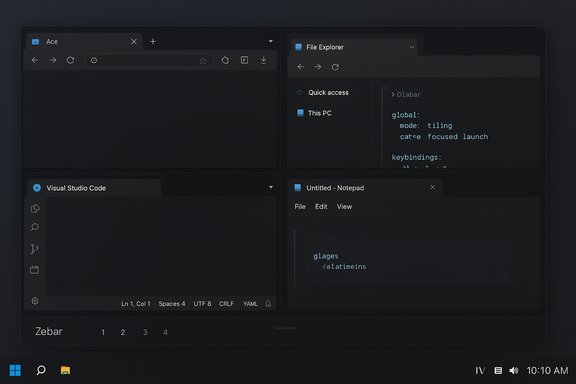
GlazeWM lands on Windows as a compact, keyboard-first tiling window manager that automatically arranges new windows, bringing an i3-like workflow to the platform and filling a long‑standing gap between Windows’ Snap Assist and the full tiling experience Linux users have enjoyed for years.
Tiling window managers rearrange windows into non‑overlapping tiles so every new window occupies a predictable region instead of stacking on top of other windows. On Linux, tools such as i3, Sway and Hyprland have made tiling mainstream among power users; on Windows, the native options (Snap Assist and PowerToys FancyZones) remain mostly manual or GUI-driven. GlazeWM aims to change that by running alongside Explorer and intercepting window creation and placement to provide automatic, keyboard-driven tiling on Windows.
At its core GlazeWM offers:
Where the config lives and how to change it:
Key points about Zebar:
For power users who prize determinism and keyboard speed over plug‑and‑play polish, GlazeWM is a compelling, free, open‑source choice that fills a capability gap Windows has historically left to third‑party tools. For managed or less technical environments, wait for further polish, signed builds and documented enterprise guidance before a broad rollout.
Appendix: quick checklist before you install
Source: MakeUseOf GlazeWM is a tiny open-source app that manages windows better than Windows does
 Background / Overview
Tiling window managers rearrange windows into non‑overlapping tiles so every new window occupies a predictable region instead of stacking on top of other windows. On Linux, tools such as i3, Sway and Hyprland have made tiling mainstream among power users; on Windows, the native options (Snap Assist and PowerToys FancyZones) remain mostly manual or GUI-driven. GlazeWM aims to change that by running alongside Explorer and intercepting window creation and placement to provide automatic, keyboard-driven tiling on Windows.At its core GlazeWM offers:
- Automatic tiling: new windows are arranged into tiles rather than floating or stacking.
- Keyboard-first control: focus movement, resizing, workspace switching, and window movement are handled by hotkeys.
- Simple YAML configuration: a single human‑readable config file controls gaps, keybindings, rules, and workspace definitions.
- Optional status bar (Zebar): a minimal bar that shows workspaces and basic info, familiar to i3 users.
Why GlazeWM matters on Windows
Windows’ Snap Assist is useful for quick halves and quarters, while PowerToys FancyZones lets you design custom layouts — but neither enforces an automatic tiling model. That means when you open a third or fourth window you still manually resize or reflow windows, and many workflows rely heavily on mouse-driven layout tweaks. GlazeWM brings deterministic, programmatic tiling to Windows: open a new app and the layout updates automatically; move focus and resize with the keyboard; persist workspace layouts. For keyboard‑centric users this reduces repetitive mouse travel and micro‑adjustments, translating into real productivity gains once muscle memory forms. Key practical benefits:- Predictable window placement — nothing drops behind another.
- Fast workspace switching with keys (numerical hotkeys map to workspaces).
- Minimal UI chrome — the desktop is visually decluttered and focus stays on content.
- Simple, scriptable configuration — the YAML file and CLI hooks let power users create reproducible setups.
Installation and first steps
GlazeWM is distributed as an open‑source project and comes in several convenient installation flavors. The official project publishes releases on GitHub and provides package manager manifests for automation. Verified installation paths include:- Download the installer or portable executable from the project’s GitHub releases page.
- Winget: the project is available via winget (package manifest has recently been published as glzr‑io.glazewm; historical manifests and forks exist, so confirm the publisher). Example:
winget install glzr-io.glazewm(verify the package publisher before installing).- Scoop and Chocolatey manifests are also available for those package managers.
%USERPROFILE%.glzr\glazewm\config.yaml(Windows path equivalent of~/.glzr/glazewm/config.yaml).
- Prefer the official GitHub release or a verified winget/Choco manifest to avoid untrusted builds.
- If you rely on a launcher (Raycast, PowerToys Run) or custom hotkeys, note that GlazeWM uses global shortcuts — be prepared to remap conflicts during initial setup.
- Keep the sample config handy and back it up before you start heavy customization.
Configuration: the YAML approach (fast, powerful, human readable)
GlazeWM uses a single YAML file for everything: gaps, borders, workspace definitions, keybindings, window rules, and startup commands. This design mirrors the configuration model of Linux tilers such as i3 and makes the tool highly scriptable.Where the config lives and how to change it:
- Default path:
%USERPROFILE%.glzr\glazewm\config.yaml. You may pass a custom config path with--config="C:\path\to\config.yaml"or set theGLAZEWM_CONFIG_PATHenvironment variable.
gaps— inner and outer gaps are configurable. Values may be pixel strings (e.g.,"8px") or numerics depending on examples; the config supports DPI scaling. Example keys includeinner_gap,outer_gap(top/right/bottom/left), andsingle_window_outer_gapfor behavior when one window occupies a workspace.workspaces— define the workspace names and optionally bind them to specific monitors.keybindings— map the keys that move focus, swap windows, resize, or switch workspaces.window_rules— exclude or set special handling (floating) for dialogs, overlays or system windows that should never be tiled.
- To reduce visual gaps: set
gaps.inner_gap: "8px"(many users find 5–12px optimal on 1080p displays; on 4K increase slightly). - To ignore specific windows (PowerToys palette, system dialogs): add rules matching
window_titleorwindow_processand apply theignoreorfloatingcommand. Example rule blocks can be copied from community gists.
inner_gap (some examples use 20 while other configs use 5, 8, or 10). This indicates the sample defaults have evolved over releases and the shipped default can vary by version. Confirm the current value in the generated config.yaml on your machine and edit it to taste. Treat any single reported default as version‑specific until you verify on the running release. Keyboard-driven workflows: what it feels like
GlazeWM is built for users who prefer the keyboard. Typical operations include:- Move focus between tiles with directional hotkeys.
- Resize the active tile with modifier‑key combinations.
- Move the active window between workspaces or monitors.
- Toggle floating state for a window (useful for dialogs or media players).
- Switch to workspace N with Alt+N style hotkeys (configurable).
config.yaml and GlazeWM can reload the mapping without a full restart. Practical sequences (examples):- Press the “focus” key to jump between tiles, then use
Alt+Shift+H/J/K/L(or your remap) to move the active window to the left/down/up/right workspace. - Enter resize mode and press the directional keys to grow/shrink the active tile by increments defined in the config.
Zebar — the minimal status bar
GlazeWM bundles (or optionally installs) Zebar, a minimal bar that replaces or sits above the Windows taskbar to show workspace labels and a few small widgets. It’s intentionally spare — the goal is to give quick workspace visibility without a heavy taskbar replacement.Key points about Zebar:
- Zebar integrates with GlazeWM to show focused workspace, available workspaces and basic indicators.
- The project’s releases note a switch to starting Zebar via
shell-exec zebarin the startup commands rather than a bundled script, so older configs may need a small edit when upgrading. - If you prefer the native Windows taskbar, you can configure outer gaps to avoid overlapping or keep Zebar disabled.
Compatibility, limitations and the reality of Windows interoperability
GlazeWM is an overlay on top of Windows’ windowing APIs — it is not a replacement compositor the way Wayland compositors are on Linux. That design choice gives it broad compatibility but also introduces practical limitations:- Some windows don’t tile well — system modal dialogs, UAC/elevated windows, or apps that use custom windowing techniques (games, some Electron apps) may behave unexpectedly. The recommended mitigation is to add window rules to keep these windows floating or ignored.
- Multi‑monitor quirks — complex multi‑monitor setups can reveal edge cases where tiling logic miscalculates bounds or fails to respect a third‑party panel that doesn’t register as a reserved area. Testing on your real‑world setup is essential.
- Hotkey conflicts — GlazeWM must register global hotkeys; that can conflict with launchers and other utilities. The safe approach is to audit the generated config and remap collisions early in your rollout.
- Tray and UI polish — early‑stage or community tools often leave some UX rough edges: tray integration can be basic, and some expected quality‑of‑life features may be missing compared with a mature desktop environment. These are ongoing development items in the project backlog.
- On managed machines, installing a tool that affects global window behavior or registers system hooks may violate IT policy. Validate with your IT team and prefer signed, vetted binaries. When automating installs via winget in enterprise images, confirm the manifest publisher and hashes.
- Because GlazeWM manipulates windows programmatically, treat it like any other system‑level utility: test for unintended interactions with accessibility tooling, screen‑reader workflows, or remote‑control software.
How it compares with Windows Snap Assist and FancyZones
- Snap Assist: Easy, GUI-driven, perfect for casual half/quarter arrangements but not automatic or keyboard‑centric.
- PowerToys FancyZones: Powerful layout editor and saved zones; works well for many workflows but requires manually snapping windows into zones (drag or hotkey) and doesn't enforce automatic reflow when new windows spawn.
- GlazeWM: Automatic tiling with keyboard-first flows and workspace persistence — the closest Windows equivalent to an i3-style tiling experience.
Community, maintenance and roadmap
GlazeWM is actively developed on GitHub with frequent releases and an open issue tracker. Recent releases added features such as improved winget support, additional tiling direction commands, and better monitor‑focused commands — evidence the project is maturing quickly. Community contributions (gists, example configs, and forks) are common, and users frequently share practicalconfig.yaml snippets for common workflows. Expectations for a project at this stage:- Rapid feature additions and breaking config changes may appear between releases; read release notes and update the generated
config.yamlbefore updating the runtime. - The user community is the best source for polished config examples (workspaces for dev, writing, browsing, streaming) and troubleshooting patterns for tricky apps.
Step‑by‑step quick start (practical)
- Download the latest GlazeWM release from GitHub or use winget after verifying the package publisher. Example:
winget install glzr-io.glazewm(verify publisher before running).- Launch GlazeWM and allow it to create a sample config at
%USERPROFILE%.glzr\glazewm\config.yaml. Back up the generated file. - Edit
config.yamlto: - Lower
gaps.inner_gapfrom the sample if the default feels too large (try"8px"on 1080p first). - Adjust
focus_borders.active.colorto a brighter color for better visual focus feedback. - Remap any hotkeys that conflict with your launchers or accessibility tools.
- Add
window_rulesentries to float or ignore known problematic windows (e.g., launcher palettes, PowerToys overlays). - Optionally install Zebar; if you later upgrade GlazeWM, check release notes for the recommended Zebar startup command change and update your
startup_commandsif needed.
Critical analysis — strengths and risks
Strengths- High productivity potential: For keyboard‑driven workflows the mental and physical savings scale with session complexity.
- Lightweight and scriptable: Single YAML config and CLI hooks make it easy to portableize and version control workspace setups.
- Open source and community driven: Users can inspect behavior, add window rules, and contribute fixes quickly.
- Edge‑case behavior on Windows: Because GlazeWM is an overlay that manipulates the Windows API, you will encounter apps and dialogs that require manual rules to behave correctly. This increases initial setup time and ongoing maintenance compared with fully native window managers.
- Hotkey and integration friction: The app takes over global shortcuts; remapping will be necessary if you rely on other global tooling.
- Polish and polish gaps: Tray UI and multi‑monitor idiosyncrasies can feel rough compared with mature shell features; expect to accept some rough edges or to contribute fixes.
- Enterprise and security posture: On managed systems, installing a window‑hooking utility may require policy review and additional vetting.
Final verdict
GlazeWM delivers a genuine tiling window manager experience on Windows: automatic tiling, flexible YAML configuration, keyboard-first operation and a minimal status bar. For users who are comfortable editing a config file and remapping a few hotkeys, it provides a powerful alternative to Snap Assist and FancyZones — finally offering a native-feeling tiling workflow without leaving Windows. The project’s active development and growing community make it promising, but expect to invest initial time in tuning window rules, resolving hotkey conflicts and testing multi‑monitor behavior.For power users who prize determinism and keyboard speed over plug‑and‑play polish, GlazeWM is a compelling, free, open‑source choice that fills a capability gap Windows has historically left to third‑party tools. For managed or less technical environments, wait for further polish, signed builds and documented enterprise guidance before a broad rollout.
Appendix: quick checklist before you install
- Verify the release binary or winget manifest (publisher and checksum).
- Backup your system image or create a restore point.
- Review and tweak
config.yamldefaults (gaps, keybindings, window rules) before making GlazeWM your daily driver. - Keep a small “escape” workflow: a hotkey or icon to gracefully shut down GlazeWM if a problematic app is encountered.
Source: MakeUseOf GlazeWM is a tiny open-source app that manages windows better than Windows does
