

I stopped reaching for my Kindle every night after I finished migrating my DRM‑free EPUBs, PDFs, and comics into a single, self‑hosted server running Kavita — and the reason wasn’t just aesthetics: it was control. What started as a frustration with scattered files and constant format juggling turned into a deliberate move to owning my reading stack. The result is a fast, attractive, cross‑device reading setup that solves real problems Amazon’s ecosystem isn’t designed to handle — at the cost of a little systems work and a new set of responsibilities every reader should understand.
Kindle’s strengths — frictionless purchasing, ultra‑efficient e‑ink hardware, and built‑in sync — are obvious. But those strengths are also the limits that show up when you want to read outside the Kindle Store. Kindle devices and apps are designed for Amazon’s formats and DRM model, and sidestepping that model quickly becomes a workflow problem: EPUBs need conversion, PDFs behave poorly on some Kindles, and purchased Kindle books can be tied to Amazon’s servers in ways that make true portability difficult. This mismatch is the reason many readers look to self‑hosted solutions.
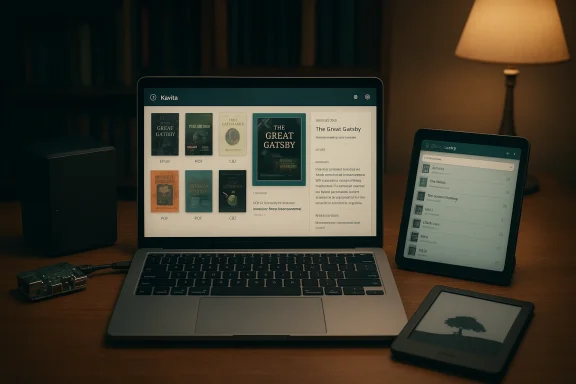
Enter Kavita: a modern, open‑source reading server built to host EPUB, PDF, CBZ/CBR and other common reading formats, accessible from any browser and compatible client. It pairs an attractive, streaming‑service style UI with dedicated readers for multiple formats, OPDS feeds for third‑party apps, user management, and optional premium services (Kavita+) for metadata and sync conveniences. The project is active on GitHub and its own documentation site, and it’s deployable on Windows, Linux, macOS, Docker, and many NAS platforms.
If you decide to switch, start small: move a single genre or series, connect a single client, and test your backup/restore. That way you’ll learn the operational details before migrating your whole library. And if you want interoperability with e‑ink devices, test OPDS clients (or KOReader on a jailbroken device) early — it’s the bridge between the convenience of a server and the serenity of paper‑like displays.
Kavita won’t replace the Kindle for everyone, but for readers who prize format freedom, centralized metadata, and a modern multi‑device experience, it’s worth the setup time — and once it’s running, you might find your Kindle gathering dust on the nightstand, too.
Source: MakeUseOf I stopped using my Kindle after setting up this gorgeous self-hosted book server
 Background / Overview
Kindle’s strengths — frictionless purchasing, ultra‑efficient e‑ink hardware, and built‑in sync — are obvious. But those strengths are also the limits that show up when you want to read outside the Kindle Store. Kindle devices and apps are designed for Amazon’s formats and DRM model, and sidestepping that model quickly becomes a workflow problem: EPUBs need conversion, PDFs behave poorly on some Kindles, and purchased Kindle books can be tied to Amazon’s servers in ways that make true portability difficult. This mismatch is the reason many readers look to self‑hosted solutions.Enter Kavita: a modern, open‑source reading server built to host EPUB, PDF, CBZ/CBR and other common reading formats, accessible from any browser and compatible client. It pairs an attractive, streaming‑service style UI with dedicated readers for multiple formats, OPDS feeds for third‑party apps, user management, and optional premium services (Kavita+) for metadata and sync conveniences. The project is active on GitHub and its own documentation site, and it’s deployable on Windows, Linux, macOS, Docker, and many NAS platforms.
Why people leave the Kindle ecosystem for a self‑hosted server
Format friction and conversion overhead
Most DRM‑free book sellers deliver EPUBs. Historically, Kindle devices did not read EPUB directly, so EPUB owners used Calibre or conversion utilities to create AZW3/MOBI files that Kindle can read — an extra step for every new purchase or public‑domain download. Although Amazon has adjusted some personal‑document flows over time, conversion and file‑type friction remain a practical headache for power users. For readers with mixed libraries (EPUBs, PDFs, scanned textbooks, and comic archives), the Kindle’s narrow format surface becomes a real limitation.Metadata and library fragmentation
When your books come from many sources — independent stores, Project Gutenberg, PDFs from publishers, and scanned comics — keeping consistent metadata, series grouping, and cover art across devices is tedious. Many find themselves juggling Calibre libraries, ad hoc folder shares, and Send‑to‑Kindle workflows. A server like Kavita centralizes indexing and metadata so every device sees the same cleaned‑up library.DRM and long‑term control
Books purchased through Kindle often remain tied to Amazon’s DRM and distribution. If you value the ability to retain and move your files — or want local backups and exportable copies — self‑hosting is attractive. It’s also why a growing number of readers prefer buying DRM‑free titles when possible. Be mindful, though: DRM removal or circumvention may be illegal in some jurisdictions; own your choices and check local law before making changes.What Kavita actually gives you — feature breakdown
Kavita is deliberately feature‑rich for people who run their own servers. The core strengths:- Multi‑format support: EPUB, PDF, CBZ, CBR, and several archive formats are supported natively; readers adapt to the content type.
- Built‑in, responsive readers: Dedicated readers for EPUB and image‑based media include single/double page modes, webtoon/vertical scroll, and options for layout, themes, and reading direction. These readers are tuned per format rather than shoehorning everything into a single viewer.
- OPDS feeds and API: Kavita exposes OPDS and a comprehensive API so external clients (KOReader, Booklore, Tachiyomi forks, and other readers) can browse and download content. OPDS is enabled by default on installs.
- User and role management: Multi‑user support with library access controls, age restrictions, and per‑user reading progress. This is useful for shared home servers.
- Metadata and discovery: Automatic cover fetch, metadata matching, smart filters, and optional external metadata via Kavita+ for richer details and recommendations.
- Cross‑session progress sync: Reading progress is stored on the server so you can resume on another device — either in Kavita’s browser reader or via compatible clients that support Kavita’s progress sync.
- Flexible deployment: Native binaries for Windows/macOS/Linux, Docker images (including a popular linuxserver build), and community‑maintained NAS packages. Docker deployments are standard practice for reliability and portability.
Installation and practical setup (Windows, Docker, and common gotchas)
Kavita is intentionally flexible about how you run it. Here are the practical options I see most often:- Native Windows install
- Kavita publishes pre‑built Windows binaries. If you prefer a packaged approach, you can install from a Windows package manager like Scoop (extras bucket) and then use a lightweight service helper such as Shawl or NSSM to run Kavita as a Windows service so it starts at boot. The project docs describe Scoop as an option and list the default Scoop install path for the Kavita binary.
- Docker (recommended for stability and portability)
- LinuxServer’s Kavita image and the upstream Docker examples are widely used: mount your media folders, map port 5000, and the web UI appears on that port. Docker isolates the runtime, simplifies updates, and makes moving between hosts trivial; it’s also the common method for NAS users. The Docker image README and Kavita’s own installation guides both include example compose files and notes about multi‑mount setups for separate libraries.
- Linux/macOS native
- Prebuilt binaries are supported and the official wiki provides service example files (systemd unit snippets) and guidance for running as a dedicated user. For lower‑power hardware like Raspberry Pi, Docker is often easier to maintain, but native execution is possible.
- Kavita defaults to port 5000 for the web UI — remember that if you’re forwarding ports or mapping Docker ports.
- Folder structure matters: Kavita’s scanners work best when books are organized in series/author folders rather than one giant flat folder. If your library is chaotic, expect more tuning work. Community reports show inconsistent results with disorganized huge libraries.
- If you want automatic startup on Windows, install and configure a service wrapper (Shawl or NSSM) after installing via Scoop; the official docs include recommended commands and paths. Running as a service avoids leaving a PowerShell window open all the time.
- For remote access, expose Kavita securely: use a reverse proxy with HTTPS (Let’s Encrypt or other certs) or tunnel services. Exposing a home server to the public internet without TLS and authentication is a security risk.
Real‑world strengths — why this works better than “sideloading to Kindle” for many libraries
- One place for everything: If your library includes DRM‑free EPUBs, PDFs, scanned textbooks, and CBZ comic archives, Kavita can host them all with format‑specific readers — no on‑the‑fly conversions before reading. That’s a major time saver compared to the continual Calibre → AZW3 workflow required for Kindle devices.
- Beautiful, usable UI: Kavita’s web UI shows cover art, series views, and metadata in a modern, browsing‑friendly way that many users prefer over Calibre‑Web or ad‑hoc file shares. This matters: a good UI makes reading feel like a curated experience rather than a file manager chore.
- OPDS and third‑party client support: If you prefer a native app on your phone or an e‑ink device running KOReader, you can connect via OPDS and keep offline copies or use native reading experiences while still relying on Kavita to centralize metadata and progress. The project documents include guides for pairing with KOReader and other clients.
- Fine‑grained user control: For family libraries, Kavita’s roles and library restrictions let you set different access levels (children vs. adults), which is clumsy in Amazon’s general family sharing model.
Risks, limitations, and trade‑offs you must accept
No self‑hosted solution is a free lunch. Here are the important trade‑offs and realistic constraints:- You are the sysadmin: Updates, backups, uptime, and security are your responsibility. If your server is down, your reading access is interrupted. That’s the price of control. Use scheduled backups for your media and configuration, and test restores.
- Offline reading is more work: Kavita’s readers are browser‑based; true offline sync (automatic background downloads and reading progress reconciliation) is less seamless than Kindle’s ecosystem. You can use OPDS clients to download content for offline use, but that’s not the same as a Kindle automatically syncing purchased titles. Expect extra steps.
- Metadata and auto‑matching can be imperfect: Kavita offers automatic metadata fetching and the Kavita+ service adds even richer external metadata and scrobbling, but metadata matching isn’t magical — messy filenames, nonstandard folder structures, and obscure editions will need attention. The project has added local metadata options and toggles to manage this behavior.
- Large libraries require structure and tuning: Users with hundreds of thousands of ebooks (edge cases) report indexing limits or runtime delays if the library is disorganized. Kavita expects a reasonable folder structure and naming conventions for best results. If your collection is chaotic, Komga, Calibre, or different tooling may suit you better. Community threads reflect this as a common friction point.
- Legal caution around DRM: Owning a reader and hosting your own copies does not change copyright and DRM law. Removing DRM on purchased materials may violate terms or laws in your country. Self‑hosting is best practiced on DRM‑free purchases, public‑domain works, and your own documents. Always confirm legal risks before altering DRM‑protected files.
Kavita+ and optional paid features — are they worth it?
Kavita offers an optional premium tier, Kavita+, that provides features like automatic external metadata download, progress scrobbling to services like AniList, enhanced recommendations, and automated metadata backfilling. For many users, these are convenience features — they reduce manual tagging and improve discovery — and they also help fund the project. If you want a more “zero‑maintenance” metadata experience and you appreciate supporting active development, Kavita+ is a straightforward option. The core server works without it.Alternatives and how Kavita compares
If you’re shopping for a self‑hosted reading server, the main alternatives to consider are:- Calibre + Calibre‑Web — Calibre is a powerful desktop library manager and converter; Calibre‑Web provides a web interface. Calibre’s conversion features are unmatched for preparing Kindle‑specific formats, but Calibre’s server and web stacks can be brittle for always‑on, multi‑user hosting at scale. Use Calibre when you’re deeply invested in conversion, device management, and local library control.
- Komga — Focused primarily on comics and manga, Komga offers strong library organization for image‑based media and good OPDS support. Many users run Komga for comics and Kavita or Calibre‑Web for books. Komga supports EPUB and PDF, but its UX is tailored around comics workflows.
- Calibre‑Web, Ubooquity, and others — Each has trade‑offs in UI polish, conversion, metadata support, and ease of setup. Kavita positions itself as a modern, full‑stack reading server with a focus on attractive readers and cross‑format handling. Community sentiment varies, and some users prefer Komga’s or Calibre’s strengths for specific libraries.
A practical checklist for switching from Kindle-first to Kavita‑first
- Inventory your library:
- Separate DRM‑protected Kindle purchases from DRM‑free files and personal PDFs.
- Prioritize what needs to be on the server (all DRM‑free content is ideal).
- Decide on deployment:
- Docker for reliability and future portability.
- Native Windows if you prefer a simple binary or want to use Scoop for updates.
- Prepare your file structure:
- Organize by Author/Series/Volume or by logical collections; avoid a single flat directory for thousands of books.
- Install Kavita and add libraries:
- Map media folders, configure scanning, and set library‑level metadata options.
- Turn off unwanted automatic metadata if you prefer filename parsing.
- Configure OPDS and clients:
- Add OPDS to KOReader, Booklore, or your preferred mobile reader for offline access.
- Secure and backup:
- Use a reverse proxy and TLS for remote access.
- Schedule backups of your media folder and Kavita config/DB.
- Evaluate Kavita+ if you want richer metadata automation and scrobbling.
Bottom line — when Kavita makes sense, and when it doesn’t
Kavita is an excellent match for readers who:- Own a diverse, DRM‑free collection (EPUBs, PDFs, comics).
- Want full control over metadata, backups, and portability.
- Are comfortable running a small server (or using Docker).
- Value a beautiful, browser‑based reading UI and OPDS access for third‑party apps.
- Live almost entirely inside the Kindle Store and value a zero‑touch experience.
- Rely on Kindle’s e‑ink hardware and battery life as their primary reading preference (Kavita’s browser reader does not replace e‑ink comfort).
- Avoid any server maintenance responsibility.
Final thoughts and practical warnings
Self‑hosting a reading server is empowering in a way that streaming and locked ecosystems are not: you own the files, your metadata, and your backup chain. Kavita is one of the most polished, actively developed projects in this space and covers a broad set of formats and reading experiences with impressive finesse. But ownership means responsibility: secure remote access, regular backups, and an eye on metadata and indexing behavior are essential.If you decide to switch, start small: move a single genre or series, connect a single client, and test your backup/restore. That way you’ll learn the operational details before migrating your whole library. And if you want interoperability with e‑ink devices, test OPDS clients (or KOReader on a jailbroken device) early — it’s the bridge between the convenience of a server and the serenity of paper‑like displays.
Kavita won’t replace the Kindle for everyone, but for readers who prize format freedom, centralized metadata, and a modern multi‑device experience, it’s worth the setup time — and once it’s running, you might find your Kindle gathering dust on the nightstand, too.
Source: MakeUseOf I stopped using my Kindle after setting up this gorgeous self-hosted book server
