

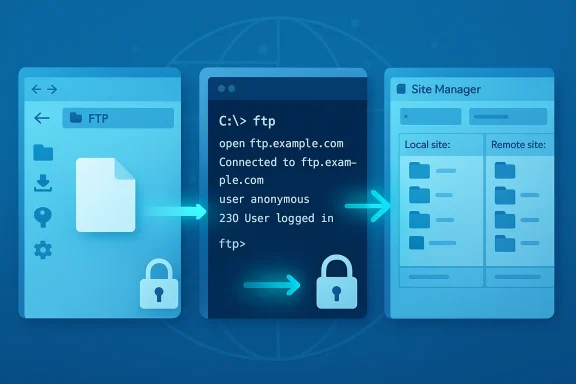
FTP remains an essential tool for website owners, sysadmins, and power users who need reliable, high-throughput file transfers — and on Windows 11 you have three practical ways to use it: the built‑in File Explorer mapping for quick access, the legacy Command Prompt ftp client for lightweight scripting, and full‑featured third‑party clients like FileZilla for robust, secure transfers.
FTP (File Transfer Protocol) was designed in the early days of the internet to move files between hosts. Its simplicity is its strength: FTP is interoperable across platforms, widely supported by hosting providers, and extremely fast for large or batch transfers when used on reliable networks. That said, plain FTP transmits credentials and data in cleartext and is not appropriate for sensitive transfers over the public internet. Modern usage on Windows 11 therefore falls into two camps: use standard FTP for trusted local networks or legacy systems, and prefer SFTP/FTPS for anything exposed to the internet.
This article gives a practical, step‑by‑step guide to each method you’re likely to use on Windows 11, explains when each method is appropriate, and offers troubleshooting, security hardening, and administrative best practices drawn from community experience and server logs.
By following the practical steps, network configuration tips, and security recommendations above you’ll get fast, dependable transfers from Windows 11 while minimizing operational risk.
Source: H2S Media How to Use FTP on Windows 11 for Fast, Secure Website File Transfers
 Background / Overview
FTP (File Transfer Protocol) was designed in the early days of the internet to move files between hosts. Its simplicity is its strength: FTP is interoperable across platforms, widely supported by hosting providers, and extremely fast for large or batch transfers when used on reliable networks. That said, plain FTP transmits credentials and data in cleartext and is not appropriate for sensitive transfers over the public internet. Modern usage on Windows 11 therefore falls into two camps: use standard FTP for trusted local networks or legacy systems, and prefer SFTP/FTPS for anything exposed to the internet.This article gives a practical, step‑by‑step guide to each method you’re likely to use on Windows 11, explains when each method is appropriate, and offers troubleshooting, security hardening, and administrative best practices drawn from community experience and server logs.
When to use FTP on Windows 11
FTP is still relevant because of specific workflows where its design excels:- Website management: Uploading site assets (HTML, CSS, images, themes) to a hosting account is a common FTP use case. Many hosts still provide FTP/SFTP access.
- Server administration: Admins use FTP for backups, bulk file restores, and retrieving logs when other management interfaces are unavailable.
- Local LAN transfers and appliance integration: In secure LAN environments (office, lab, device-to-PC), FTP’s speed and simplicity remain useful. FTP servers embedded in appliances (scanners, cameras) often speak plain FTP or FTPS.
- Quick ad‑hoc file sharing: Drag‑and‑drop from File Explorer can be quickest for one‑off uploads when security is not a concern.
Method 1 — File Explorer: fastest for casual users
Windows 11 File Explorer includes an FTP client you can map as a network location. For non‑technical users and quick LAN uploads this is often sufficient.Why choose File Explorer
- It requires no extra software and integrates with the Windows file model.
- You can drag and drop files as if they were on a local drive.
Step‑by‑step: map an FTP server in File Explorer
- Open File Explorer and click the ellipsis (…) in the toolbar, then select Add a network location.
- Choose A custom network location and click Next.
- Enter the FTP address (e.g., ftp.example.com or ftp://192.0.2.10). Disable Log on anonymously unless the server allows anonymous access.
- Enter your FTP username when prompted and optionally save the password (note the security trade‑off below).
- The FTP site now appears under This PC for easy drag‑and‑drop access.
Tips & troubleshooting for File Explorer
- If you get “Cannot connect to server,” verify the address and credentials and ensure the server is reachable. Community threads report common mistakes like wrong hostnames and saved but stale passwords.
- If transfers fail behind a firewall or NAT, enable Passive FTP under Control Panel → Internet Options → Advanced → Use Passive FTP. Passive mode is required by many NAT setups.
- File Explorer supports FTP but not SFTP natively; for secure SSH‑based transfers you’ll need WinSCP, FileZilla, or other clients.
Security note
Saving FTP passwords in Windows Explorer is convenient but creates a local credential that, if the machine is compromised, can leak to attackers. For internet‑facing transfers, avoid plain FTP and avoid storing passwords in persistent form. Use SFTP or FTPS with certificate validation where possible.Method 2 — Command Prompt FTP: lightweight and scriptable
Windows still ships with a simple ftp command in Command Prompt. It’s minimal, but useful for quick scripted tasks or environments where installing GUIs isn’t desired.When to use it
- Small automation tasks, ephemeral sessions, or when you need a tiny dependency footprint. It’s not recommended for secure internet transfers because it only supports plain FTP.
Core workflow (Command Prompt)
- Open Command Prompt and type ftp, then press Enter to open the ftp> prompt.
- Connect with: open ftp.example.com
- Enter username and password when prompted.
- Useful commands:
- dir — list remote files
- cd foldername — change remote directory
- get filename — download a file
- put filename — upload a file
- mput * — upload all files in the local directory
- bye — close the session
- Automate with a text script and pass it to ftp -s:scriptfile, or use PowerShell for stronger scripting with .NET APIs.
Command‑line tips
- Use quotes around filenames containing spaces.
- Tab completion is not native in the built‑in ftp client; prefer PowerShell if you need richer scripting.
- For production automation, prefer SFTP with key authentication and a maintained client like OpenSSH or WinSCP scripting, because plain FTP scripts embed plaintext credentials.
Method 3 — Third‑party clients (FileZilla, WinSCP): best balance of power and security
For serious web development and server administration you’ll want a third‑party client. FileZilla and WinSCP are the most common choices on Windows 11; they support FTP, FTPS, and SFTP, and provide robust logging, queuing, and resume capabilities.Why use a dedicated client
- Better handling of passive/active modes, timeouts, and retries.
- GUI panels that make synchronizing directories and resuming interrupted transfers simple.
- Support for encrypted transfers (FTPS/SFTP) and SSH key authentication.
FileZilla quick setup (practical steps)
- Install FileZilla Client and open Site Manager (File → Site Manager).
- Create a New Site and populate:
- Host: ftp.example.com
- Protocol/Encryption: use SFTP (if the server offers it) or FTPS (explicit) for TLS; fallback to FTP only when you cannot use encryption.
- User and Password: add credentials or leave blank for anonymous sites.
- Click Connect; the left pane is your local files, the right pane is remote files — drag & drop to transfer.
FileZilla troubleshooting note from live logs
Server logs commonly show errors when TLS/FTPS is configured but the client uses plain FTP. A typical log line is “503 Use AUTH first,” which indicates the server requires an AUTH/TLS handshake before login. In such cases you must enable FTPS (explicit TLS) in the client or temporarily allow plain FTP on the server for legacy devices. Community troubleshooting threads demonstrate this exact failure and the two safe remedies: permit plain FTP temporarily, or switch the device/client to FTPS if supported.Advanced client features to use
- Directory comparison and bookmarks to manage large sites.
- Switch between Active and Passive transfer modes if transfers hang.
- Use queue and transfer rules for scheduled batch jobs.
Security: FTP vs SFTP vs FTPS — what you must know
Understanding the difference is critical:- FTP (plain): Sends username, password, and file data unencrypted. Suitable only for trusted LANs or legacy devices.
- FTPS (FTP over TLS): Adds TLS encryption. There are two modes: explicit FTPS (client requests TLS via AUTH command) and implicit FTPS (connects on a TLS‑only port). Explicit FTPS is widely supported by clients like FileZilla. FTPS still uses separate control/data channels and can complicate NAT traversal.
- SFTP (SSH File Transfer Protocol): Not related to FTP; it uses SSH and a single connection (usually port 22). It provides robust encryption, supports key‑based auth, and is easier to firewall/NAT because it uses a single port. For internet‑facing servers, SFTP is generally the recommended option.
Networking and firewall realities: Passive vs Active, NAT, and port ranges
FTP uses separate control and data channels; this design leads to two practical problems:- Active mode requires the server to open a connection back to the client’s ephemeral port, which often fails through NAT/firewalls.
- Passive mode (PASV) has the server open a passive port range and the client connects out to it — this is NAT‑friendly if you configure a deterministic passive port range and forward those ports on your router.
- Configure a small passive port range on your FTP server (e.g., 22000–22010).
- Forward the FTP control port (21 for FTP, 990 for implicit FTPS) and the passive range through your router to the server.
- Ensure the server reports the public IP for PASV responses when behind NAT. These steps avoid many “service unavailable” and data channel failures reported in troubleshooting logs.
Server side: practical setup notes for Windows servers
If you run the server, you have choices: FileZilla Server, OpenSSH SFTP, or Windows IIS FTP. Choose based on your needs:- FileZilla Server — flexible FTP/FTPS server with GUI, supports passive ranges, TLS configuration, and per‑user settings. Community threads show FileZilla Server logs are helpful for diagnosing FTPS versus plain FTP issues.
- OpenSSH (SFTP) — recommended for secure transfers; available for Windows and supports key‑based auth. Single‑port behavior simplifies firewall rules.
- IIS FTP — integrated into Windows Server/IIS, supports FTPS and user isolation. Use IIS when you want tight integration with Windows accounts and IIS features.
- Require TLS (FTPS) or run SFTP with keys.
- Limit passive port range and forward only those ports.
- Use strong passwords and disable anonymous logins unless intentionally needed.
- Monitor logs for repeated failed logins and enable IP‑based rate limits or bans. Community forum logs show many real‑world breakage cases where admins forgot to configure passive ranges or required TLS but clients attempted plain FTP.
Practical troubleshooting scenarios (real examples)
- “503 Use AUTH first” after a scanner tried to upload: The server required FTPS (TLS) but the device attempted plain FTP. Fix: enable FTPS on the client/device or allow plain FTP temporarily for that device and then migrate to FTPS. This pattern appears in FileZilla server logs and user reports.
- FTP works locally but fails over WAN: Often an Active vs Passive configuration/NAT issue. The common fix is to switch clients to Passive mode and ensure a proper passive port range is forwarded on the router. Community threads detail exactly this diagnosis and remedy.
- Windows Explorer can’t connect to FTP site but browsers can: Explorer’s FTP handling is somewhat legacy and can behave differently than a full FTP client. If Explorer is failing, test with FileZilla/WinSCP and confirm passive mode and credentials. Users often have smoother success with dedicated clients.
Automating and scripting secure transfers
For repeatable workflows and CI/CD, avoid the built‑in ftp client; instead:- Use SFTP with key pairs and an automated client (WinSCP scripting, OpenSSH scp/sftp, or libraries in CI tools).
- Store keys securely (Windows Credential Manager or a secrets manager); don’t hardcode credentials in scripts.
- Use checksum or timestamp checks to avoid unnecessary transfers. Tools like rsync over SSH or dedicated synchronizers in GUI clients help here. Community administrators repeatedly recommend key‑based SFTP for automation over plain FTP scripts.
Strengths, trade‑offs, and risks — critical analysis
- Strengths:
- Interoperability and speed: FTP is supported everywhere and performs well for bulk transfers and large files. It’s particularly convenient on LANs and for legacy devices.
- Maturity: decades of tooling and community knowledge make troubleshooting predictable and solutions well documented.
- Trade‑offs:
- Security vs compatibility: Plain FTP is incompatible with modern security expectations. FTPS and SFTP resolve encryption but introduce configuration complexity (TLS certs, passive ports). Expect extra setup for NAT/firewall traversal.
- Windows Explorer convenience vs capability: Explorer is convenient for casual use but lacks SFTP and advanced retry/resume features offered by dedicated clients.
- Risks:
- Credential exposure: Using FTP over the internet without TLS leaks passwords. Numerous forum threads and server logs emphasize this as the most severe operational risk.
- Misconfigured passive ports: Failing to define and forward passive ports on the server causes intermittent transfer failures and “service unavailable” errors for remote users. Real‑world troubleshooting threads repeatedly show this mistake.
Quick reference: recommended workflows
- For one‑off local edits: use File Explorer mapped FTP (convenient, but avoid saving passwords).
- For frequent website work and GUI needs: use FileZilla or WinSCP with SFTP/FTPS and bookmarks.
- For scripted automation and CI: use SFTP with SSH keys (OpenSSH/WinSCP scripting).
- For server administration: pick a server implementation that meets your security and management needs (OpenSSH for SFTP, FileZilla Server or IIS for FTPS), and configure passive port ranges and TLS certificates.
Final checklist before you transfer anything important
- Confirm protocol: SFTP or FTPS if across the internet; FTP only on trusted LANs.
- If using FTPS, ensure the client supports explicit TLS (AUTH TLS) and server has a valid certificate.
- Configure a passive port range on the server and forward those ports on your router.
- Disable anonymous logins unless absolutely necessary and enforce strong passwords or key‑based auth.
- Test from an external network to validate NAT/firewall behavior before relying on the service in production.
Conclusion
FTP on Windows 11 remains a practical tool for site management, appliance integrations, and local bulk transfers. For casual use, File Explorer provides a low‑friction option. For power users and professionals, dedicated clients like FileZilla or WinSCP — paired with SFTP or FTPS — strike the best balance between speed, reliability, and security. Whatever path you choose, take the time to configure passive ports, require encryption for internet traffic, and prefer key‑based SFTP for automation to avoid the most common and damaging pitfalls documented in real‑world server logs and troubleshooting threads.By following the practical steps, network configuration tips, and security recommendations above you’ll get fast, dependable transfers from Windows 11 while minimizing operational risk.
Source: H2S Media How to Use FTP on Windows 11 for Fast, Secure Website File Transfers