

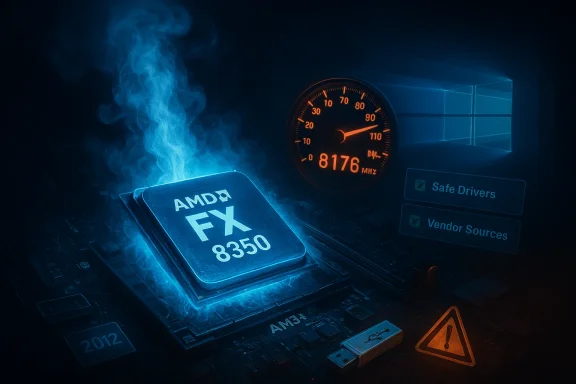
The AMD FX‑8350’s headline‑grabbing 8.176 GHz bench run is real — and it’s the sort of record that excites overclockers — but it has almost nothing to do with the day‑to‑day driver reality for owners trying to run an FX‑8350 on Windows 10 today. The overclock was an LN2‑bench demonstration; the driver story is a practical, risk‑heavy maintenance challenge for a legacy platform now out of mainstream vendor focus. This article verifies the overclock claim, explains what “drivers for FX‑8350 on Windows 10” really means, flags the security and stability risks of third‑party repackaged driver bundles, and gives an actionable, step‑by‑step guide to keeping an AM3+ FX system usable and safe — including recovery plans when things go wrong.
The AMD FX‑8350 (Vishera) arrived as AMD’s high‑frequency AM3+ desktop part in late 2012. It shipped as an eight‑core CPU with unlocked multipliers and a 125 W thermal envelope, and it became a favorite for budget performance builds and extreme overclocking experiments alike. Enthusiasts quickly pushed the CPU far beyond stock clocks under exotic cooling; overclock records into the 8 GHz range are part of that era’s history.
At the same time, the FX‑series platform is now a legacy ecosystem: chipset work and driver development shifted toward Ryzen (AM4/AM5) years ago, meaning official driver updates for AM3+ hardware are increasingly rare and vendor attention is limited. That splitords versus modern driver maintenance — is the central tension for anyone still running an FX‑8350 in a Windows 10 environment.
Practical consequences:
Key warnings:
Below is a prioritized checklist to keep an AM3+ FX system stable, minimize risk, and recover from Follow the steps in order.
If you keep an FX‑8350 machine, treat it as a maintained legacy installation:
Source: Born2Invest https://born2invest.com/?b=style-237393912/
 Background / Overview
The AMD FX‑8350 (Vishera) arrived as AMD’s high‑frequency AM3+ desktop part in late 2012. It shipped as an eight‑core CPU with unlocked multipliers and a 125 W thermal envelope, and it became a favorite for budget performance builds and extreme overclocking experiments alike. Enthusiasts quickly pushed the CPU far beyond stock clocks under exotic cooling; overclock records into the 8 GHz range are part of that era’s history.At the same time, the FX‑series platform is now a legacy ecosystem: chipset work and driver development shifted toward Ryzen (AM4/AM5) years ago, meaning official driver updates for AM3+ hardware are increasingly rare and vendor attention is limited. That splitords versus modern driver maintenance — is the central tension for anyone still running an FX‑8350 in a Windows 10 environment.
The overclock: what actually happened and why it matters (and doesn’t)
The claim, verified
In October 2012, South Korean overclocker NAMEGT posted a validated CPU‑Z and HWBOT submission showing an AMD FX‑8350 running at 8,176.47 MHz with all eight cores enabled — achieved with a 281.94 MHz base clock, a 29× multiplier, and around 1.932 V to the CPU while cooled with liquid nitrogen (LN2). Multiple independent outlets documented the run and the validation screenshots. This is a legitimate historical record of what those chips and enthusiast motherboards could do under extreme bench conditions.What the numbers actually mean
- These were benchmarks, not daily settings. LN2 cooling creates temperatures far below ambient; voltages of ~1.9–2.1 V were ursts. Those voltages and thermal regimes are not safe for continuous desktop use and will quickly damage silicon and the surrounding VRM/power delivery if attempted on normal air/AIO cooling.
- Overclock runs like this show headroom and exceptional binning on a very small fraction of chips; they do not imply that every FX‑8350 can reach anything near 8 GHz under practical cooling. The median retail FX‑8350 will top out far lower in safe, sustained conditions.
Practical takeaway
Treat these extreme numbers as engineering curiosities and marketing wins for extreme‑bench motherboards — not as practical tuning guidance for anyone who needs a stable Windows desktop. The proper balance for a daily system is conservative tuning, validated stability testing (Prime95, OCCT, or similar), and safe voltages.Drivers and Windows 10: the real support picture for FX‑8350 owners
What “drivers for FX‑8350” actually covers
When people search for “AMD FX‑8350 drivers Windows 10” they’re usually asking about multiple, distinct driver categories that are often conflated:- Chipset drivers (southbridge, PCI controllers, power‑management helpers) — historically distributed either by AMD or through motherboard vendors.
- Onboard peripherals (Ethernet, audio, SATA/RAID controllers) — primarily supplied and supported by the motherboard manufacturer (ASUS, Gignot AMD.
- Graphics drivers — for discrete GPUs, provided by AMD (Radeon) or NVIDIA; these are independent of the CPU.
- ACPI/AS4/ASD helpers — sometimes distributed with OEM systems (e.g., branded desktops), not generic AMD packages.
Windows 10 lifecycle matters — and it has changed the game
Microsoft ended mainstream support for Windows 10 on October 14, 2025. After that date, the operating system moved into a different maintenance posture: Microsoft stopped routine feature and security updates for general users, and vendors have reallocated engineering resources toward Windows 11 and newer platforms. That change is why modern driver packaging often emphasizes Ryzen/AM4/AM5 hardware, and why legacy AM3+ drivers are harder to find or maintained sporadically.Practical consequences:
- Vendors prioritize testing and signing for modern platforms. Legacy installers may lack modern digital signing or may not include updated INF mappings for newer kernels.
- Windows Update may offer Microsoft‑signed drivers for older components (and this is often the safest option), but vendor‑specific features and utilities typically require the motherboard vendor’s packages.
- Continuing to run Windows 10 past end‑of‑support increases exposure to unpatched vulnerabilities and compatibility issues; consumer Extended Security Updates (ESU) are limited and some updates (like Secure Boot certificate renewals) may not be applied automatically to unsupported installations.
Born2Invest and third‑party driver bundles: why you should be cautious
The Born2Invest link the user provided is representative of a broader problem: repackaged driver collections and “driver shops” that bundle older installers for convenience. Community investigatthese repackaged packages frequently omit crucial provenance details — INF mappings, digital checksums, cryptographic signatures — or they strip or modify installers for easier deployment. That convenience comes at a cost: increased risk of unsigned or altered binaries, compatibility gaps, and potential security exposures. Community archives and investigative thread flags and recommend cross‑checking against AMD official archives and the motherboard vendor pages first.Key warnings:
- Do not trust unsigned driver packages from unverified third‑party sites.
- Repackaged installers may include outdated or incompatible INF files that make Windows treat the device as “unsupported.”
- Editing INFs to force compatibility is possible but unsafe unless you re‑sign the driver and know how to manage driver signature enforcement properly.
Below is a prioritized checklist to keep an AM3+ FX system stable, minimize risk, and recover from Follow the steps in order.
- Inventory your hardware and make a backup
- Record exact motherboard model, PCB revision, BIOS/UEFI version, and discrete GPU model. Device Manager → Properties → Details → Hardware Ids is your friend. This information guches.
- Create a full disk image before making driver changes (Macrium Reflect, Acronis, or similar). Driver missteps can render a system unbootable.
- Try Windows Update first
- Windows Update often supplies Microsoft‑signed baseline drivers that are the lowest‑risk option for stability. If it offers a tested driver for your displak controller, try that before anything else.
- Use the motherboard vendor as the authoritative source
- For AM3+ boards, the motherboard vendor’s support page is usually the most reliable place to get tuned INFs and utilities for onboard audio, Ethernet, SATA/RAID, and chipset helpers. Match the exact model and board revision — a wrong revision can deliver an incompatible driver.
- If you must use archived AMD packages, do it carefully
- Download the official AMD chipset driver archives (AMD maintains previous drivers pages for older chipsets). Extract the package and verify the INF files list your hardware ID before trying to install via “Have Disk.” Do not run repackaged “driver packs” from unknown sources.
- Clean up messy installs with DDU before reinstalling display drivers
- If you encounter black screens, driver conflicts, or flaky behavior from GPU drivers, boot to Safe Mode and use Display Driver Uninstaller (DDU) to remove residual AMD/NVIDIA driver widely used tool with official guidance; run it from Safe Mode for best results, then reinstall the clean driver package.
- Avoid disabling driver signature enforcement on p - Some legacy Catalyst installers or modified drivers request disabling signature enforcement. Never permanently disable signature enforcement on a production machine; use test mode only on throwaway rigs and re‑sign drivers if yndows Update during validation
- After you install a driver, temporarily pause Windows Update long enough to verify stability. Windows Update can automatically replace a manual install with a Microsoft‑signed driver you didn’t intend to use; pause and then resume after testing if needed.
- Keep a rollback plan
- Keep thtallers saved and a recovery USB at hand. If the system won’t boot after a driver change, use Windows’ recovery environment or your disk image to restore the prior state.
Tn failure modes and how to fix them
- Installer refuses to run or reports “This device is not supported”
- Likely cause: the driver’s INF doesn’t include your board’s VID/PID. Check the INF for your hardware ID. If you downloaded from a repackager, stop and get the OEM or official AMD package.
- Windows Update overrides your manual driver with a signed driver
- Pause Windows Update while validating. If Microsoft Catalog has a signed variant that’s stable, prefer that.
- Legacy Catalyst or old installers require signature enforcement to be disabled
- Don’t do this on a primary machine. Instead, extract the package, identify the specific INF and driver files, and seek an alternative signed package. Consider using vendor‑supplied drivers or updated AMD “previous drivers” archives.
- System instability after display driver install
- Boot to Safe Mode, run DDU per the official guidance, then reinstall a clean, official driver. Wagnardsoft’s DDU guide and README explain Safe Mode usage and recommended options.
Critical analysis: strengths, blind spots, and risk assessment
Notable strengths
- The FX‑8350’s LN2 overclock records are well‑documented and corroborated by multiple reputable outlets and validation platforms. They remain an impressive demonstration of silicon headroom and the extreme‑bench culture that existed around AM3+ motherboards. The record is verifiable with CPU‑Z/HWBOT submissions and vendor coverage. ([techpowerup.com] needs, there are safe options: Microsoft Update offers signed baseline drivers, AMD retains archived chipset pages for older chipsets, and motherboard vendors often preserve legacy downloads for popular boards. Using those official channels minimizes risk compared with third‑party repackagers.
Potential risks and blind spots
- Third‑party repackaged driver bundles (the kind of content sometimes surfaced by Born2Invest‑style posts) frequently lack verifiable checksums and may contain altered or unsigned binaries. Installing from these sources increases the risk of instability, incompatibility, and — in the worst cases — malicious modification. Community threads call these out repeatedly.
- Windows 10’pport (October 14, 2025) fundamentally changes the calculus for long‑term maintenance. Security updates, certificate renewals (Secure Boot), and compatibility with new software may degrade over time unless you enroll in limited Extended Security Updates or transition to Windows 11. This is the biggest single strategic consideration for FX‑8350 owners today.
- Editing INF files or disabling driver signature enforcement to force legacy drivers onto newer kernels is a brittle, potentially insecure path. Even if it works, you assume responsibility for re‑signing and auditing the driver package — a nontrivial undertaking that most users should avoid.
Decisions for different user profiles
- If you treat the FX‑8350 rig as a retro/secondary machine (retro gaming, legacy software) and you value stability:
- Keep the system offline or behind a robust perimeter, rely on vendor drivers from your motherboard maker, keep full system images, and limit driver experimentation. Use ESU only if you need extended security updates short‑term.
- If you use the FX‑8350 as a daily, internet‑connected workstation:
- Strongly consider upgrading hardware to a Windows 11 compatible platform. Continued exposure on Windows 10 past end‑of‑support increases systemic security risk that is hard to mitigate long‑term.
- If you’re an enthusiast who enjoys tinkering:
- Enjoy the historical overclocking records for what they are, but don’t confuse LN2 bench results with routine tuning. If you experiment with legacy drivers, do it on noncritical machines, always maintain backups, and prefer official archives and vendor documentation when possible.
Final verdict and recommended path forward
The story that pairs “AMD FX‑8350 overclocked to 8.176 GHz” with “top drivers for Windows 10” actually contains two separate truths: the engineering spectacle and the maintenance reality. The 8+ GHz overclock is an authenticated artifact of extreme bench culture and remains a legitimate milestone in Vishera history. But the practical support environment for AM3+ systems has moved on: Windows 10 reached end of mainstream support on October 14, 2025, AMD’s public driver focus is on newer platforms, and motherboard vendors are the best source for stable legacy drivers.If you keep an FX‑8350 machine, treat it as a maintained legacy installation:
- Use vendor drivers where available.
- Prefer Microsoft Update for baseline signed drivers.
- Avoid repackaged driver bundles; verify archives and checksums.
- Use DDU and Safe Mode to clean display drivers when necessary.
- Maintain full disk images and a clear rollback plan before driver work.
Source: Born2Invest https://born2invest.com/?b=style-237393912/
