

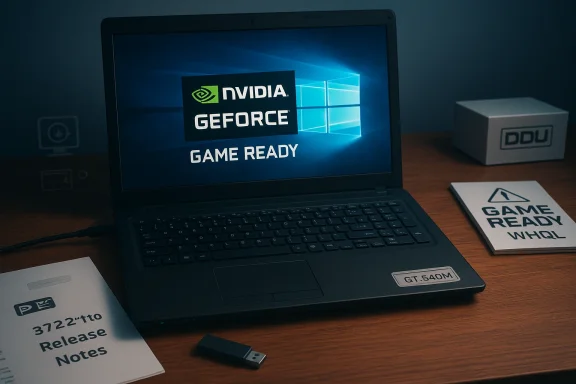
NVIDIA has published the GeForce Game Ready Graphics Driver version 372.70 — a WHQL-certified release originally issued on August 30, 2016 — and the package includes support for a broad range of notebook GPUs, explicitly listing the GeForce GT 540M among supported 500M-series notebook GPUs. If you own an older laptop with a GT 540M and are running Windows 10, this driver remains an important historical build to understand: it brought several bug fixes and feature updates for its era and is still referenced by enthusiasts and legacy-support guides today. (nvidia.com)
The 372.70 driver is part of NVIDIA’s Release 370 driver family and was published as a Game Ready driver with WHQL certification. It targeted multiple Windows versions (Windows 7, 8/8.1, and Windows 10) and offered gaming-focused fixes and enhancements, including enabling Fast Sync for Maxwell GPUs and addressing several platform-specific issues. The official release notes document the build, enumerate supported notebook products (including the GT 540M), and list known issues and installation considerations that are still relevant when dealing with legacy hardware today. (us.download.nvidia.com)
Why this matters: many users with older notebooks—particularly those with notebook-integrated GPUs like the GT 540M—face driver choice questions when they upgrade to modern Windows 10 builds or re-install the OS. The 372.70 release is frequently cited when searching for a compatible, packaged NVIDIA driver for such hardware, but it carries both benefits and risks that deserve careful treatment before you install it on a live system.
Source: Born2Invest https://born2invest.com/?b=style-229958112/
 Background / Overview
The 372.70 driver is part of NVIDIA’s Release 370 driver family and was published as a Game Ready driver with WHQL certification. It targeted multiple Windows versions (Windows 7, 8/8.1, and Windows 10) and offered gaming-focused fixes and enhancements, including enabling Fast Sync for Maxwell GPUs and addressing several platform-specific issues. The official release notes document the build, enumerate supported notebook products (including the GT 540M), and list known issues and installation considerations that are still relevant when dealing with legacy hardware today. (us.download.nvidia.com)Why this matters: many users with older notebooks—particularly those with notebook-integrated GPUs like the GT 540M—face driver choice questions when they upgrade to modern Windows 10 builds or re-install the OS. The 372.70 release is frequently cited when searching for a compatible, packaged NVIDIA driver for such hardware, but it carries both benefits and risks that deserve careful treatment before you install it on a live system.
What the 372.70 driver actually is
Release identity and highlights
- Version: 372.70 (WHQL)
- Release date: August 30, 2016
- Channel: GeForce Game Ready Driver (Release 370 family)
- Target OS: Windows 7, Windows 8/8.1, Windows 10 (32- and 64-bit variants depending on the package)
- Notable additions: Fast Sync enablement for Maxwell GPUs, multiple fixes for Windows 10 video issues, and game optimizations for titles current at the time. (nvidia.com)
Supported hardware (notebooks)
The official NVIDIA product list for this driver explicitly includes the GeForce GT 540M as part of the GeForce 500M Series (Notebooks), which confirms that 372.70 is a reference notebook driver that can be installed on laptops using that GPU. NVIDIA’s page also includes important OEM exceptions — notably some Sony VAIO and Fujitsu models have special support considerations — which means the reference driver may not be the ideal choice for every specific laptop model. (nvidia.com)Why users still look for this driver (and when they shouldn’t)
Many Windows 10-era driver searches return the 372.70 package because it’s a stable WHQL release that explicitly supports older notebook GPUs. Common use cases include:- Restoring display functionality on a spare or refurbished laptop running Windows 10.
- Rolling back to a known-good driver when a newer update breaks compatibility on older hardware.
- Installing on a clean Windows image where official OEM drivers are unavailable.
Risks and caveats: what can go wrong
Installing legacy or reference drivers like 372.70 on a modern Windows 10 system carries risks:- OEM incompatibilities: Some laptop vendors ship custom drivers or firmware that assume a vendor-supplied driver; installing NVIDIA’s reference package can remove OEM customizations and may result in missing features (display power management, backlight controls, or function-key handling). NVIDIA warns about OEM exceptions and recommends checking with the OEM. (nvidia.com)
- System instability and black screens: Release notes for 372.70 list several known issues and installation caveats (for example, black screen during clean overinstall on certain Optimus notebooks). The release notes explicitly advise caution and provide steps for problematic cases. Pay attention to the document’s advice before attempting a clean install. (us.download.nvidia.com)
- Windows Update driver interference: Windows Update can attempt to install Microsoft-signed driver packages automatically. If you perform a clean remove/reinstall, Windows Update may re-inject an undesirable driver if not properly managed. Guides for clean-driver reinstalls often recommend temporarily blocking updates during the process. Usage of driver-cleaner tools is recommended by experienced technicians in the field for stubborn remnants.
- Security and source trust: Downloading drivers from third-party “driver portals” can be risky. Always prefer the official NVIDIA driver archive or your OEM’s support page. Softpedia, TechSpot, and other archives may host legitimate installers, but they are third-party mirrors and should be used with caution. If a download looks tampered with (unexpected file size or digital signature mismatch), stop and fetch the package from an official source.
Preparing to install: safety checklist
Before you install a legacy driver like 372.70, follow this checklist to reduce risk:- Back up your data and create a Windows system restore point or a full system image.
- Identify your exact GPU model (confirm GT 540M via Device Manager or an identification tool).
- Confirm your Windows build (Settings > System > About) and whether you need 32-bit or 64-bit drivers.
- Download the driver installer package beforehand and save it locally.
- If you are on a manufacturer-supplied laptop, check the OEM’s driver page and identify whether a custom driver is recommended instead.
- If your machine uses hybrid graphics (Optimus), check the release notes for specific Optimus-related limits and recommended procedures. NVIDIA’s release notes list special cases for Optimus and some Sony/Fujitsu exceptions. (us.download.nvidia.com)
Clean installation: step-by-step recommended process
If you decide 372.70 is appropriate for your laptop, a clean install is the safest method. Below is a step-by-step process used by experienced technicians and corroborated by driver-cleaning guides.- Download the correct 372.70 package for your OS (desktop vs. notebook package, 32-bit vs. 64-bit), and save a copy to a local folder. Verify the file name and expected size (NVIDIA and reputable driver archives list file sizes).
- Create a system restore point or full image backup. This lets you roll back if anything goes wrong.
- Temporarily disable automatic Windows Update driver installation (use Group Policy or registry tweaks) or be prepared to block it until after the clean install. This prevents Windows from re-installing an unwanted driver mid-process.
- Uninstall existing NVIDIA components via Programs & Features (NVIDIA Graphics Driver, PhysX, GeForce Experience) and reboot.
- Boot into Windows Safe Mode and run Display Driver Uninstaller (DDU) to remove leftover driver files, registry entries, and orphaned components. DDU usage is widely recommended for clean installs, and major community and vendor resources document its correct use and precautions (boot to Safe Mode, block Windows Update during removal, then restart and install the new driver).
- Reboot to normal mode and install the 372.70 package you downloaded. Choose a Custom install and select Clean Install when prompted by the NVIDIA installer to reset driver settings.
- Reboot and verify that the NVIDIA Control Panel is present and that display output behaves as expected. Check for anomalies (black screens, VRAM misreporting, DPC latency spikes). If problems occur, use the restore image or revert to OEM drivers. (us.download.nvidia.com)
Using DDU responsibly: what the experts say
Display Driver Uninstaller (DDU) is a third-party utility widely regarded as the most thorough method to remove NVIDIA/AMD/Intel driver remnants before a fresh install. Community experts on forums like Guru3D and several hardware guidance outlets recommend:- Running DDU in Safe Mode for maximum reliability.
- Having your intended driver package downloaded before cleaning.
- Disconnecting from the Internet or blocking Windows Update while running DDU and reinstalling drivers to prevent automatic driver replacement.
- Using DDU primarily when necessary (troubleshooting or switching GPU vendors), not as a daily installer routine.
Troubleshooting common problems with legacy driver installs
If you see black screens, device manager flags, or missing control panel after installing 372.70, try these steps in order:- Reboot into Safe Mode and roll back to the previous driver entry in Device Manager (if available). Caveat: NVIDIA’s release notes caution against using Windows Rollback for graphics drivers in some circumstances and recommend safer manual uninstall/install paths. (us.download.nvidia.com)
- Run DDU and reinstall the driver cleanly as outlined above.
- If Optimus-enabled notebook: confirm BIOS settings and OEM driver expectations; some hybrid power features behave differently under NVIDIA reference drivers. (us.download.nvidia.com)
- If the problem persists, restore the system image or revert to the OEM driver provided on the laptop maker’s support page.
Where to obtain drivers — and where not to
Always prioritize official sources:- First choice: NVIDIA’s official driver archive (the release results and release notes included in NVIDIA’s site) — these pages list exact release dates, WHQL status, file sizes, and supported hardware. The 372.70 release pages and the comprehensive release notes are authoritative. (nvidia.com)
- Second choice: Your laptop OEM support page for your model — OEMs sometimes customize drivers to expose or fix vendor-specific features.
- Third-party archives (mirrors): TechSpot, Softpedia, or other driver archives host legitimate copies but they are not the primary authority—use them only if NVIDIA’s site or the OEM cannot provide the installer you need. Always verify file size and digital signature where possible.
Alternatives to installing 372.70
If installing a 2016-era driver feels risky for your current Windows 10 build, consider alternatives:- Use the latest NVIDIA driver that still lists GT 540M support — later driver branches sometimes retain support for legacy GPU families while carrying forward stability fixes. Check NVIDIA’s product tables for continued support lines. (us.download.nvidia.com)
- Use your OEM’s certified driver package. OEM drivers may include BIOS or EC-level coordination absent from NVIDIA reference drivers.
- If the goal is basic display output (and not gaming), the Microsoft Basic Display Adapter will let you access the desktop while you source a safer driver package.
- If you’re troubleshooting a display issue, booting into Safe Mode and testing with a minimal driver can help isolate whether the GPU driver is at fault before attempting a full reinstall.
Practical recommendation for GT 540M + Windows 10 owners
- If you require maximum compatibility with your laptop’s OEM features, use the OEM-supplied driver for your exact model where available. NVIDIA explicitly recommends OEM drivers for notebooks and flags certain vendor exceptions on the 372.70 release page. (nvidia.com)
- If OEM drivers are unavailable and you need the NVIDIA reference package, 372.70 is a valid WHQL reference build that supports the GT 540M. Follow the clean-install safety checklist and use DDU as needed to remove remnants from older installs. Validate installer sizes and signatures, and keep a system image ready to revert if the install introduces instability. (us.download.nvidia.com)
- If you’re updating from a very old Windows 7-era driver directly to 372.70 on Windows 10, expect some trial and error; use Safe Mode + DDU when in doubt and consult the release notes for known issues specific to Optimus or multi-display setups. (us.download.nvidia.com)
Final verdict — strengths, weaknesses, and who should use 372.70
Strengths:- Authoritative WHQL build from NVIDIA with official release notes and a clear supported-product list that includes GT 540M, making it a reasonable reference driver for legacy notebooks. (nvidia.com)
- Game-ready optimizations and bug fixes relative to its release timeframe; useful when running applications or games from that era. (us.download.nvidia.com)
- Aged codebase: It predates many Windows 10 feature updates and may not account for behavioral changes introduced in later Windows 10 builds.
- OEM mismatch potential: Notebook-specific quirks and vendor customizations may be lost or broken if you install the reference package instead of OEM drivers.
- Installation hazards: The release notes enumerate specific caveats (e.g., black-screen during clean overinstall on certain configurations) and advise caution regarding rollback and driver uninstallation methods. (us.download.nvidia.com)
- Owners of older notebooks with GT 540M who cannot obtain an OEM driver and need a WHQL-referenced NVIDIA driver.
- Technicians restoring legacy laptops for specific legacy software or games that are known to work with 372.70’s fixes and settings.
- Users reliant on OEM-specific features (power management, custom display scaling) or those unwilling to take system backups and follow clean-install precautions.
- Users on very recent Windows 10 feature updates where a more modern driver branch or OEM package is available.
Closing advice
If you choose to proceed with NVIDIA GeForce driver 372.70 for a GT 540M system on Windows 10, do so deliberately: read NVIDIA’s release notes, follow a documented clean-install path (including use of DDU when necessary), and prefer OEM-provided drivers if they exist. Treat third-party driver websites as mirrors only, verify file integrity where possible, and always have a backup or system image ready to revert. The 372.70 package remains an important historical driver for legacy notebook GPUs, but legacy support requires careful risk management and an informed installation process. (us.download.nvidia.com)Source: Born2Invest https://born2invest.com/?b=style-229958112/
