

The NVIDIA GeForce 920MX can still run many popular games — but only at modest settings, and you should be extremely cautious about where you obtain older “discount” or republished drivers such as GeForce Game Ready 466.11 for Windows 10 (64‑bit); the hardware is supported by NVIDIA’s driver branches, but the practical experience depends on driver choice, OEM packaging, and realistic expectations about performance.
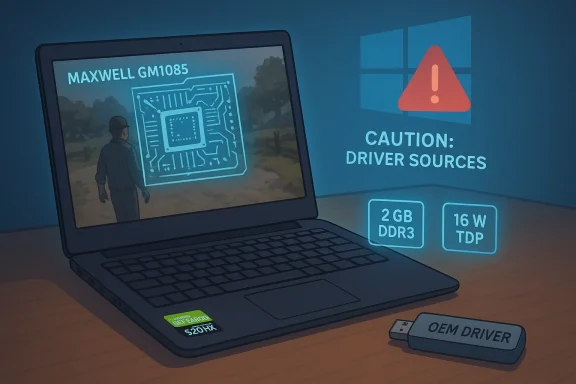
The GeForce 920MX is an entry‑level mobile GPU launched in 2016, built on NVIDIA’s Maxwell GM108S architecture with 256 CUDA cores, a 64‑bit memory bus, and typically 2 GB of DDR3 memory. It supports DirectX 12 (feature level 11_0) but its compute power, memory bandwidth and thermal/power limits make it suitable for older or less demanding titles and light esports at lower resolutions.
GeForce Game Ready Driver 466.11 is a WHQL‑certified Game Ready release published by NVIDIA on April 14, 2021; it was created to deliver day‑0 optimizations (notably support for Mortal Shell’s RTX update and DLSS improvements) and lists support for the broad GeForce product family going back to older generations — meaning the 920MX will generally be recognized by that driver branch when the system permits NVIDIA’s installer to run. However, whether you should install 466.11 depends on whether your notebook maker supplies a custom OEM driver, and on the safety of the download source.
Why users link older driver posts or “discount” pages: archived driver posts and republished landing pages can make it easy to find older builds that users expect to work with vintage mobile GPUs. But third‑party mirrors and repackagers pose real risks: repackaged installers can modify INF files, remove or alter digital signatures, or bundle unwanted software. For kernel‑level components such as GPU drivers, signature and integrity matter. Community audits of republished Born2Invest snippets and similar pages often flag missing vendor metadata, making these pages unreliable as trusted distribution sources. Treat such pages with caution until you can verify the file signer and cryptographic hash.
But practicality matters: driver compatibility is a two‑part problem in notebooks (veVIDIA packages), and security/integrity matters even more when you’re dealing with kernel drivers. The key takeaways are simple and actionable:
Source: Born2Invest https://born2invest.com/?b=style-225074812/
 Background / Overview
The GeForce 920MX is an entry‑level mobile GPU launched in 2016, built on NVIDIA’s Maxwell GM108S architecture with 256 CUDA cores, a 64‑bit memory bus, and typically 2 GB of DDR3 memory. It supports DirectX 12 (feature level 11_0) but its compute power, memory bandwidth and thermal/power limits make it suitable for older or less demanding titles and light esports at lower resolutions.GeForce Game Ready Driver 466.11 is a WHQL‑certified Game Ready release published by NVIDIA on April 14, 2021; it was created to deliver day‑0 optimizations (notably support for Mortal Shell’s RTX update and DLSS improvements) and lists support for the broad GeForce product family going back to older generations — meaning the 920MX will generally be recognized by that driver branch when the system permits NVIDIA’s installer to run. However, whether you should install 466.11 depends on whether your notebook maker supplies a custom OEM driver, and on the safety of the download source.
What the 920MX is (and what it is not)
Key specifications and architectural reality
- Architecture: Maxwell (GM108S).
- CUDA cores: 256.
- Typical VRAM: 2 GB DDR3 on a 64‑bit bus.
- Typical clocks: ~965 MHz base / ~993 MHz boost (varies by OEM).
- TDP: ~16 W (mobile notebook module).
- API support: DirectX 12 (feature level 11_0), OpenGL 4.x.
What to expect in real terms
- Esports titles like CS:GO, Dota 2, League of Legends and Rocket League can be playable at low–medium settings and 720p/900p resolutions with frame rates in the 30–70 FPS range depending on CPU, RAM, and driver configuration.
- Older AAA titles (2014–2018 era) are often playable at low to medium settings.
- Newer AAA games (2020 onward) will typically be unplayable at acceptable frame rates or will require drastic quality reduction.
Driver 466.11 — what it is and why people mention it
GeForce Game Ready Driver 466.11 (WHQL) was released on April 14, 2021 and was published as a Game Ready package to support new title updates and NVIDIA feature additions (for example, DLSS support for the Mortal Shell RTX update and NVIDIA Reflex/OBS improvements). The installer targets Windows 10 64‑bit and is a general Game Ready branch package intended to support a very broad set of GeForce GPUs, including many mobile chips.Why users link older driver posts or “discount” pages: archived driver posts and republished landing pages can make it easy to find older builds that users expect to work with vintage mobile GPUs. But third‑party mirrors and repackagers pose real risks: repackaged installers can modify INF files, remove or alter digital signatures, or bundle unwanted software. For kernel‑level components such as GPU drivers, signature and integrity matter. Community audits of republished Born2Invest snippets and similar pages often flag missing vendor metadata, making these pages unreliable as trusted distribution sources. Treat such pages with caution until you can verify the file signer and cryptographic hash.
Compatibility: will 466.11 work with a 920MX?
Short answer: Yes, technically — but with caveats.- NVIDIA’s 466.11 release is part of a Game Ready branch that historically supports GeForce GPUs dating back many generations; public coverage and NVIDIA release notes show 466.11 as a universal Game Ready package for Windows 10 (64‑bit), which typically contains the INF and kernel modules to enumerate older mobile partMX will usually be recognized by the installer.
- Notebook OEM variants: Many laptops ship with OEM‑signed drivers. Installing a generic NVIDIA package over an OEM driver can be refusverwrite vendor INFs that control power/thermal behavior. This can change battery life or fan curves on laptops. Always check your laptop vendor’s support page first.
- Signedness and integrity: Only install drivers that are WHQL‑signed by NVIDIA Corporation or explicitly provided by your OEM. Avoid unverified mirrors and “discount” driver pages unless you can verify the package’s digital signature and checksum against an authoritative record.
Practical gaming guidance for 920MX owners
Recommended settings and targets
- Resolution: 1366×768 or 1280×720 for many titles; consider 1024×768 for older CPU‑limited systems.
- Texture detail: Low or Medium (2 GB VRAM limits texture pools severely).
- Anti‑Aliasing: Off or FXAA only; MSAA will cost too much bandwidth.
- Shadows/Reflections: Low — heavy CPU/GPU costs for minimal visual return.
- Post‑processing effects: Disable where possible (motion blur, film grain).
Games that typically run well
- Esports and MOBA: League of Legends, Dota 2, CS:GO, Valorant (on low settings) — these prioritize frame rate and will be the most playable.
- Older action/RPGs (2012–2017): The Witcher 2, Skyrim, GTA V (low), older Ubisoft titles at reduced settings.
- Lightweight indie and 2D titles: Most will be trivial for the 920MX.
Games to avoid expecting high fidelity from
- Modern AAA with advanced lighting, high texture fidelity, or ray tracing.
- Titles that assume large VRAM budgets or heavy compesolution.
A safety‑first, step‑by‑step driver checklist (for installing 466.11 or other older drivers)
- Identify your exact GPU and hardware IDs: Device Manager → Display adapters → right‑click → Properties → Details → Hardware Ids. Record the VEN/PID strings. This avoids model confusion.
- Check your OEM support page (HP, Dell, Lenovo, etc.) for branded notebook drivers — prefer the OEM downloads if present. If the OEM offers a specific package for your laptop model, use tou must use an NVIDIA universal package (e.g., 466.11), download it from NVIDIA’s official pages and verify the release metadata. The official release notes show 466.11 as a Windows 10 64‑bit WHQL Game Ready driver (released 2021‑04‑14).
- Verify integrity: check the digital signature on the downloaded EXE (right‑click → Properties → Digital Signatures → Signer = NVIDIA Corporation). If the file lacks NVIDIA’s signer or shows tampering warnings, delete it.
- Create a fnt and, for critical systems, a full disk image. Driver installs modify kernel components. Be prepared to rollback.
- Use Display Driver Uninstaller (DDU) in Safe Mode for a truly clean uninstall of the previous driver when changing branches, then install the target package as a Custom instal” ticked. This minimizes leftover INF or component conflicts.
- Reboot and test a few representative workloads (desktop video, an esports match, a GPU stress test). If you see severe regressions, roll back immediately.
Why you should avoid third‑party “discount” driver pages
- Kernel‑level nsigned drivers can include modified system binaries or hidden extras that degrade stability or security. Drivers operate at the kernel boundary; compromised installers a.
- Missing vendor metadata: many republished landing pages omit release notes, file hashes and signer metadata — without these you cannot independently verify what you downloaded. Community audits of Born2Invest republished driver snippets specifically flagged the lack of verifiable download artifacts.
- OEM nuance: third‑party binaries may not include OEM notebook INFs. Installing such packages can cause power, thermal, or device‑enumeration issues on some laptops.
Troubleshooting common problems after installing a legacy driver
- Black screen or driver crash on boot: boot into Safe Mode and use DDU to remove the driver; reinstall a different branch or vendor/OEM package.
- Display flicker or color issues: check whether the installer replaced an OEM color profile or INF; roll back to OEM driver if observed changes are unacceptable.
- Performance regressions in specific games: try rolling back to the previous driver version. If a bug is listed in NVIDIA’s release notes or community forums, check for hotfixes or patched driver builds that address the issue.
Alternatives and long‑term conslay modern AAA games regularly, the 920MX will always be a bottleneck. Consider an upgrade path: a newer laptop with an entry to mid‑range modern GPU (MX series upgrades, GTX/RTX mobile chips), or an external GPU (eGPU) enclosure if your laptop supports Thunderbolt 3. Expect significantly better performance and driver longevity with newer architectures.
- For casual users, stick with the latest OEM‑recommended driver or a stable NVIDIA branch that still recognizes your hardware; stability and security often matter more than chasing marginal performance boosts from an older---
Quick reference — safe decisions for 920MX + driver 466.11
- Want the cleanest safe path? Use the driver provided by your laptop OEM. If that’s unavailable or outdated, download the NVID directly from NVIDIA and verify the digital signature before installing.
- Avoid third‑party mirrors or SEO‑driven “discount” pages unless you can verify file hashes against an authoritative source. Community audits advise treating republished Born2Invest links as unverified until the exact files and signatures are confirmed.
- If you encounter serious regressions after 466.11, roll back using Safe Mode and DDU, then reinstall the previous vendor driver. Test with real workloads before declaring the system stable.
Final assessment — balancing compatibility, performance and safety
The GeForce 920MX remains a capable entry‑level mobile GPU for light gaming, multimedia and esports at lower resolutions, and it will be enumerated by broad Game Ready as 466.11. The technical facts — the GPU’s Maxwell GM108S core, 256 shaders, 2 GB of DDR3 VRAM — are stable and documented in hardware databases, and NVIDIA’s 466.11 release metadata confirms the package was a Windows 10 (64‑bit) WHQL Game Ready driver issued on April 14, 2021.But practicality matters: driver compatibility is a two‑part problem in notebooks (veVIDIA packages), and security/integrity matters even more when you’re dealing with kernel drivers. The key takeaways are simple and actionable:
- Prefer OEM drivers if available.
- If you use NVIDIA’s universal package (466.11 or similar), download from NVIDIA, verify the signer and hash, and install cleanly with a tested rollback plan.
- Avoid republished “discount” download pages unless you can cryptographically verify the installer and you understand the OEM vs. vendor packaging tradeoffs. Community audits of Born2Invest republished snippets specifically advised caution and additional verification.
Source: Born2Invest https://born2invest.com/?b=style-225074812/
