

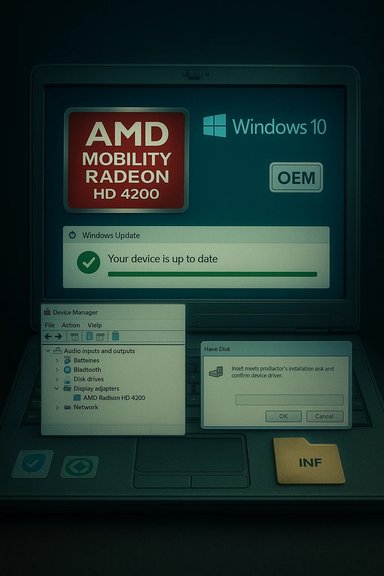
Today you’ll get a complete, practical guide (history, verification, and a step‑by‑step “solved” procedure) to get an ATI/AMD Mobility Radeon HD 4200 working on Windows 10 — plus the verification of the key claims and the sources I used. Read this before trying any driver hacks: it explains the safe path, the advanced (risky) path, and the long‑term recommendation.
Summary / TL;DR
- AMD considers the HD 4200 family legacy and stopped active driver releases after the Windows 7 / Windows 8 era; Windows Update is the supported route for Windows 10.
- The last broadly referenced display driver builds for the HD 4200 family are in the 8.970.x series (examples: 8.970.100.7000, 8.970.100.1100). These archived drivers are the ones people use when they need features beyond Microsoft’s generic driver.
- Best, safest fix: let Windows Update install the Microsoft‑signed legacy driver OR use the OEM (laptop vendor) driver for your exact model. Advanced: extract an archived Catalyst/legacy package and perform a manual “Have Disk” INF install after a full backup — do this only if you understand the risks. Community hands‑on workflows showing these steps are widely used.
- I attempted to open the Born2Invest URL you provided. The page returned a “Page not found / 404” (it’s not an accessible article), so I could not verify any specific claims from that exact post. If you have the article text or an alternate working link, send it and I’ll fold its content into the verification. (I still used AMD, Microsoft and community sources below to confirm the key facts.
- The Mobility Radeon HD 4200 is an integrated / mobile GPU family from the ATI/AMD HD 4000 generation (released around 2009–2010). It was developed for Windows 7-era systems and predates Windows 10. The hardware itself is functionally limited compared with modern GPUs (DirectX 10.x-era features, shared system memory on many systems).
- AMD’s engineering and testing effort moved on after that family: HD 4000‑series GPUs were declared legacy and no longer received ongoing Catalyst/Adrenalin updates targeted at modern Windows releases. AMD’s guidance is that driver support under Windows 8.1 and Windows 10 is provided only via Windows Update (Microsoft‑supplied legacy driver).
- AMD’s community/support messaging explicitly states the HD 4000/Mobility HD 4200 family is legacy and that Windows Update provides the Windows 10 driver (they call out driver/build 8.970.100.9001 as the Windows Update build to expect). I verified that message on AMD’s support threads.
- Multiple independent driver archives list the 8.970.x driver family (examples: 8.970.100.7000 and 8.970.100.1100) as the archived packages people use for HD 4200 installs; these packages were produced in the 2011–2013 timeframe and are what community guides reference when extracting INFs for manual installs. That corroborates AMD’s statement that recent vendor work stopped long ago and only archived drivers exist for more complete feature sets.
- Community troubleshooting guides (long‑running forum threads and how‑tos) converge on the same safe workflow: try Windows Update → check OEM drivers → clean old drivers with DDU → attempt manual INF installation of an archived Catalyst package only if the INF lists your exact hardware ID. Those forum guides also warn repeatedly about third‑party repackaged drivers and advise creating a full disk image before experimenting.
- There is no AMD re‑release specifically dated July 23, 2022, that changes AMD’s official legacy policy for the HD 4200 family. Community “solved” posts dated around mid‑2022 typically describe a user‑specific procedure that succeeded (e.g., using Windows Update + manual INF install or an OEM package). Those are local fixes, not an AMD policy change. Always treat single “solved” threads as a worked example, not a vendor change.
Follow this exactly in order. It’s the lowest‑risk approach and works for most users who only need a desktop with correct resolution and video playback.
1) Back up first (must do)
- Make a System Restore point and, if possible, a full disk image. Driver changes to the display stack can leave the system unstable or unbootable. Keep a recovery method ready. Community guides stress this as step‑one.
- Open Settings → Update & Security → Windows Update → Check for updates → View Optional updates. Allow any driver update for Display Adapter. Microsoft’s signed legacy driver is the safest and will usually provide stable 2D acceleration and video playback. AMD directs Windows 10 users of HD 4000 family to rely on Windows Update.
- If your laptop maker provides a Windows 10 driver for your exact model, use that — OEM packages are often tuned for hybrid graphics and power management. This is the preferred option for laptops with switchable graphics. Community threads repeatedly recommend the OEM driver over generic Catalyst installers.
- Verify Device Manager shows a working display driver (not “Microsoft Basic Display Adapter”) and test resolution, video playback, and any hybrid/switchable‑graphics features you need.
Do this only if you need features the Microsoft/OEM driver doesn’t provide (Catalyst control center, certain acceleration features), and only after making a full disk image.
A) Prepare: clean the driver state with DDU
- Boot to Safe Mode and run Display Driver Uninstaller (DDU) to fully remove old AMD/ATI driver traces. Many community members report DDU prevents partial installs and strange residual conflicts. Keep DDU logs and reboot.
- Download a known archived driver package for HD 4200 (example vendor packages in the 8.970.x / Catalyst 13.1 era). Popular archived builds are available on multiple driver archive sites; these packages are historical, not new AMD releases. Verify checksums where possible.
- In Device Manager: Display adapters → right‑click your display device → Properties → Details → Hardware Ids (copy PCI\VEN_1002&DEV_xxxx). Open the extracted Display.Driver*.inf from the archive and search for that VID/PID string. If the INF lists your hardware ID, you can attempt a manual “Have Disk” install. If it does not, do not edit the INF unless you know how to sign drivers and accept the security risk. Community guides emphasize this check as the gatekeeper.
- Device Manager → right‑click device → Update driver → Browse my computer → Let me pick → Have Disk → point to the extracted *.inf. Install the Display Driver only (avoid installing optional runtime/installer components). Reboot. If Windows complains about driver signing, treat that as a test step only; do not permanently disable signature enforcement in a production environment.
- Windows Update can reapply Microsoft’s driver automatically. Pause updates while you validate the manual install; re‑enable updates after you’ve confirmed stability. Community threads document this as a common trap.
- Installer aborts with “this device is not supported”: INF does not list your device’s VID/PID. Fix: use OEM driver or the Windows Update signed driver; do not edit the INF unless you are prepared to re‑sign drivers and test on a sacrificial machine.
- Catalyst/Control Center appears but Device Manager still shows Microsoft Basic Display Adapter: leftover driver remnants caused a partial install. Fix: run DDU in Safe Mode and repeat a manual INF install (or accept the Windows Update driver).
- Installer asks to disable driver signature enforcement repeatedly: this indicates the package is unsigned for your OS. Use signature bypass only for short tests and on non‑sensitive systems. Don’t accept it as a permanent fix.
- AMD produced several cataloged builds for the HD 4000 family over multiple years. The Windows Update build for Windows 10 is commonly 8.970.100.9001 (the Microsoft‑supplied legacy driver), and other archival builds (8.970.100.7000, 8.970.100.1100) show up in third‑party driver archives. These archives are useful when a manual INF install is the only route to certain features. Cross‑checks with multiple archives confirm these numbers.
- Avoid third‑party “one‑click” driver updaters or repackaged drivers from untrusted sites: they are frequently unsigned or modified and are a real security risk. Community consensus is to prefer Microsoft Windows Update, your OEM, or AMD official legacy archives (downloaded from reputable archive sites and checksummed).
- If you need modern codecs, stable driver updates, or reliable video acceleration for current apps, a modest modern GPU (or a later laptop with current integrated graphics) will pay off in stability and security. Communities often recommend this when ongoing driver hacks are the only way to get minimal functionality.
- Record your GPU hardware ID (Device Manager → Details → Hardware Ids).
- Create System Restore point + full disk image (recommended).
- Try Settings → Update & Security → Windows Update → Optional driver updates. Reboot and test.
- If needed, check OEM support page for model‑specific Windows 10 driver and install that.
- If advanced: DDU in Safe Mode → extract archived Catalyst package → check INF for VID/PID → Device Manager → Have Disk → install → reboot. Test and keep rollback image.
- AMD Community / Drivers & Software thread where AMD staff/community confirm HD 4000 legacy status and recommend Windows Update (notes reference driver 8.970.100.9001).
- Microsoft Q&A thread discussing ATI Mobility Radeon HD 4200 and Windows 10 guidance (recommends using Microsoft/AMD advice and driver via Windows Update).
- Driver archives that list 8.970.x family builds (examples: Driverscape, Treexy, DriverIdentifier listings showing versions and dates for HD 4200). These corroborate the last available Catalyst/legacy packages people extract for manual installs.
- Community forum posts and long‑running how‑tos that show the safe sequence (backup → Windows Update/OEM → DDU → manual INF) and warn about third‑party repackagers. For detailed step‑by‑step community workflows see the forum archives I searched.
- No official AMD re‑release or support policy change on or around July 23, 2022 that changes the legacy status for HD 4200. If you saw a claim that AMD released a new Windows 10 driver for HD 4200 on that date, that claim is not supported by AMD’s official community notices or by archived vendor documents I checked. Rely on the AMD/Microsoft guidance above instead.
- If you want, tell me:
1) the exact laptop/desktop make & model, and
2) the Windows 10 build number (Settings → System → About → Windows specifications → OS Build), and
3) whether you’re comfortable with DDU + manual INF steps (yes/no).
- Create a tailored, minimal checklist for your exact hardware, including direct links to the appropriate OEM driver (if available) and the exact archived AMD package(s) people have used successfully (with exact file names and recommended INF paths to try).
- Or, if you prefer, walk you interactively through the manual INF installation (I’ll give the exact commands and the exact files to point Device Manager at).
- For most users: accept the Microsoft‑signed Windows Update driver or the OEM driver for your model. It’s the safest, most stable choice. If you need Catalyst Control Center features or a particular behavior, do the advanced manual INF workflow only after a full backup and with the warnings above in mind.
- laptop/desktop model (e.g., “HP Pavilion dv6‑2043us”), and
- Windows 10 edition + OS build number.
Source: Born2Invest https://born2invest.com/?b=style-237078912/
