

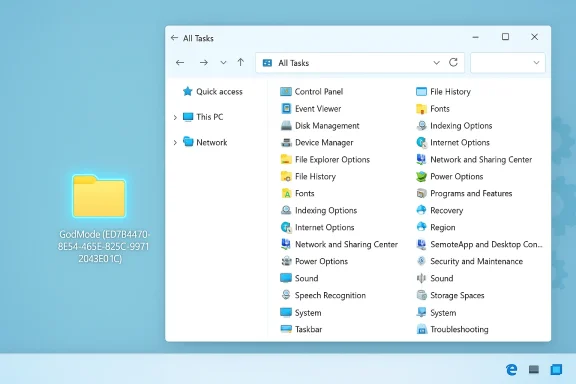
I unlocked God Mode in Windows 11 and what I found is less mystical and more useful than the name implies: it’s a built‑in Explorer shell trick that exposes a consolidated, alphabetized “All Tasks” view of Windows settings and Control Panel applets by using a special folder name that ends with the GUID {ED7BA470-8E54-465E-825C-99712043E01C}. This single-folder index doesn’t grant new privileges or hidden APIs — it simply aggregates shortcuts to hundreds of system controls in one searchable place, making deep configuration and troubleshooting faster for power users and IT pros.
The idea behind what the community calls God Mode goes back more than a decade: it leverages Windows’ GUID‑based shell namespaces (the same mechanism that renders This PC, Control Panel, and other special views) to present the All Tasks collection in an Explorer window. The trick first circulated widely in the Windows 7 era and continues to work in Windows 10 and Windows 11, though the exact contents you see depend on your OS build, installed components, device drivers, and any OEM or enterprise customizations.
At a technical level, Explorer recognizes folder names of the form Label.{CLSID} (a label followed by a Class ID GUID) and renders the associated virtual shell object instead of the folder’s file contents. The All Tasks object mapped to the GUID above aggregates administrative consoles, legacy Control Panel applets, and many Settings links into one long, searchable list. Because this is a shell view, actions that require elevation will still invoke User Account Control (UAC) as normal — God Mode does not bypass security.
Strengths:
Creating the folder on a test machine took under a minute, and the productivity payoff for a typical troubleshooting session was immediate: fewer clicks, faster searches, and less switching between Settings and legacy Control Panel dialogs. For curious tinkerers and seasoned admins alike, God Mode remains one of those small, cleverly engineered Windows features that is both harmless and genuinely useful when respected for what it is — a practical index, not a miracle.
Source: ZDNET I unlocked God Mode in Windows 11 with this text string - here's what it does
 Background / Overview
The idea behind what the community calls God Mode goes back more than a decade: it leverages Windows’ GUID‑based shell namespaces (the same mechanism that renders This PC, Control Panel, and other special views) to present the All Tasks collection in an Explorer window. The trick first circulated widely in the Windows 7 era and continues to work in Windows 10 and Windows 11, though the exact contents you see depend on your OS build, installed components, device drivers, and any OEM or enterprise customizations.At a technical level, Explorer recognizes folder names of the form Label.{CLSID} (a label followed by a Class ID GUID) and renders the associated virtual shell object instead of the folder’s file contents. The All Tasks object mapped to the GUID above aggregates administrative consoles, legacy Control Panel applets, and many Settings links into one long, searchable list. Because this is a shell view, actions that require elevation will still invoke User Account Control (UAC) as normal — God Mode does not bypass security.
What Windows 11 “God Mode” actually does
The essentials: an index, not a superuser hack
- Aggregates existing controls. Every item you find in God Mode already exists somewhere in Windows — God Mode simply lists them in one place. It does not add new capabilities or hidden OS features.
- Uses a shell namespace via a CLSID/GUID. Explorer maps the special GUID to the All Tasks view and renders that instead of a normal folder view.
- Honors UAC and permission boundaries. Tasks that require administrator rights still require elevation; God Mode is a convenience, not an exploit.
- Contents vary. The often‑cited “200+ items” figure is a reasonable heuristic for many machines, but it is not a fixed specification — installed apps, drivers, and Windows builds change the list. Treat “200+” as an approximate indicator, not a guarantee.
Why it remains useful in Windows 11
Windows 11 mixes modern Settings pages with older Control Panel applets. That split creates discoverability problems: some controls live in Settings, some in legacy applets, and some are accessible only via administrative consoles. God Mode reduces the friction of hunting for buried settings by presenting an alphabetical, searchable index that spans those interfaces, saving clicks and context switches during troubleshooting.How to enable God Mode in Windows 11 (step‑by‑step)
Below are safe, repeatable ways to create the All Tasks view. Use the numbered procedure for a desktop folder and the alternatives if you prefer a one‑time or scripted approach.- On a clean area of your Desktop, right‑click and choose New → Folder.
- Rename the new folder exactly to:
GodMode.{ED7BA470-8E54-465E-825C-99712043E01C} - Press Enter. The folder icon should change to a Control Panel–style icon. Double‑click the folder to open the All Tasks view.
- Create a shortcut with the target:
explorer.exe shell:::{ED7BA470-8E54-465E-825C-99712043E01C} - Open Run (Win + R) and paste:
explorer shell:::{ED7BA470-8E54-465E-825C-99712043E01C}
then press Enter to open the view immediately. - Programmatically create the folder via a command prompt using md (mkdir) with the same folder name format.
- You can replace “GodMode” with any friendly label — the GUID is what matters.
- Create the special folder on an empty desktop or in an empty folder. If you append the GUID to a folder that already contains files, Explorer will present the All Tasks view instead of your files (the files are not deleted, but they are hidden while the folder behaves as the namespace).
What you’ll find inside God Mode
Open the All Tasks view and you’ll see a large, alphabetized index of system tools and settings. Typical categories and examples include:- System administration and diagnostics:
- Event Viewer, Performance Monitor, Services, Task Scheduler, System Properties (Advanced settings).
- Storage and disk management:
- Disk Management, Disk Cleanup, Storage Spaces, BitLocker management.
- Device and driver management:
- Device Manager, driver installation utilities.
- Networking and security:
- Firewall and network adapter settings, Credential Manager.
- User and account settings:
- User Accounts controls, password reset disk creation, family & other users.
- File and display options:
- Folder Options, Indexing Options, Display calibration, Color Management.
- Troubleshooters and recovery:
- Recovery tools, System Restore, legacy Backup and Restore applets.
- Accessibility, sound, and peripherals:
- Mouse settings (pointer speed), Speech Recognition, Sound control panel.
Practical workflows and examples
Quick troubleshooting setup
- Create a God Mode folder on the Desktop and pin the most commonly used tools to the taskbar or Start.
- Use God Mode to open Device Manager, Event Viewer, and Disk Management during hardware troubleshooting.
- Create desktop shortcuts to the most used All Tasks entries by right‑clicking an item and choosing to create a shortcut where supported.
Example: change pointer speed in one search
- Open the God Mode folder.
- Type “pointer speed” into the search box.
- Launch the Pointer Options dialog directly — no need to navigate Settings → Bluetooth & devices → Mouse → Additional mouse settings. This saves several clicks and avoids hunting through mixed modern/legacy UIs.
Scripted access for IT teams
- Use a deployment script to create a desktop shortcut to explorer.exe shell:::{ED7BA470-8E54-465E-825C-99712043E01C} for technicians, or add the shell command to a maintenance toolkit to avoid cluttering end‑user desktops.
Benefits: why power users like God Mode
- Faster access to deep settings. One place to search instead of hunting through multiple menus.
- Reduced context switching. Fewer clicks and less cognitive load when troubleshooting or configuring systems.
- Scriptable and portable. You can create shortcuts or call the shell namespace from scripts and tools.
- Non‑destructive. Creating or deleting the folder does not change Windows functionality; it only creates or removes a shortcut view.
Risks, caveats, and security considerations
God Mode is largely harmless, but there are a few practical and security caveats to keep in mind:- Not a privilege escalation tool. Despite the dramatic name, God Mode does not bypass UAC or grant admin rights. Actions requiring elevation still prompt as usual. Treat this as a convenience interface, not a backdoor.
- Contents depend on build and components. Expect variability across devices; you may see fewer or different items on a stripped or enterprise‑locked system. The “200+ entries” figure is not guaranteed. Use caution when instructing others based on a specific list of items.
- Desktop folder confusion. If you create the special folder inside an existing folder that contains files, those files will be hidden by the namespace view while the folder behaves as All Tasks. Don’t append the GUID to a folder you need immediate access to unless you understand the effect.
- Enterprise policy and detection. Corporate environments with strict profiles or monitoring may flag unusual shell shortcuts or unauthorized admin tools. If you administer company machines, coordinate with IT policy before distributing God Mode shortcuts broadly.
- Misleading name fuels fear. The “God Mode” meme encourages sensationalism; document readers and novice users should be told clearly that this is a convenience view, not an exploit. Use cautionary language in user education.
Alternatives and complementary tools
God Mode is one way to access deep settings, but there are other tools and techniques that do the same job — sometimes more appropriately:- Settings search and Cortana/Windows search. Windows Search has improved and can find many Settings entries directly.
- Control Panel and Administrative Tools folder. The legacy Control Panel remains available for a subset of applets.
- PowerShell and Command Line. Many tasks can be scripted via PowerShell cmdlets (for example, Get‑NetAdapter, Set‑ItemProperty for registry keys, or disk partitioning commands).
- Microsoft PowerToys and third‑party launchers. These can provide faster, higher‑customizable access to tools and snippets.
- Explorer shell:::{CLSID} shortcuts. For those who dislike creating a folder, the shell:::{GUID} invocation is a clean, non‑persistent method to open the All Tasks view without modifying the desktop.
Troubleshooting tips
If God Mode doesn’t behave as expected, try these checks:- Icon didn’t change? Ensure the folder name includes the full GUID in braces and you pressed Enter. Try renaming again from a clean desktop location.
- Missing entries? Variation by build or lack of installed components can remove items from the index. Verify Windows build and ensure relevant features (e.g., BitLocker, Hyper‑V) are installed.
- Files “hidden” inside a folder? If you added the GUID to a folder that already contained files, the original contents are not deleted — the namespace view hides them. Delete the special folder to restore normal folder behavior (or recreate it with a different name and move files beforehand).
- Items won’t run or require elevation? That’s expected behavior: UAC will still prompt for elevated actions. If an item fails to launch, try running the corresponding tool directly as administrator.
- Corporate policy blocks it? Check with your IT admin; group policy or endpoint protection may prevent shell namespace shortcuts or block certain Control Panel applets.
Myth‑busting: what God Mode is not
- It is not a secret backdoor into Windows.
- It is not an exploit, privilege escalation, or hidden configuration panel that unlocks undocumented features.
- It is not a permanent change to Windows settings: creating or deleting the folder only adds or removes the namespace view without altering the underlying system.
Deployment recommendations for IT teams
If you manage multiple machines and want to standardize access to deep Windows settings, follow these recommendations:- Use a scripted shortcut rather than placing a GUID‑named folder on end‑user desktops. A script that creates a Start Menu or Tools folder shortcut to explorer.exe shell:::{ED7BA470-8E54-465E-825C-99712043E01C} is cleaner and avoids desktop clutter.
- Document which items are expected on your Windows build and maintain an internal KB mapping the All Tasks entries to supported procedures.
- Avoid distributing God Mode to nontechnical users; instead, extract the specific shortcuts and tools they need and deliver those via the Start Menu or taskbar policies.
- Audit and monitor for unusual tool distribution only if you have compliance or security reasons — remember that God Mode itself is just a shell view, but tools launched from it can perform administrative actions that should be logged and controlled.
Final assessment: practical, safe, and still relevant
God Mode in Windows 11 is a pragmatic, low‑risk productivity trick. It’s not a magic key, but it is an efficient index that helps power users, support technicians, and administrators find and launch deep system tools without memorizing nested menu paths.Strengths:
- Immediate discoverability of obscure controls.
- Cross‑surface aggregation across Settings, Control Panel, and admin consoles.
- Low friction to enable and remove.
- Variable contents across builds and devices mean it’s not a canonical inventory.
- Naming and placement pitfalls (appending the GUID to an occupied folder hides files).
- Potential administrative friction in enterprise environments if deployed thoughtlessly.
Creating the folder on a test machine took under a minute, and the productivity payoff for a typical troubleshooting session was immediate: fewer clicks, faster searches, and less switching between Settings and legacy Control Panel dialogs. For curious tinkerers and seasoned admins alike, God Mode remains one of those small, cleverly engineered Windows features that is both harmless and genuinely useful when respected for what it is — a practical index, not a miracle.
Source: ZDNET I unlocked God Mode in Windows 11 with this text string - here's what it does
