

The safest way to “download Google Play Store” is usually not to download anything at all. On supported Android phones and tablets, the Play Store is a licensed system component that arrives preinstalled; on compatible Chromebooks, it is enabled through ChromeOS settings. Treating it like an ordinary APK download can turn a simple missing-app problem into a security, compatibility, or account-integrity problem.
That distinction matters because a web search for a Google Play Store download often produces convincing but risky results: APK repositories, file mirrors, modified-package guides, “latest version” download buttons, and instructions intended for rooted devices or custom ROMs. Some may package a legitimate-looking file; others may distribute altered software, bundle unwanted components, or encourage changes that leave a device outside Google’s certified ecosystem.
For most people, the practical answer is straightforward: open, repair, update, re-enable, or verify the Play Store that belongs on the device already. If the device was never designed to include Google Play, a third-party Play Store APK is not the supported solution.
Google Play Store is more than a storefront icon. It operates alongside other Google components, including Google Play services, account authentication, device compatibility checks, licensing, app delivery, and security protections. Installing one APK file does not necessarily recreate that environment.
On a supported Android device, the Play Store normally ships as part of the manufacturer’s approved software image. It may receive updates over time, but its presence depends on the device being built and certified for Google Mobile Services. That is why the safest Google Play Store installation method is fundamentally different from downloading a game, browser, or social-media app.
A Chromebook follows a separate model. ChromeOS can offer Google Play Store support on compatible devices, but the service is turned on through the operating system rather than installed through a random Android package. Not every Chromebook supports Android apps, and organization-managed machines may have the feature disabled by policy.
For a Windows PC or Mac, the difference is even more important. Google Play’s website can help manage app installations for compatible Android devices linked to a Google Account, but it does not provide a Play Store installer for standard Windows or macOS computers. A browser can browse the catalog and send an installation request to an eligible device; it cannot convert a PC into an Android handset with the full Play Store.
Some Android launchers also allow apps to be hidden. If the app is missing from the visible Home screen but appears in the complete app list, restore its shortcut rather than attempting a reinstall.
This method has several advantages:
This approach matters because it preserves the device’s intended signing chain, version compatibility, and update channel. It also avoids a common issue with third-party APKs: installing a version that does not match the device architecture, Android release, regional configuration, or existing system signature.
It is sensible to connect to Wi-Fi, ensure the battery has adequate charge, and back up important data before a large system update. Older devices may not be eligible for current Android releases, so the latest available update is determined by the manufacturer, carrier, and model—not by a generic Play Store download.
The exact Android menu varies by manufacturer, but the usual path resembles:
Before doing so, confirm that contacts, photos, files, authenticator access, and any other essential data are backed up or accessible. Account problems can also result from selecting the wrong Google Account in a multi-account setup, so verify the profile currently active in Play Store before removing anything.
To check it on a device with Play Store access:
Possible underlying causes include:
Turning off Play Protect does not solve a certification issue. In fact, security prompts that demand Play Protect be disabled are a significant warning sign.
Even where an APK is genuine, it may not be appropriate for the device. The package could be outdated, intended for a different configuration, or unable to replace the system version due to signature restrictions.
The danger increases when instructions ask users to:
For a phone used for work, school, financial services, healthcare portals, or family accounts, the small convenience of an unofficial install is rarely worth the longer-term uncertainty.
Before starting, update ChromeOS. Then use the following path:
A managed Chromebook is not a case for sideloading. Organizational policies can control whether the Play Store is available, which Android apps are permitted, and whether installations are blocked. The appropriate resolution is for the school or IT administrator to enable Android apps or approve the particular app needed.
The Play Store also applies to the user account that initially enabled it. On shared Chromebooks, account setup and policy restrictions can affect which users can access Android apps.
The supported alternatives depend on the task:
This distinction is particularly relevant for productivity tools, social networks, streaming services, and financial apps. A browser or official Windows client usually offers better keyboard support, notifications, window management, security integration, and update reliability than an unofficial Android workaround.
The most reliable path is therefore also the least dramatic: open the existing Play Store, update it from its own settings, repair it through Android’s app controls, keep the operating system updated, and confirm Play Protect certification. If those official paths do not work, the underlying issue is likely device eligibility, system modification, or administrative policy—not a missing APK download.
Avoiding third-party Google Play Store APKs protects more than the Play Store itself. It preserves the integrity of the device, the security of the Google Account, the reliability of future updates, and the trustworthiness of every app installed afterward.
That distinction matters because a web search for a Google Play Store download often produces convincing but risky results: APK repositories, file mirrors, modified-package guides, “latest version” download buttons, and instructions intended for rooted devices or custom ROMs. Some may package a legitimate-looking file; others may distribute altered software, bundle unwanted components, or encourage changes that leave a device outside Google’s certified ecosystem.
For most people, the practical answer is straightforward: open, repair, update, re-enable, or verify the Play Store that belongs on the device already. If the device was never designed to include Google Play, a third-party Play Store APK is not the supported solution.
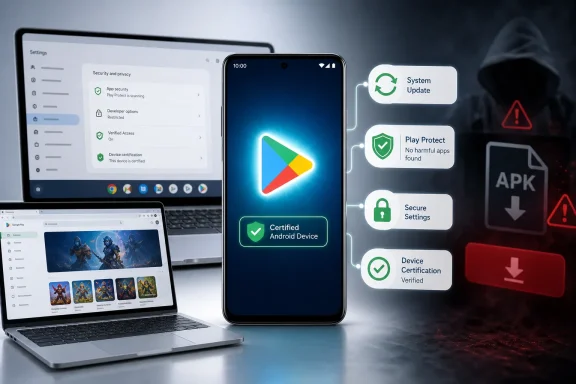 Why Google Play Store Is Different From a Normal App Download
Google Play Store is more than a storefront icon. It operates alongside other Google components, including Google Play services, account authentication, device compatibility checks, licensing, app delivery, and security protections. Installing one APK file does not necessarily recreate that environment.On a supported Android device, the Play Store normally ships as part of the manufacturer’s approved software image. It may receive updates over time, but its presence depends on the device being built and certified for Google Mobile Services. That is why the safest Google Play Store installation method is fundamentally different from downloading a game, browser, or social-media app.
A Chromebook follows a separate model. ChromeOS can offer Google Play Store support on compatible devices, but the service is turned on through the operating system rather than installed through a random Android package. Not every Chromebook supports Android apps, and organization-managed machines may have the feature disabled by policy.
The crucial distinction: app installation versus Play Store installation
It is easy to confuse these two tasks:- Installing an Android app means getting a specific application onto a compatible Android device or Chromebook.
- Installing Google Play Store means adding or restoring part of the device’s Google-certified software environment.
For a Windows PC or Mac, the difference is even more important. Google Play’s website can help manage app installations for compatible Android devices linked to a Google Account, but it does not provide a Play Store installer for standard Windows or macOS computers. A browser can browse the catalog and send an installation request to an eligible device; it cannot convert a PC into an Android handset with the full Play Store.
The Official Safe Paths to Google Play
The correct route depends on what is actually wrong. A missing icon, a store that will not open, an outdated version, and a device that was never certified are not the same problem.Open the Play Store already installed on Android
Start with the simplest possibility: the Play Store may still be on the device, just not on the Home screen.- Open the Apps screen or app drawer.
- Search for Google Play Store.
- Tap the Play Store icon.
- Sign in with the intended Google Account if prompted.
Some Android launchers also allow apps to be hidden. If the app is missing from the visible Home screen but appears in the complete app list, restore its shortcut rather than attempting a reinstall.
Use Google Play in a web browser to install apps remotely
If the real goal is downloading an app, not repairing the store itself, the web version of Google Play is the safest alternative. Sign in to the same Google Account used on a supported Android phone, tablet, or Chromebook, find the app, select the appropriate linked device, and choose Install.This method has several advantages:
- It avoids APK downloads altogether.
- It shows whether the app is compatible with the selected device.
- It helps confirm that the correct Google Account is in use.
- It supports remote installation to eligible Android devices and Chromebooks.
- It allows users to compare app listings, reviews, download counts, permissions information, and developer details before installing.
How to Update Google Play Store Safely
When Google Play Store is present but acting unusually, an update may be available. The safest update path is built into the Play Store app itself.- Open Google Play Store.
- Tap the profile icon in the upper-right corner.
- Select Settings.
- Open About.
- Under Play Store version, tap Update Play Store.
- Confirm the prompt if one appears.
This approach matters because it preserves the device’s intended signing chain, version compatibility, and update channel. It also avoids a common issue with third-party APKs: installing a version that does not match the device architecture, Android release, regional configuration, or existing system signature.
Update Android, not just the storefront
An outdated operating system can contribute to Play Store instability, compatibility problems, and security exposure. On many Android devices, the standard update route is:- Open Settings.
- Tap System.
- Select Software update or System update.
- Follow the on-screen instructions.
It is sensible to connect to Wi-Fi, ensure the battery has adequate charge, and back up important data before a large system update. Older devices may not be eligible for current Android releases, so the latest available update is determined by the manufacturer, carrier, and model—not by a generic Play Store download.
Fix a Broken Google Play Store Without an APK
A Play Store crash, blank screen, repeated “pending” download, or failure to load does not automatically mean the store must be reinstalled. In many cases, routine maintenance restores normal behavior.Start with the low-risk checks
Before changing app data or account settings, work through the basics:- Restart the phone or tablet.
- Confirm that Wi-Fi or mobile data is working reliably.
- Check available storage space.
- Verify that date and time are set automatically.
- Install available Android system updates.
- Open the Play Store and attempt its built-in update process.
Clear cache and data carefully
Clearing Play Store cache is a common response to download and loading problems. Clearing data is more disruptive but can help when cached information or local settings become corrupted.The exact Android menu varies by manufacturer, but the usual path resembles:
- Open Settings.
- Select Apps or Apps & notifications.
- Find Google Play Store.
- Open Storage or Storage & cache.
- Choose Clear cache.
- If problems continue, choose Clear storage or Clear data.
Reset Play Store updates
If the store opens but continues to misbehave, removing its updates can return it to the version originally supplied with the phone. It can then update itself again through Google Play’s normal channel.- Locate Google Play Store in the Home screen or app drawer.
- Touch and hold the icon.
- Tap App info.
- Open the More menu, usually represented by three dots.
- Select Uninstall updates.
- Confirm the action.
- Reopen Google Play Store.
- Go to Profile icon > Settings > About.
- Tap Update Play Store.
Revisit account issues only after backup considerations
If the Play Store cannot authenticate or continues to show account-related errors, removing and adding the Google Account again may help. This is a more consequential step because account removal can temporarily remove synced items and locally stored information from the device.Before doing so, confirm that contacts, photos, files, authenticator access, and any other essential data are backed up or accessible. Account problems can also result from selecting the wrong Google Account in a multi-account setup, so verify the profile currently active in Play Store before removing anything.
Check Play Protect Certification Before Trying Workarounds
Play Protect certification is one of the most important checks when the Google Play Store is absent or unreliable. Certification is not the same as the Play Protect malware-scanning feature; it is a device-status determination tied to Android compatibility and licensed Google apps.To check it on a device with Play Store access:
- Open Google Play Store.
- Tap the profile icon.
- Select Settings.
- Open About.
- Review the Play Protect certification status.
What an uncertified-device warning can mean
A “Device is not certified” message should not be treated as a prompt to hunt for a newer Play Store APK. It is a compatibility and security signal.Possible underlying causes include:
- An unlocked bootloader.
- A rooted device.
- A modified or custom Android operating system.
- Missing or outdated Google Play services.
- A device that was never certified for Google Mobile Services.
- An unofficial firmware build.
- A poorly supported imported device or gray-market handset.
Turning off Play Protect does not solve a certification issue. In fact, security prompts that demand Play Protect be disabled are a significant warning sign.
Why Third-Party Google Play Store APK Downloads Are a Bad Bet
Third-party APK sites often appear because users need an immediate answer: the store is gone, an app says an update is required, or a device setup guide seems incomplete. The problem is that “Google Play Store APK” is not a universal repair package.The technical risk
A Play Store package must coexist with the Android version, Google Play services, device framework, security model, and system signatures already in place. A generic APK can fail to install, crash, stop updating, or create confusing errors if those dependencies do not line up.Even where an APK is genuine, it may not be appropriate for the device. The package could be outdated, intended for a different configuration, or unable to replace the system version due to signature restrictions.
The security risk
A fake or modified Play Store download can be far more dangerous than a broken storefront. A malicious package can imitate the Google brand while asking for intrusive permissions, pushing ads, harvesting credentials, installing unwanted software, or pressuring the user to disable security features.The danger increases when instructions ask users to:
- Enable Install unknown apps or allow unknown sources.
- Disable Google Play Protect.
- Turn off Android security warnings.
- Install multiple unfamiliar framework packages.
- Grant accessibility permissions to an installer.
- Sign in to a Google Account within an app that is not visibly authentic.
- Root the device or unlock its bootloader without understanding the consequences.
The supportability risk
A third-party installation may appear successful but leave the device in an unsupported state. Future Play Store updates can fail. Google apps may become unstable. Banking and enterprise applications may block access. A factory reset may remove the workaround entirely.For a phone used for work, school, financial services, healthcare portals, or family accounts, the small convenience of an unofficial install is rarely worth the longer-term uncertainty.
Enabling Google Play Store on a Chromebook
On compatible Chromebooks, Google Play Store can be enabled through ChromeOS. It should not be installed from an APK file.Before starting, update ChromeOS. Then use the following path:
- Select the time in the bottom-right corner.
- Open Settings.
- Select Apps.
- Choose Manage Google Play preferences.
- Select More in the setup window.
- Follow the on-screen steps and accept the Terms of Service.
When the option is missing
If Manage Google Play preferences does not appear, the Chromebook likely does not support Android apps. It can also indicate that the device is managed by a school or workplace, or that the administrator has restricted Android app access.A managed Chromebook is not a case for sideloading. Organizational policies can control whether the Play Store is available, which Android apps are permitted, and whether installations are blocked. The appropriate resolution is for the school or IT administrator to enable Android apps or approve the particular app needed.
Chromebook caveats worth knowing
Android apps on ChromeOS are useful, but they are not identical to their phone versions. An app may be unavailable, incompatible, poorly scaled, or limited by keyboard, mouse, storage, camera, or location behavior.The Play Store also applies to the user account that initially enabled it. On shared Chromebooks, account setup and policy restrictions can affect which users can access Android apps.
What Windows Users Should Do Instead
Windows users frequently encounter Google Play download pages while trying to run a mobile-only app on a laptop or desktop. The official Google Play website can browse Android software and send installations to compatible devices, but the Play Store app itself is not a normal Windows application.The supported alternatives depend on the task:
- Use the service’s official Windows application if one exists.
- Use the service’s official website in Microsoft Edge, Google Chrome, or another browser.
- Use the Microsoft Store for Windows-native apps.
- Use a compatible Android phone, tablet, or Chromebook for the mobile version.
- Consider official vendor-supported desktop solutions rather than unverified Android emulators and APK bundles.
This distinction is particularly relevant for productivity tools, social networks, streaming services, and financial apps. A browser or official Windows client usually offers better keyboard support, notifications, window management, security integration, and update reliability than an unofficial Android workaround.
A Practical Safe-Download Checklist
Before searching for any Google Play Store package, run through this checklist.- Identify the device. Is it a supported Android phone or tablet, a compatible Chromebook, a Windows PC, a Mac, a Fire tablet, or a modified Android device?
- Look for the existing store. Search the full app list before assuming it was uninstalled.
- Use the official browser store for app installs. If the goal is simply to get an Android app, use Google Play in a browser and target a linked compatible device.
- Update from inside the store. Use Settings > About > Update Play Store rather than downloading an APK.
- Apply system updates. Keep Android or ChromeOS current through the device settings.
- Repair before reinstalling. Restart, verify connectivity, free storage, clear Play Store cache, and reset updates if needed.
- Check certification. Review Play Protect certification before attempting advanced actions.
- Avoid unknown-source Play Store packages. A generic APK cannot reliably fix a device that lacks Google certification or required system components.
- Do not disable security controls to force an installation. Treat requests to turn off Play Protect, permit unknown sources, or grant unusual permissions as serious red flags.
- Escalate to the device maker, carrier, or administrator. This is the right next step when the Play Store is missing from a supported device, certification fails, or a managed Chromebook blocks Android apps.
The Bottom Line
A safe Google Play Store download in 2026 is usually a matter of using the software and recovery tools already built into a supported device. Android phones and tablets that support Google Play should have the store preinstalled; compatible Chromebooks should enable it through ChromeOS settings; and Windows or Mac computers should use their native app ecosystems rather than trying to force a mobile storefront onto a desktop operating system.The most reliable path is therefore also the least dramatic: open the existing Play Store, update it from its own settings, repair it through Android’s app controls, keep the operating system updated, and confirm Play Protect certification. If those official paths do not work, the underlying issue is likely device eligibility, system modification, or administrative policy—not a missing APK download.
Avoiding third-party Google Play Store APKs protects more than the Play Store itself. It preserves the integrity of the device, the security of the Google Account, the reliability of future updates, and the trustworthiness of every app installed afterward.