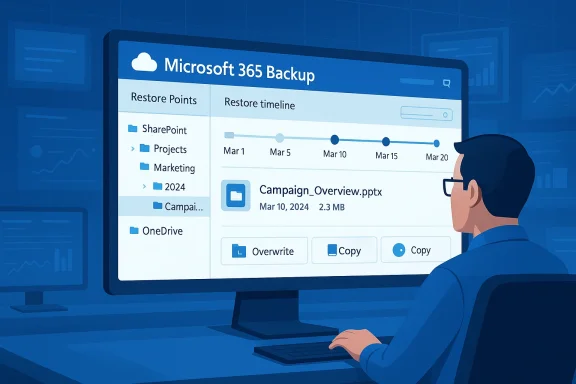
Microsoft is rolling out a long-awaited upgrade to its native backup offering: granular, file- and folder-level restore for Microsoft 365 Backup, a change that promises to shrink recovery times, simplify incident response, and reduce reliance on third‑party recovery workflows for OneDrive and SharePoint data.
Microsoft introduced Microsoft 365 Backup over the past two years as a native, tenant-integrated recovery option for Exchange, OneDrive, and SharePoint data. The service was designed to close the gap between the platform’s high-availability guarantees and the practical needs of IT teams responding to customer-side incidents—ransomware, mass deletions, or accidental overwrites—by providing longer retention, faster restore speed at scale, and an admin-directed restore experience.
Early Microsoft documentation positioned the offering as a complement to the baseline 14‑day native recoverability in Microsoft 365, extending retention to one year for backed-up content and offering high-frequency recovery points for Exchange and short-term, high-frequency restore points for file workloads. Until now, that capability was focused primarily on bulk or site-level restore operations rather than single-file recovery.
At Ignite and in product blog updates, Microsoft signalled a roadmap that included several recovery-focused improvements: departmental billing, GCC availability, and—critically—folder/file-level restore. In the most recent tenant-facing message, Microsoft began inviting admins to public preview for the granular restore experience, with the company outlining a staged rollout to tenants worldwide.
Key aspects of the capability:
That said, the feature is not a silver bullet: it requires careful role management, updated runbooks, and an integration of security checks to avoid accidental reinjection of compromised content. Organizations should treat the preview as an opportunity to test workflows, tighten privileged access, and align compliance requirements before moving critical recovery responsibilities to the native toolset.
For everyday incidents—accidental deletions, small-scale corruption, or targeted file recoveries—this capability will change the calculus for many IT teams. For complex legal, archival, or cross-tenant retention needs, third‑party solutions will continue to play an important role. The practical course for most organizations will be hybrid: embrace Microsoft 365 Backup’s new granular restore for routine recoveries while retaining ISV options for specialized retention and compliance scenarios.
Administrators should begin preparing now: confirm tenant eligibility, train backup operators, update runbooks, and enable monitoring to ensure that this shift improves not only mean time to recovery, but also the safety and auditability of every restore action.
Source: Windows Report https://windowsreport.com/microsoft-to-add-granular-file-restore-to-microsoft-365-backup/
 Background
Microsoft introduced Microsoft 365 Backup over the past two years as a native, tenant-integrated recovery option for Exchange, OneDrive, and SharePoint data. The service was designed to close the gap between the platform’s high-availability guarantees and the practical needs of IT teams responding to customer-side incidents—ransomware, mass deletions, or accidental overwrites—by providing longer retention, faster restore speed at scale, and an admin-directed restore experience.Early Microsoft documentation positioned the offering as a complement to the baseline 14‑day native recoverability in Microsoft 365, extending retention to one year for backed-up content and offering high-frequency recovery points for Exchange and short-term, high-frequency restore points for file workloads. Until now, that capability was focused primarily on bulk or site-level restore operations rather than single-file recovery.
At Ignite and in product blog updates, Microsoft signalled a roadmap that included several recovery-focused improvements: departmental billing, GCC availability, and—critically—folder/file-level restore. In the most recent tenant-facing message, Microsoft began inviting admins to public preview for the granular restore experience, with the company outlining a staged rollout to tenants worldwide.
What Microsoft is adding: granular file/folder restore explained
What “granular restore” means in practice
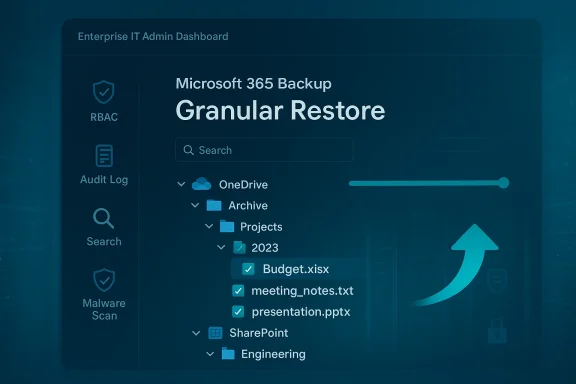
The new functionality allows administrators to browse existing Microsoft 365 Backup restore points and search or navigate into a site's snapshot to locate and restore individual files or folders. Instead of restoring an entire SharePoint site collection or OneDrive drive and then extracting the target item, IT staff will be able to select just the objects they need and restore them in place or to an alternate location.Key aspects of the capability:
- Browse and search restore points for OneDrive accounts and SharePoint sites.
- Selective recovery of individual files or entire folders from a chosen point-in-time snapshot.
- Restores are performed by administrators and respect existing backup policies and retention settings.
- Restore actions are auditable and gated by role-based permissions; only admins with the appropriate backup role may initiate restores.
Supported workloads and scope
The granular restore functionality is explicitly scoped to the file workloads: SharePoint and OneDrive. Exchange, while still covered by Microsoft 365 Backup for mailbox and item recovery, continues to follow separate restore flows and role requirements. Microsoft’s product messaging and documentation make the distinction clear: the file-level browse/search/restore workflow targets SharePoint and OneDrive restore points.Timeline and availability
Microsoft’s public product messaging and tenant Message Center updates track the timeline for preview and general availability:- Roadmap posts and Ignite announcements designated folder/file-level restore as a planned capability and marked it for public preview.
- Tenant Message Center notifications indicate the feature began rolling into public preview in early March 2026, with Microsoft recommending customers prepare admins and runbooks for the change.
- Microsoft’s communications forecast a global general availability window in late April to early May 2026, subject to the usual change-control caveats and tenant-stage rollouts.
Technical specifics and operational details
Retention, frequency and restore speed context
Microsoft 365 Backup is built to provide extended retention and fast bulk recovery:- The service offers up to one year of retention for backed-up Exchange, OneDrive and SharePoint content—much longer than the platform’s default short window.
- Backup frequency is high for Exchange (near-continual points every ~10 minutes) and more frequent for OneDrive/SharePoint in the short term, then moving to scheduled weekly snapshots for longer-term retention windows.
- Microsoft has published performance guidance showing bulk restore at scale can reach multiple terabytes per hour for tenant-sized operations; file-level restores will operate differently (smaller object scope, lower throughput needs) but benefit from the same underlying restore architecture.
Admin roles and access control
Access to the new file-level restore flow requires specific administrative permissions. Microsoft emphasizes the SharePoint Backup Administrator (or equivalent backup role) as the permission boundary for these operations. That means:- End users will not be able to initiate these restores through their personal OneDrive UI.
- Only administrators who have been granted the backup role can browse restore points and perform file restores.
- Audit logging and multi-admin notification settings can help surface unusual restore activities and provide necessary governance.
Integration points and workflows
The granular restore functionality is surfaced through the Microsoft 365 Admin Center Backup experience and can be managed alongside existing Backup and Archive tools. Microsoft’s messaging indicates:- Restore operations will respect existing backup policies (no change to how data is stored or to retention).
- Admins can choose to restore in-place (overwrite or merge) or to alternative locations depending on the scenario.
- The feature complements multi-admin notifications and the Backup discovery features in SharePoint admin pages to make it easier to find unprotected content and respond quickly.
Practical implications for IT teams
Faster, less disruptive recovery
Arguably the most immediate benefit is time and disruption saved. Single-file recovery eliminates the need for a time-consuming site- or drive-level restoration, which often requires:- Restoring an entire site or drive to a recovery location.
- Exporting or copying the target object back into production.
- Reconciling permissions and metadata.
Reduced reliance on third-party tools (and what that means)
For years, many organizations relied on third-party backup vendors to get true file-level recovery in Microsoft 365. Native granular restore reduces that dependency for a growing set of recovery scenarios. That does not eliminate the third-party backup market—ISVs still provide broader coverage (e.g., additional workload support, different retention models, cross-tenant tools, or specialized legal hold integrations)—but this change can reduce the number of routine restores handled via external tooling.Operational and governance changes
Administrators should plan for:- Role reviews to ensure only the right staff have SharePoint Backup Administrator privileges.
- Runbook updates so the new restore steps are correctly documented and tested.
- Training for backup admins to use the browsing/search UI and understand restore behaviors (merge vs overwrite, metadata/permission handling).
- Testing of restore-to-location and in-place restore flows in a controlled environment before relying on them during incidents.
Security, compliance, and risk considerations
Privilege management and insider risk
A powerful, easy-to-use restore feature raises the stakes for privileged admin accounts. Organizations must:- Enforce strict least-privilege assignments and use privileged access workstations or Just-In-Time elevation for high-risk restore roles.
- Enable multi-admin notifications and monitoring to detect suspicious restore activity quickly.
- Leverage advanced auditing and retention of audit logs (Purview/Audit Premium where required) if the organization needs long-term forensic trails.
Ransomware and reintroduction risk
File-level restores are efficient, but they can also reintroduce compromised files if the restore source contains malware. Best practices to mitigate this risk:- Scan restored content with enterprise anti‑malware solutions post-restore.
- Use quarantined restore locations (restore to a holding library) to validate files before reintroducing them into production.
- Couple restore procedures with incident-response playbooks that include forensic review and malware scanning.
Data residency and regulatory constraints
Microsoft has designed Microsoft 365 Backup with residency and compliance in mind, and the Archive/Backup architecture claims immutable storage and audit trails for governance. Nevertheless, regulated entities should:- Confirm Backup and Archive availability for their specific cloud instance (commercial vs GCC vs GCC‑High) and understand any differences in feature timelines.
- Validate that role-based access, retention policies, and audit logs meet their regulatory requirements before depending on the native restore flow for compliance-related recoveries.
Limitations and caveats administrators should know
- The granular restore functionality is available only to tenants that have Microsoft 365 Backup enabled. Tenants relying solely on the underlying platform’s native 14‑day recoverability will not have access to the one‑year, point-in-time restore snapshots Microsoft 365 Backup provides.
- Restore operations are admin‑driven. End users cannot self-serve file-level restores through their standard OneDrive UI; this remains an administrator responsibility.
- Exchange item-level workflows continue to be distinct. While Exchange is covered by Microsoft 365 Backup, mailbox and message-level recovery paths remain tied to mailbox restore tooling and Exchange-specific restore semantics.
- Microsoft’s staged rollout means not every tenant receives the capability on the same day. The public preview and GA windows are tenant‑phased, so planning and testing should account for the possibility of delayed availability in some environments.
How this affects the backup vendor ecosystem
Third-party backup vendors have long marketed deep, feature-rich granular recovery for Microsoft 365 workloads as a core differentiator. Native file-level restore narrows that gap for many common recovery scenarios, but the market implications are nuanced:- Vendors that focus on extended retention, cross‑platform portability, and specialized compliance features will still hold value for customers with those requirements.
- ISVs that offer platform-agnostic snapshots, exportable archives, or flexible storage targets (S3, local vaults) will continue to differentiate on storage choice and mobility.
- Backup vendors can pivot to complementary value propositions: ransomware detection, immutable storage across clouds, eDiscovery integrations, advanced retention policies, and stronger recovery automation.
Recommended action checklist for administrators
- Confirm whether your tenant has Microsoft 365 Backup enabled and check eligibility for the public preview. If you do not have the service enabled, evaluate the protection gap versus your recovery SLAs.
- Monitor the Message Center for your tenant for the specific Message ID referenced in Microsoft’s rollout (the message outlines preview and GA timing and tenant-specific rollout instructions).
- Conduct a role audit:
- Identify who currently holds SharePoint and Backup admin roles.
- Apply least-privilege principles and require a separation of duties for restore operations where possible.
- Update recovery runbooks to include the granular restore steps, decision trees (in-place vs. restore-to-holding location), and malware scanning checkpoints.
- Run a restore test:
- Use a non-production site or test tenant to exercise file- and folder-level restores.
- Validate permissions, metadata preservation, and post-restore behavior in target locations.
- Enable multi-admin notifications and retention of audit logs so that all restore activities are recorded and surfaced to security teams.
- Coordinate with legal/compliance teams to confirm that the new restore flows meet regulatory obligations around data preservation, auditability, and data residency.
- Re-assess third-party vendor contracts in light of the native capability—identify scenarios where ISV capabilities are still required and where they can be reduced.
A balanced assessment: strengths and potential risks
Strengths
- Efficiency: Administrators gain a far faster path to recover individual items, lowering mean time to recovery.
- Simplicity: A built-in option reduces process complexity and the number of tools required in routine incident responses.
- Integration and governance: Restores happen inside the tenant boundary, preserving Microsoft’s audit, RBAC and data-residency guarantees.
- Scale-ready: Backed by Microsoft’s restore architecture, the feature aligns with the platform’s large-scale bulk restore performance while optimizing for small-object restores.
Risks and limitations
- Privileged access risk: Powerful restore capabilities make proper role and privilege hygiene imperative.
- Malware reintroduction: Restoring from a point-in-time snapshot without pre-restore scanning can reintroduce compromised content.
- Feature cadence variability: Microsoft’s staged rollout model means not all tenants will receive the preview or GA at the same time; reliance on the feature should consider availability windows.
- Not a full replacement for all third-party capabilities: ISVs still offer differentiated features—cross-tenant portability, specialized retention models, or coverage for services beyond Microsoft’s native scope.
What to watch next
- Adoption metrics and admin feedback during the preview will be telling: look for concrete data on restore success rates, time-to-restore for single files, and any unexpected behavior around metadata and permissions.
- Protection of shared libraries and Teams‑backed channels. Microsoft’s roadmap suggests continued improvements across Backup and Archive—admins should watch for expanders that simplify Teams, Groups, and shared channel recoveries.
- Security integrations: tighter coupling between backup restores and Defender/Microsoft Purview scanning would materially reduce the malware reintroduction risk. Any announcement that embeds post‑restore scanning or quarantine workflows would be a significant win.
- Billing and policy controls: Microsoft has signalled departmental billing and more policy granularity in its roadmap; those items will affect cost allocation and operational governance later in the year.
Conclusion
Microsoft’s introduction of granular file and folder restore to Microsoft 365 Backup is a practical, long-needed enhancement for enterprise recovery operations. For administrators, it promises to speed up recoveries, simplify playbooks, and reduce some of the friction that has led many organizations to lean on third-party tools for routine file recoveries.That said, the feature is not a silver bullet: it requires careful role management, updated runbooks, and an integration of security checks to avoid accidental reinjection of compromised content. Organizations should treat the preview as an opportunity to test workflows, tighten privileged access, and align compliance requirements before moving critical recovery responsibilities to the native toolset.
For everyday incidents—accidental deletions, small-scale corruption, or targeted file recoveries—this capability will change the calculus for many IT teams. For complex legal, archival, or cross-tenant retention needs, third‑party solutions will continue to play an important role. The practical course for most organizations will be hybrid: embrace Microsoft 365 Backup’s new granular restore for routine recoveries while retaining ISV options for specialized retention and compliance scenarios.
Administrators should begin preparing now: confirm tenant eligibility, train backup operators, update runbooks, and enable monitoring to ensure that this shift improves not only mean time to recovery, but also the safety and auditability of every restore action.
Source: Windows Report https://windowsreport.com/microsoft-to-add-granular-file-restore-to-microsoft-365-backup/