

Microsoft’s “Hey Copilot” wake word brings hands‑free AI to Windows 11: enable it, speak a prompt, and Copilot will answer, act, or walk you through tasks without a single keystroke.
Microsoft’s Copilot has evolved from a sidebar chat helper into a system‑level assistant in Windows 11, and the addition of the “Hey Copilot” wake word is the clearest signal that voice is becoming a first‑class input on the desktop. The voice wake feature is opt‑in, requires the Copilot app to be running, and only works while the PC is powered on and unlocked. Microsoft’s documentation and Insider posts describe a hybrid technical model: a small on‑device wake‑word “spotter” listens locally, holding a very short in‑memory audio buffer, and full speech transcription and reasoning happen in the cloud unless the device supports enhanced on‑device inference. Why this matters: voice lowers the barrier for accessibility, speeds quick lookups while you’re doing something else, and lets you keep both hands on the keyboard or mouse during multitasking. The trade‑offs involve privacy, cloud dependency, and hardware fragmentation—matters this guide addresses with clear steps, verification, and practical advice.
Microsoft’s “Hey Copilot” is a carefully designed step toward conversational, multimodal desktop computing: it’s useful, powerful, and intentionally opt‑in, but it brings real questions about cloud dependency, hardware tiers, and enterprise governance. For individuals, the feature is straightforward to enable and useful for hands‑free workflows; for IT teams, it demands careful piloting and clear policies. Use the checklist above to enable, test, and govern Copilot voice safely, and keep an eye on Microsoft’s official Copilot documentation and Insider blog posts as the feature continues to roll out and expand.
Source: Guiding Tech How to Enable and Use “Hey Copilot” in Windows 11 for Voice Commands
 Background
Microsoft’s Copilot has evolved from a sidebar chat helper into a system‑level assistant in Windows 11, and the addition of the “Hey Copilot” wake word is the clearest signal that voice is becoming a first‑class input on the desktop. The voice wake feature is opt‑in, requires the Copilot app to be running, and only works while the PC is powered on and unlocked. Microsoft’s documentation and Insider posts describe a hybrid technical model: a small on‑device wake‑word “spotter” listens locally, holding a very short in‑memory audio buffer, and full speech transcription and reasoning happen in the cloud unless the device supports enhanced on‑device inference. Why this matters: voice lowers the barrier for accessibility, speeds quick lookups while you’re doing something else, and lets you keep both hands on the keyboard or mouse during multitasking. The trade‑offs involve privacy, cloud dependency, and hardware fragmentation—matters this guide addresses with clear steps, verification, and practical advice. Quick summary: what Hey Copilot does
- Wake‑word activation: Say “Hey Copilot” to open a floating microphone overlay and begin a voice conversation with Copilot.
- Opt‑in and running requirement: The feature is off by default and must be enabled in Copilot’s Settings; Copilot must be running (open, minimized, or background) and the PC must be unlocked.
- Local spotting + cloud reasoning: A local spotter keeps a transient audio buffer (commonly reported as ~10 seconds). Only after wake detection is audio transmitted for cloud processing.
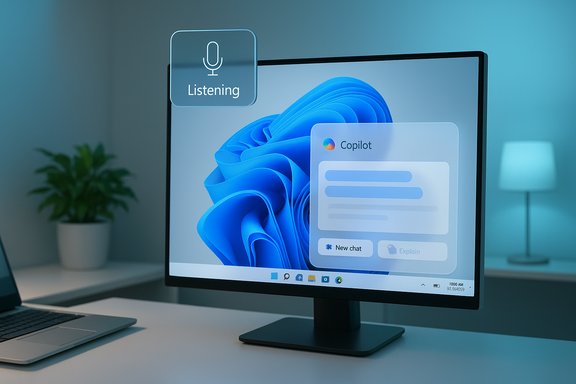
- Visual and audible confirmation: When triggered, Copilot plays a chime and presents an on‑screen floating microphone that shows it is listening. End the session by saying “Goodbye,” tapping the X, or letting it time out.
How to enable “Hey Copilot” in Windows 11
Follow these steps to enable voice activation and verify microphone permissions. These directions reflect Microsoft’s official guidance and community testing.- Open Copilot
- Press Windows + C to open Copilot or click the Copilot icon on the taskbar. If Copilot isn’t visible, search for “Copilot” in Start.
- Open Copilot Settings
- Click your profile/avatar in the lower‑left corner of the Copilot sidebar, then choose Settings.
- Turn on voice wake‑word
- Under Voice mode, toggle Listen for “Hey, Copilot” to start a conversation to On. The option is off by default.
- Check microphone permissions (Windows)
- Open Settings → Privacy & security → Microphone and confirm Copilot is allowed to use the microphone. If Copilot does not have permission, wake‑word detection may fail.
- Test the wake word
- With the PC unlocked and Copilot app running, say “Hey Copilot.” You should hear a chime and see the voice overlay. If nothing happens, confirm the app is updated (Copilot app versions introducing the feature were distributed in staged rollouts) and that your display language and region meet the rollout criteria.
Quick checklist (one‑minute)
- Copilot app installed and updated.
- Feature toggled on in Copilot Settings.
- Microphone access allowed in Windows Settings.
- PC unlocked and running (not sleep or locked).
Troubleshooting common problems
Copilot doesn’t hear “Hey Copilot”
- Confirm Copilot is running (open, minimized, or background). If the app is closed, the local spotter won’t be active.
- Verify microphone permissions: Settings → Privacy & security → Microphone → ensure Copilot is toggled on.
- Update Copilot: Some builds roll out features in stages. Ensure your Copilot app is at the latest version per Microsoft Store updates.
- Language and region: Early rollouts trained the wake word on English display language; make sure your Windows display language matches supported languages when testing.
Microphone in use indicator shows even when idle
- If you enable listen‑for wake but the app is running, Windows will show Copilot as potentially using the microphone because the spotter is active in memory. This is expected behavior and is part of Microsoft’s transparency cues.
False activations or privacy concerns
- Microsoft says the wake‑word spotter operates locally in a short in‑memory buffer and that audio is only transmitted after wake detection. If you’re concerned, keep the feature disabled and use typed input to Copilot instead. Enterprises can also use Group Policy or registry controls to disable Copilot at scale.
What you can ask Copilot by voice (practical examples)
Copilot’s voice features are broad and useful across productivity, creativity, and system control. Below are practical categories and example commands you can use after “Hey Copilot.” These examples reflect documented capabilities and real‑world tests reported by reviewers.- Rapid answers and research
- “Hey Copilot, summarize this webpage”
- “Hey Copilot, what’s the definition of [term]?”
- File and content control
- “Hey Copilot, open my latest draft and add a summary paragraph”
- “Hey Copilot, extract the table from this PDF and save it to Excel.”
- Task management and scheduling
- “Hey Copilot, draft an email to the team summarizing today’s meeting”
- “Hey Copilot, add a reminder for Friday at 3 PM to follow up on invoices.”
- Screen‑aware help (with Copilot Vision and permission)
- “Hey Copilot, show me where to change the audio output in Spotify” (Copilot can highlight UI elements after permission is granted).
- Accessibility and dictation
- Use Copilot for hands‑free document editing, composing text messages, or reading content aloud.
Privacy and security considerations
“Hey Copilot” is engineered as a hybrid model: the wake‑word detector runs locally, while the heavy lifting occurs in the cloud. That split is designed to balance responsiveness and privacy, but it has specific implications users and IT teams should understand.Key technical privacy claims and what they mean
- On‑device spotter with a short buffer: Microsoft documents the spotter keeps a small in‑memory buffer (commonly reported as ~10 seconds) to capture context around the wake phrase. That buffer is not written to disk and is discarded unless the wake word triggers a session. After activation, buffered audio and follow‑on speech are sent for cloud transcription and reasoning. This means the device is not continuously streaming audio to Microsoft’s servers, but once you invoke Copilot your speech will be transmitted.
- Visual/audible cues: A floating microphone UI and chime indicate active listening; Windows also shows a system tray indicator when the microphone is in use. These design elements are meant to increase transparency.
- Cloud dependence: Many responses require server‑side models. If you want to minimize data leaving the device, be aware that only certain on‑device inference is possible on Copilot+ hardware with powerful NPUs; most consumer devices will send data to cloud models.
Practical privacy tips
- Keep wake word disabled in shared or sensitive environments. Use typed input if you prefer not to transmit voice.
- Review Copilot’s account and permission prompts before granting access to cloud connectors or file actions. Actions that write to files or access cloud services should be explicitly audited and tracked.
- Enterprises should enforce policies: use Group Policy or registry entries to restrict Copilot features where necessary; uninstall or hide the app in locked environments.
Copilot+ hardware and performance: what “40+ TOPS” means
Microsoft is distinguishing “Copilot+” PCs—machines with dedicated Neural Processing Units (NPUs)—from standard Windows machines. The commonly cited threshold for Copilot+ devices is NPUs rated at 40+ TOPS (trillions of operations per second). That hardware enables more inference locally, lowering latency and keeping more processing on the device for privacy‑sensitive tasks. For most users on typical laptops and desktops, Copilot will rely on cloud services for the heavy reasoning tasks. Practical takeaway: the voice wake‑word itself is lightweight and runs locally on all supported devices, but the complexity of the response (and whether it runs locally or in the cloud) depends on your device’s hardware and Microsoft’s routing decisions.Enterprise and administration guidance
Organizations must weigh convenience against governance. Microsoft supplies multiple layers of control for administrators who want to limit or manage Copilot behavior in managed fleets. Options include taskbar hiding, Group Policy, registry keys, and removing the Copilot app from images. These are appropriate for security‑conscious deployments or regulated environments.- Taskbar control: Personalization → Taskbar → toggle Copilot off to remove the visible button.
- Group Policy: User Configuration → Administrative Templates → Windows Components → Windows Copilot Policy: Turn off Windows Copilot. This is suitable for managed devices.
- Registry: Registry keys exist for scripting removal or disabling; Microsoft documents and community guides record keys for both per‑user and machine scope. Always backup the registry before changes.
Power‑user tips and advanced workflows
Use voice in combination with Vision and Actions
When Copilot Vision is allowed to see a window or screen region, you can combine voice prompts with visual context: “Hey Copilot, highlight the Save As option” or “Hey Copilot, extract this table.” The session is permissioned and session‑bound—Copilot will ask before it accesses screen content.Keyboard fallback for noisy environments
If ambient noise prevents reliable wake‑word detection, use Copilot’s keyboard shortcuts (e.g., Copilot key on supported keyboards or Windows + C to open Copilot) to open voice chat manually, or use typed prompts. Some builds also provide long‑press shortcuts for voice activation.Fine‑tune microphone selection
If you have multiple input devices, choose the preferred microphone inside Windows Settings or when Copilot prompts. This avoids misrouting audio from an inactive input like a webcam or Bluetooth headset.Limitations and realistic expectations
- The wake word only works when the PC is unlocked; Copilot will not activate on a locked machine. This reduces risk but limits quick “from sleep” interactions.
- Full conversational understanding and actions typically require cloud connectivity. If you’re frequently offline, expect degraded or no responses.
- Rollout is staged; not all devices and regions will receive the feature simultaneously. If the toggle doesn’t appear, update your Copilot app and confirm your channel/region.
- Language support for the wake word started with English; availability across other languages is expanding but may lag.
Frequently asked questions (concise answers)
- Is Hey Copilot always listening?
- No. The device runs a local wake‑word spotter in memory; full audio is transmitted only after the wake word is detected.
- Will Copilot work if I’m offline?
- Wake‑word detection runs locally, but most responses and reasoning require internet access; offline recognition may attempt to connect and then fail.
- Can Copilot act on my files or accounts automatically after I say “Hey Copilot”?
- Not unless you grant permissions. Copilot Actions are permissioned and experimental. When enabled, Copilot will show the steps it will take and request consent.
- How do I turn it off completely?
- Toggle off the wake‑word in Copilot Settings, hide Copilot from the Taskbar, or use Group Policy / registry or uninstall the app for stricter control.
Critical analysis — strengths, risks, and recommendations
Strengths
- Accessibility and productivity: Voice reduces friction for users with mobility limitations and speeds short, multitasking queries. This is a meaningful usability win for many workflows.
- Transparent UI signals: Audible chimes, floating overlays, and the system microphone indicator help users know when the assistant is listening. This is a solid design choice for trust.
- Permissioned multimodality: Copilot Vision and Actions require explicit consent and session‑bound sharing, limiting persistent surveillance concerns and offering practical, contextual help.
Risks and gaps
- Cloud dependency and data flows: Despite local wake‑word spotting, the rest of the voice session typically goes to cloud models, which may raise concerns for sensitive content. Enterprises must evaluate data residency and compliance implications.
- Hardware fragmentation: Copilot+ hardware gets the best latency/privacy profile; ordinary devices will rely on cloud processing. This creates unequal experiences and may push upgrades.
- False activations and ambient noise: Any wake‑word system can be triggered accidentally; while UI cues help, accidental activations remain a usability and privacy nuisance in shared settings.
Recommendations
- Individuals: enable the wake word only if you need hands‑free interaction; otherwise use typed Copilot. Verify microphone permissions and test in a quiet environment first.
- Administrators: pilot Copilot in controlled groups, establish logging and revocation policies for Actions, and use Group Policy to enforce limits as needed.
- Microsoft and vendors: continue to expand on‑device inference where feasible, and increase transparency around what audio and screen content is stored or transmitted. Independent reviews and enterprise audits should be encouraged.
Final checklist and next steps
- Update Copilot via Microsoft Store and Windows Update.
- Enable Listen for “Hey Copilot” inside Copilot Settings if you want hands‑free voice.
- Verify microphone permission in Settings → Privacy & security.
- Test in quiet conditions, then try practical prompts: summaries, file edits, or screen‑aware help (if you enable Vision).
Microsoft’s “Hey Copilot” is a carefully designed step toward conversational, multimodal desktop computing: it’s useful, powerful, and intentionally opt‑in, but it brings real questions about cloud dependency, hardware tiers, and enterprise governance. For individuals, the feature is straightforward to enable and useful for hands‑free workflows; for IT teams, it demands careful piloting and clear policies. Use the checklist above to enable, test, and govern Copilot voice safely, and keep an eye on Microsoft’s official Copilot documentation and Insider blog posts as the feature continues to roll out and expand.
Source: Guiding Tech How to Enable and Use “Hey Copilot” in Windows 11 for Voice Commands
